






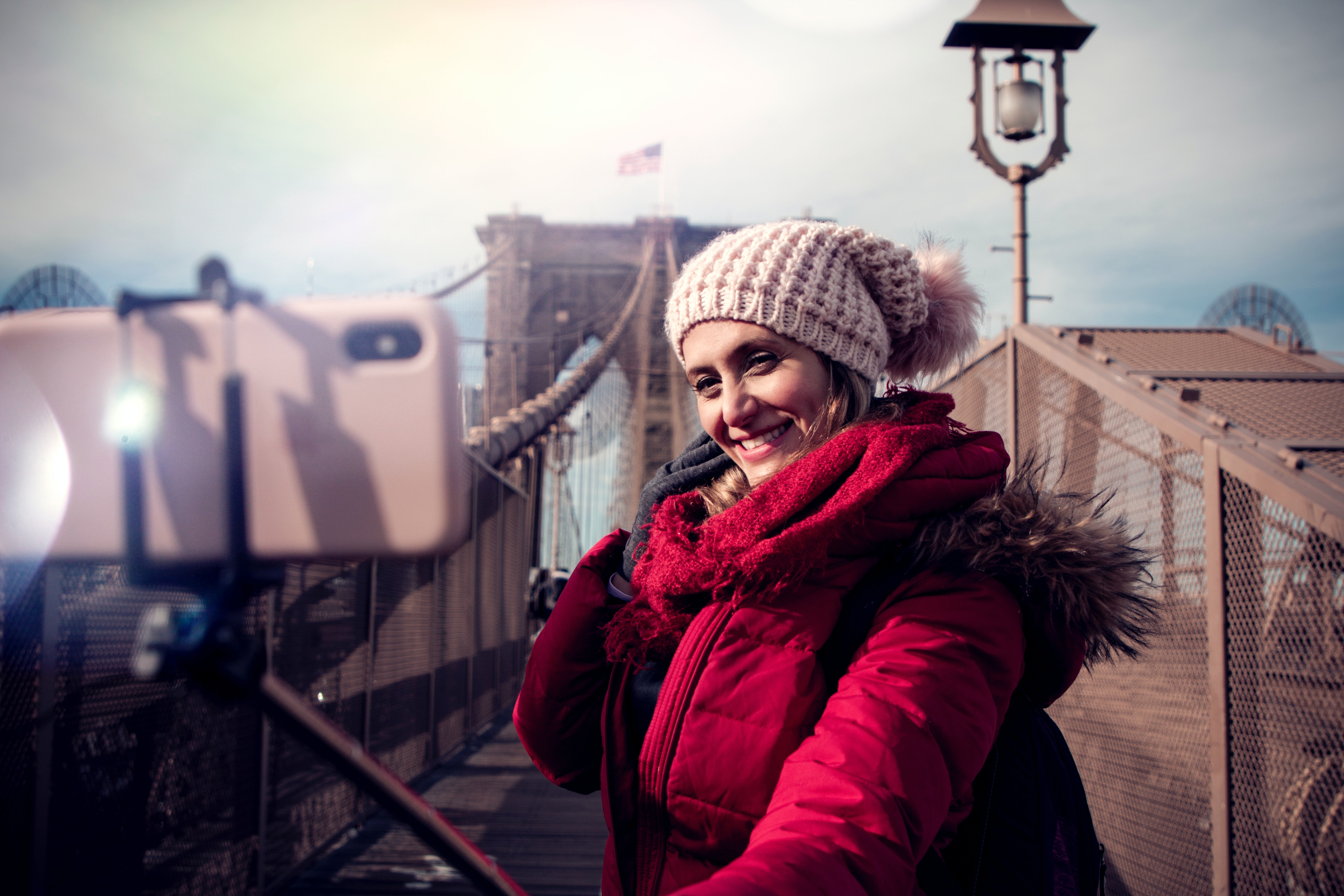
Understand how to use a selfie stick
Learning how to use a selfie stick starts with a clear definition: it is simply a handheld extension that holds your phone farther away so the built-in camera app can frame wider shots. Understanding how the basic parts of the selfie stick work prevents a lot of early frustration. A wired model plugs into your headset or charging port, and its handle button triggers the shutter exactly like a volume-key press. A Bluetooth version needs to be paired first. On an iPhone, you open Settings > Bluetooth, put the accessory in discovery mode, and tap it to connect, making sure the stick is charged and close to the phone. Once paired, the remote sends a shutter command, but it does not stream a live preview, so you still compose the shot on your screen before stepping back. If a Bluetooth remote only adjusts volume instead of capturing a photo, a common fix is to open Settings > Sound & Haptics and turn off Change with Buttons. On Android, many camera apps let you assign the volume keys as a shutter, often through Camera > Settings > Volume Keys > Shutter, though the exact menu name varies by app. If you are hoping to get a selfie stick in stores, check the package carefully before you buy.
Attach your camera securely
Getting your camera physically stable on the pole is the step that determines whether your shot stays level or slowly droops sideways mid-recording. For a phone, extend the clamp slowly so the spring-loaded jaws grip the middle of the handset without pinching the volume or power buttons, which prevents unwanted restarts or volume overlays in your footage. To mount GoPro to selfie stick, you can fold out the camera’s built-in mounting feet and slide them directly into a compatible mounting buckle on the stick’s head, though some GoPro models have 1/4-20 standard tripod mounting threads that let you thread the camera directly onto a tripod-threaded screw. Once the camera is fixed, do a quick wrist-rotation test to confirm nothing shifts, because even a tiny wobble at the base becomes a large arc of shake at full extension. For setups where you want to eliminate that shake entirely, you can use a gimbal to keep the phone level and pan smoothly even when the pole is angled far from your body; balance the arm until the phone stays level when powered off.
Pair and start shooting
Once your phone or camera is physically locked into the mount, the next task is waking up the wireless link. The Bluetooth remote only sends a shutter command and does not stream a live preview. You must compose your shot directly on your screen before stepping away. If you are holding an Atumtek model, you can turn on your phone’s Bluetooth and wake the remote control. Then look for “ATUMTEK” in the available devices list and tap to connect. Should the pairing stall, pressing the remote button quickly and repeatedly often forces the handshake to complete. Clearing out old Bluetooth pairings first resolves most stubborn failures. For those who need a connect atumtek selfie stick refresher, remember that a long-press of the camera button for two seconds until a green light flashes is the standard discovery trigger on many versions of the hardware. Once paired, a single press of the handle button captures a still or starts a recording. Some Android phones require you to visit the camera settings and manually assign the volume key function to “take a picture” before the remote will respond correctly. If you want a step by step guide for beginners.
If you are extending a GoPro instead of a phone, the companion app may serve as your viewfinder and control panel. Navigating the initial pairing screens and permission prompts before you head outside is part of the setup process. The steps may vary by model. This establishes the link that handles preview and settings changes. For those working with a different brand of pole, a quick connect Yunteng selfie stick sequence may start by waking the Bluetooth remote and pairing it from the phone’s settings menu. After that, the shutter button operates the native camera app just like any other wireless trigger.

















