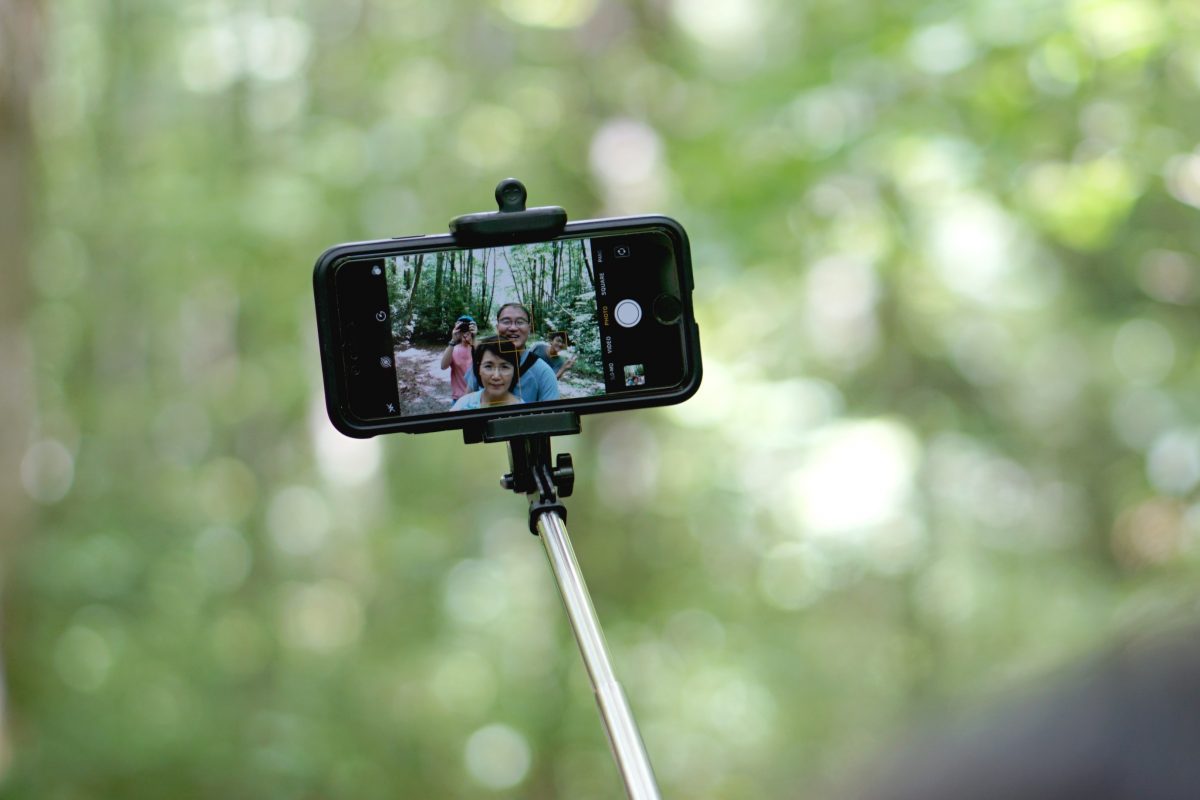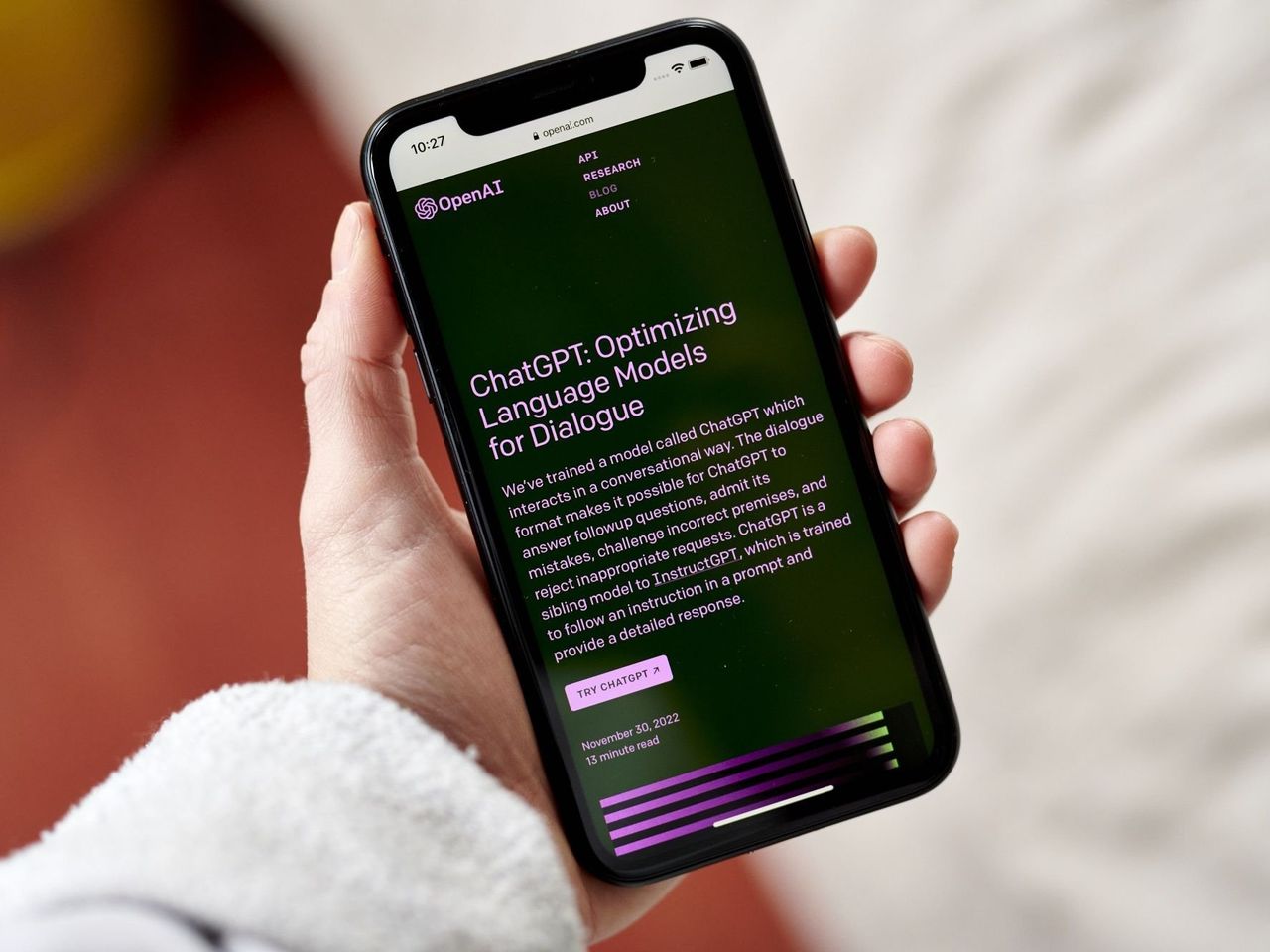
ChatGPT video chat lets you show the AI your surroundings through your phone's camera during an Advanced Voice conversation, turning a voice call into a live, visual interaction. You can start a ChatGPT video chat on both iPhone and Android by opening the mobile app, beginning a Voice conversation, and tapping the camera button to share live video.
What is ChatGPT video chat?
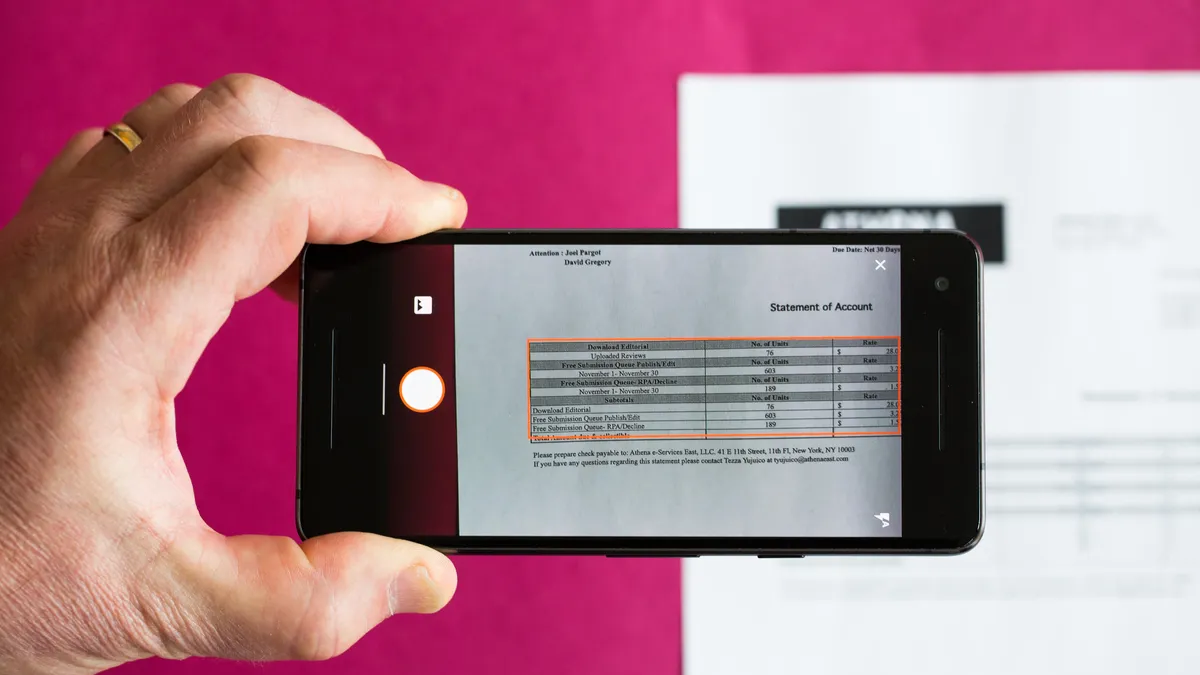
ChatGPT's live video feature is part of Advanced Voice mode in the mobile app. Instead of only speaking to the AI, you can point your phone's camera at an object, a room, or a document, and the AI will see and react to what you show it in real time. It works as a hands-free voice conversation where the AI can describe what it sees, answer questions about your surroundings, or help you troubleshoot a problem visually.
How to start a ChatGPT video chat on iPhone and Android
- Open the ChatGPT app on your iPhone or Android device.
- Start a Voice conversation by tapping the voice icon.
- During the conversation, tap the camera button to begin sharing live video from your phone's camera.
- To stop sharing video, tap the camera button again.
That is the complete process. No additional settings or permissions beyond the standard camera access are needed. The video feed streams directly to ChatGPT, and the AI continues to listen and respond while it sees your camera view.
How to share your screen with ChatGPT
Screen sharing works alongside live video in the same Advanced Voice conversation. To share your screen instead of your camera:
- During a Voice conversation, open the more-options menu (the three-dot or plus icon).
- Tap Share Screen.
- Follow the device prompts to grant screen recording permission.
- To stop, return to the ChatGPT app and tap the screen-sharing control again, or use your device's own screen-sharing controls. You can also stop from the device's own screen-sharing controls.
This lets ChatGPT see your phone's display, useful for reviewing an app, walking through a form, or getting help with settings. It is a separate feature from live video, though both are accessed from the same Voice conversation.
What a ChatGPT video chat looks like
The experience is a hands-free voice conversation. You speak naturally, and the AI responds by voice while your camera feed is visible in a small window on the screen. There is no typing or tapping needed once the video is active. The AI can describe what it sees in real time, for example, identifying a plant in your kitchen, reading a label, or explaining how to assemble furniture. The interface shows your live camera view, the AI's voice waveform, and controls to stop video or switch to screen sharing. It feels like a video call with an assistant that can actually look at the world through your eyes.
Who can use ChatGPT video chat and where
ChatGPT video chat and screen sharing are available to eligible subscribers. OpenAI has rolled out the feature to most Plus and Pro users, as well as Team subscribers. There are regional exclusions: the feature is not available in the European Union, Switzerland, Iceland, Norway, and Liechtenstein at this time. Android app version 1.2026.216 or later is required. The feature works in the ChatGPT iOS and Android apps when using Advanced Voice. No carrier-specific requirements are documented, and it is not described as a standard carrier service.
Limits and things to know
Video and screen sharing are subject to daily usage limits for all plans. OpenAI does not publish exact daily caps or plan-specific quotas on the cited help pages. Additionally, image uploads are subject to ChatGPT vision message limits. This means that if you send a photo in the same session, it uses the same pool of vision messages as your live video feed. The exact device model list, an iPhone OS minimum version, and precise daily limits are not stated in OpenAI's documentation. The feature is not available in every region, and the rollout continues to expand.
Frequently Asked Questions
Can I use ChatGPT video chat on any device?
It works on iPhones and Android phones running the ChatGPT app with Advanced Voice. There is no documented minimum iOS version on the cited help pages. Android requires version 1.2026.216 or later. It is not available on desktop or web browsers.
How do I stop the video without ending the voice call?
Tap the camera button again during the conversation to stop sharing live video. The voice call continues. For screen sharing, tap the screen-sharing control in ChatGPT or use your device's own screen-sharing controls.
What is the difference between video chat and screen sharing?
Video chat shows the AI your phone's camera view, your surroundings. Screen sharing shows the AI your phone's display, what is on your screen. Both are accessed during an Advanced Voice conversation but serve different purposes: one for real-world objects, the other for digital content.
Does ChatGPT video chat work with TV casting and streaming apps?
No. The feature is designed for the ChatGPT mobile app's camera and screen sharing.
Why can't I see the camera button in my ChatGPT app?
The camera button appears only after you start a Voice conversation. If you do not see it, check that you are using the latest version of the app and that you are in a supported region. Plus, Pro, or Team subscription is required.
Related reading: 11 Best Watermark Remover Apps for Android and iPhone Photos, What Is Napster?, and 15 Best Gender Swap Apps for Android and iOS (Free and Working).