To be a better phone salesman, you need to master the call screening tools built into modern smartphones. Using features like Apple’s Ask Reason for Calling and Google’s Screen call lets you qualify leads before you even pick up, saving your time for serious buyers and giving you a structured opening to build rapport.
How to be a better phone salesman with call screening
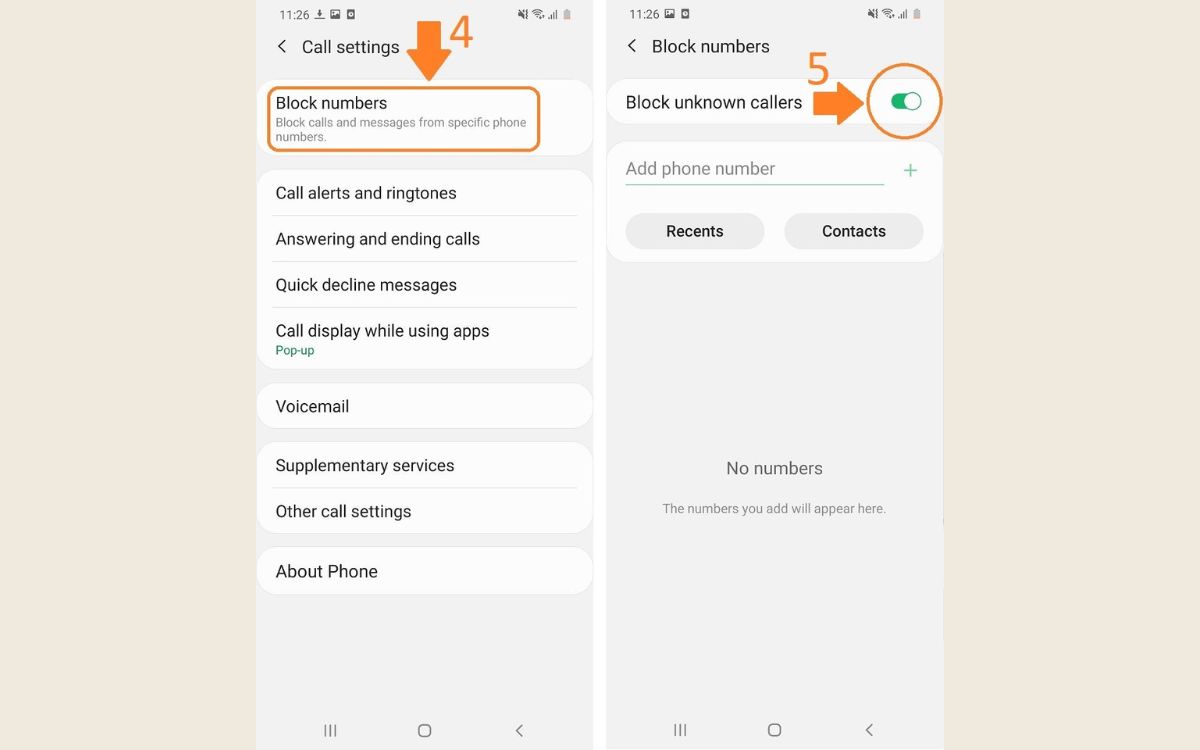
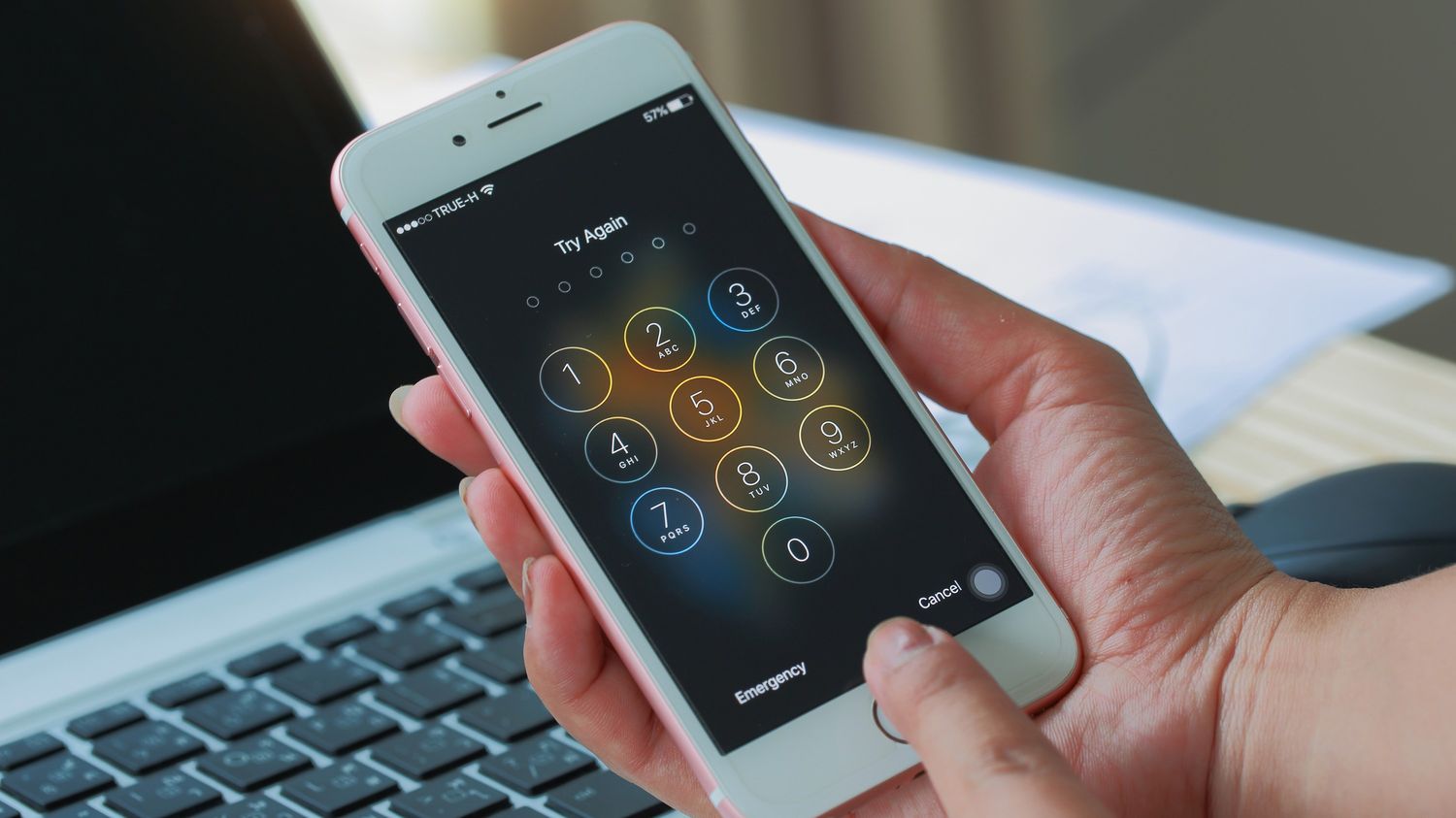
Call screening helps you decide which calls deserve your full attention. On iPhone, go to Settings > Apps > Phone > Screen Unknown Callers, then choose Ask Reason for Calling. This forces unsaved numbers to state their purpose before your phone rings. On Android, open the Phone app, tap More > Settings > Spam and Call Screen or Call Screen, then turn on Call Screen. When a call comes in, tap Screen call to have the app ask the caller who they are and why they are calling. You can then pick up, use suggested replies, hang up, or report spam. Using these screening tools ensures you only invest time in prospects who have already shown intent. Apple says Live Voicemail must be turned on to use call screening on iOS versions earlier than iOS 17.
Building rapport with customers from the first word
Both Apple’s Ask Reason for Calling and Google’s Screen call force a short opening exchange before the live conversation starts. Use this forced exchange to your advantage: when you pick up, greet the caller by name and state your purpose clearly. This immediate personalization builds trust. General rapport-building tips include using the customer’s name throughout the call, showing empathy, and maintaining a positive, enthusiastic tone. Smile while you speak, it changes your voice and makes the interaction feel warmer.
Active listening and effective communication during calls
Google’s manual screening flow shows the caller’s response as it is spoken, and the caller is told you will get a copy of the conversation. You can choose suggested replies during screening, which supports short, structured responses. Apple’s Live Voicemail shows the caller’s spoken words on the screen in real time, letting you read the message as it is recorded. Use these tools to listen actively without interrupting. On calls, use verbal cues like “I see” or “I understand,” ask open-ended questions, and paraphrase the customer’s concerns to confirm your understanding. This shows you value their input and helps you tailor your pitch.
Mastering product knowledge for mobile phones
Knowing the exact settings for call screening builds credibility with tech-savvy buyers. Apple documents Screen Unknown Callers under Settings > Apps > Phone, and FaceTime has a separate Silence Unknown Callers setting under Settings > Apps > FaceTime. On Android, automatic call screening is under Phone app > More > Settings > Spam and Call Screen or Call Screen. Google’s Phone app help confirms that Call Screen is part of Call Assist and also helps filter detected spammers. When a customer asks how to set up screening, you can walk them through these steps without hesitation. This deep knowledge of cell phone facts and usage positions you as a trusted advisor who understands the device inside out.
Overcoming objections and handling rejections
The explicit choices in Apple’s and Google’s screening options mirror how you handle objections. Google’s manual screening options include Pick up the call, Use suggested replies, Hang up, and Report the call as spam, each is a clear decision point. Apple’s options for unsaved numbers are Never, Ask Reason for Calling, or Silence, making the handling choice explicit. When a customer objects, acknowledge their concern and offer a tailored solution. If they reject your offer, use the structure of screening to turn the rejection into a follow-up opportunity: if the call goes to voicemail, Apple’s Live Voicemail transcribes the message while it is recorded, so you can respond later with a personalized callback. Stay positive and follow up consistently, circumstances change, and a past rejection can become a future sale.
Frequently Asked Questions
Which iPhone models support Ask Reason for Calling?
Apple’s help pages for call screening do not list specific supported iPhone models. Check your device’s settings under Settings > Apps > Phone to see if the option is available. Most recent iPhone models running iOS 17 or later include this feature.
Which Android devices support Google’s Call Screen?
Google’s help pages do not list specific supported Android devices. Call Screen is available on many Pixel phones and select Android models through the Google Phone app. Open the Phone app and check Settings > Spam and Call Screen to see if the feature is present.
Does call screening work when I am roaming?
Apple states that when you are roaming, phone calls are not screened, regardless of your settings. If you are traveling internationally, expect screening to be disabled until you return to a home network.
Will call screening affect my ability to call emergency services?
Apple documents that call screening turns off for 24 hours after you call emergency services. This ensures emergency calls and follow-up calls are not delayed by screening. After 24 hours, screening resumes as normal.
Does call screening use data or incur extra charges?
Apple documents that call screening may involve standard calling and data rates. Check your carrier plan for any applicable charges. Google’s help pages do not list a limit on how many calls can be screened, but standard data rates may apply for the transcription feature.
For the wider topic, see cell phone facts and usage.
Related reading: How to Block Calls and Numbers on Any Phone and How To Block Calls With Consumer Cellular.