You can change snooze time on iPhone 11 by opening the Clock app, tapping Alarms, then tapping an alarm and turning on Snooze before selecting a duration. This setting lets you replace the default snooze interval with a custom delay that better fits your morning routine.
How to change snooze time on iPhone 11
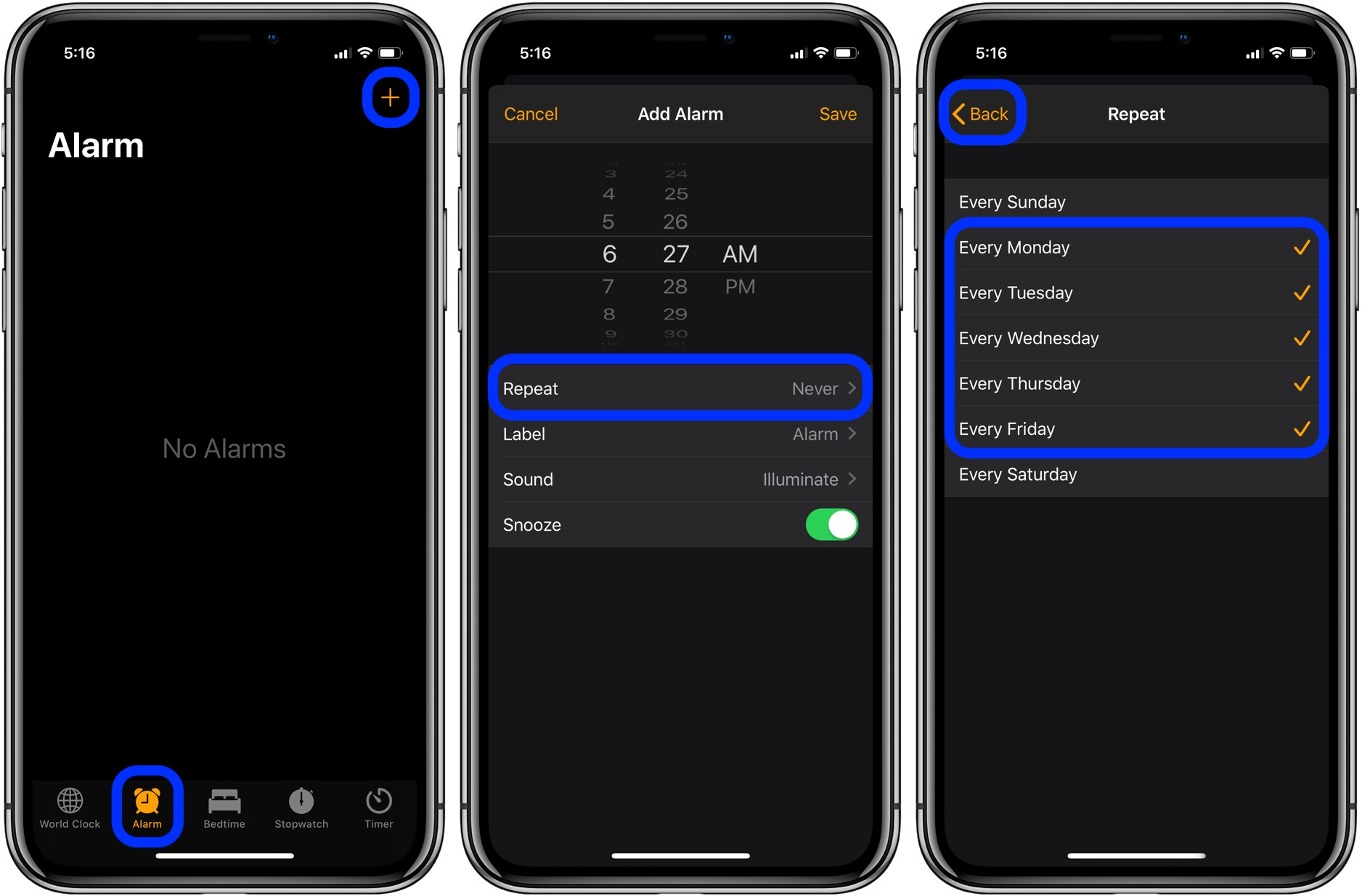
Apple documents a Snooze Duration setting that works on iPhone 11 running a current iOS version. The exact step-by-step path is:
- Open the Clock app (found by navigating home screen and apps or using search).
- Tap Alarms at the bottom of the screen.
- Tap Edit or tap an existing alarm you want to modify.
- Turn on the Snooze toggle. This is a critical prerequisite: the Snooze Duration option only appears after Snooze is enabled.
- Tap Snooze Duration and choose how long to pause the alarm.
- Tap Save to confirm the change.
Apple does not list the specific snooze-duration choices in its support text, so the available options will appear on your device after you enable Snooze. On Android, the default snooze is 10 minutes when you tap Snooze on an alarm. To change it, go to Clock app > More > Settings > Alarms > Snooze length. On Android, Volume buttons can control snooze behavior.
Setting different snooze times for specific alarms
Snooze Duration works per alarm, not as a global setting. This allows you to set a shorter snooze for your weekday work alarm and a longer one for weekend alarms. The Health wake-up alarm also supports this setting, so you can customize snooze duration for that alarm as well. Apple's guide explicitly supports changing Snooze Duration while editing a particular alarm, meaning each alarm can have its own delay where the option is shown.
Testing your new snooze duration
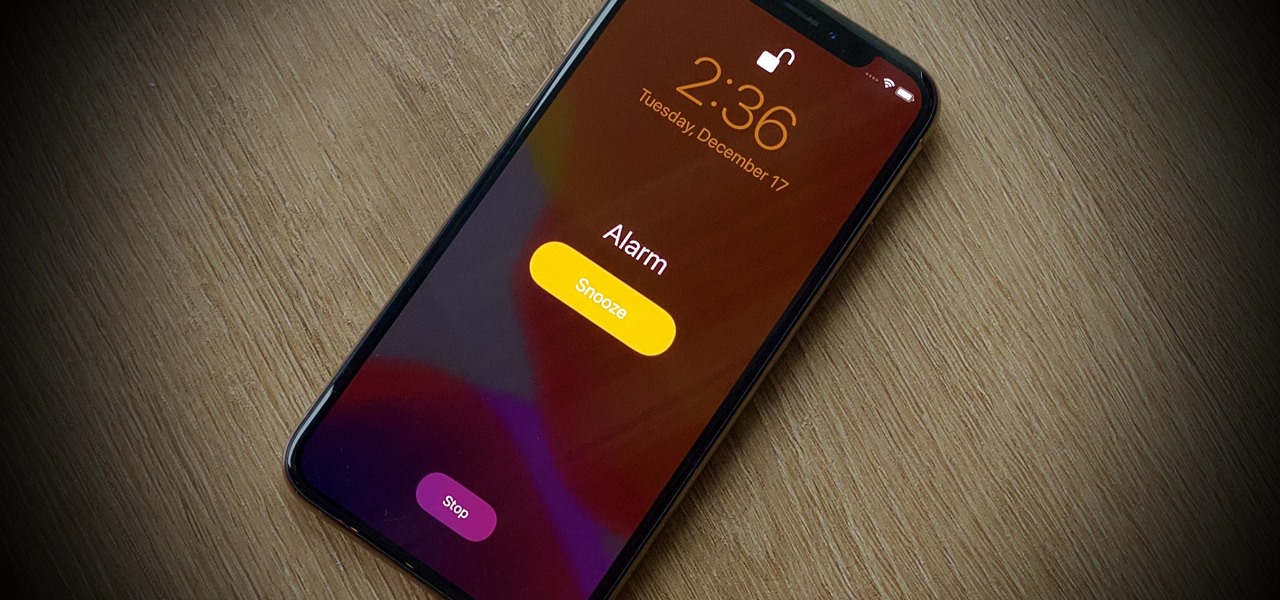
The only documented verification method is to set or edit the alarm, let it ring, and tap Snooze to confirm the delay matches your chosen duration. Apple does not provide a dedicated test button or test flow for snooze duration. After the alarm sounds, tap the Snooze button and time how long until the alarm rings again to confirm the setting works as expected.
What to do if snooze duration is missing
If the Snooze Duration option does not appear when editing an alarm, check these three causes:
- Snooze toggle not enabled: The Snooze Duration setting only shows after you turn on the Snooze toggle for that alarm.
- Older iOS version: Snooze Duration is available on supported iPhone models running current iOS versions. If your iOS is outdated, the option may not appear.
- Regional differences: Some older regional support pages still describe snooze as pausing the alarm for 9 minutes, which conflicts with the newer Snooze Duration setting.
Frequently Asked Questions
Can I set a snooze time shorter than 9 minutes on iPhone 11?
Yes, if your iPhone 11 runs a current iOS version and the Snooze Duration option appears after enabling Snooze, you can choose a shorter interval.
Will changing the snooze time affect all my alarms?
No. Snooze Duration is set per alarm. Changing it for one alarm does not affect other alarms, including the Health wake-up alarm, which has its own Snooze Duration setting.
Does the iPhone 11's default clock app support different snooze times for individual alarms?
No. The iPhone 11's default clock app does not support setting different snooze times for individual alarms.
Why does my iPhone 11 only show a 9-minute snooze?
This happens if your device is running an older iOS version or if the Snooze toggle is not enabled. Enable Snooze first, then check for the Snooze Duration option. If it still does not appear, your iOS may not support the feature.
Can I customize snooze time for third-party alarm apps?
The ability to customize snooze times depends on the features offered by each third-party alarm clock app available on the App Store.
Do I need a software update to change snooze time on iPhone 11?
Modifying the snooze time does not necessitate a software update for your iPhone 11.
Related reading: How To Tell If Alarm Is Set On IPhone 13 and How To Set Alarm On IPhone 11.