To unlock an Android phone when you forgot the password, the only guaranteed built-in solution for modern devices is a factory reset, which erases the phone's data. This is because Google's security, called Factory Reset Protection (FRP), prevents anyone from bypassing the lock screen without your Google account credentials, making older tricks like the "Forgot pattern?" option obsolete on Android 5.0 and later.
The Hard Truth About How to Unlock an Android Phone When You Forgot the Password
If you are locked out of a modern Android phone, there is no simple way to unlock it without resetting the device. The "Forgot pattern?" or "Forgot password?" link that appears after several failed attempts only works on older Android versions (4.4 KitKat or lower). On Android 4.4 KitKat or lower, the 'Forgot pattern?' or 'Forgot password?' option that appears after multiple incorrect attempts allows resetting the lock using your Google account without data loss. On newer versions, tapping that option will lead you to a factory reset, not a password reset. This is because Factory Reset Protection (FRP) is a security feature that requires the Google account credentials previously synced to the phone before you can use it again after a reset. This prevents thieves from wiping and using your phone, but it also means you cannot simply bypass the lock screen without erasing your data.
Before You Begin: What You'll Need to Succeed
Before you attempt any method, you must have two things ready. First, you need to remember your Google account password. This is non-negotiable because you will need it to sign back into the phone after the reset and to bypass FRP. Second, your locked phone must be powered on and connected to Wi-Fi or mobile data, and you must have previously enabled Find My Device on it. Without these conditions, the remote erase method will not work, and you will have to use the manual recovery mode method instead.
Method 1: Erase Your Phone with Google's Find My Device (Recommended)
This is the official and most reliable method because it is initiated by Google and works on any Android phone with Find My Device enabled. It will remotely factory reset your phone, removing the lock screen password. Alternatively, you can use Android Device Manager's 'Lock' option to set a new password that overrides the old one, rather than erasing the device.
- On a computer, tablet, or another phone, go to android.com/find.
- Sign in with the same Google account that is linked to your locked Android phone.
- Select your locked device from the list of devices associated with that account.
- Choose the option to erase the device (sometimes labeled "Factory reset device").
- Confirm the action. The phone will reset remotely as soon as it is online.
After the erase is complete, the phone will restart and show the setup screen. You will then need to enter your Google account password to bypass Factory Reset Protection and set up the phone again. Data backed up to your Google Account, such as photos, contacts, and apps, can often be restored during this setup process.
Method 2: Use Recovery Mode for a Manual Factory Reset
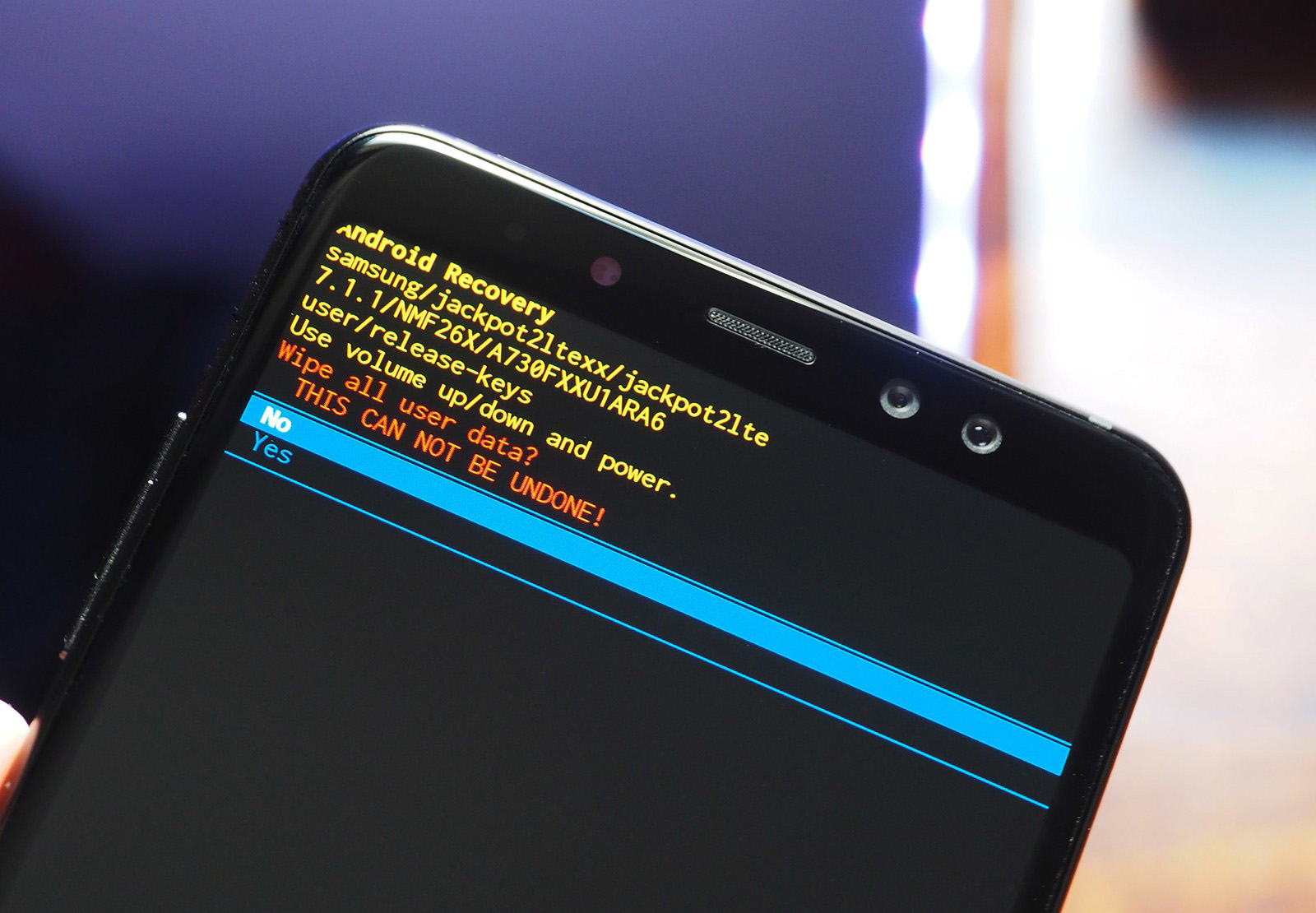
This is the fallback method when Find My Device is not working, for example, if your phone is offline or Find My Device was never enabled. This method also erases all data on the phone.
- Power off the phone completely.
- Press and hold the correct key combination to enter recovery mode. This usually involves holding the Power button and the Volume Up button simultaneously, but the exact combination varies by manufacturer. The specific key combination for recovery mode can include the Home button (e.g., Power + Volume Up + Home) on some models.
- When the Android logo or recovery menu appears, release the buttons.
- Use the Volume buttons to navigate to the option labeled "Wipe data/factory reset" or similar.
- Press the Power button to select it.
- Confirm the selection by choosing "Yes" or "Factory data reset."
- Once the reset is complete, select "Reboot system now."
The phone will restart as if it were brand new. You will need to sign in with your Google account to bypass FRP and regain full access.
A Special Note for Samsung Users: SmartThings Find
Samsung Galaxy devices offer an exception to the rule. If you previously enabled the "SmartThings Find" (formerly "Find My Mobile") feature on your Samsung phone, you can remotely unlock the screen without losing any data. This is the only built-in method that can unlock the phone without a factory reset. To use it, sign in to the SmartThings Find website on another device with your Samsung account, select your locked phone, and choose the "Unlock" option. This feature must have been set up before you got locked out, so it is not a solution for everyone, but it is worth checking if you own a Samsung device.
Setting Up Your Phone and Restoring Your Data
After either method, your phone will be wiped and will start the initial setup process. You must sign in with the same Google account that was previously synced to the phone. This is required to bypass Factory Reset Protection. Once signed in, your phone will offer to restore data from your Google Account backup, including contacts, photos, calendar events, and app data. This is why remembering your Google account password is critical, without it, you cannot get past FRP, and the phone becomes unusable. If you have forgotten your Google password, you must recover it before you can proceed. After a factory reset, you should update your Google account password to ensure the security of your device.
Frequently Asked Questions
Can I unlock my Android phone without losing data?
For most modern Android phones, no. The only exception is if you have a Samsung Galaxy device and had SmartThings Find enabled beforehand, which allows a remote unlock without data loss. Otherwise, a factory reset is required, which erases all local data. However, data backed up to your Google Account can be restored after the reset.
What if I forgot my Google password too?
You must recover your Google account password before you can use the phone again. Google provides a recovery process for accounts where you have lost access. If you have no recovery options available, the phone will remain locked and unusable. This is a critical step for bypassing phone lock screens and for resetting a Samsung phone in 2024, as the same Google account is required for FRP on all Android devices.
How do I recover Google account without phone number and recovery email?
If you have no recovery phone number or email, your only option is to use Google's account recovery form. You will need to answer questions about your account, such as when you created it or what labels you used in Gmail. Success is not guaranteed, but it is the only path when standard recovery methods are unavailable.
Will a factory reset remove my Google account from the phone?
No. Factory Reset Protection (FRP) ensures that even after a factory reset, the phone remains locked to the last synced Google account. You must enter that account's credentials to set up the phone again. This is a security feature designed to prevent unauthorized use.
Can I use a third-party tool to unlock my phone without a reset?
Most third-party tools claiming to unlock Android phones without data loss are unreliable, often require payment, and may not work on modern Android versions. They also pose security risks. The official methods described here, Find My Device or recovery mode, are the only safe and guaranteed ways to regain access. If you have previously enabled USB debugging, you can use Android Debug Bridge (ADB) to reset the password.