Before you start: what you'll lose when you bypass phone lock screen
Before you try to bypass phone lock screen security, understand what you stand to lose. For most phones, the moment you forget your screen lock PIN or pattern, the official restoration path from Apple and Google ends with a factory reset that wipes every photo, message, and app off the device. If keeping your files is non-negotiable, your only realistic chance is recovering the account password tied to the phone, such as your Google credentials, because there is no hidden backdoor that preserves data without the original code.
On an iPhone or iPad, Apple’s on-screen reset flow becomes available after too many wrong attempts, where you can tap the Forgot Passcode? option once the device shows it is unavailable. This option requires an active cellular or Wi‑Fi connection and Find My to be turned on, and completing the steps erases everything. If the real problem is a forgotten Apple Account credential rather than the device passcode, the Apple Support app offers a separate Reset Password tool under Support Tools that does not wipe the phone. People searching for a way to unlock Samsung tablet without password without losing data will find that a data-preserving bypass is not possible when the screen lock itself is forgotten, and any attempt to unlock Google Pixel without losing data is similarly impossible. The hard truth is that a true bypass phone lock code method that leaves your personal content intact is only documented for account recovery or settings reset, not for a forgotten device passcode.
Unlocking with your Google account
Many people searching for an FRP bypass lock on any phone find that the documented path does not exist in the vendor support pages for Google, Motorola, or the carrier that sold the device. If you have forgotten your screen lock but still know your Google credentials, you can sign back into your phone after a reset, but that action wipes the device. The real challenge begins when you cannot recall those credentials either. At that point, you may attempt to recover Google account without phone number and recovery email, but Google states recovery usually cannot be completed if both are unavailable and the automated restoration flow cannot verify you. Google does not offer a way to see my Gmail password in mobile as plain text within the device settings. What you can do is view saved passwords on Android through Google Password Manager, which requires you to sign in again before displaying any entry. If you are trying to break the link between a forgotten profile and the phone itself, you can sign out of Google account on Android by opening the Gmail app, tapping your profile picture, and choosing Manage accounts on this device to remove the account. This action does not unlock the screen.
Removing factory reset protection (FRP)
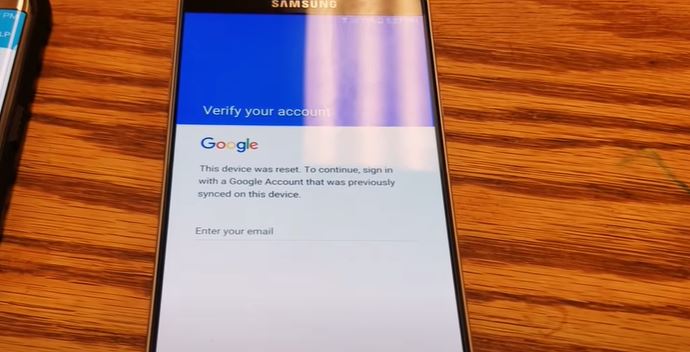
Factory reset protection is not a screen lock you can dismiss with a generic code; it is a security gate tied to the last Google identity that was active on the phone before the wipe. Google states plainly that if you cannot provide the exact credentials used when the device was last set up, the official way to regain access is to use Google's credential restoration flow. Samsung confirms the feature activates automatically on Android 5.1 and higher when a Google account is set up on the device. The only supported way to avoid the prompt is to remove that identity through the Settings menu before performing the reset.
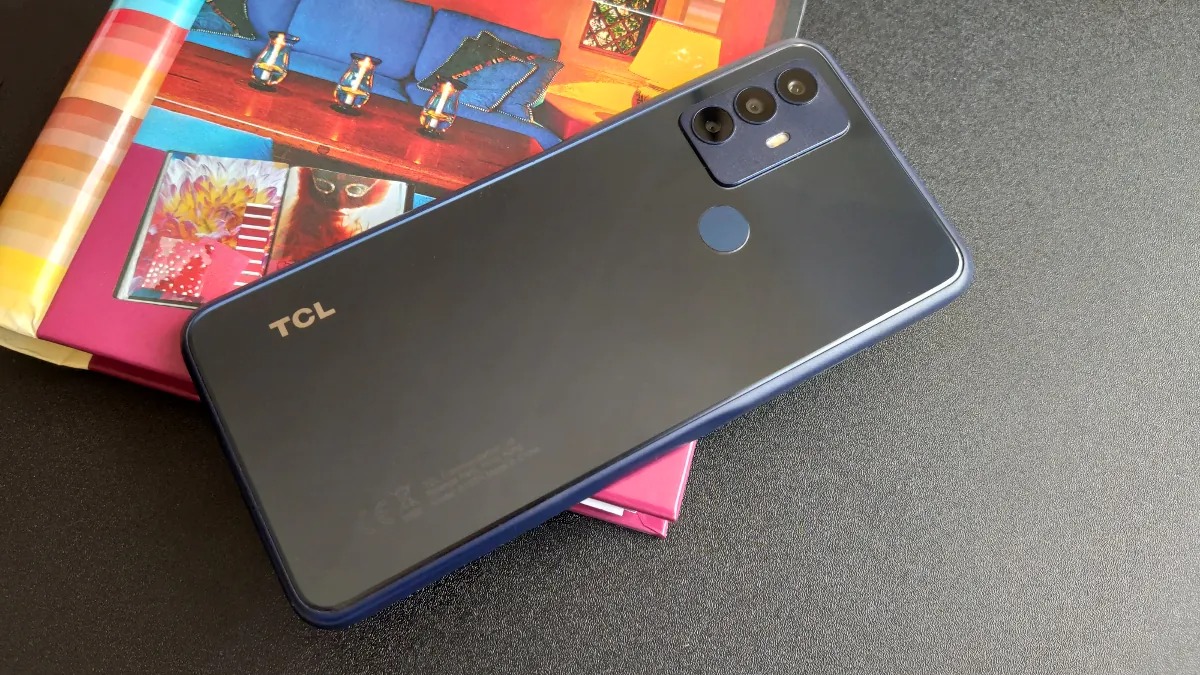
If you own a Motorola device and need to bypass Google lock on a Motorola phone, the same principle applies: the only reliable path is prevention. Similarly, if you need to bypass Google lock on Google phone, you must understand that no official workaround exists after the fact. For those looking to bypass password on Motorola phone, the steps differ from FRP but still require prior credentials. Meanwhile, if you need to bypass FRP lock on TCL phone or bypass passcode on TCL phone, the manufacturer's guidance echoes the same warning. What those pages do explain is how to prevent the lockout. Keep your screen lock known. Remove the identity before a reset. Use Google’s credential restoration flow if you are already locked out. The exact steps vary by manufacturer, so choosing a method means matching the approach to the brand of phone in your hand.
Resetting a locked Android phone
If the screen stays black or the pattern is completely forgotten, a hardware-key reset is the documented fallback that will wipe every photo, message, and app on the device. Samsung’s own support pages confirm that when you need to factory reset locked Samsung phone, you must first power it off completely, though a locked device may still demand the PIN just to shut down. Once the phone is off, you hold the correct button combination to enter the recovery environment. On a Galaxy S21, the sequence to factory reset Samsung Galaxy S21 without password involves holding the correct button combination until the system recovery screen appears. From there, you use the volume keys to highlight Wipe data/factory reset and press Power to confirm, understanding that the phone will ask for the Samsung or Google credential after it reboots.
The exact key combination shifts from brand to brand. If you need to reset a Motorola phone that is locked, hold Volume Down and Power together until the phone turns on, then press Volume Down until Recovery mode appears and press Power to restart in Recovery mode. Once inside the restore menu, you choose Wipe data/factory reset and confirm, then choose Factory data reset and confirm again.
For owners trying to factory reset a ZTE phone that is locked, ZTE’s documentation states that the restore environment is the only way forward when you have not signed into a Google profile, though the page does not list the specific button sequence for every model. When you need to reset a Huawei phone that is locked, no official Huawei support page was retrieved.
Unlocking specific Android brands
If you own a recent Samsung Galaxy, you may be able to unlock Samsung phone without pin code using the "Forgot PIN/password/pattern?" button that appears after failed attempts, if you previously set up a backup method. That same flow is also how you change Samsung phone password if you forgot it, because the phone asks for your previous screen lock to verify your identity before letting you set a new one. For devices where a remote unlock feature was turned on beforehand, signing into the Samsung account and opening the Find service may give you an Unlock option that pushes the command to the phone while it stays powered on and connected.
Xiaomi does not offer a similar screen-lock bypass, and the official support path may direct you to the Xiaomi Account sign-in screen to reset the account password. After a factory reset the phone may demand the password for the Xiaomi account previously bound to the device. Trying to get past a PIN code lock on a Motorola Moto G phone may leave you with no documented recovery method from the manufacturer. Without that, any attempt to break into a Motorola phone simply wipes the device.
Unlocking more Android brands
For several smaller and mid-range brands, the official recovery path narrows to a single option. ZTE’s support documentation confirms that if you never signed into a Google profile on the device, restoring factory settings from recovery mode will erase user information, which is why you might need to unlock a ZTE phone password through alternative means. The exact button combination to reach that menu varies by model. On Tracfone-branded ZTE devices, you may still see a Forgot Pattern button appear after five wrong attempts. That button lets you sign in with the linked Gmail credentials instead of wiping the phone immediately, offering a way to unlock an Android phone without password if you recall the account. Xiaomi’s published help for the Redmi 12 addresses the App lock credential reset, not the main screen lock, so if you need to unlock Redmi phone when forgot password, you will likely require a different approach. A forgotten device PIN on a Redmi handset will still force you toward the standard Android recovery-mode wipe. For Coolpad phones and most no-name tablets, no brand-specific bypass is documented in the available manufacturer guidance, meaning you may have to unlock a Coolpad phone without the password using a hardware-key reset. A hardware-key reset remains the general fallback. The same limitation applies when you need to unlock an Android tablet from a generic brand. If there is no active Google profile to verify after a reset, the device will simply erase everything and start fresh, which is why many users seek to unlock a Android phone when you forgot the password before resorting to that step. The remaining guides in this group all follow that same pattern, including instructions to unlock Galaxy S21 without password when the standard methods fail. Choosing between them is a matter of matching the reset key combination to the brand printed on your device.
Managing passwords and accounts
Before reaching for a factory reset, verify that you genuinely cannot get back in. The most common cause of a rejected credential is a simple typo, so try the code again slowly, check whether caps lock is on, and test any recent variations you have used. If the device offers biometric unlock and you have a registered fingerprint or face, use that to get past the lock screen and immediately update the saved screen lock without needing the old code. A restart sometimes clears a temporary glitch that blocks input, so hold the power button and reboot before declaring the device locked out.
If the device is a recent Samsung Galaxy, the Find My Mobile service may offer an official path for addressing the screen lock without a trip to a service center. The prerequisites are strict: the handset must have a Samsung account signed in and active, it must be online via mobile data or Wi-Fi, and the Remote unlock feature must have been turned on beforehand. When those conditions are met, log into the Find My Mobile portal from a computer or another phone, select the locked device, and choose the unlock option. The handset will receive a signal that removes the current screen lock, letting you set a new one immediately with no data lost during this process.
If you have not yet been locked out, take five minutes now to enable the remote controls by opening the device Settings, tapping the Samsung profile at the top, and going to Find My Mobile. Toggle on Remote unlock, and also enable Send last location and Offline finding to create a safety net that works even if the handset is offline later. For other brands, check whether a similar service exists; Google's Find My Device can locate and erase a handset remotely, but it cannot lift a screen lock on a device running a recent version of the operating system.
If the Samsung service was never activated, the remaining official option is a factory reset from the bootloader menu, which erases all user data and returns the handset to its out-of-box state. Power the device off completely, press and hold the volume up and power buttons simultaneously until the logo appears, then release both. Use the volume keys to navigate to Wipe data/factory reset and confirm with the power button. After the wipe completes, the device will reboot and ask for the previous Google credential as part of Factory Reset Protection, and you must know that username and passphrase to proceed past setup.
FRP is a security layer that activates after a reset performed without first removing the associated profile from the device settings, demanding the last synced credential before the handset can be used again. If you do not have that information, you must recover the profile first by visiting the provider's recovery page from a separate device and following the steps to regain access. Once you have the correct username and passphrase, enter them on the wiped handset to complete the setup, as there is no official way around this requirement.
Smart Lock keeps the device unlocked in trusted situations, but it cannot help you get past a lock screen after a reboot because the feature requires the primary credential once after powering on. If Smart Lock was active before the restart, the handset still demands the PIN, pattern, or passphrase on the first unlock as a security measure that prevents someone from bypassing the lock by simply rebooting the device. After that first successful unlock, Smart Lock resumes working normally.
For a handset managed by an employer, the IT department can often clear the screen lock through the mobile device management console. Contact your company's support desk and explain the situation, and they can push a command that removes the lock without wiping the work profile or personal files. This path works only if the device is enrolled in the management system and can connect to the internet; if the handset is offline, the command will queue and apply as soon as it reconnects.
If your phone is still in your hand and you just need to update a credential, start with the profile itself. To change password on Android phone for the Google profile that backs up your contacts and mail, open Google Password Manager from the app drawer or Play Store, where you can manage your saved entries. To change email password on Android, you can start in Google Password Manager, though the exact flow depends on whether your provider is Google, Microsoft, or another service. Financial apps add an extra layer of friction; if you bank with Chime and no longer have access to the number on file, you can attempt to reset Chime password without phone number by starting the restoration from a device where you still receive email. Social profiles are trickier to inspect on a phone, and while the Facebook app does not reveal the current passphrase in plain text, you can see Facebook password in mobile only if it was saved earlier in your device's password manager. For the device lock itself, a forgotten screen code on a Motorola handset leaves you with the recovery-mode wipe described earlier to reset password Moto G without losing your files.
- reset Chime password without phone number
- change password on Android phone
- change email password on Android
- see Facebook password in mobile
- reset password Moto G
Keeping your phone unlocked
If you still know your current code and simply want less friction at home, the built-in tools from the operating system let you keep phone unlocked at home without disabling security entirely, which is ideal if you want to avoid repeatedly entering your code in a trusted environment. Open Settings and navigate to Security & privacy > More security & privacy > Extend Unlock (called Smart Lock on older Android versions). From there, tap Trusted places and add your home address; the handset will stay unlocked while it detects that location and locks again once you leave. You must authenticate with your current PIN, pattern, or credential to change these settings.
If you later decide to remove pin on Android phone completely, the same settings area is where you start, though the exact option varies by manufacturer; this is useful if you no longer want any lock-screen barrier at all. On a Pixel or similar device, you can open Settings > Security & privacy and disable the lock feature after confirming your existing credential, while the Galaxy maker's support documentation focuses on Smart Lock rather than full PIN removal. On an iPhone, you would go to Settings > Face ID & Passcode (or Touch ID & Passcode) and tap Turn Passcode Off, though Apple does not offer a temporary location-based bypass feature.
Before you set a password on your phone for the first time, think about what you are protecting and what you might lose, as doing so ensures your data stays secure from unauthorized access. On an iPhone, you create a passcode from Settings > Face ID & Passcode or Touch ID & Passcode by tapping Turn Passcode On, and that same passcode becomes mandatory before Face ID or Touch ID will work. On the Google mobile OS, the screen lock credential can be a PIN, pattern, or password. The core tradeoff remains the same: if you forget it later and your files matter, the only path back in runs through the user profile credential tied to the device.
Removing linked accounts and authenticators
When you still have the phone in hand and simply need to decouple a service, the process is straightforward. To remove a Gmail account from Samsung phone, open Settings, tap Accounts and backup, then Manage accounts, select the Google profile, and choose Remove account. Samsung notes this only takes it off the device and it may ask for your screen lock first if device protection is active. The broader device path may vary by manufacturer, and Google may require your pattern, PIN, or code to remove an account.
The situation tightens considerably when the original device is gone. The listed method to remove mobile authenticator Steam without phone is opening the Steam Mobile App on the device that already holds it, going to Steam Guard, tapping the gear icon, and selecting Remove Authenticator. Because Steam states a supported handset is required for the authenticator, losing that hardware before detaching it leaves you outside the documented reset path, unlike the profile-based resets available for your Google or Samsung credentials.
Frequently Asked Questions
Can I unlock my Samsung Galaxy S21 with Find My Mobile after I forgot the PIN?
Yes, if you enabled Remote unlock in the device settings before getting locked out. Sign into the Find My Mobile portal from another device, select your phone, and choose the unlock option to remove the current screen lock without losing data.
How do I reset the Apple Account password without erasing my iPhone?
Open the Apple Support app on any device and navigate to Support Tools, then Reset Password, then Help Someone Else. Enter the Apple Account email address or phone number and continue; this path addresses the account credential, not the device passcode, and does not wipe the phone.
Can I view my Gmail password in plain text on my Android phone?
No, Google does not offer a way to see your Gmail password as plain text within device settings. You can view saved passwords through Google Password Manager on Android, in Chrome, or at passwords.google.com, but you must sign in again before any entry is displayed.