Before you connect your phone game controller
Turning your device into a phone game controller requires confirming that your target game or platform actually accepts a handset as an input method, since most require a dedicated companion app rather than a raw wireless handshake. If you need to install that app first, the process to download apps on Android is the same as grabbing any other title from the Google Play Store. Once the app is ready, the physical linking logic follows a consistent pattern across devices: put the accessory into discovery mode, open your gadget’s wireless panel, and tap the name when it appears. On Google’s mobile OS, you will still need to check the controller’s manual for the exact button combination that triggers discovery and then pair it through your phone's Bluetooth settings. If you are using a television-based setup, the steps to connect phone to Firestick Bluetooth typically involve navigating to the Bluetooth or controller settings and choosing to add a new device after the accessory is blinking. For anyone who prefers physical sticks, the routine to connect wireless controller to Android follows that same wireless menu flow. Official help pages do not list universal model compatibility, so support varies by device.
Use your phone as a game controller
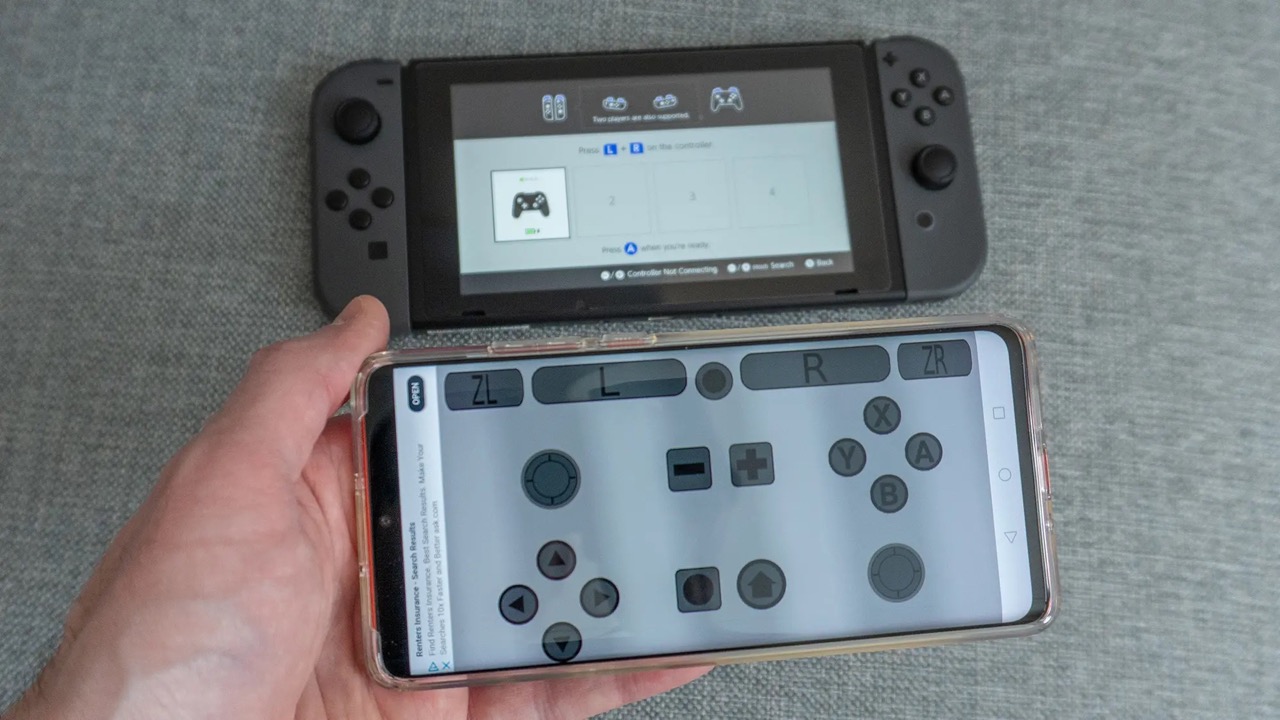
Turning your phone into a physical game controller is not a universal trick built into your handset, so the very first thing to check is whether your specific game offers a companion app. The most prominent official example is the Just Dance series, where you can use your phone as just dance controller by downloading the dedicated app and linking your phone to the same Wi‑Fi network as the gaming system, which is the simplest way to get started with motion-based gameplay. Inside the game’s controller selection screen, you choose “Mobile Device,” then tap through the app prompts while holding the phone in your right hand to track your movements. This flow works across supported versions of the game, though official sources do not list exact phone model or operating-system limits. For other titles, the landscape shifts dramatically, because native system-level support simply does not exist in Apple or Google mobile OS settings menus. A raw wireless handshake will not convince a gaming machine to recognize your handset as a standard gamepad, which is why learning how to use your phone as a controller through a dedicated app from the game’s developer is a reliable path for any game that lacks official controller support. If you are chasing motion-controlled or second-screen experiences, the same rule applies: look for the official companion tool rather than a generic link. Because every platform and title handles this differently, the specific walkthroughs below break down what is possible for each scenario, from general steps to platform-specific workarounds like How To Use Your Phone As A Nintendo Switch Controller, How To Use Phone As Xbox Controller, and How To Use Phone As PS4 Controller Without Controller. Pick the destination that matches the hardware or setup you are actually aiming to control, since the required app and connection method change completely between ecosystems.
Connect console controllers to your phone
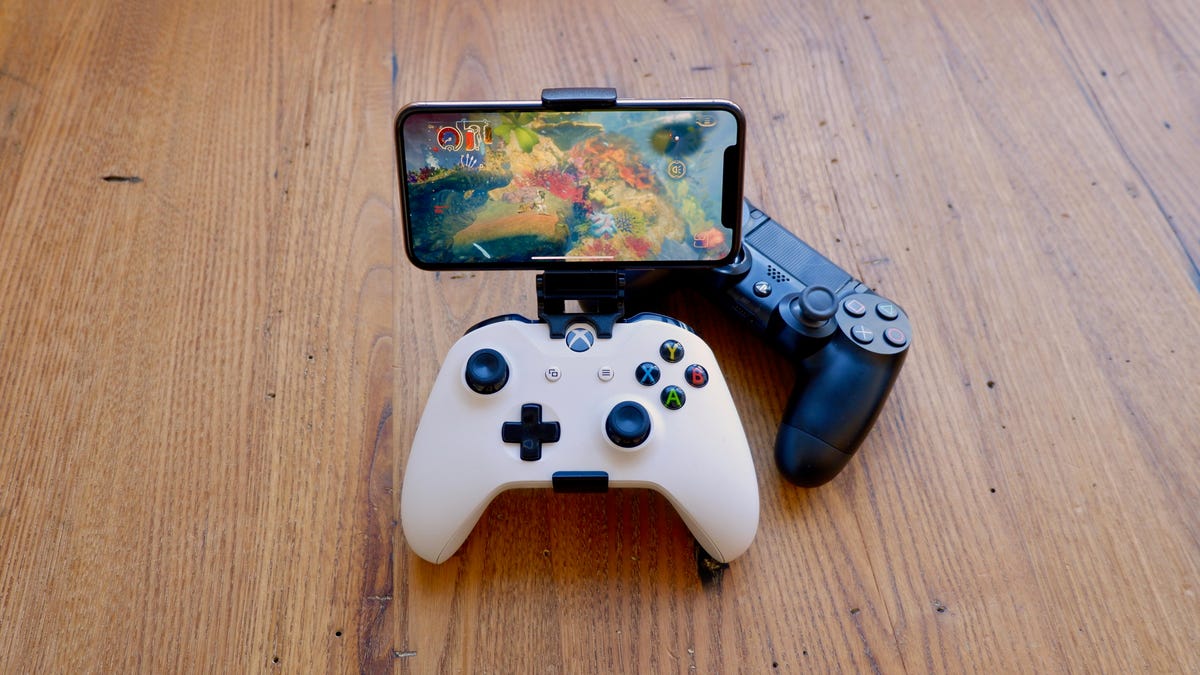
Because your phone lacks a universal setting that makes it appear as a standard gamepad, linking a physical controller directly to your handset often delivers a more reliable experience for mobile gaming and official Remote Play apps. The process follows the same wireless logic you would use for any accessory, but the exact button or key combination that triggers discovery mode varies by manufacturer. On an iPhone, you open Settings > Bluetooth after putting the controller in discovery mode, then tap its name when it appears. Apple also supports wired controllers through the Lightning or USB-C port, though some combinations require a separate adapter. On a Google-powered handset, the path runs through Settings > Connected devices > Pair new device, where you select the controller from the list of available wireless devices.
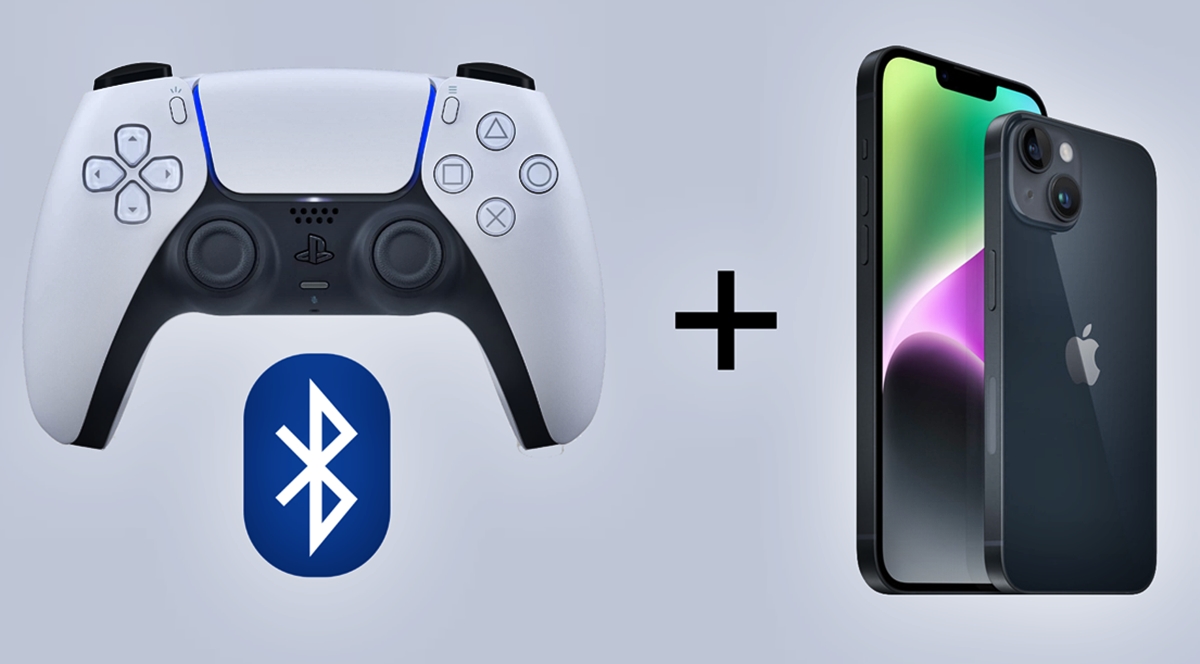
PlayStation clarifies that a DUALSHOCK 4 wireless controller and DualSense wireless controller work with PS Remote Play on compatible Apple devices. The steps to pair an Xbox controller follow the same general wireless flow on iPhone, and Apple's documentation does not list specific model-by-model exceptions. If you are looking for instructions on a particular gamepad, the short list below groups the most common searches. You will find everything from how to connect a PS4 controller to my phone to how to connect PS5 controller to your phone, how to connect Nintendo switch joy cons to phone, how to connect Nintendo controller to phone, how to connect a Xbox controller to phone, how to connect switch controller to phone, and even how to connect guitar to phone, so you can pick the exact guide that matches the controller in your hands.
Connect older or specialized controllers to your phone
If you have an older controller in your hands, the first thing to know is that a genuine gamepad from the Xbox 360 generation lacks the radio needed for wireless linking, so you cannot complete a Bluetooth Xbox 360 controller to phone setup without additional hardware and any attempt to connect Xbox 360 controller to Android Bluetooth will fail, which is why you would want to read the guide on how to Bluetooth Xbox 360 controller to phone to understand the connection method. Apple’s docs omit the Xbox 360 pad entirely, and on Android the only path to put 360 on phone is a wired OTG connection, so follow the put 360 on phone guide for the complete walkthrough. If you are holding a Nintendo Switch Joy-Con instead, you can detach it from the system and hold down the small sync button until the lights flash, then open your mobile device’s settings and tap the controller name when it appears. Keep in mind that official support pages focus on general steps without giving Joy-Con-specific guarantees. In every case, remember that linking the hardware is only half the puzzle, because you still need a specific game or companion app designed to accept its input and a raw handshake alone will not turn the controller into a recognized gamepad.
Play console games on your phone via remote play
If you already own an Xbox, you can stream the titles installed on your system straight to a handset without a third-party service, which is what makes it possible to play your Xbox games on your phone over a home network or a solid internet connection. Microsoft requires at least 10 Mbps download speed and the Xbox app. Before you open the Xbox app, make sure the hardware has Settings > Devices & connections > Remote features enabled. Your mobile OS must also meet the minimum requirements for the Xbox app. One of the best ways to play Xbox on mobile is to pair a physical wireless controller with the handset. Streamed games expect standard gamepad input rather than a touchscreen overlay. You can also play Xbox games on phone with Game Pass titles that you have already downloaded to your own drive. Remote play only launches what is sitting on local storage.
PlayStation owners follow a similar path through the PS Remote Play app, but the controller rules shift depending on your handset’s generation. On Android 9 you may be limited to on-screen controls for some controllers. Android 10 or later lets you link a DUALSHOCK 4 over a wireless connection for a proper physical feel. To connect PS4 to phone and unlock more features, use the PS Remote Play app. The hardware expects a specific digital introduction. The oldest equipment sits in its own category entirely. Trying to connect my Android phone to my PS3 requires the Settings > Remote Play Settings > Register Device menu on the machine itself. That process was built for a PSP-era workflow. It does not extend to modern iPhones or current Google-powered streaming apps.
Play PC games on your phone via streaming
When you want to play your full PC library without sitting at a desk, you can use Steam Link app to play Steam games on mobile by installing the free companion app from your device’s app store. Pair it with the same local network your host computer is on. The host PC needs to be signed into Steam and left running. Once the app detects it, your entire Steam Library becomes available for streaming. If you are setting up on a handset, you can stream Steam games to Android by starting with the Steam Link app and a quick connection to the host. The Steam Link app requires Android 5.0+ or iOS 12.0+, and the host PC needs Windows 7+, macOS 10.10+, SteamOS, or Linux Ubuntu 12.04+. Supported controllers include Xbox, DualShock 4, and others. Because the app expects a controller for most titles, you will want a linked gamepad or an MFi-certified controller rather than relying on touch alone. Keep in mind that this is a local-network feature by design, so both devices should sit on the same router for a stable session.
Mirror your phone screen to a console or TV
Getting your phone display onto the big screen usually works with a Firestick or Chromecast, but when you try to mirror phone to Xbox One, the console expects a different handshake. The Xbox does not include a built-in receiver for phone screens. You need to install a third-party receiver app from the Xbox Store, such as AirServer. Make sure your handset supports Miracast before you open Control Center on iPhone or the Cast menu on Android, though iPhones use AirPlay rather than Miracast.
If you want to cast phone to PlayStation 4, no direct wireless mirroring path exists, as PlayStation consoles do not natively support common screen mirroring protocols like Miracast, AirPlay, or Google Cast. When you try to connect your phone to a Nintendo Switch, no native phone-screen mirroring path exists. Neither device offers a native screen-casting feature that works with a standard iPhone or Google-powered handset. For developers and testers looking to get mobile builds on Xbox, no consumer-facing mirroring option exists; the workflow stays inside dev kits and platform tools.
To link a PS4 to a mobile device and access more features like second-screen typing or media controls, a companion app may be available rather than a raw wireless link. Every scenario here relies on a dedicated receiver or a companion app rather than a universal setting. Check whether your target device supports the handshake before you start tapping through menus.
Set up controllers for specific mobile games
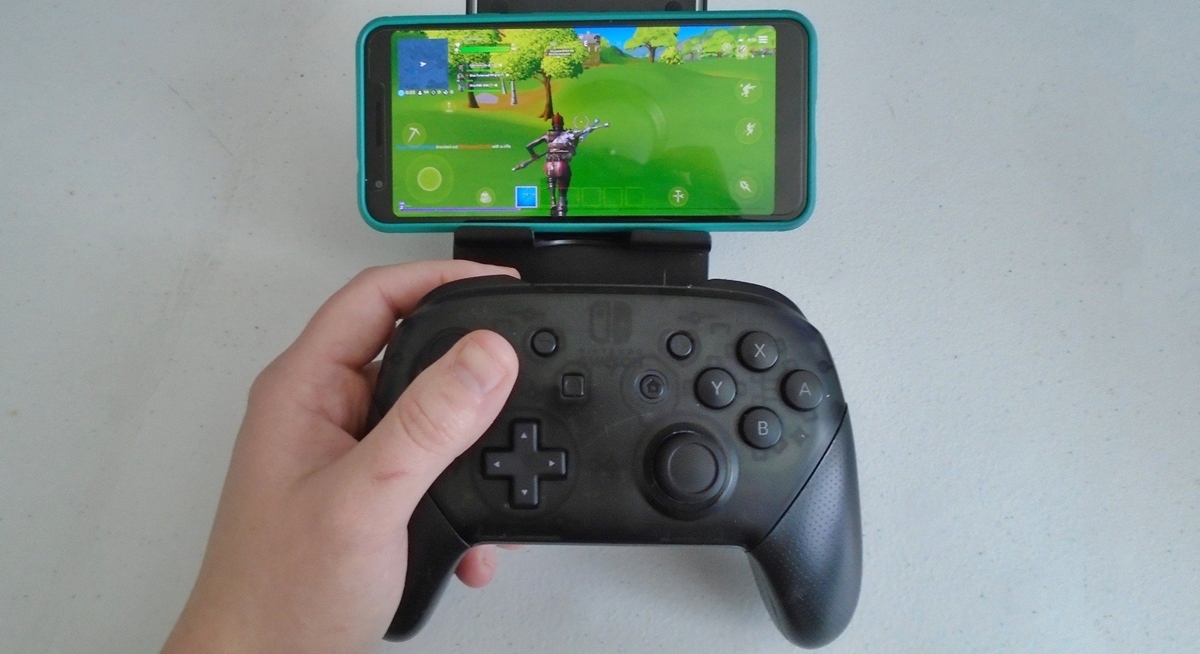
When a mobile game supports external hardware, linking is straightforward on iPhone: open Settings > Bluetooth, put the controller in discovery mode using its own instructions, and tap the device name when it appears. After you establish the bond, you can customize button mapping for supported titles inside the device’s settings or the game’s own menu. Buddy Controller lets a friend join you in any game that already accepts gamepad input, though you will often need to test the handshake directly.
Older references indicate some players tried to use PS4 controller on Apex mobile and found that while gameplay responded to a paired DualShock, the menus required touch. If you are trying to connect controller to Apex mobile, the process starts with your phone’s Bluetooth settings rather than an in-game menu, so expect to navigate lobbies with your fingers. A similar approach applies when you want to play Apex Legends mobile with controller: pair the gamepad at the system level, then launch the game and jump into a match to see if your inputs register.
On Google’s mobile OS, the situation shifts by title. If you want to use controller on Genshin impact mobile Android. When you want to play Fortnite on mobile Xbox through cloud streaming, you may need an attached gamepad, as touchscreen controls are limited outside of the actual match. Finding Android games compatible with a gamepad controller may involve checking each title's store page for a controller-support indicator.
Use your phone for theme park and event access
When you arrive at Walt Disney World, your phone can take over the role of a physical MagicBand for park entry, Lightning Lane redemption, and even charging purchases to your resort folio. The feature lives inside the My Disney Experience app, where you can use Disney magic mobile by setting up a digital pass and adding it to your device’s wallet. On an iPhone, you can set up a digital pass and add it to your device’s wallet, which enables Express Mode automatically. For a Google-powered handset, you need a device compatible with Google Wallet/Google Pay, and Disney requires you to unlock your device first before tapping. Each person in your group needs their own setup. Before you walk up to the tapstile, make sure your park admission or resort reservation is linked to your account, because the system checks for that eligibility before the pass will work.
Frequently Asked Questions
What iOS version do I need for a DualSense controller on iPhone?
You need iOS 14.5 or later for a DualSense wireless controller to work via Bluetooth with PS Remote Play on an Apple device. DUALSHOCK 4 controllers require iOS 14 or later.
Where is the Pair new device setting on Android?
Open the Settings app, then tap Connected devices followed by Pair new device. Your controller must already be in discovery mode to appear on the list of available Bluetooth devices.
Can I connect a wired controller to my iPhone?
Yes, compatible wired controllers can connect through the Lightning or USB-C port on your iPhone. Some iPhone model and controller combinations require a separate adapter sold separately.
What download speed does Xbox remote play need?
Microsoft requires at least 10 Mbps download speed for Xbox remote play to a handset. You also need the Xbox app and must enable Settings, Devices and connections, Remote features on the console itself.