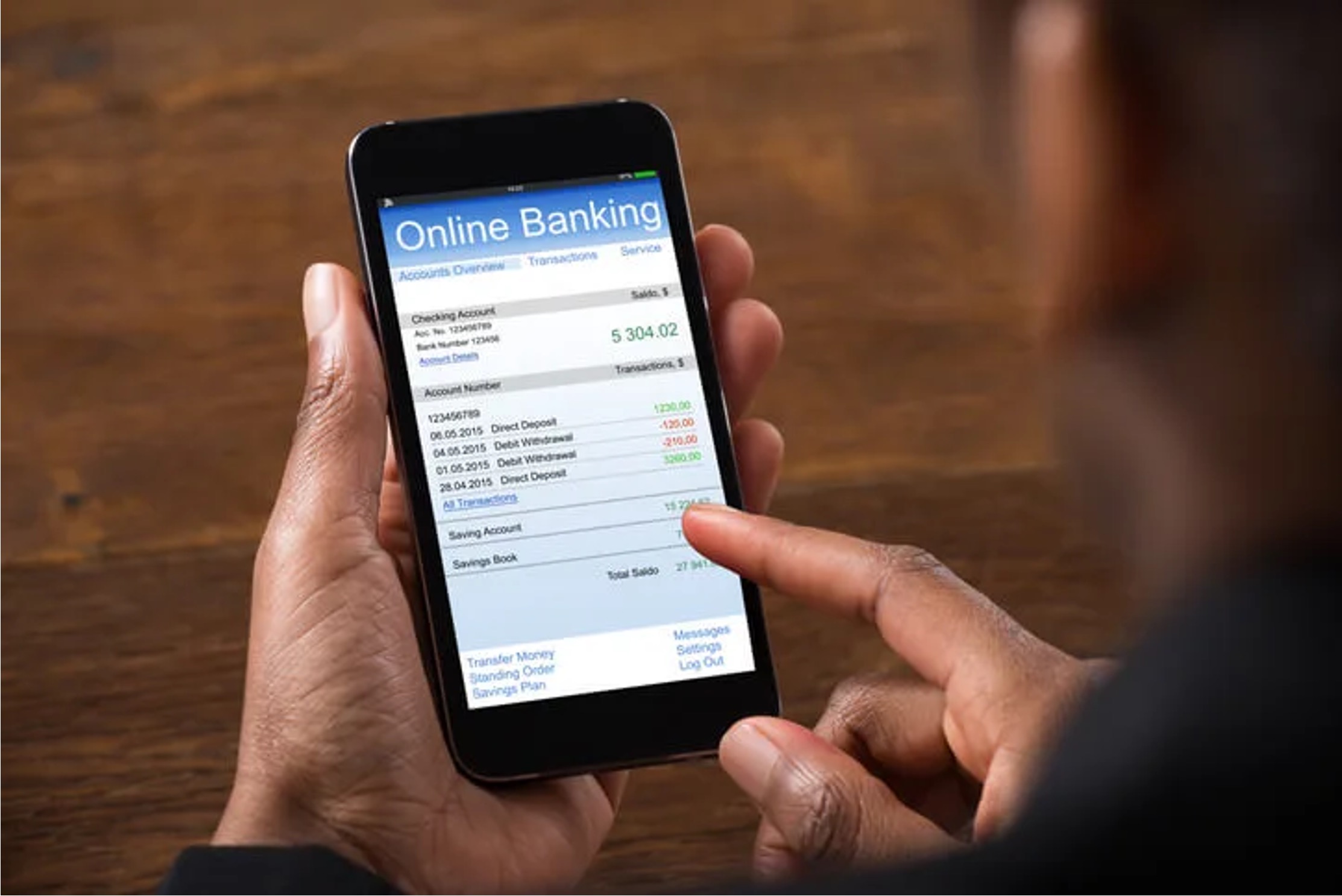
To deposit a check on Chase Mobile, open the Chase Mobile app, sign in, and follow the on-screen steps to capture images of your endorsed check.
Download and sign in to the Chase Mobile app
Download the Chase Mobile app from the App Store (iOS) or Google Play Store (Android). Open the app and sign in with your username and password. You can also use biometric authentication, such as fingerprint or facial recognition, if your device supports it.
Navigate to the deposit checks feature
From the bottom menu, tap "Pay & Transfer," then select "Deposit checks." Choose the account where you want the money deposited.
Enter the check amount and endorse it correctly
- Type the exact dollar amount from the check. The app may utilize advanced image recognition technology to automatically detect and populate the check amount, minimizing the need for manual input.
- Sign the back of the check in the endorsement area.
- Write "For electronic deposit only at Chase" below your signature. The app may prompt you to add additional details to the endorsement, such as writing "For Mobile Deposit Only" below your signature.
Photograph the front and back of the check
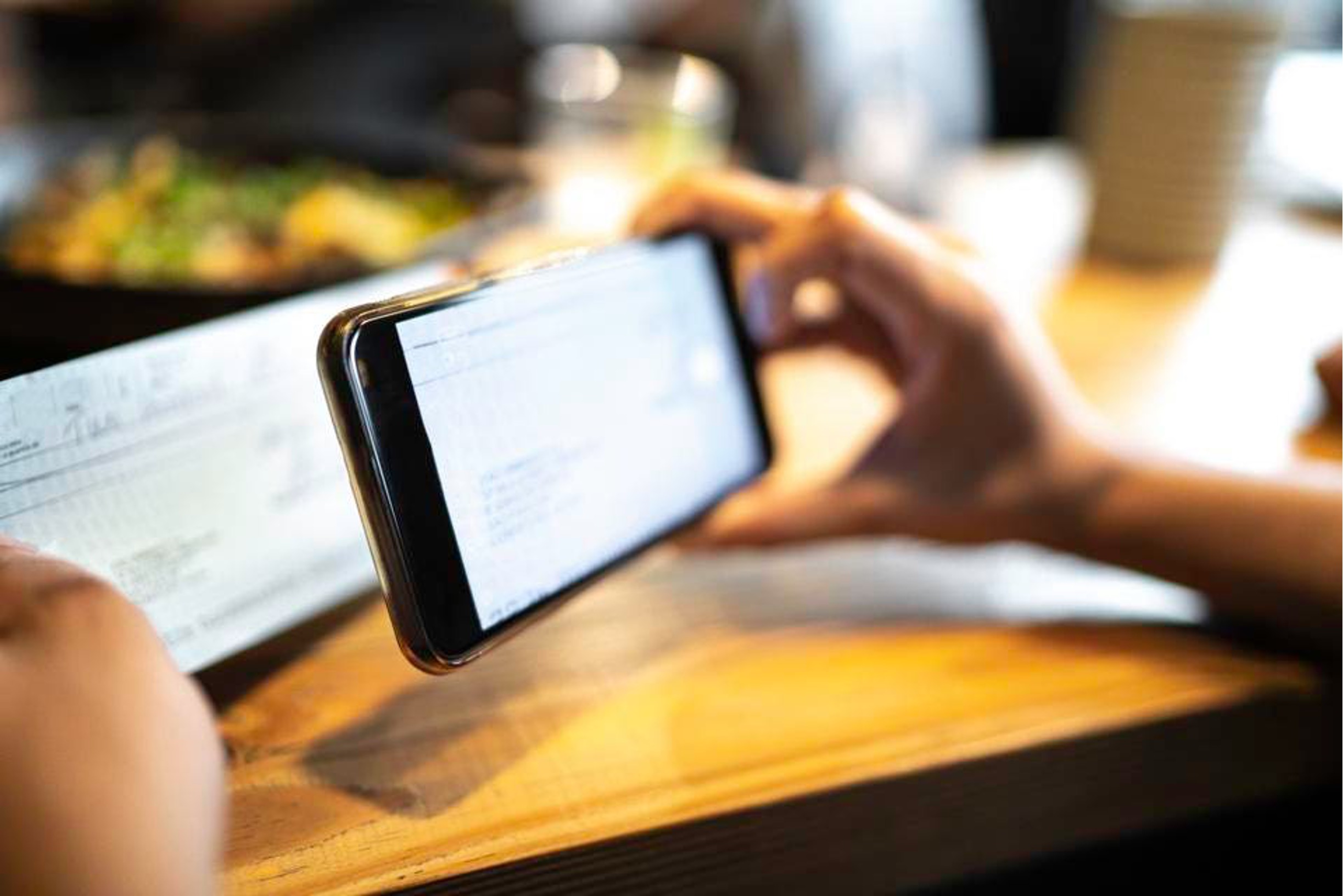
Place the check on a dark, flat surface in good light. The app offers an "Auto Capture" feature to assist with taking pictures, or you can choose manual capture. Take clear photos of both the front and back, ensuring all four corners are visible.
Review, submit, and handle the physical check
- Confirm the deposit details and tap "Deposit" or "Submit." The app provides a confirmation of the deposit, typically displaying a reference number or confirmation message to acknowledge the submission.
- On the face of the physical check, write "deposited" and the date.
- Retain the marked check for two business days or until you receive notification that your deposit has been accepted, then you may destroy it.
Chase sends email notifications when your deposit is received and when it is accepted or rejected. For mobile check deposit help, refer to the Mobile Check Deposit Guides and Timelines section in the app or Chase's website.
Deposit limits, availability, and ineligible items
Standard daily mobile deposit limits for personal accounts are typically $2,000, with a $5,000 limit over a 30-day rolling period. Deposit limits can vary based on account type, banking history, and customer relationship, and you can view your specific limits within the app. Funds deposited to checking or savings accounts before 11 PM Eastern Time on a business day are generally available by the next business day. Most personal, business, and government checks are eligible for mobile deposit. Money orders, savings bonds, and international checks may not be eligible for mobile deposit.
Frequently Asked Questions
Can I deposit a check using the Chase Mobile app?
Yes, the Chase Mobile app allows you to deposit checks remotely from your smartphone. The process is secure and available 24/7. Mobile deposits are considered secure, and the Chase Mobile® app does not store passwords or image data on your device when using Chase QuickDeposit℠.
Are there any fees associated with mobile check deposits on Chase Mobile?
Chase generally does not charge a fee for mobile check deposits. Review your account terms and conditions for any potential fees related to check deposits.
How long does it take for a mobile check deposit to be processed by Chase?
Funds are generally available by the next business day for deposits made before 11 PM ET on a business day. Processing times can vary based on the check type and deposit time.
What should I do with the physical check after depositing it using the Chase Mobile app?
After writing "deposited" and the date on the face of the check, keep it for two business days or until you receive the acceptance email. Once accepted, you may destroy the check.
Can I deposit a check made out to someone else into my account?
No, you can only deposit checks made payable to you into your own Chase account. Third-party checks are not eligible for mobile deposit.
What happens if my mobile deposit is rejected?
Chase sends an email notification if your deposit is rejected. The email will explain the reason, and you may need to visit a branch or ATM to deposit the physical check.