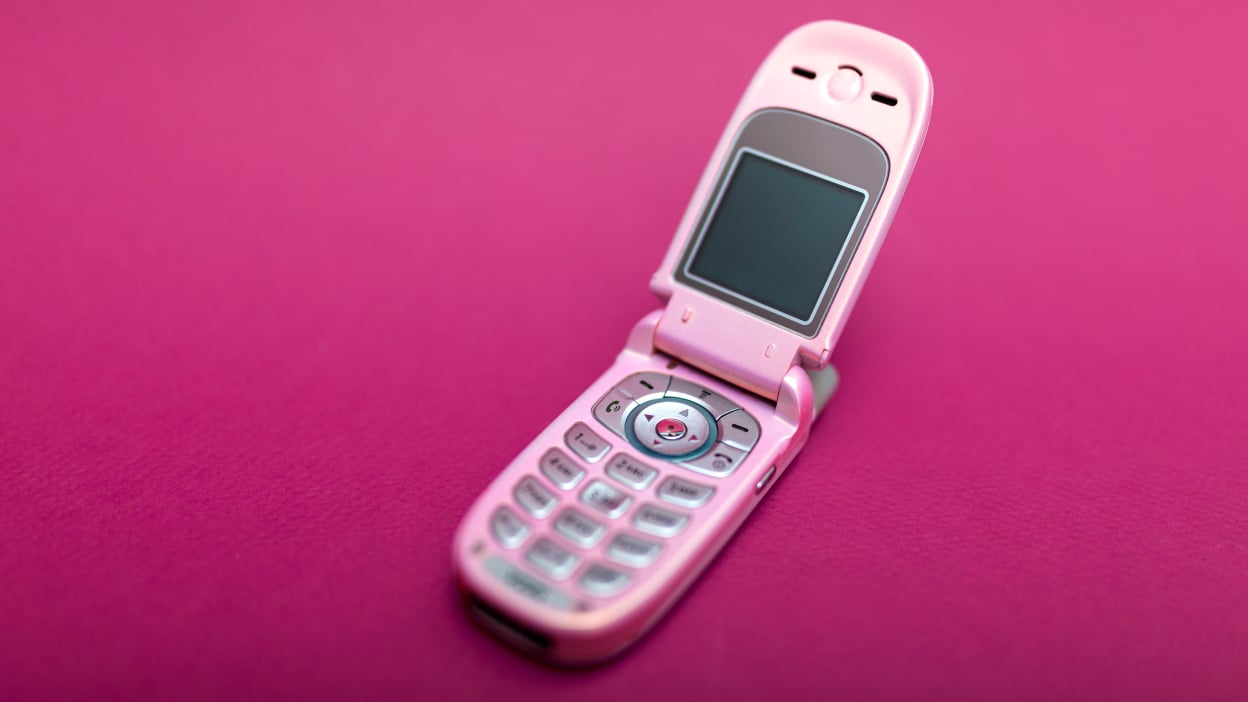
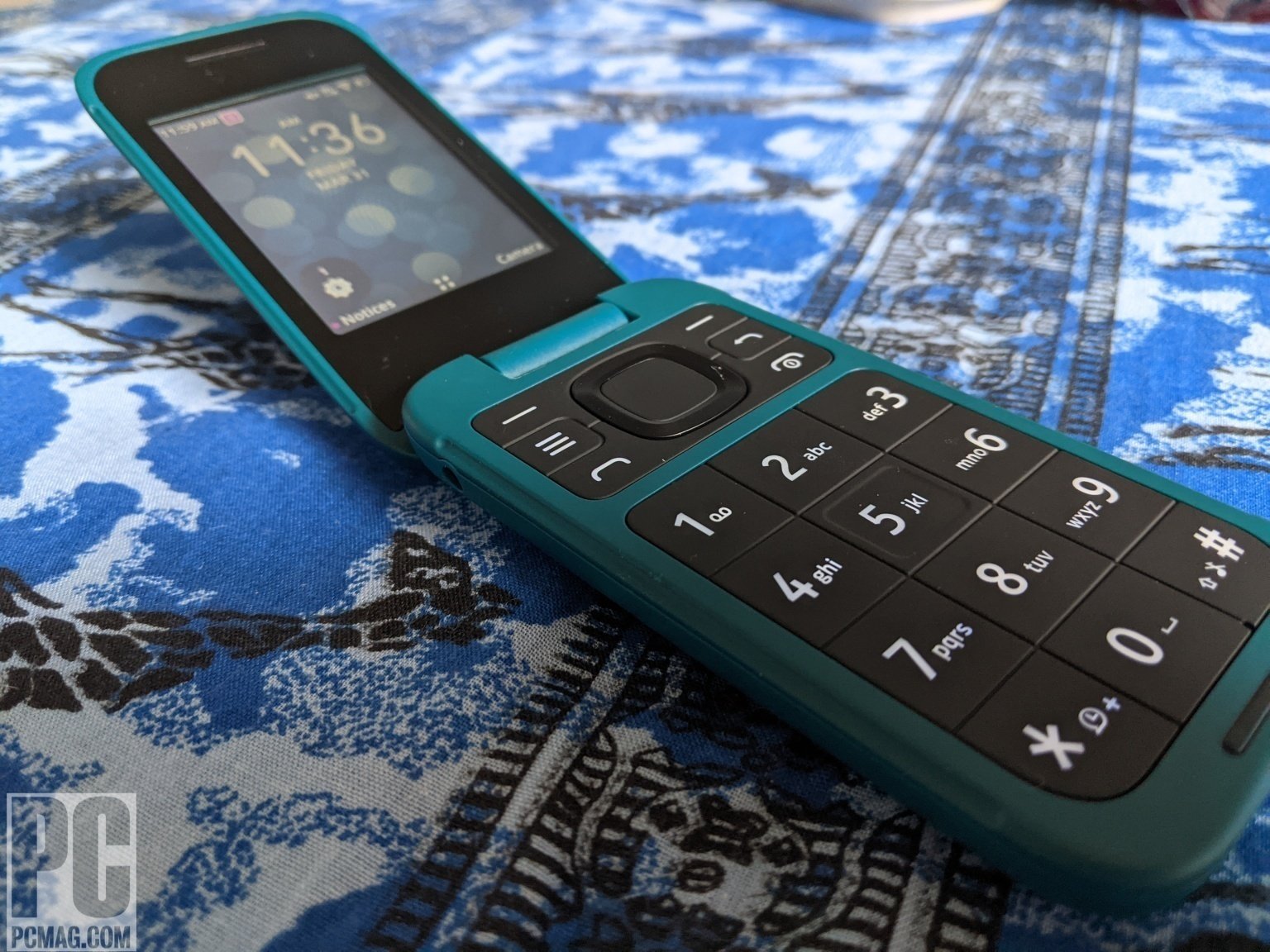
The physical buttons and dialing functions of phones, specifically designed for users of flip phones, basic Android devices, and traditional landline-style systems. This content is for anyone who relies on a numeric keypad for calls, texts, and contact management, particularly those using simpler devices like TCL or Jitterbug flip phones.
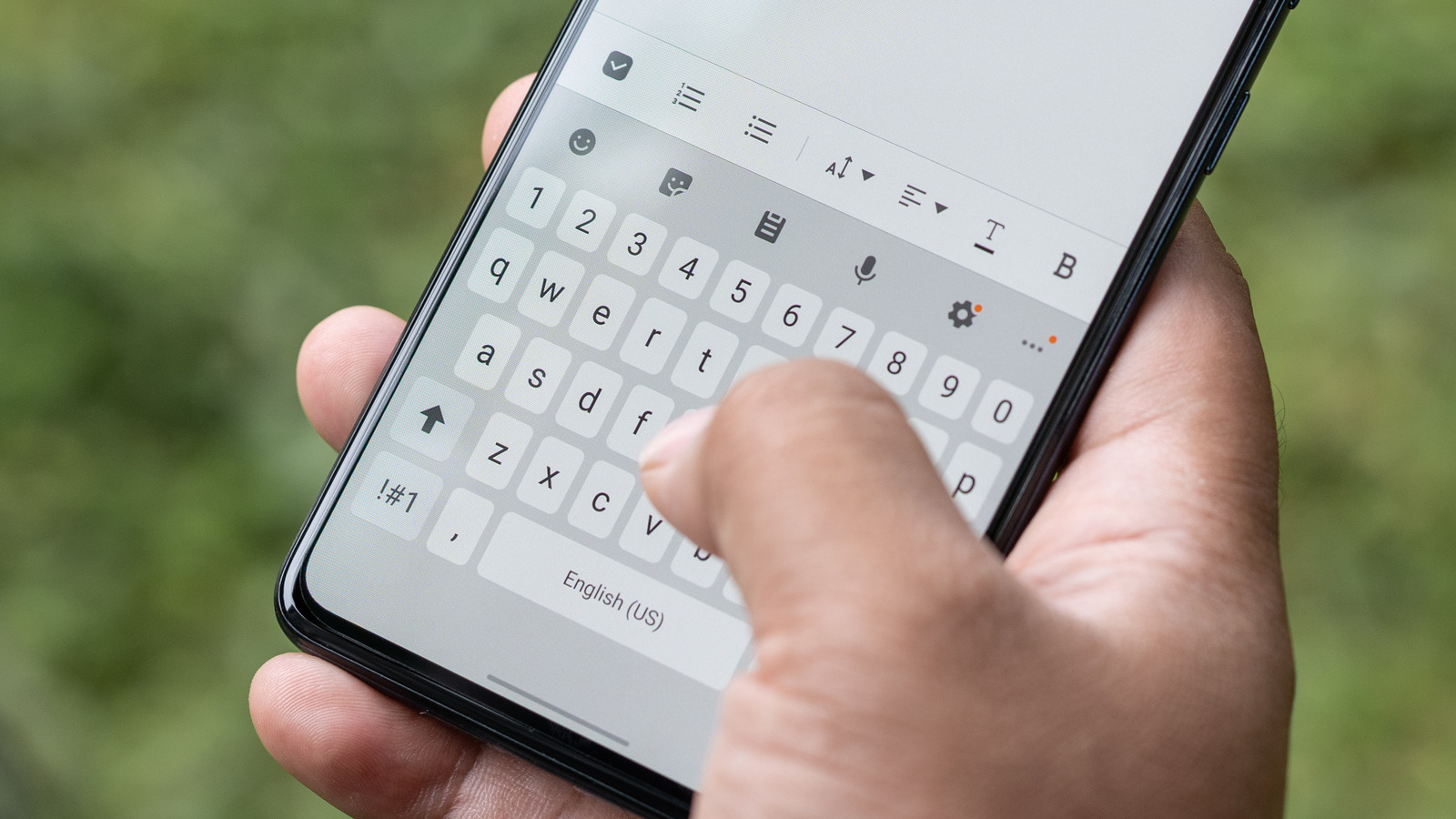
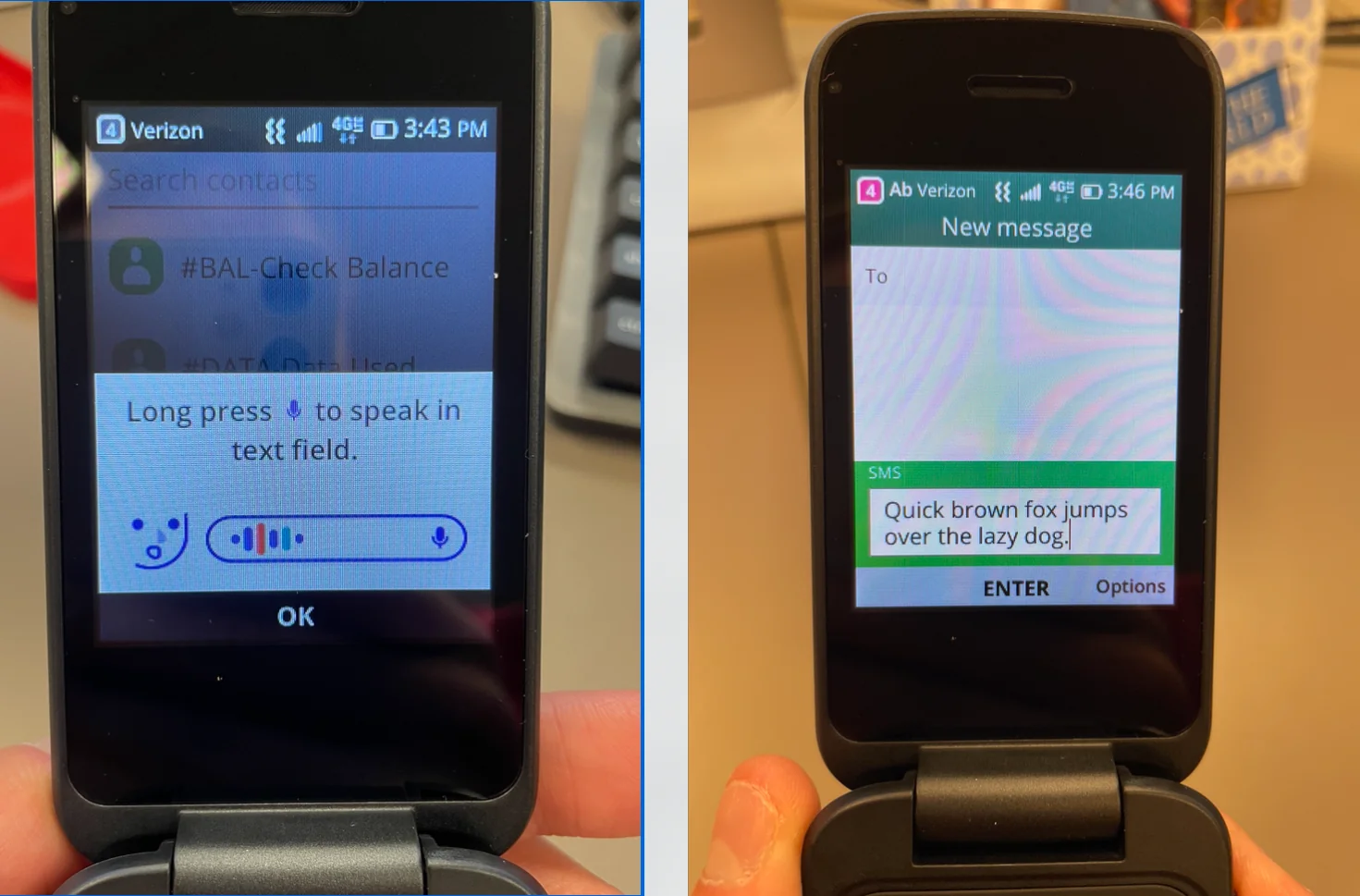
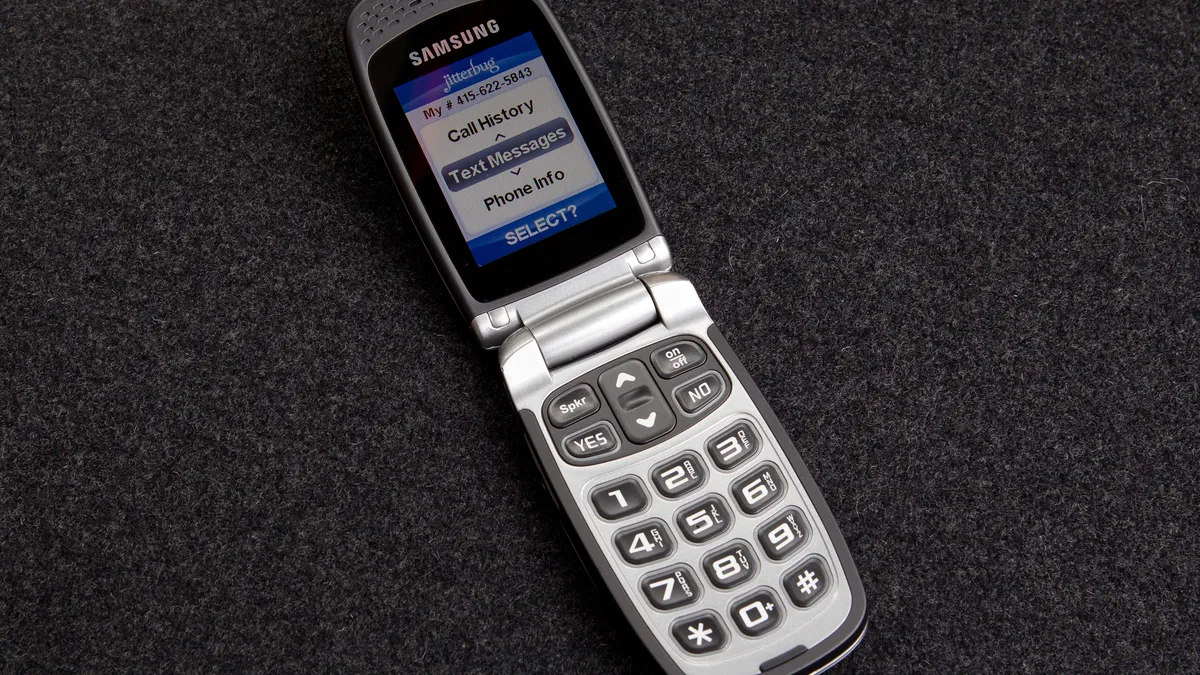
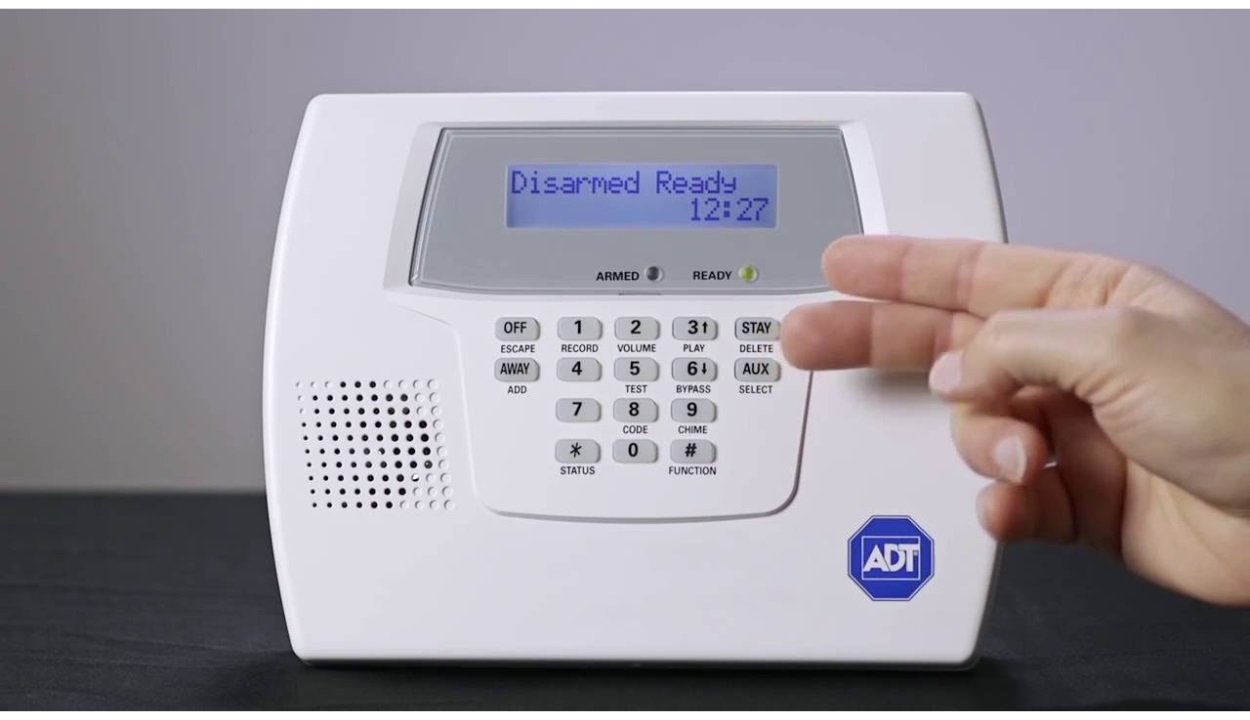
The articles here solve two main types of problems: entering information and managing alerts. For entering information, the guides show how to type messages on a TCL or Jitterbug flip phone, how to change an Android keypad from numbers to letters, and how to dial a telephone number that includes letters. They also cover how to call a phone with an extension and how to add contacts to both a TCL flip phone and a generic flip phone. For managing alerts, one article specifically addresses how to stop an ADT alarm from beeping due to a low battery, a common annoyance tied to keypad-based security systems.
By following these guides, readers learn to perform specific tasks like texting on a flip phone, converting a keypad to letter mode, and saving contact details directly from the dial pad. The tag avoids complex smartphone topics, focusing instead on practical, step-by-step fixes for basic phone operations and accessory integration.