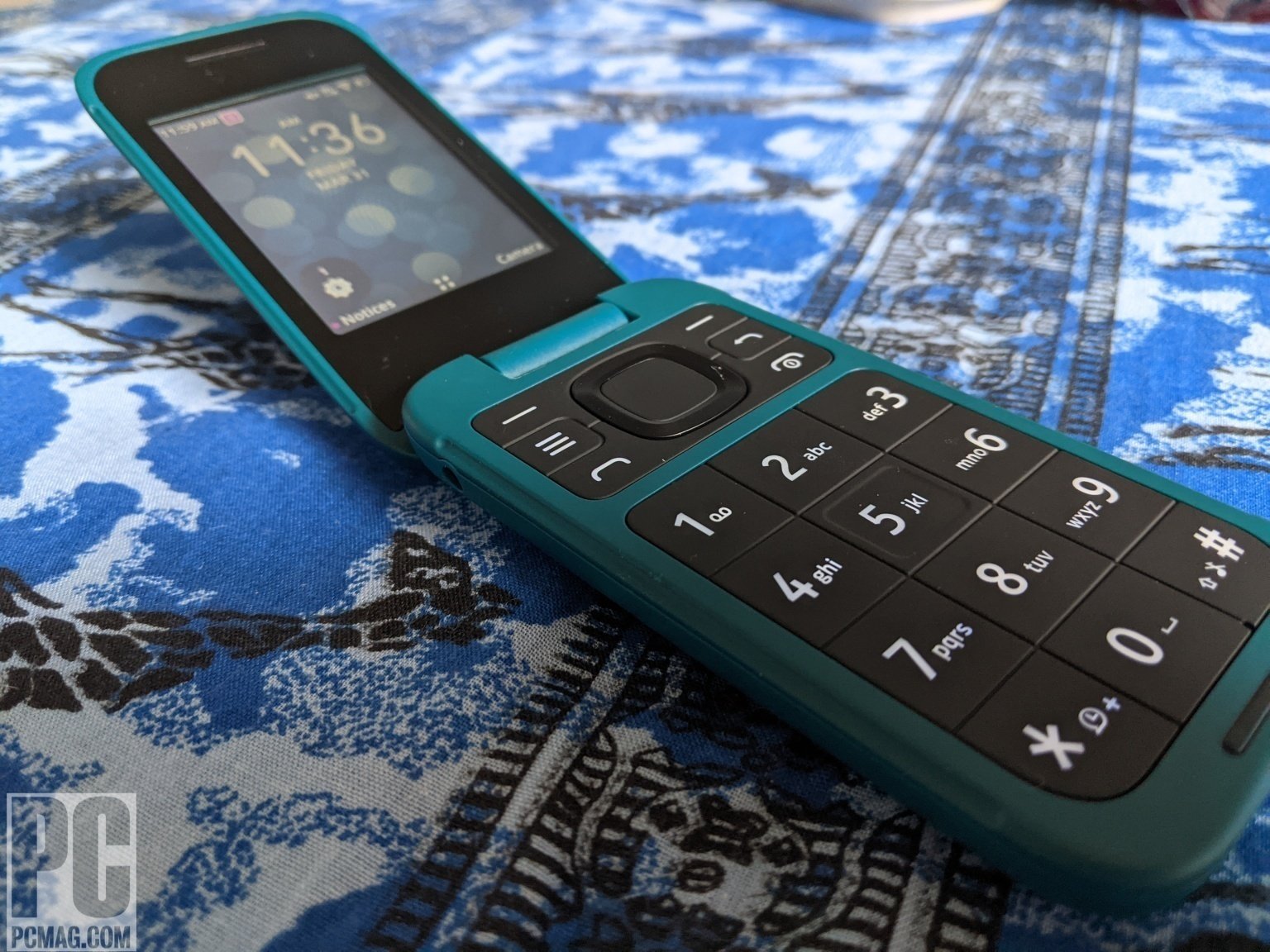
To enter a telephone number with letters, simply press the digit on your phone’s keypad that corresponds to each letter. This works on any phone because the standard keypad mapping is universal: each number key (2-9) is printed with three or four letters, so you tap the digit that matches the letter you need to dial.
How to enter a telephone number with letters
Dial the numeric portion of the number as usual. When you reach a letter, press the key that has that letter printed on it. For example, to dial 1-800-FLOWERS, you would press 1-8-0-0-3-5-6-9-3-7-7. You do not need to switch to a special mode; the letters are right on the dial pad. Enter all digits and letters in order, then place the call.
Entering letters on an iPhone
- Open the Phone app and tap Keypad at the bottom.
- Enter the number part as normal, then tap the digit that matches each letter on the keypad.
- Each number from 2-9 corresponds to 3 or 4 letters; the letters are printed under the number keys.
- After entering the full sequence, tap the green call button to dial.
No separate alphabetic dial-pad entry mode is needed. You can also use Siri by speaking each digit separately, but the keypad method is the direct way to enter letters.
Entering letters on an Android phone
- Open the Phone app and tap the Keypad tab.
- Dial the numeric part of the number, then press the number that matches each letter using the standard mapping: 2 = A/B/C, 5 = J/K/L, and so on.
- Complete the sequence and tap the call button.
The standard telephone keypad mapping is the only documented method for Android. No special setting or app-specific letter-entry limit is required.
The standard telephone keypad letter mapping
Each digit on the dial pad corresponds to a set of letters. Use this reference table to convert any letter to its matching number:
- 2 = A, B, C
- 3 = D, E, F
- 4 = G, H, I
- 5 = J, K, L
- 6 = M, N, O
- 7 = P, Q, R, S
- 8 = T, U, V
- 9 = W, X, Y, Z
This mapping is consistent across all phones and carriers, making it easy to understand and use different phone number formats and digits.
Frequently Asked Questions
Do I need a special setting to dial letters on my phone?
No. The letters are printed directly on the dial pad keys, and you simply press the digit that corresponds to the letter. No “switch to letters” mode exists on iPhone or Android for dialing.
How do I dial a vanity number like 1-800-FLOWERS?
Replace each letter with its matching digit using the standard keypad mapping. For FLOWERS, press 3 (F), 5 (L), 6 (O), 9 (W), 3 (E), 7 (R), 7 (S), so the full number becomes 1-800-356-9377.
Can I enter letters in a contact name or save a phone number with letters?
Yes, you can save a contact with a number that includes letters. When you later tap to call that contact, the phone automatically converts the letters to digits using the same keypad mapping.
Are there any limits on how many letters I can dial?
No documented limit exists. You can dial any combination of digits and letters as long as the total sequence matches the required phone number length.
Use Mnemonics
Mnemonics can make it easier to remember phone numbers that include letters. For example, using the word 'FLOWER' to represent the numbers 35637 can help in recalling the number more easily.
Check for Ambiguity
Be mindful of potential ambiguity when using letters in phone numbers. Certain letters, such as 'O' and 'Q,' can be confused with numbers, so it's important to double-check for clarity.
Communicate Clearly
When providing a phone number with letters, enunciate each letter distinctly to ensure the recipient accurately captures the information.
Double-Check Spelling
If spelling out a word using letters in a phone number, ensure that the recipient understands the correct spelling to avoid any confusion.
Use Phonetic Alphabet
In situations where clarity is crucial, consider using the phonetic alphabet (Alpha, Bravo, Charlie, etc.) to convey letters clearly and avoid misunderstandings.
Test the Number
After providing a phone number with letters, encourage the recipient to read it back to confirm accuracy. This simple step can prevent potential errors.
Related reading: How To Call Phone With Extension and How To Change Keypad From Numbers To Letters On Android Phone.