When your phone displays "cellular network not available for voice calls," it means the device cannot connect to your carrier's network to make or receive calls and texts. This is almost always a temporary software glitch, a misconfigured network setting, or a carrier-side issue, and the steps below will restore your service quickly.
Why your phone says 'cellular network not available for voice calls'
This error blocks your ability to place calls and send texts, but it rarely signals a broken phone. Most cases stem from a brief software hiccup, an incorrect network selection, or a problem with your account or carrier. Apple says when the carrier’s network isn’t available, iPhone has no cellular data or voice service. The fixes below start with the simplest, non-destructive steps and progress to deeper settings and hardware checks, so you can get back on the network as fast as possible.
Quick software fixes for the 'cellular network not available' error
These first-line steps resolve the majority of cases without changing any saved data or settings. They force your phone to re-establish a fresh connection to the cellular network.
-
1. Turn airplane mode on and off
Apple documents this as the first step for call failures. Open your phone's quick settings or go to Settings > Airplane Mode, turn it on, wait at least 15 seconds, then turn it off. This forces your device to perform a fresh network handshake with the nearest cell tower. It works on both iPhone and Android.
-
2. Restart your phone
A standard restart clears temporary memory glitches that can interfere with cellular service. On an iPhone, press and hold the side button until the power-off slider appears, then slide to turn off. On most Android phones, press and hold the power button and tap "Restart." After the phone reboots, check if the error persists.
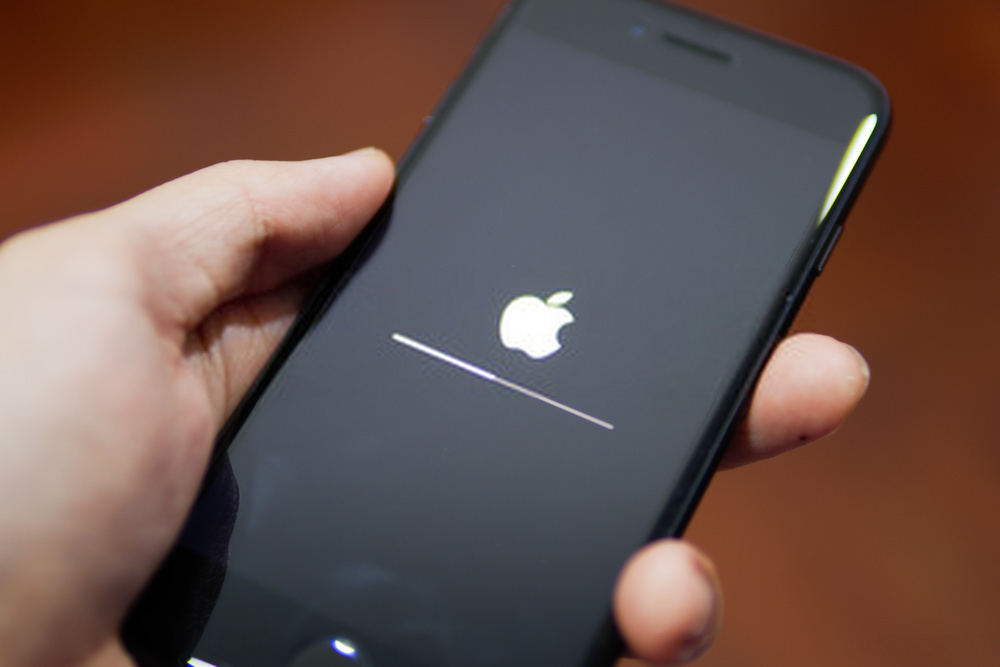
Photo by wachiwit on Adobe Stock -
3. Check for a carrier settings or iOS update
Apple says to check for an iOS software update, which may include critical bug fixes for cellular connectivity. Go to Settings > General > Software Update. On Android, go to Settings > Software Update (the exact path varies by manufacturer). Carrier settings updates sometimes arrive separately and can also fix network issues. Install any pending updates before moving on.
Network and account fixes when software steps fail
If the quick software fixes didn't work, the problem may be a manual network setting or an issue with your cellular plan. These steps check deeper configuration and account status.
-
4. Set network selection to automatic
Your phone may be stuck trying to connect to a wrong or unavailable network. On Android (verified for Google Fi and many Samsung devices), go to Settings > Connections > Mobile Networks > Network Operators and turn on "Automatically select a network." On iPhone, go to Settings > Mobile > Network Selection and enable "Automatic." This lets your phone pick the best available carrier network. The Google Fi network-selection steps apply to Google Fi service on Android, not all carriers.
-
5. Verify your cellular plan and account
Apple documents checking that the correct cellular line is active. On iPhone, go to Settings > Cellular and tap the line you want to use. Then contact your carrier to confirm the account is in good standing, there are no localized outages, and the device is not blocked or barred. This step is crucial because a suspended account or a blocked IMEI will produce the exact same error.
-
6. Reset your network settings
Apple's verified path is Settings > General > Transfer or Reset iPhone > Reset > Reset Network Settings. This erases all saved Wi‑Fi passwords, preferred networks, and VPN/APN settings, but it often fixes stubborn cellular issues. A similar function exists on Android under Settings > General Management > Reset > Reset Network Settings, though the exact menu name varies by device. Use this step only after trying the previous fixes, as you will need to re‑enter Wi‑Fi credentials afterward.
-
7. Enable Wi‑Fi calling as a workaround
When cellular signal is low, Apple advises using Wi‑Fi Calling to make voice calls over an internet connection. On iPhone, go to Settings > Cellular > Wi‑Fi Calling > Wi‑Fi Calling on This iPhone and enable it. This does not fix the underlying cellular error, but it lets you place calls immediately while you troubleshoot further. Android phones have a similar option under Settings > Connections > Wi‑Fi Calling.
Physical and carrier checks for persistent problems
If all software and settings steps have been exhausted, the issue may be with the SIM card or the carrier's network itself. These final checks address hardware and external causes.
-
8. Reseat or check your SIM card for damage
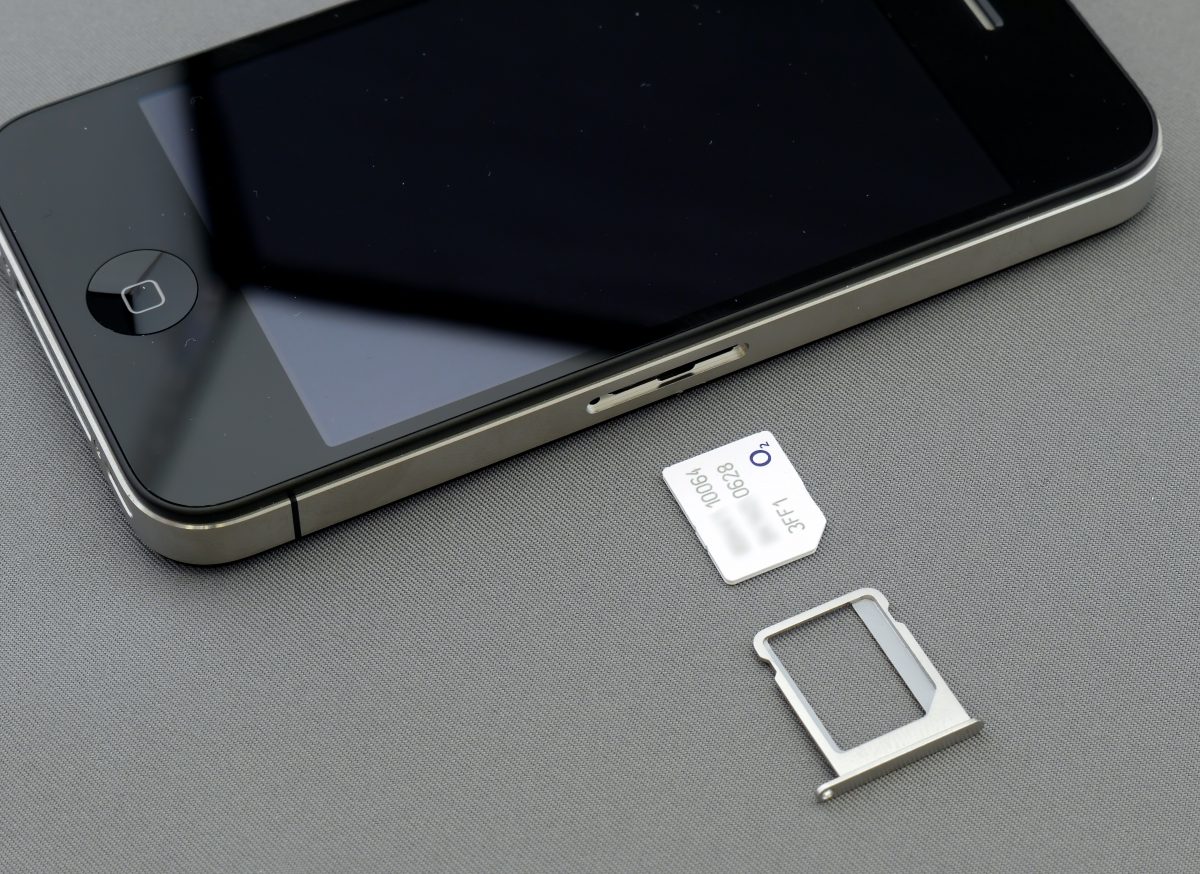
Remove the SIM card from its tray, inspect it for visible scratches or bent contacts, and reinsert it firmly. To isolate a faulty card, test with a different SIM from the same carrier. If the second SIM works, your original card may need replacement. Note that no official manufacturer support page documents this as a universal step for this specific error, but it is a common and effective hardware check.
-
9. Check for carrier maintenance or outages
Carriers occasionally perform maintenance that temporarily disrupts service. Check the carrier's official social media pages or website for announcements. You can also call them directly to confirm whether there is a localized outage in your area. This step is especially useful if the error appeared suddenly and affects others nearby.
-
10. Hardware solutions for persistent problems
If manual network search detects any network but not the Home Network, the issue is from the PFO; replace or repair the PFO. If network disconnects when making calls, repair or replace the Network IC and clean the antenna tips and points. Additional hardware fixes include: heat or replace the 26 MHz Crystal Oscillator, replace the Antenna Switch, put in a jumper if Antenna Switch is not accessible, heat/change/jumper the PFO, heat/re-ball/replace the Network IC, Power IC, or CPU.
Frequently Asked Questions
Will resetting network settings delete my contacts or photos?
No. Resetting network settings only removes saved Wi‑Fi passwords, Bluetooth pairings, VPN configurations, and APN settings. Your contacts, photos, apps, and other personal data remain untouched.
Why does the error only happen when I try to make calls but data works fine?
On some cellular connections, iPhone cannot use internet services while on a voice call unless Wi‑Fi is available. LTE, 5G E, 4G, and 3G on GSM networks support simultaneous voice and data, but older or congested networks may not. If data works but calls fail, the issue is often a carrier-side setting or a temporary network handshake problem.
Can a bad SIM card cause this error even if the phone shows bars?
Yes. A damaged SIM card can still show signal bars but fail to register for voice services. If you see "No SIM Card" in the status bar despite having a SIM inserted, or if swapping in another SIM resolves the problem, the original card is likely faulty and needs replacement from your carrier.
Does this error mean my phone is permanently broken?
Almost never. The vast majority of cases are resolved by the software and network fixes listed above. Only if you have tried every step, including a network settings reset, a different SIM, and a carrier account check, should you consider a hardware repair, and even then the issue is often a replaceable component like the antenna switch or network IC.
What should I do if I'm traveling abroad and see this error?
Check your phone's network selection is set to automatic, and verify your account includes international calling and plans. Contact your carrier to ensure roaming is enabled and the device isn't barred. On Android with Google Fi, go to Settings > Network & Internet > Google Fi under SIMs and turn off "Automatically select a network" to manually choose a local network if needed.
Related reading: Why Is My Hotspot Grayed Out and 15 Incredibly Easy Ways To Boost Your Mobile Coverage.