Bluetooth discoverable mode is a temporary state that makes your device visible to other Bluetooth-enabled devices so they can find and initiate a connection for pairing. Its primary purpose is to allow nearby devices to detect yours and start the process of connecting, whether you are pairing a phone with a car, a headset, or a computer.
What is discoverable mode?
Discoverable mode is a setting on Bluetooth-enabled devices that broadcasts a signal, telling other devices "I am here and ready to pair." When a device is in discoverable mode, it appears in the list of available devices on nearby phones, tablets, or computers, enabling the two devices to exchange pairing information and establish a connection.
How to turn on discoverable mode on Android
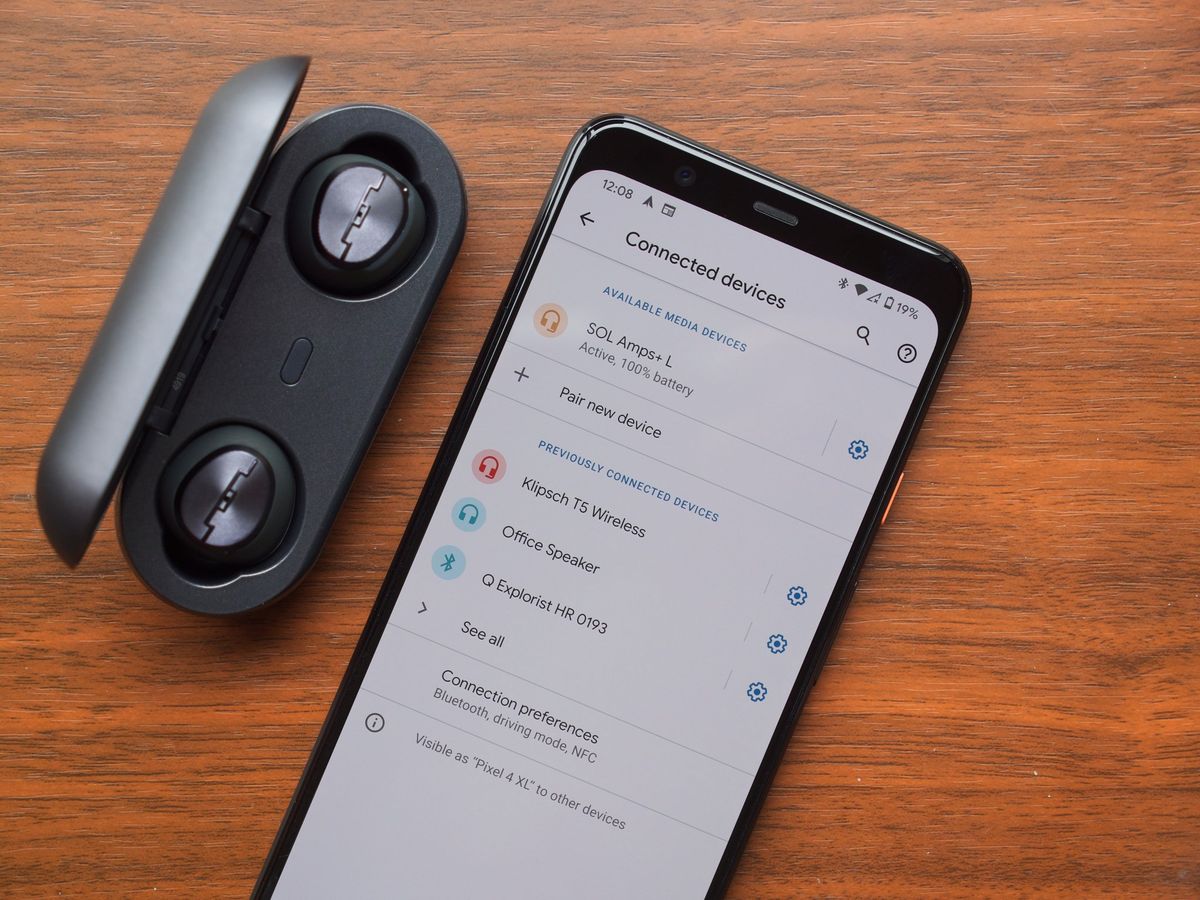
Android phones and tablets automatically enter discoverable mode for two minutes by default when you start the pairing process. On Android, devices are typically discoverable for two minutes by default, but this duration can be extended up to five minutes. To make your Android device discoverable:
- Swipe down from the top of the screen to open the Quick Settings panel.
- Touch and hold the Bluetooth icon to open the Bluetooth settings screen.
- Tap "Pair new device" to make your phone or tablet discoverable. Alternatively, check under "Available devices" or tap "More" then "Refresh" to trigger discoverability.
Note that device discovery on Android requires location access because discoverable devices might reveal information about the user's location. If you need to keep your device discoverable for longer than two minutes, for example, when adjusting your maps and navigation app settings to sync with a car’s hands-free system, you may need to manually refresh the available devices list.
How to make an iPhone discoverable
iPhones do not have a single, universal "discoverable mode" switch. Instead, an iPhone becomes discoverable to other Bluetooth devices only when the Bluetooth settings screen is open. To make your iPhone discoverable:
- Open the Settings app.
- Tap Bluetooth.
- Keep this screen open while the other device searches for your iPhone. Your iPhone will remain discoverable as long as this screen is visible.
How to make a Windows PC discoverable
To allow other Bluetooth devices to find your Windows computer, you need to enable a specific setting in the Bluetooth options. Follow these steps:
- Click Start, then select Settings.
- Go to Bluetooth & devices, then click Devices.
- Ensure Bluetooth is turned On.
- Select "More Bluetooth options" (or "Related settings" depending on your Windows version).
- In the window that opens, go to the Options tab.
- Check the box labeled "Allow Bluetooth devices to find this PC."
Why you should turn off discoverable mode when not in use
Leaving discoverable mode active when you are not actively pairing a device poses a security and privacy risk. Any Bluetooth-enabled device within range can see your device and attempt to initiate a connection, which could lead to unwanted pairing requests or potential data exposure. For this reason, you should disable discoverable mode immediately after you finish pairing, on Android, this happens automatically after the two-minute timeout, but on other devices you must manually turn it off. Keeping discoverability off when not needed protects your device from unsolicited connection attempts and helps preserve battery life.
Frequently Asked Questions
Does discoverable mode drain battery?
Yes, leaving Bluetooth discoverable mode on can drain your device's battery faster because the Bluetooth radio is actively broadcasting and listening for connection requests. Most devices automatically turn off discoverability after a short period to conserve power.
Can someone connect to my device without my permission if discoverable mode is on?
No, discoverable mode only makes your device visible; a connection still requires you to accept the pairing request or enter a passkey. However, leaving it on increases the risk of unwanted pairing attempts or Bluetooth-based attacks like Bluejacking.
Why does my Android phone require location permission for Bluetooth discovery?
Android requires location access because discoverable devices can reveal information about your location to nearby devices. This permission helps protect your privacy and is a requirement of the Android operating system for Bluetooth scanning.
How long does an iPhone stay discoverable?
An iPhone remains discoverable only as long as the Bluetooth settings screen (Settings > Bluetooth) is open. Once you close that screen or navigate away, the iPhone stops being discoverable to other devices.
Can I make my Windows PC discoverable permanently?
Yes, by checking the "Allow Bluetooth devices to find this PC" option in the Bluetooth settings, your PC will remain discoverable as long as Bluetooth is turned on. However, it is recommended to uncheck this option when not actively pairing for security reasons.
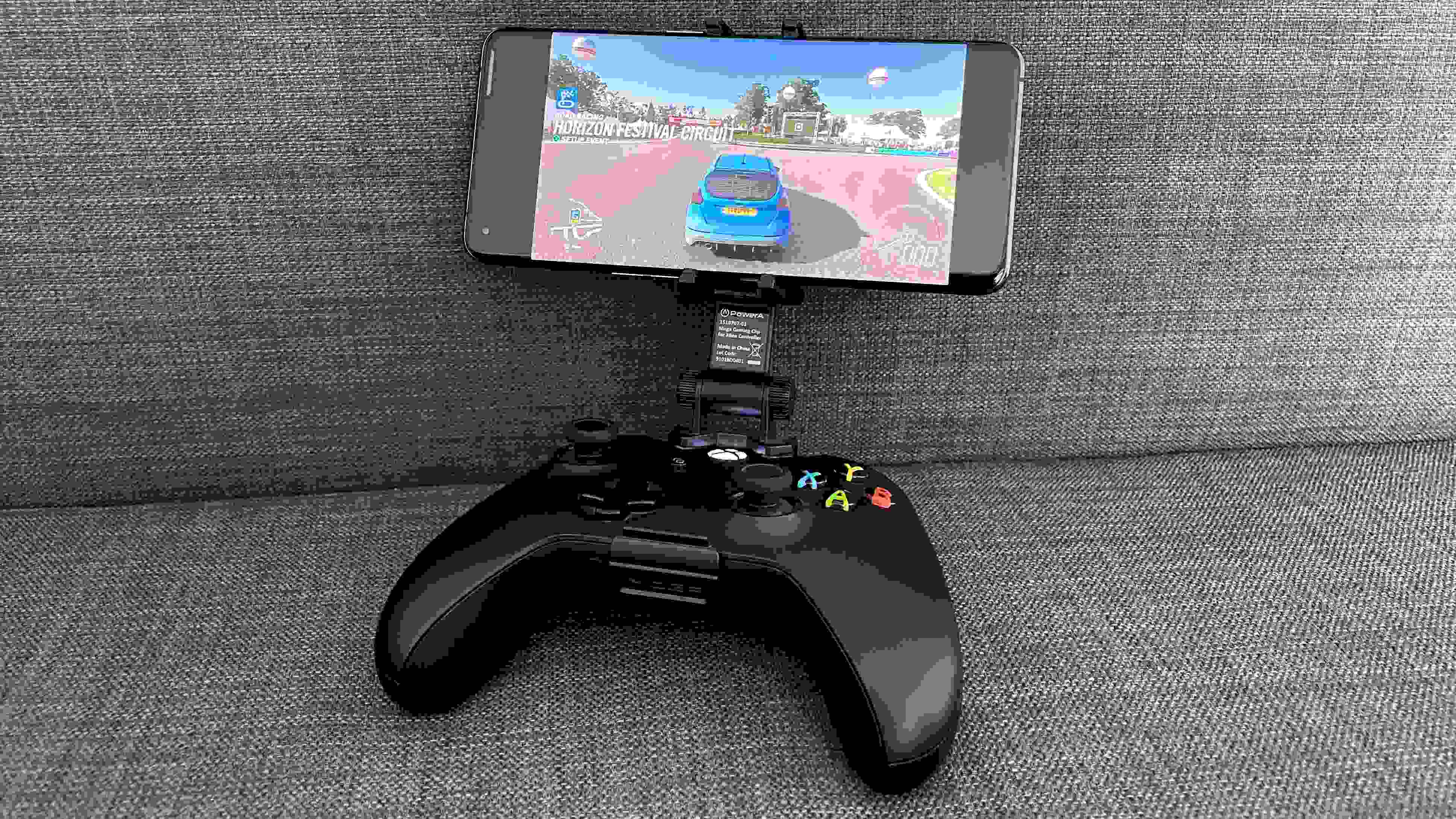
Related reading: How To Unforget Bluetooth Device On Android and How To Connect Wireless Controller To Android.