How to connect a PS5 controller to your phone
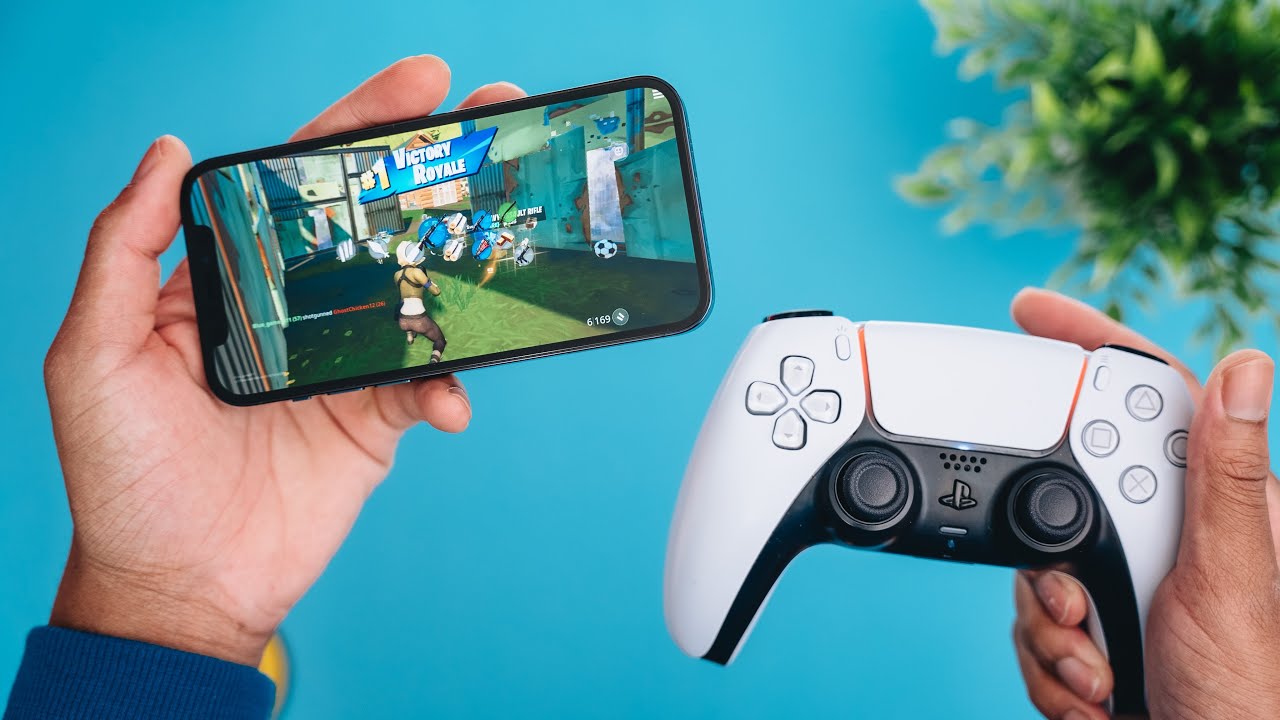
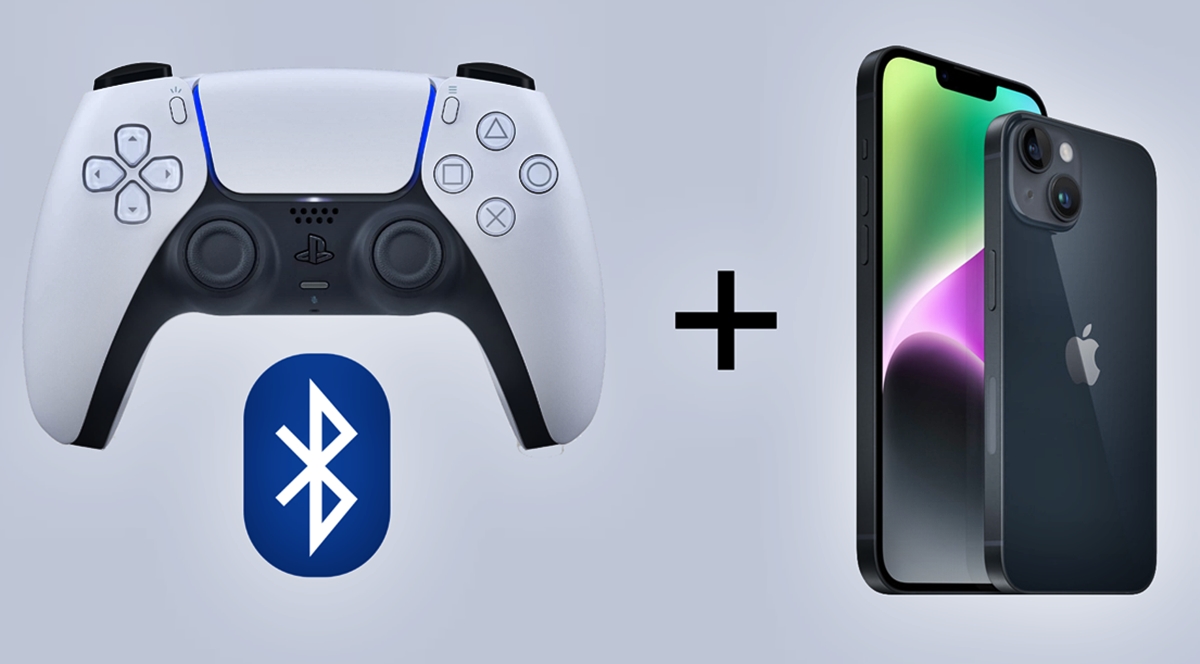
To connect a PS5 controller to your phone, you need a DualSense wireless controller and a phone running iOS 14.5 or later, or Android 12 or later, with Bluetooth support. The process takes about a minute and requires no extra apps or cables.
Compatibility requirements
Before you start, confirm your phone meets the minimum operating system requirements. For iPhones and iPads, you need iOS 14.5 or iPadOS 14.5 or later. For Android phones, you need Android 12 or later. If you own the premium DualSense Edge controller, the requirements are higher: iOS 16.4+, iPadOS 16.4+, or Android 14+.
Your phone must also support Bluetooth, which virtually all modern smartphones do. The DualSense controller uses Bluetooth 5.1 technology. If your phone runs an older operating system, the controller will not appear in your Bluetooth list, so updating your phone's OS is the first step if you run into trouble.
Step 1: Turn off the controller and disconnect cables
Begin with the DualSense controller powered down. Check that the player indicator and light bar are off. If the controller is on, press and hold the PS button until the light bar turns off completely.
Before attempting wireless pairing, disconnect any USB cable from the controller. A connected cable can interfere with Bluetooth pairing or cause the controller to charge instead of entering pairing mode.
Step 2: Enable Bluetooth on your phone
Open the Settings app on your phone and navigate to the Bluetooth section. Toggle Bluetooth to the on position. Your phone will immediately begin scanning for nearby devices. Keep this screen open while you prepare the controller.
On iPhones, the Bluetooth list updates automatically. To make your phone discoverable to other devices, tap the three-dot menu icon or 'More' option in Bluetooth settings and select 'Visibility' or 'Make Device Discoverable'.
Step 3: Put the DualSense controller in pairing mode
With the controller off and no cable attached, locate the Create button. This is the small button to the left of the touchpad, which was previously called the Share button. Press and hold the Create button and the PS button simultaneously.
Keep holding both buttons until the light bar on the controller begins blinking rapidly. This flashing pattern indicates the controller is in pairing mode and ready to connect. The blinking will continue until the controller pairs or times out.
Step 4: Select the controller from your phone's Bluetooth list
Look at your phone's Bluetooth settings and find "DualSense Wireless Controller" in the list of available devices. Tap it to complete the pairing. Your phone will show a confirmation message once the connection is established, and the light bar will stop blinking and remain lit.
After the initial pairing, the controller will reconnect automatically to your phone whenever both Bluetooth and the controller are turned on. To connect to a different device later, repeat the pairing process from Step 3. A recent PS5 system update (July 2025) allows the DualSense controller to register up to four devices simultaneously and switch between them.
What features don't work on mobile
While the DualSense works well for mobile gaming, several features are unavailable when connected to a phone. On Android, the adaptive triggers will not function, so you won't feel variable resistance when pulling the triggers. Haptic feedback is also disabled, meaning the subtle vibrations you get on a PS5 console won't transfer to your phone.
The built-in microphone and speaker on the controller do not work when connected via Bluetooth to a phone. Additionally, the headset jack on the controller is non-functional, so you cannot plug wired headphones into the controller for game audio. You will need to use your phone's speakers or a separate Bluetooth headset.
Troubleshooting connection problems
If the controller does not appear in your phone's Bluetooth list, start by restarting your phone. This clears temporary Bluetooth glitches. Next, check your phone's Bluetooth settings for any old DualSense pairings and select "Forget" or "Remove" on each one, as leftover connections can block new pairing attempts.
Ensure the controller has sufficient battery charge. A low battery can prevent pairing, so connect it to a power source with a USB cable and wait a few minutes before trying again. Finally, verify your phone's operating system is updated to at least the minimum version required. If the problem persists, the issue may be with the controller itself, and you should test it with another phone to isolate the cause.
Frequently Asked Questions
Can I use a PS5 controller with any phone?
You can use a PS5 controller with any Bluetooth-enabled phone that runs iOS 14.5 or later, or Android 12 or later. Phones with older operating systems will not recognize the controller, regardless of their brand.
What games can I play with a PS5 controller on my phone?
You can play any game that supports external controller input, including mobile versions of console games, game streaming services like PlayStation Remote Play or Xbox Game Pass, and many popular titles with native controller support. Check each game's settings to see if it recognizes a gamepad.
What are the benefits of using a DualSense controller over touch controls?
The DualSense offers physical buttons, analog sticks, and an ergonomic grip, which provide far more precise and comfortable input than touchscreen controls. This is especially valuable for action games, shooters, and platformers where quick, accurate button presses matter.
For the wider topic, see phone as a controller.
Related reading: How To Connect Phone To Firestick Bluetooth.