To install OtterBox Defender iPhone 14 case, first separate the inner plastic shell, then snap it around your phone, and finally stretch on the rubber slipcover. This three-layer system provides rugged drop protection, and following the correct order prevents damage to the case or your device.
Before you install your OtterBox Defender iPhone 14 case
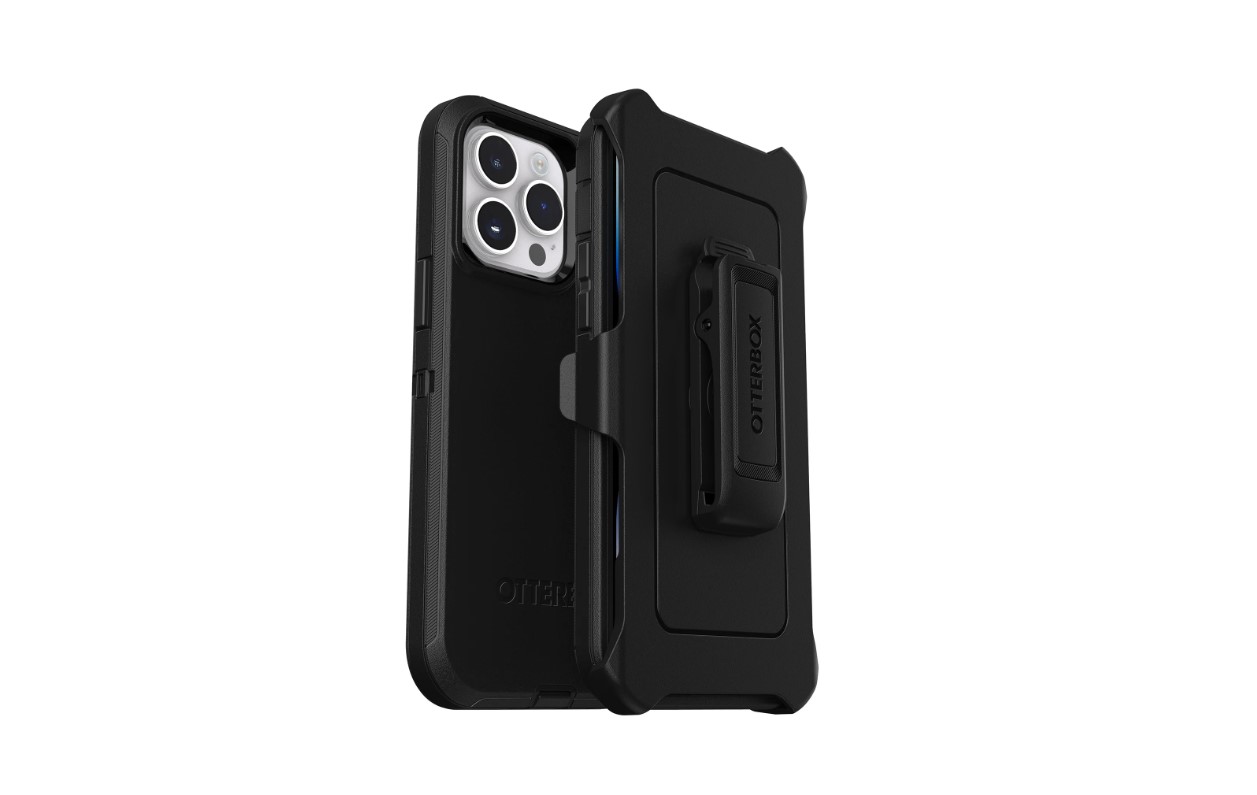
Check that your case is designed for the iPhone 14 model, not an older or newer version. Double-check the model number on your iPhone and match it with the specifications provided by OtterBox to guarantee a perfect fit. Inspect the OtterBox Defender case for any visible damage before installation. Gather all the necessary tools and equipment before starting the installation process. OtterBox typically provides all the required items in the case package, such as a screen protector, cleaning cloth, and installation tools. Clean your phone with a soft, lint-free cloth to remove dust and oils. Identify the three case layers: the front frame (hard polycarbonate), the back frame (hard polycarbonate), and the rubber slipcover (outer silicone layer). Having these separated before you begin makes assembly straightforward. OtterBox provides official installation videos for the Defender Series cases on their website.
Separate the inner plastic shell
The hard polycarbonate shell comes in two interlocking pieces. Locate the thumb slot on one edge and use it to pry the front frame away from the back frame. This is the critical first step; forcing the shell apart later can crack the plastic. Once separated, set the rubber slipcover aside.
Snap the shell around your iPhone 14
- Place your iPhone 14 face-down into the front frame, aligning the screen cutout and camera opening.
- Attach the back frame by pressing the clips around the perimeter until you hear each one click into place.
- Run your finger along all four edges to confirm the shell is fully seated and there are no gaps.
A secure fit here prevents the phone from shifting inside the case during a drop.
Stretch on the rubber slipcover
- Start by working one corner of the silicone slipcover over the assembled shell.
- Stretch the opposite corner into place, then the remaining two corners.
- Press the slipcover into the grooves along the edges so it sits flush against the plastic.
- Check that the silicone covers the entire shell without bunching or leaving exposed plastic.
The rubber layer absorbs impact and seals the case; proper stretching ensures it stays on during daily use.
Check fit and functionality
Press each button to confirm it clicks with tactile feedback. Open and close the port covers to verify they seal tightly. Slide the mute switch to ensure it moves freely and is accessible. Look at the screen from multiple angles to confirm there are no gaps, debris, or lifting edges. If you plan to use a screen protector, note that the Defender’s built-in cover works best when paired with proper screen protector application and repair; a poorly applied protector can lift the case’s front frame. If you find that some buttons or ports are not working properly after installing the case, double-check that the silicone covers are correctly placed and securely sealed. Make adjustments if necessary and ensure there are no obstructions hindering their functionality. If you notice any issues with screen responsiveness, ensure that the front cover is properly aligned with the screen and that there are no dust or debris particles trapped under it. Gently remove the cover and clean both the screen and the cover before reattaching.
How to clean and maintain your OtterBox Defender
To clean the case, remove it from your iPhone 14 by reversing the installation steps: peel off the rubber slipcover, then separate the plastic shell. Wash the silicone slipcover with mild soap and water, using a soft cloth to remove grime. Rinse thoroughly and let it air dry completely before reassembly. Do not use harsh chemicals or abrasive materials, as they can damage the silicone. Avoid exposing the case to extreme conditions such as excessive heat, cold, humidity, or water, as they can compromise the case's integrity and potentially damage your iPhone. Inspect the plastic shell for cracks or wear each time you clean; replace the case if you find damage. Periodically inspect the case for any signs of wear and tear, such as cracks or loose parts. If you notice any issues, consider replacing the case.
Frequently Asked Questions
Does the OtterBox Defender case work with wireless charging?
Yes, the Defender is compatible with Qi wireless charging. Place your iPhone 14, with the case on, on a charging pad and align the center of the phone with the pad’s charging area for best results.
Can I use the camera and all buttons with the case installed?
Yes. The case has precise cutouts for the camera, flash, and microphone, and the silicone button covers provide tactile feedback without blocking functionality.
How do I remove the OtterBox Defender case from my iPhone 14?
Peel off the rubber slipcover starting from a corner, then press the thumb slot on the plastic shell to separate the front and back frames. Lift the phone out of the front frame carefully.
Will the OtterBox Defender fit with a screen protector already on my phone?
The Defender’s built-in screen cover is designed to work without an additional screen protector. If you already have one installed, check that it does not lift the front frame or create bubbles.
What should I do if the case feels loose after installation?
Recheck that all clips on the plastic shell snapped fully into place. Reassemble from the beginning to ensure a tight fit.
No case can guarantee absolute protection from all types of damage, so it is always important to handle your iPhone with care.