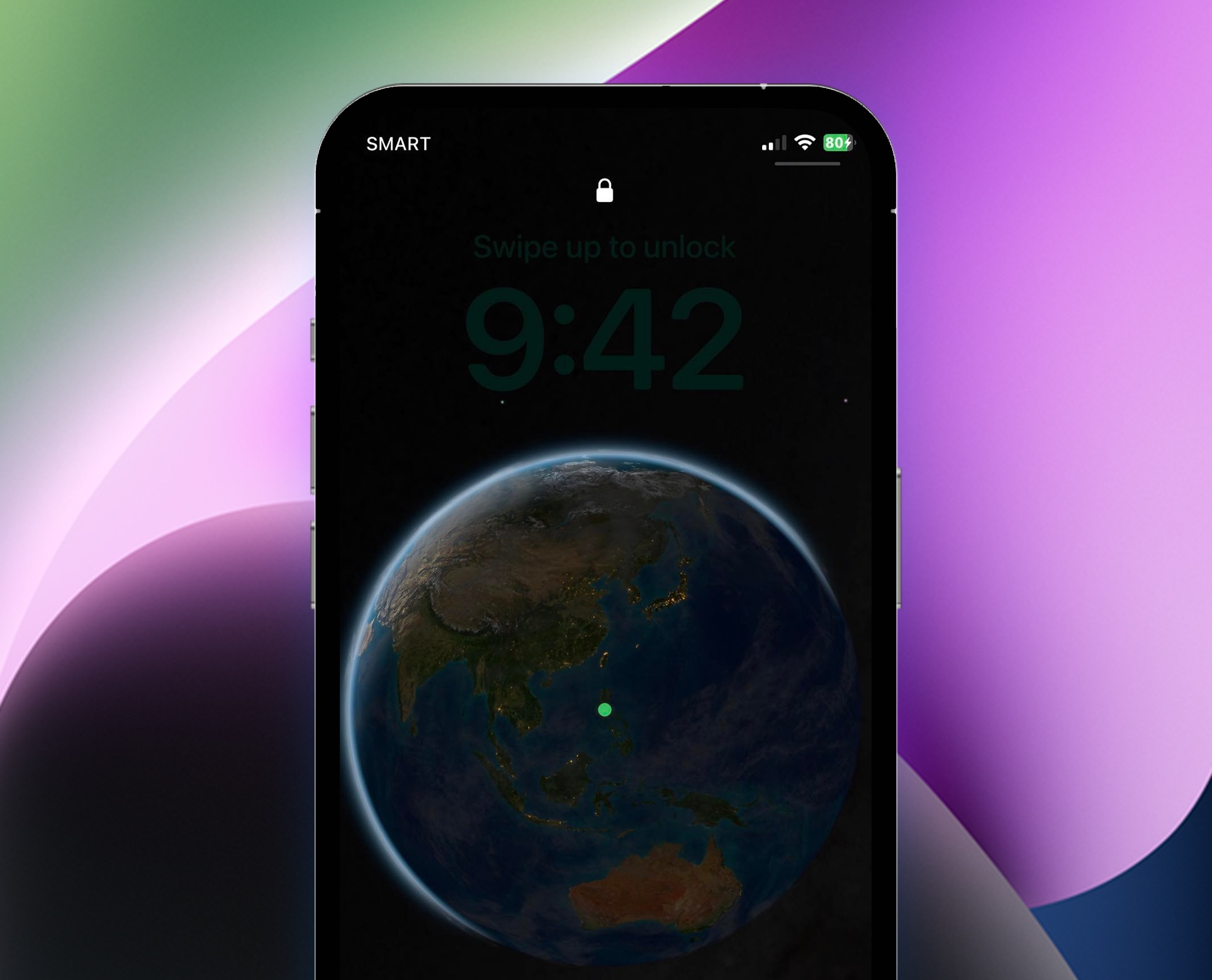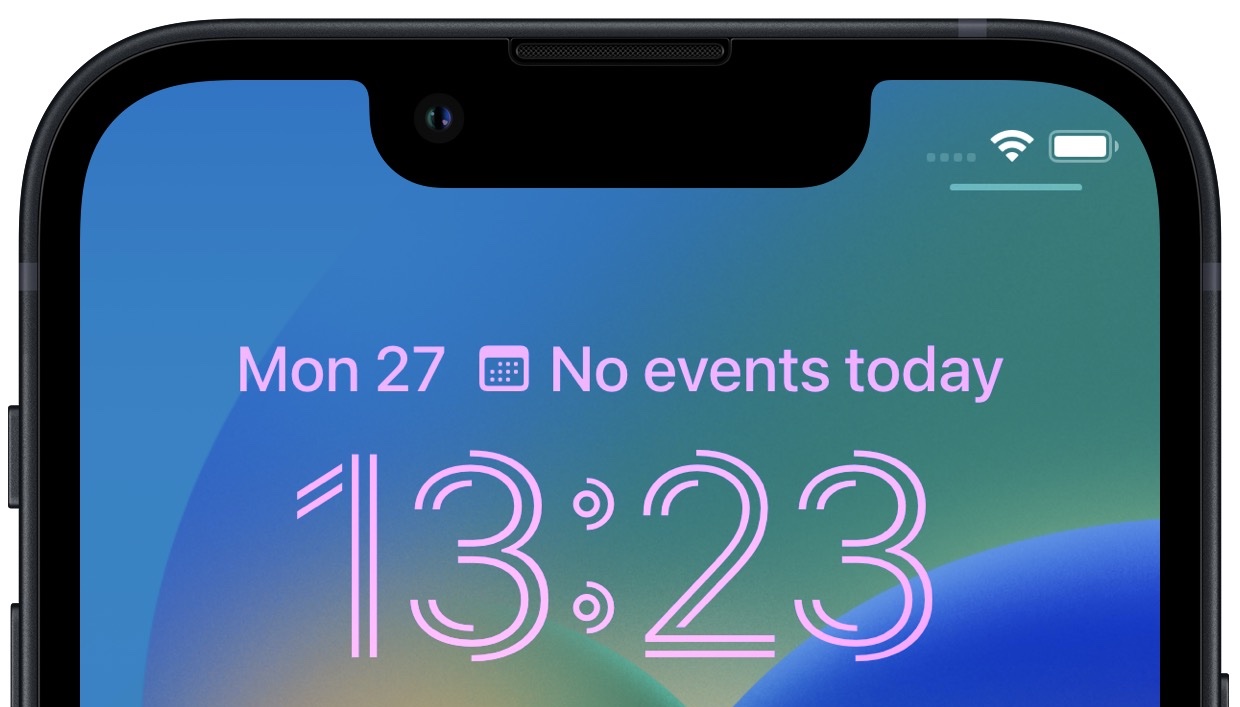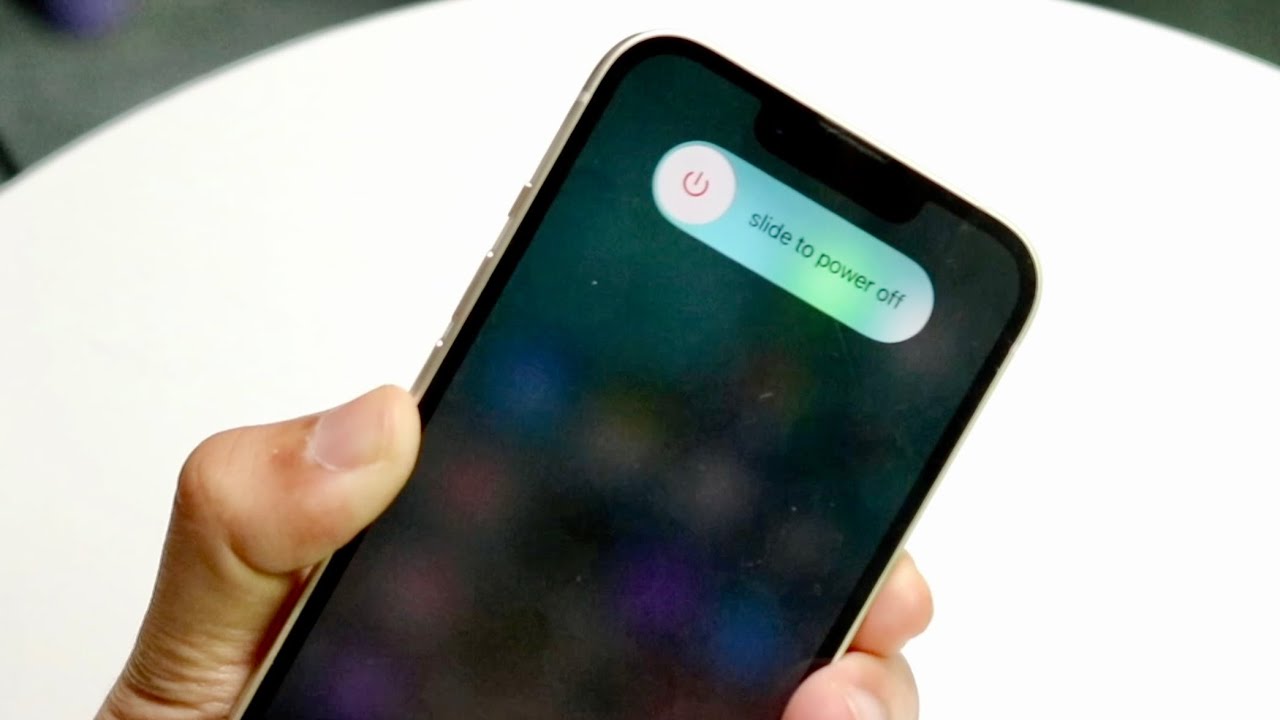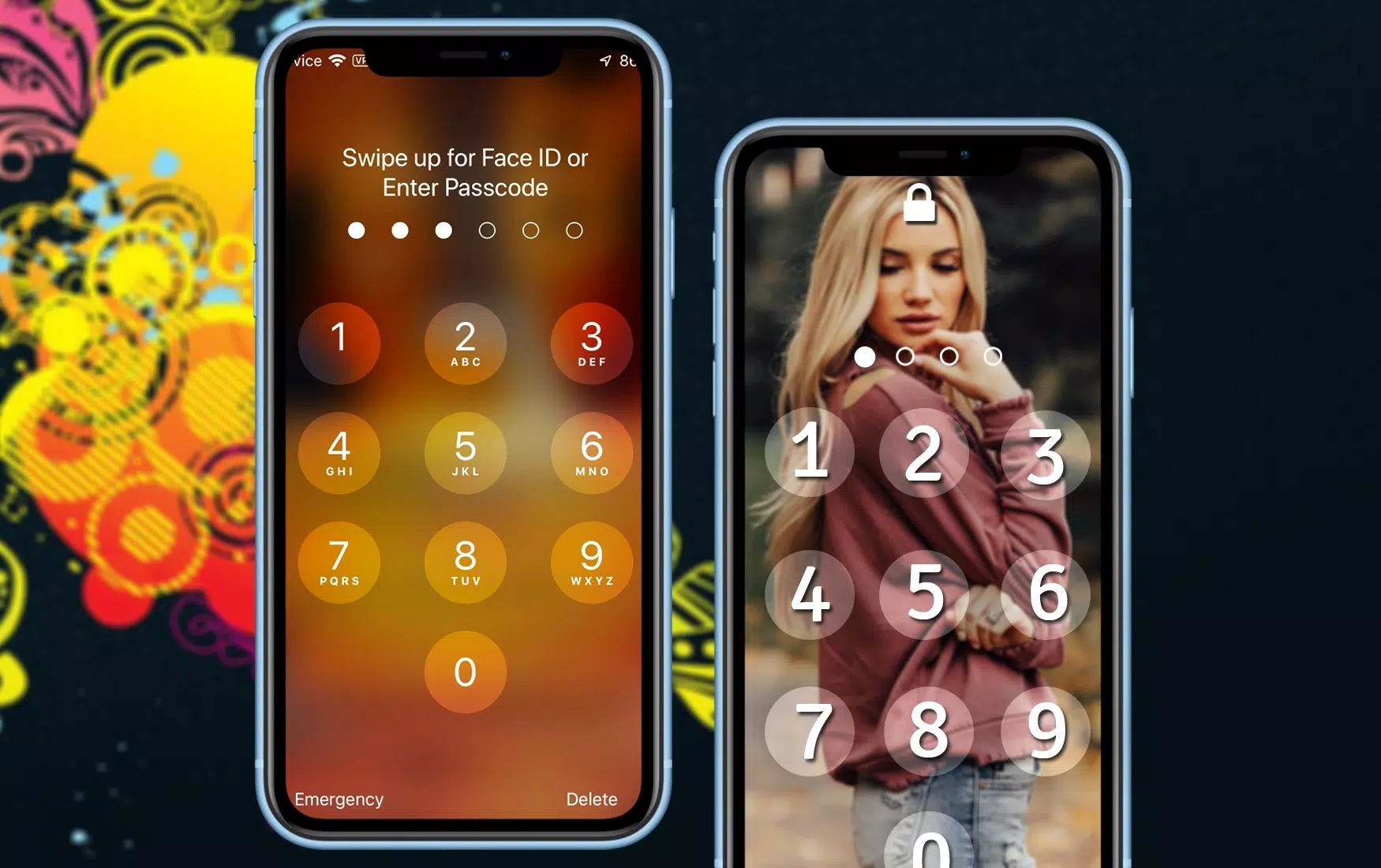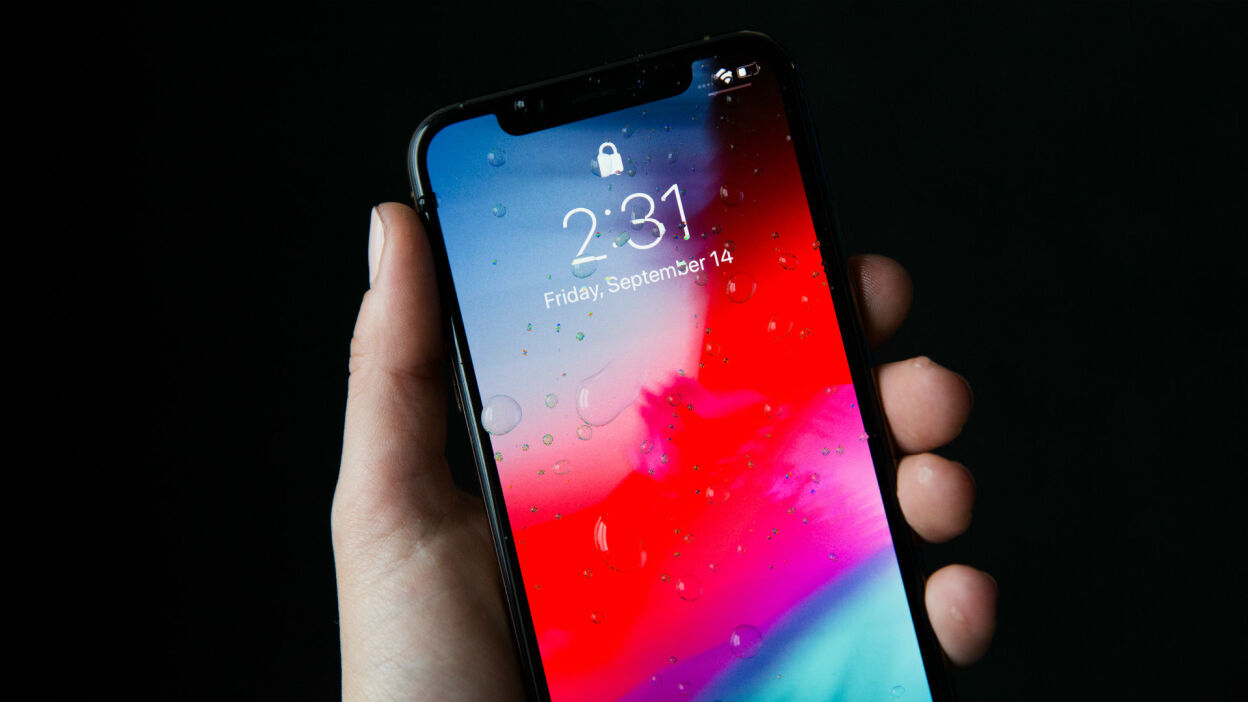
Wondering "where is lock screen on iPhone 12"? It's the first screen you see when you wake the device or turn it on. It displays the time, date, and any notifications, and you can lock it manually by pressing the side button.
Where is the lock screen on iPhone 12?
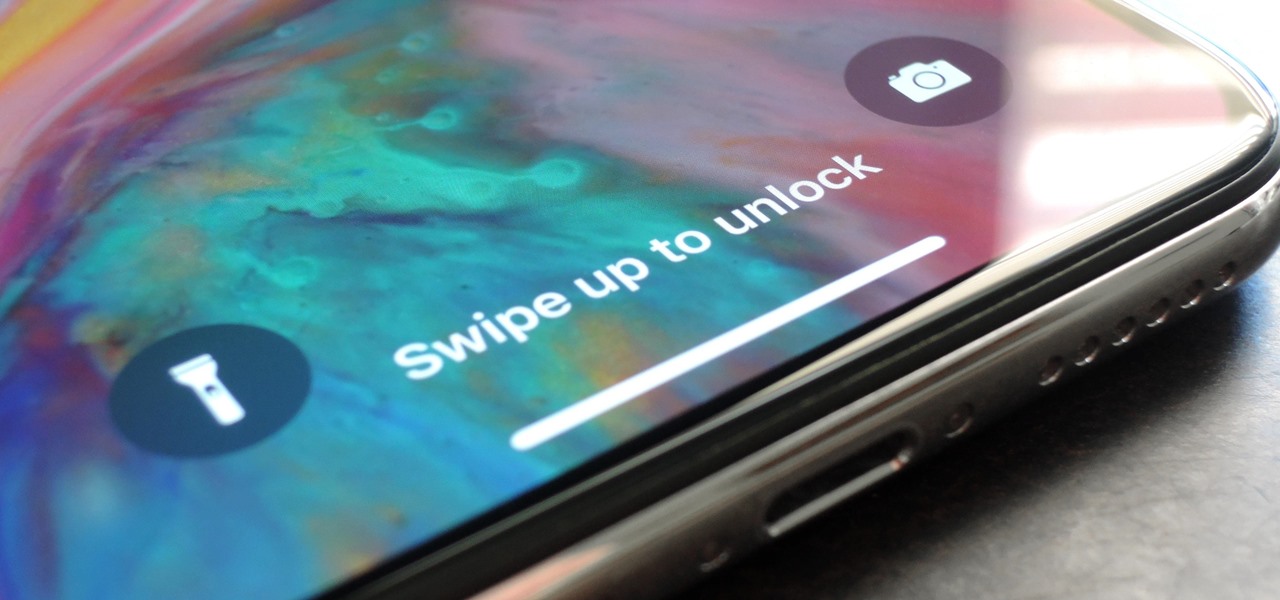
The lock screen is the screen that appears automatically when you wake your iPhone 12 by pressing the side button or raising the device. It is also the screen you see after turning on the phone. To manually lock the screen and return to this view, simply press the side button once. Understanding this location is the foundation for using all lock screen features and is essential for implementing effective privacy screens and screen locking methods on your device.
How to access the lock screen on iPhone 12
Accessing the lock screen is the first step to interacting with your iPhone 12. You can reach it in two simple ways:
- Press the side button to wake the iPhone and see the lock screen.
- Raise the iPhone 12 to wake it, which also brings up the lock screen.
Once the lock screen is visible, you can use it to quickly access various features without unlocking the phone.
What you can do from the lock screen
From the lock screen, you can perform four main swipe gestures to access different functions:
- Swipe left to open the Camera.
- Swipe right to open the Today View, which shows widgets.
- Swipe down from the top-right corner to open Control Center.
- Swipe up from the middle to see earlier notifications.
How to customize the lock screen on iPhone 12
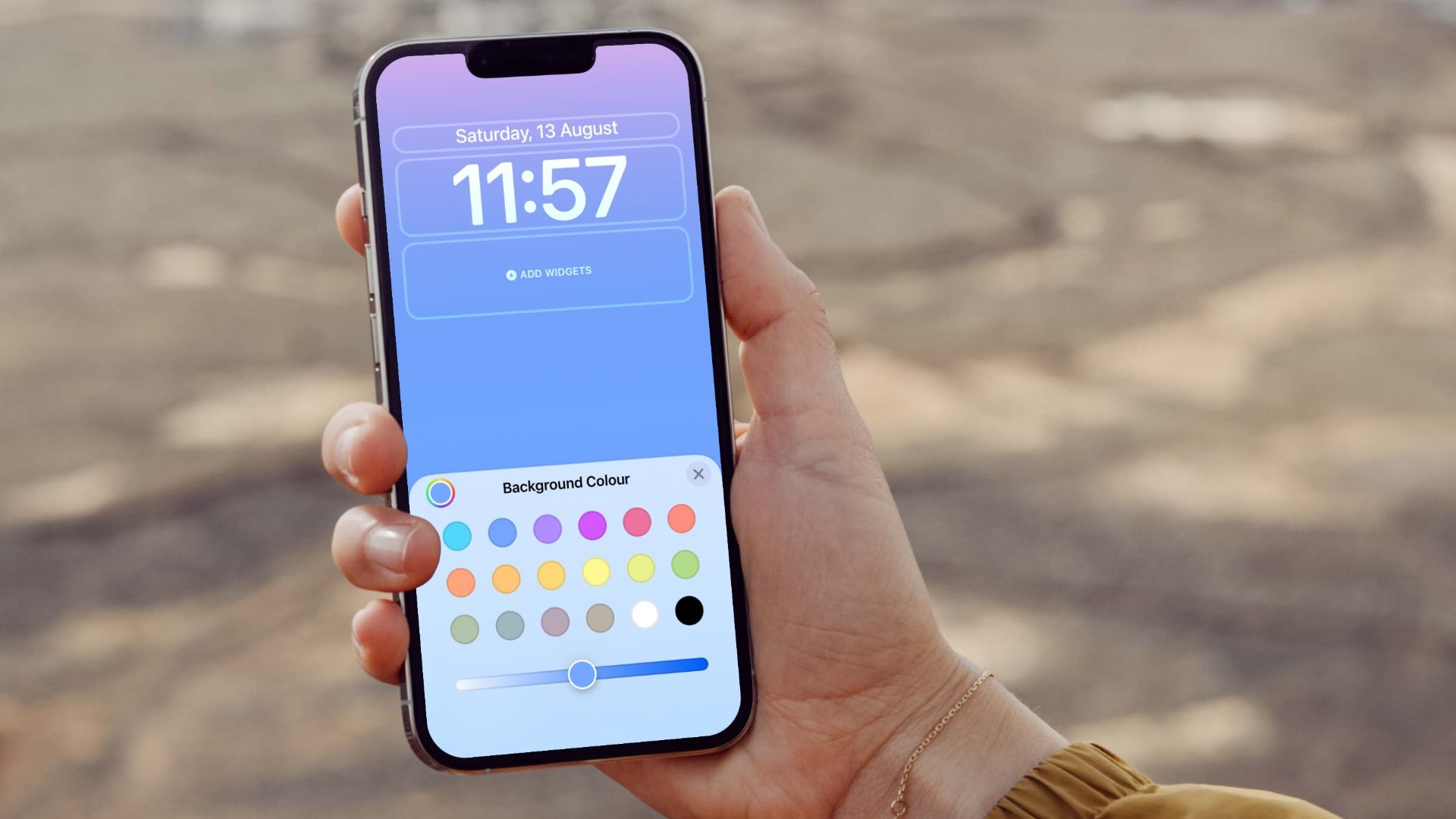
You can personalize your lock screen by changing its wallpaper and layout. Follow these steps to customize it:
- Press the side button twice.
- Touch and hold the Lock Screen until you see the edit controls. If the controls do not appear, touch and hold again, then enter your passcode.
- Tap to create a new Lock Screen, or swipe to an existing one you want to change.
- To change an existing Lock Screen, swipe to it and tap Customize.
- To use a Lock Screen, swipe to it and tap it to set it as your active screen.
Managing lock screen notifications
You can interact with and control how notifications appear on your lock screen. Here is how to manage them:
- Interact with notifications: Tap a notification to open the app, tap a group to see all recent notifications from that app, swipe left on a notification to manage or clear it, and touch and hold for quick actions if the app supports them.
- Change notification appearance: Go to Settings > Notifications > Display As and choose Count, Stack, or List. Apple says you can also pinch notifications on the Lock Screen to change the layout. The notification display layout has three documented choices: Count, Stack, and List.
- Show notification previews: Go to Settings > Notifications > Show Previews and choose Always, When Unlocked, or Never. The notification preview setting has three documented choices: Always, When Unlocked, and Never.
Controlling access from the lock screen
You can decide which features are available when your iPhone 12 is locked. To control this access:
- Go to Settings > Face ID & Passcode.
- Under Allow Access When Locked, turn on or off features like Notification Center and Control Center as desired. Apple documents Notification Center as one of the items that can be allowed on the Lock Screen.
This lets you balance convenience with security, ensuring only the features you want are accessible from the lock screen.
Frequently Asked Questions
How do you unlock the iPhone 12 lock screen?
The lock screen appears when you wake or turn on the phone. To unlock it, you use Face ID, enter your passcode, or use Touch ID if you have an iPhone 12 model with that feature.
Can you customize the lock screen on iPhone 12?
Yes. Apple documents touch-and-hold editing, the Customize button, and the ability to create new Lock Screens, as described in the customization section above.
Can you respond to notifications from the lock screen on iPhone 12?
Yes, you can respond directly from the lock screen. Tap a notification to open the app, or touch and hold it for quick actions if the app supports them.
Is it possible to add emergency contact information to the lock screen on iPhone 12?
Yes. You can add emergency contact information by setting up Medical ID in the Health app. This information can be accessed by emergency personnel even when the device is locked.
Related reading: How To Remove Clock From Lock Screen IPhone 11 and How To Move The Clock On IPhone 11 Lock Screen.