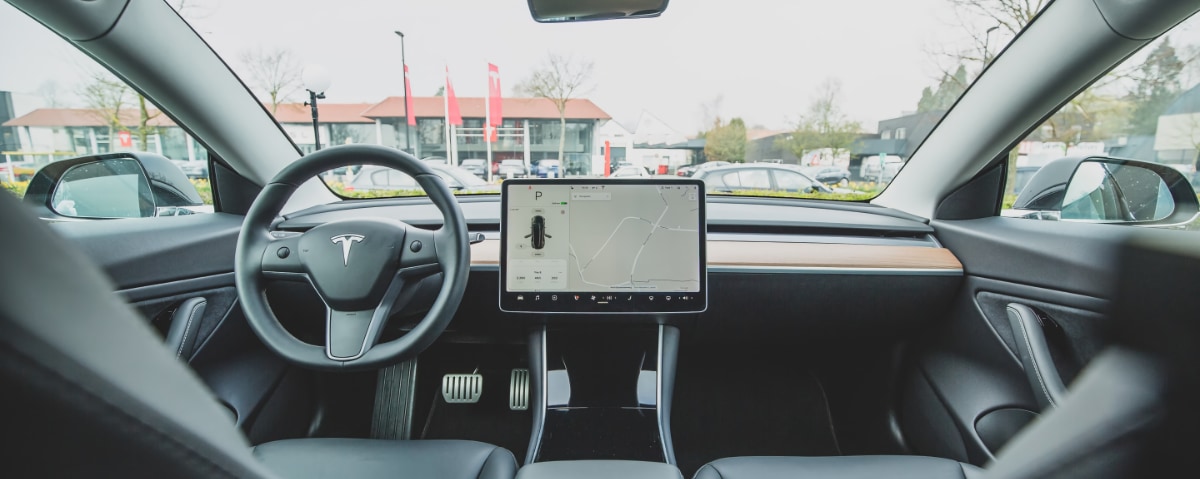
To turn on a Tesla hotspot, you connect your Tesla vehicle to a mobile hotspot provided by your smartphone or an external device, the car itself does not broadcast its own Wi-Fi network.
What turning on a Tesla hotspot really means
Many owners assume the Tesla can act as a Wi-Fi router for other devices, but that is a common misconception. The phrase “turn on Tesla hotspot” actually refers to the vehicle connecting to an external hotspot, typically from a smartphone, so it can access the internet for features like streaming, navigation, and software updates. Your Tesla does not create its own network; it joins one you provide.
Before you start: what you need
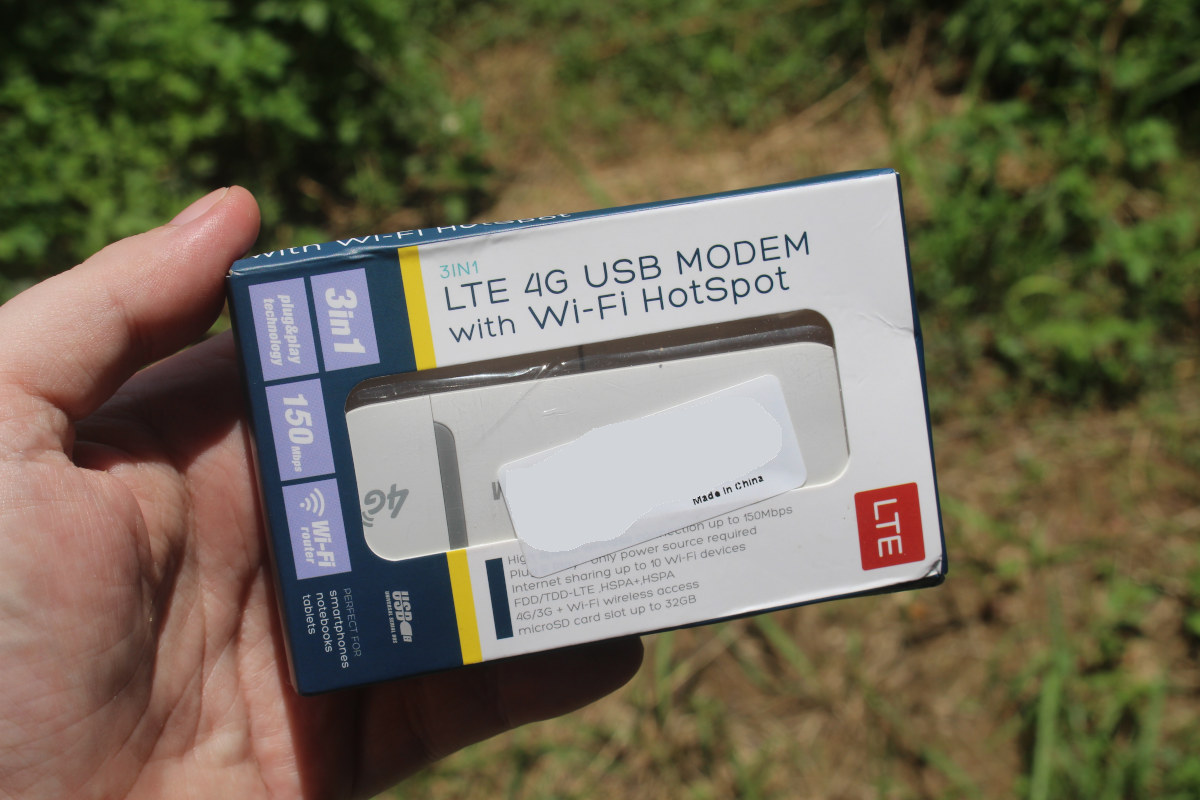
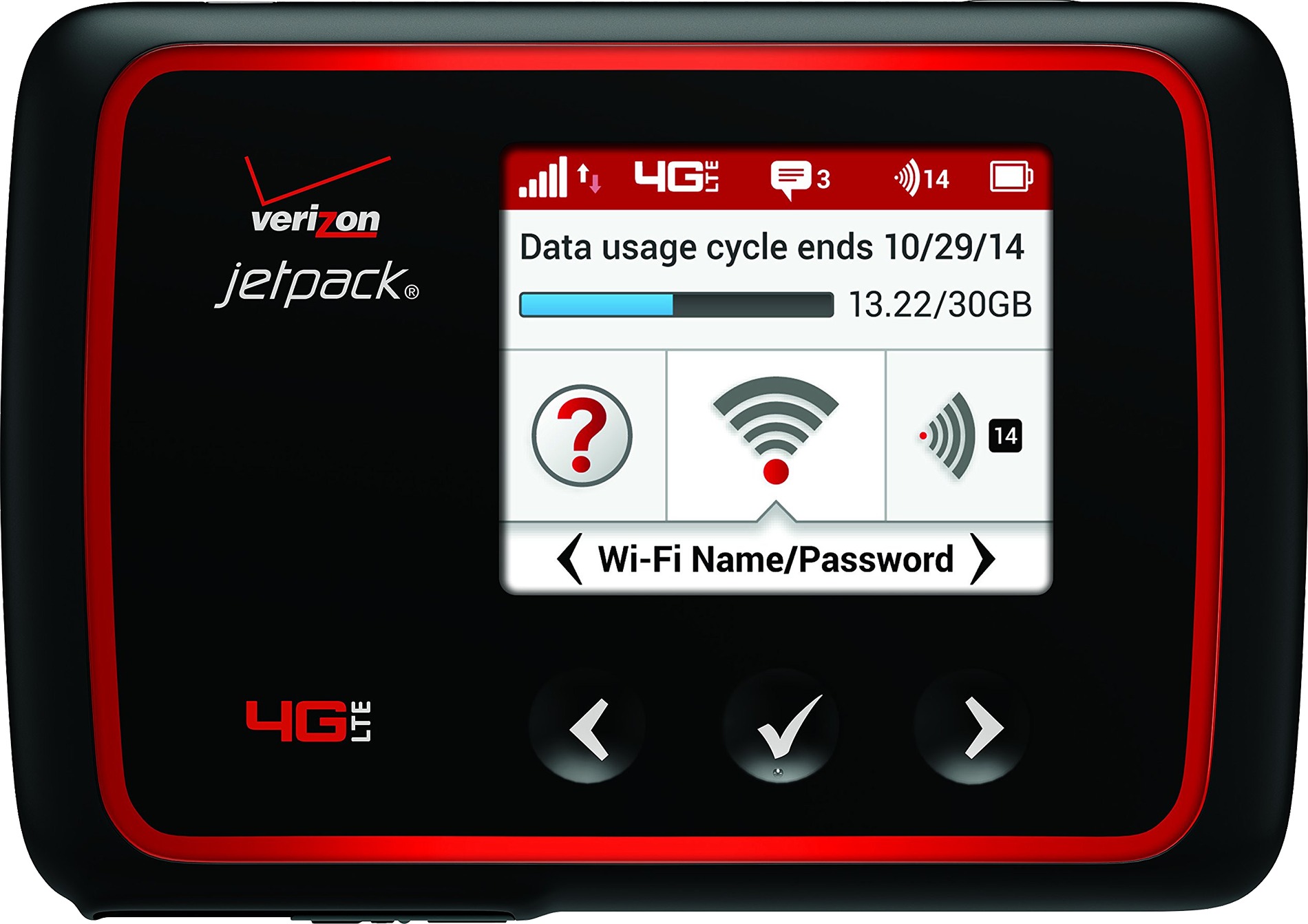
To connect your Tesla to a hotspot, you need a smartphone or a dedicated external device with an active data plan and hotspot capability. Before you begin the connection process in the car, ensure your phone’s hotspot is already turned on and broadcasting. Also be aware that using a mobile hotspot for your Tesla can result in high data consumption, so check your plan limits. Use your phone’s Data Usage Monitoring feature to track internet consumption and avoid exceeding plan limits. If your phone offers a Power Saving Mode option for the hotspot, enable it to conserve battery life on the hotspot device.
How to turn on Tesla hotspot: connecting to your phone
Follow these steps to connect your Tesla to your smartphone’s mobile hotspot:
- In your Tesla, tap the car icon (Controls) on the bottom left of the touchscreen.
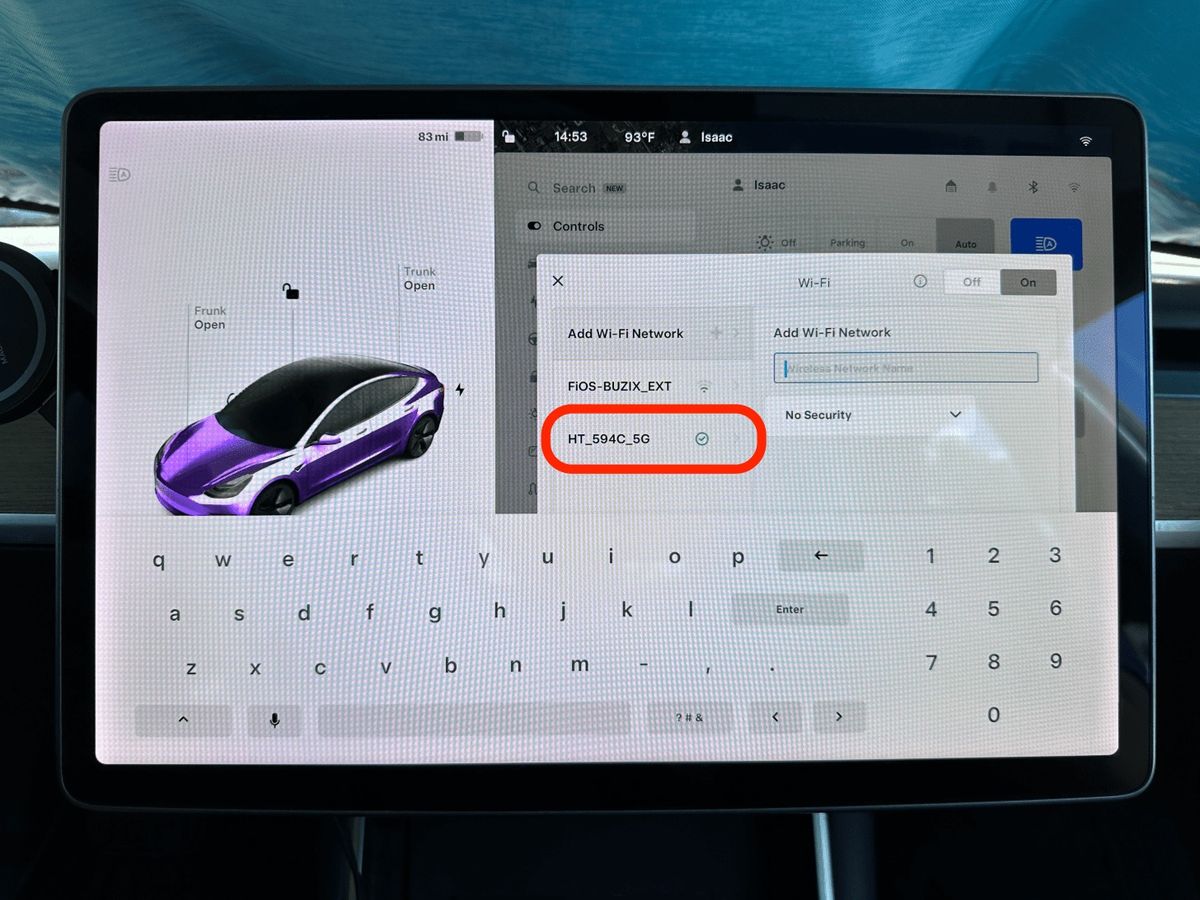
- Next, tap the Wi-Fi icon located in the top-right corner of the Controls tab.
- Your Tesla will then scan for and display available Wi-Fi networks.
- Select your smartphone’s hotspot network from the list of available networks. To personalize the network name, change the Wi-Fi network name (SSID) in your phone’s hotspot settings before scanning.
- Enter the hotspot password when prompted and tap “Confirm” or “Connect” to establish the connection.
Once connected, your Tesla will use your phone’s data for internet access.
Stay connected while driving
To prevent the Wi-Fi connection from dropping when the vehicle is in motion, select the “Remain Connected in Drive” option in the Wi-Fi settings. This keeps your Tesla linked to the hotspot even while you drive, which is useful for streaming and navigation that rely on a continuous data feed.
Why connect your Tesla to a hotspot
Connecting your Tesla to a hotspot enables faster software and map updates, which Tesla recommends doing over Wi-Fi because these updates are often too large for cellular networks. It also unlocks streaming capabilities for music, video, and other online services. This is especially valuable in situations where Premium Connectivity may not be available or sufficient, such as when you are in an area with weak cellular coverage or when you want to share your phone’s unlimited data plan instead of using the car’s built-in connection.
Troubleshooting Tesla hotspot connection issues
If your Tesla cannot connect to the hotspot, check for these common problems:
- Weak signal: If the Wi-Fi signal is weak, improve it by moving the vehicle closer to the access point or using a Wi-Fi extender.
- Unsupported network types: Tesla vehicles do not support connections to WEP or captive portal Wi-Fi networks. Ensure your phone’s hotspot is using WPA2 security and does not require a browser-based login.
- Phone hotspot not broadcasting: Double-check that your phone’s hotspot is enabled and discoverable before scanning in the Tesla.
- Too many devices: If your phone’s hotspot is slow or unresponsive, use the Manage Connected Devices feature to view, filter, restrict, or remove connected devices, ensuring bandwidth is available for the Tesla.
Tesla Premium Connectivity vs. phone hotspot
Tesla Premium Connectivity provides cellular data for in-car features like live traffic visualization, satellite maps, and streaming, but it does not turn the Tesla into a hotspot for other devices. This is a key distinction: Premium Connectivity is for the car’s own internet use, while connecting devices to a hotspot requires you to use your phone’s mobile hotspot feature. Understanding the Tesla Premium Connectivity value helps you decide whether to rely on the built-in plan or supplement it with your phone’s data when needed.
Frequently Asked Questions
Can I use my Tesla hotspot to connect multiple devices?
No, because the Tesla does not broadcast its own Wi-Fi network. The car only connects to an external hotspot; it cannot act as a router for other devices. To share internet with multiple devices, you must use your phone’s hotspot directly. Note that a typical phone hotspot can support up to 10 connected devices simultaneously, but the Tesla itself is just one of those devices.
Do I need a separate data plan for the Tesla hotspot?
You do not need a separate plan for the car, but your phone must have an active data plan that supports hotspot tethering. The Tesla uses your phone’s data when connected to the hotspot, so any data consumed counts against your phone plan.
What is the range of the Tesla hotspot connection?
The range depends entirely on your phone’s hotspot capability and the environment. Typically, you should keep your phone inside the vehicle for a stable connection, as walls and distance can weaken the signal.
Can I connect my Tesla to a public Wi-Fi network instead of a phone hotspot?
Yes, you can connect to any compatible Wi-Fi network, such as at home or a café, as long as it does not use WEP security or require a captive portal login. The same steps apply: tap Controls, select Wi-Fi, and choose the network.
Does using a phone hotspot drain my phone battery quickly?
Yes, hotspot mode is power-intensive. If you plan to use it for long drives, keep your phone plugged into a charger inside the car to avoid battery drain.