The best time converting websites for 2026 combine fast load times, accurate zone data, and visual tools that let you compare multiple cities at a glance. Whether you're scheduling a remote team meeting, planning travel, or keeping in touch with family abroad, a reliable time converter eliminates the guesswork and prevents costly scheduling mistakes.
Best time converting websites for scheduling across zones
Remote work, international travel, and global friendships all depend on getting time zones right. A single hour miscalculation can derail a meeting or wake someone up in the middle of the night. The best time converting websites strip away clutter, update automatically, and give you instant visual feedback so you can compare two or more locations without confusion. In 2026, the strongest tools keep layouts friendly, respond quickly even on slower connections, and offer clean visual cues that help people understand hour differences at a glance.
Top time zone converters compared
The table below shows how the leading tools compare on speed, visual support, and best use case. Use it to quickly match a converter to your routine.
| Tool | Speed | Visual Support | Best Use Case |
|---|---|---|---|
| TimeAndDate | Very fast | Moderate | Detailed planning with precise clocks |
| WorldTimeBuddy | Very fast | High | Drag-and-drop comparisons across multiple cities |
| EveryTimeZone | Fast | High | Visual learners who prefer slider controls |
| 24TimeZones | Fast | Moderate | Quick city searches on a world map |
| SavvyTime | Very fast | Moderate | Recurring call planning across continents |
| Time.now | Fast | High | Visual zone map and multi-location converter |
Time.now zone map and multi-location converter
Time.now's Time Zone Map lets you hover your mouse over the map to highlight time zones, giving you a quick visual sense of hour gaps across long distances. Hover your mouse over the map to highlight time zones. Its time zone converters let you enter two or more locations and see the time in each instantly. The clean interface reacts immediately as you adjust entries, making it one of the simplest ways to compare cities fast.
TimeAndDate and WorldTimeBuddy for detailed planning
Choose TimeAndDate when you need precision, its detailed clocks and strong accuracy make it ideal for business scheduling that demands exact minute alignment. Choose WorldTimeBuddy when you need drag-and-drop visual comparisons across multiple cities; its praised comparison bars let you see overlapping hours at a glance and adjust time blocks effortlessly.
EveryTimeZone, 24TimeZones, and SavvyTime for quick lookups
EveryTimeZone serves visual learners who prefer sliders to see time progression across the globe. 24TimeZones is strong for quick city searches on a world map, type a city and see its current time immediately. SavvyTime is popular among users planning regular calls across continents, with features that help you set recurring meeting times that stay accurate.
How to pick the right converter for your routine
For team meetings, start with WorldTimeBuddy or TimeAndDate to see overlapping business hours across multiple locations. For family calls, Time.now's zone map gives you a quick visual check to avoid calling too early or too late. For travel planning, 24TimeZones or EveryTimeZone let you search cities fast and understand local time differences before you arrive. For recurring international calls, SavvyTime helps you lock in a schedule that works week after week.
Adjusting your device time zone as a backup
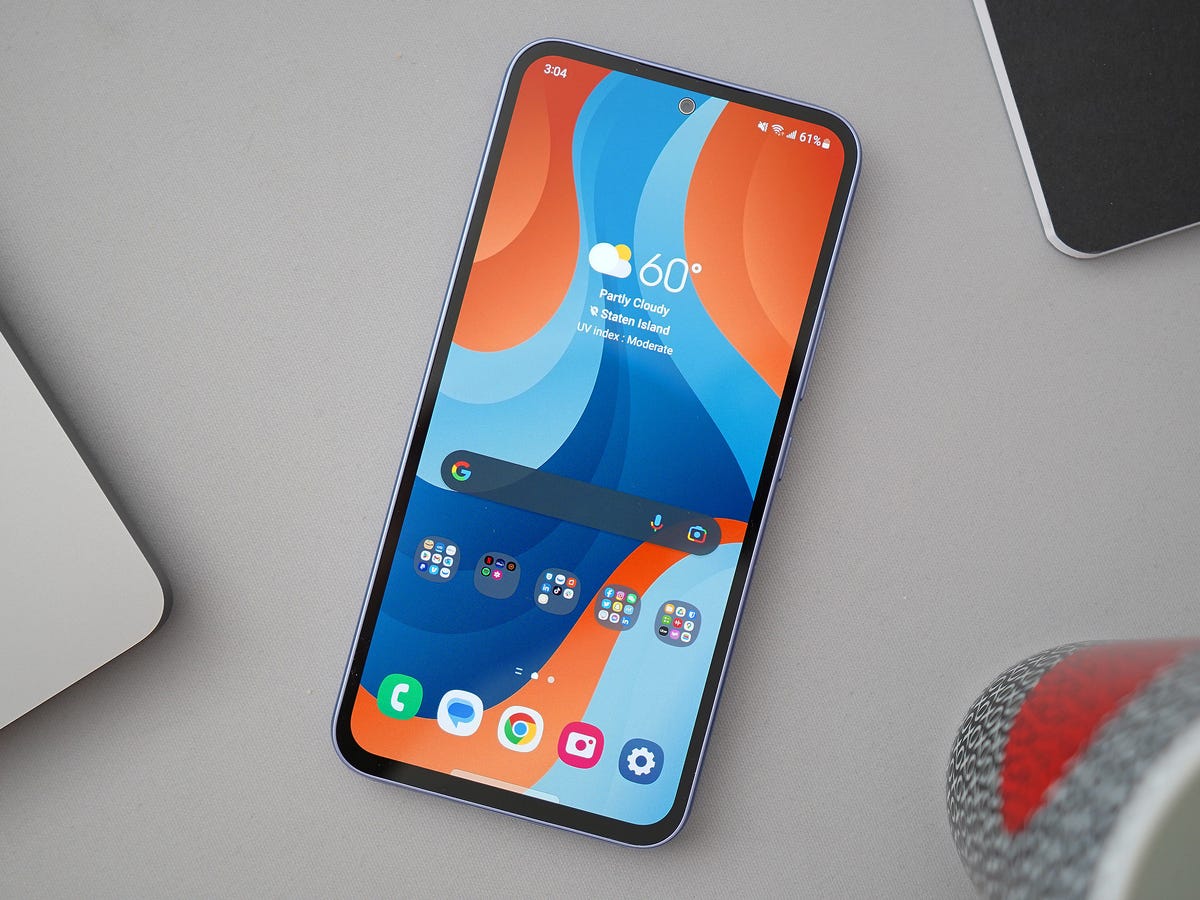
When a website isn't available, you can manually change your device time zone. On iPhone, go to Settings > General > Date & Time, turn off Set Time Automatically, then tap Time Zone and enter a city. To toggle 24-Hour Time, go to Settings > General > Date & Time > 24-Hour Time. If the Set Time Automatically option is dimmed, check internet access, update the device, and enable Privacy & Security > Location Services > System Services > Setting Time Zone. On Android, open the Clock app, tap More > Settings, then tap Change date and time > Time zone, turn off Set automatically if present, and choose a time zone. Under Change date and time, you can also find Automatic date and time and Automatic time zone toggles. You can also add a world clock by opening Clock > World Clock, tapping Add, typing a city, and tapping the city you want. For adding a home clock while traveling, use the Clock app's Home time zone and Automatic home clock settings. These steps help you stay on schedule even when you're offline or need to quickly check against a different region, useful when comparing mobile carriers and plans (Mobile Carriers, Plans and Phone Services) across time zones.
Frequently Asked Questions
Do these time converters work offline?
Most time converting websites require an internet connection to load current time zone data. For offline use, set a world clock on your phone using the steps above.
Can I compare more than two time zones at once?
Yes. WorldTimeBuddy, TimeAndDate, and Time.now all support comparing multiple cities simultaneously.
Which converter handles half-hour and quarter-hour time zones best?
Their automatic updates keep these zones accurate.
Are these tools free to use?
All of the converters listed, TimeAndDate, WorldTimeBuddy, EveryTimeZone, 24TimeZones, SavvyTime, and Time.now, are free to use on their websites. No account or payment is required.
How do I know the time zone data is current?
These tools pull from updated time zone databases that reflect daylight saving changes and political adjustments. TimeAndDate and WorldTimeBuddy are known for frequent automatic updates.
For the wider topic, see carriers and plans.
Related reading: Who Got Busted Mobile Al, How To Tell If A Cell Phone Jammer Is Being Used, and How To Return Asurion Phone.