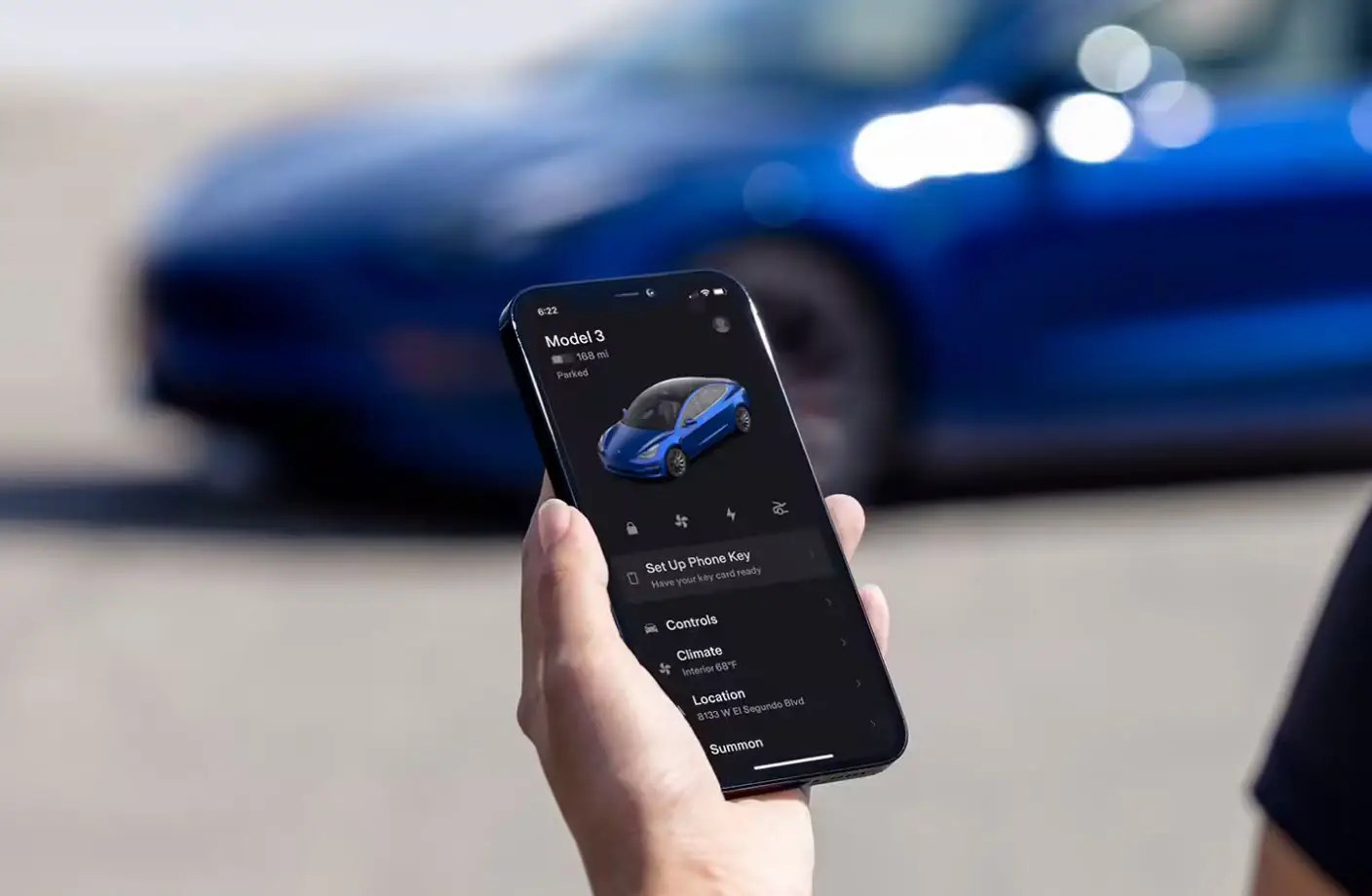
To view Sentry Mode events on your phone, open the Tesla app, tap "Security & Drivers," and then tap "View live camera" to see a live feed, or look for "Dashcam Viewer" or "View saved clips" to review recorded footage. This allows you to remotely monitor your parked Tesla and check security alerts from anywhere.
What you need to view Sentry Mode events on your phone
Before you can view Sentry Mode events on your phone, several prerequisites must be met. Your Tesla vehicle requires an active Premium Connectivity subscription and must have software update 2021.36.8 or newer. The Tesla mobile app must be version 4.2.1 or later on your iOS or Android device, and your phone must be paired as a key to the vehicle. Sentry Mode records events to a properly formatted USB drive inserted into your vehicle's USB port; without a USB drive, Sentry Mode can send an alert to your phone if a threat is detected, but recordings of the event will not be available. Live Camera is not available on Model S and Model X vehicles produced between 2012 and 2020.
How to set up a USB drive for Sentry Mode recordings
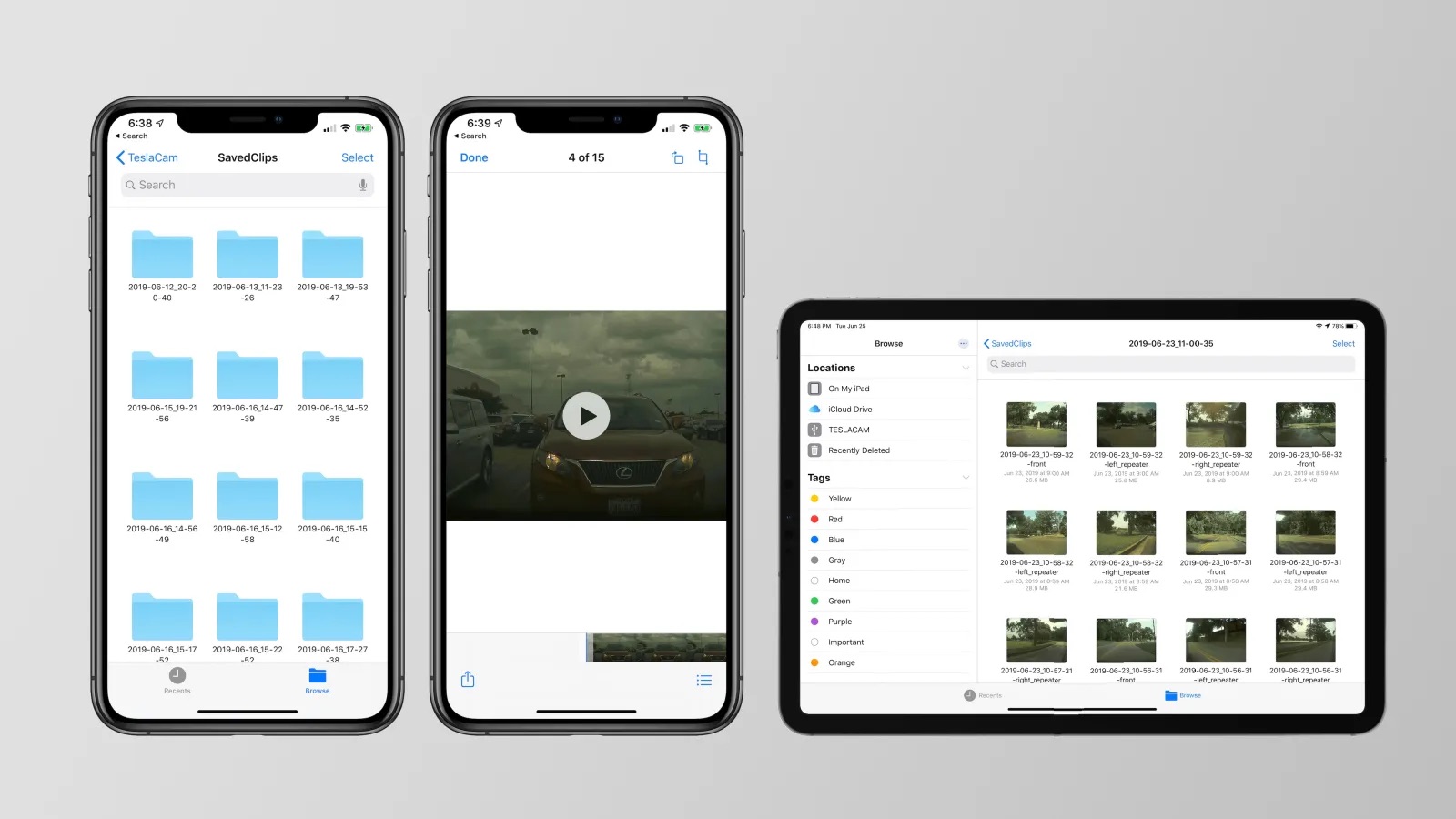
To save Sentry Mode recordings, you need a USB drive with a minimum storage capacity of 64 GB and a sustained write speed of at least 4 MB/s. The drive must be formatted as exFAT, MS-DOS FAT (for Mac), ext3, or ext4; NTFS is currently not supported. Create a base-level folder titled "TeslaCam" on the USB drive for recordings. For vehicles manufactured after approximately November 1, 2021, use the USB-A port in the glovebox for storing and viewing video footage, as center console ports may only support charging devices. For older vehicles, the center console USB ports are suitable.
How to enable Sentry Mode on your Tesla
Sentry Mode is disabled by default and must be enabled before you can view events. You have three methods to activate it:
- Touchscreen: On your vehicle's display, tap "Controls" > "Safety" > "Sentry Mode" to toggle it on.
- Voice command: Say a voice command such as "Keep Tesla safe" or "Sentry on."
- Tesla app: Open the app, navigate to "Security & Drivers," and toggle the Sentry Mode button on.
Sentry Mode remains active until the vehicle is at or below 20% battery, and the Tesla app will notify you if it's disabled due to low battery. Sentry Mode is not available in Low Power Mode.
How to view live camera from your Tesla on your phone
To view the live camera feed, Sentry Mode must be enabled on your vehicle. First, enable Live Camera access from the touchscreen by tapping "Controls" > "Safety" > "Sentry Mode" > "View Live Camera via Mobile App." Then, from the Tesla app, tap "Security & Drivers," ensure Sentry Mode is enabled, and tap "View live camera." The feature allows you to switch between front, rear, and side camera perspectives. While viewing, you can remotely honk the horn, flash the lights, and, if your vehicle is equipped with a pedestrian warning speaker, press and hold the microphone button on the mobile app to transmit your voice through the external speaker. No audio is captured during live camera viewing.
How to view saved Sentry Mode clips on your phone
To view saved Sentry Mode clips on the Tesla app, navigate to the "Security and Drivers" section and look for "Dashcam Viewer" or "View saved clips." If a threat is detected, the cameras begin recording and the alarm activates; you will receive an alert from the Tesla app notifying you that an incident has occurred. You can manage recorded footage from this section, including reviewing, saving, or deleting clips. Rear camera recordings are available only on vehicles manufactured after approximately February 2018. The official Tesla support documentation primarily directs users to view recorded Sentry Mode footage on the vehicle's touchscreen. Sentry Mode recordings can be viewed directly from the vehicle's touchscreen for 2018 and newer model year vehicles (with software version 2020.48.5 or newer).
Live Camera privacy, limits, and compatibility
Live Camera is end-to-end encrypted, and Tesla cannot access the footage. When Live Camera is actively in use, the vehicle periodically flashes its exterior lights and displays a message on the touchscreen to notify others that the area is being viewed. Usage is limited to approximately one hour of cumulative viewing per day, or 15 minutes in some regions. For methods such as tracking a phone location, separate from Sentry Mode, refer to Phone Location Tracking Methods in your Tesla account settings.
Frequently Asked Questions
Can I view Sentry Mode events without a USB drive?
How do I know if a Sentry Mode event was recorded?
Recorded clips will appear in the "Dashcam Viewer" or "View saved clips" section of the app if a USB drive is present.
Can I download Sentry Mode clips from the app to my phone?
Yes, within the "Security and Drivers" section, you can select a recorded event and save the footage to your phone's storage or share it with others.
Why is my Live Camera feed not working?
Verify that Premium Connectivity is active, your Tesla app is version 4.2.1 or newer, your phone is paired as a key, and the vehicle has software 2021.36.8 or newer. Also confirm that "View Live Camera via Mobile App" is enabled in the vehicle's touchscreen settings.
Does Live Camera work on older Model S or Model X vehicles?
How long are Sentry Mode event recordings stored?
Recordings are stored on the USB drive until the drive runs out of space, at which point the oldest clips are overwritten. There is no fixed time limit for storage beyond the drive's capacity.
Related reading: How To Add Phone Key Tesla and How To Watch Oculus On Phone.