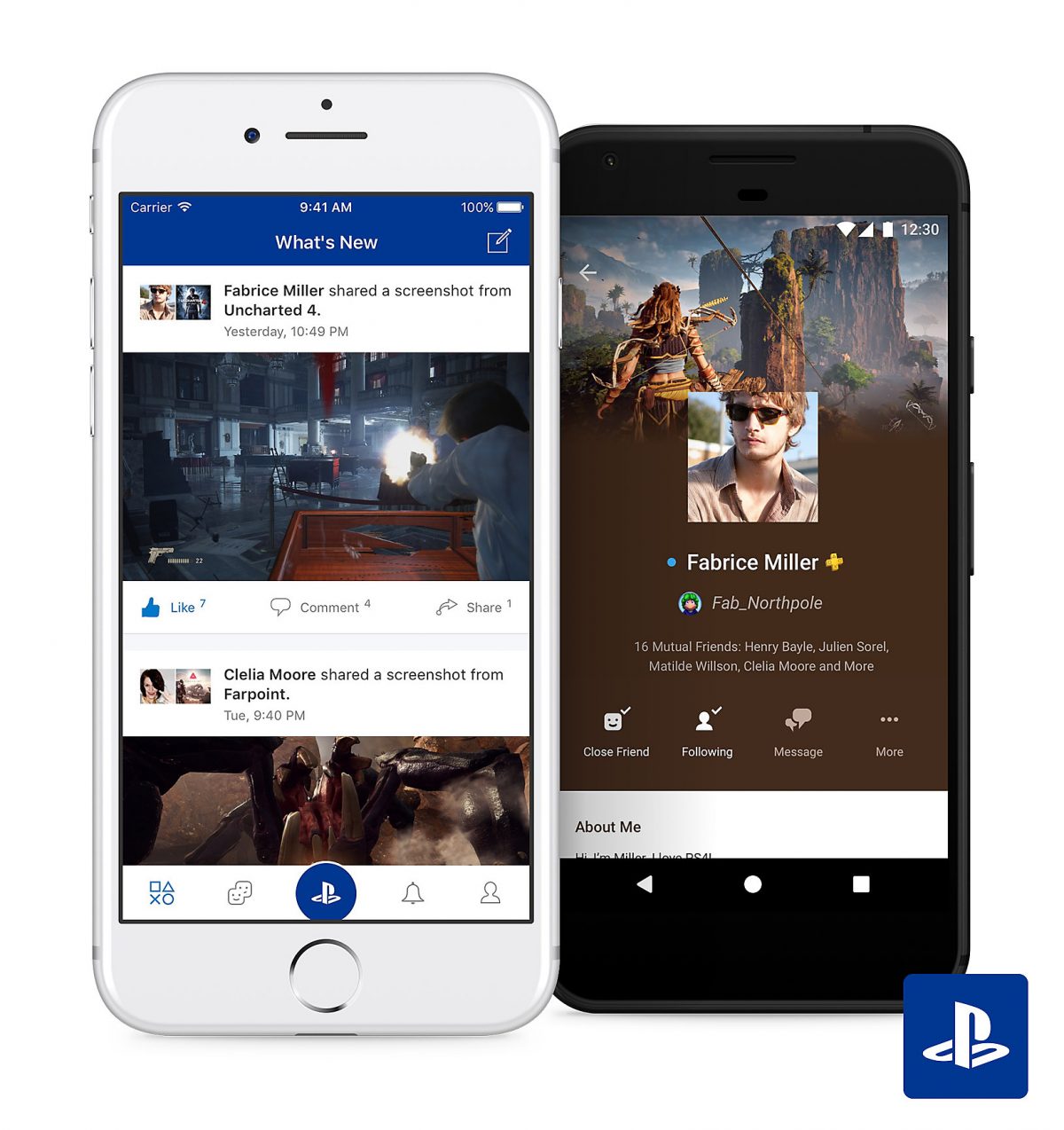
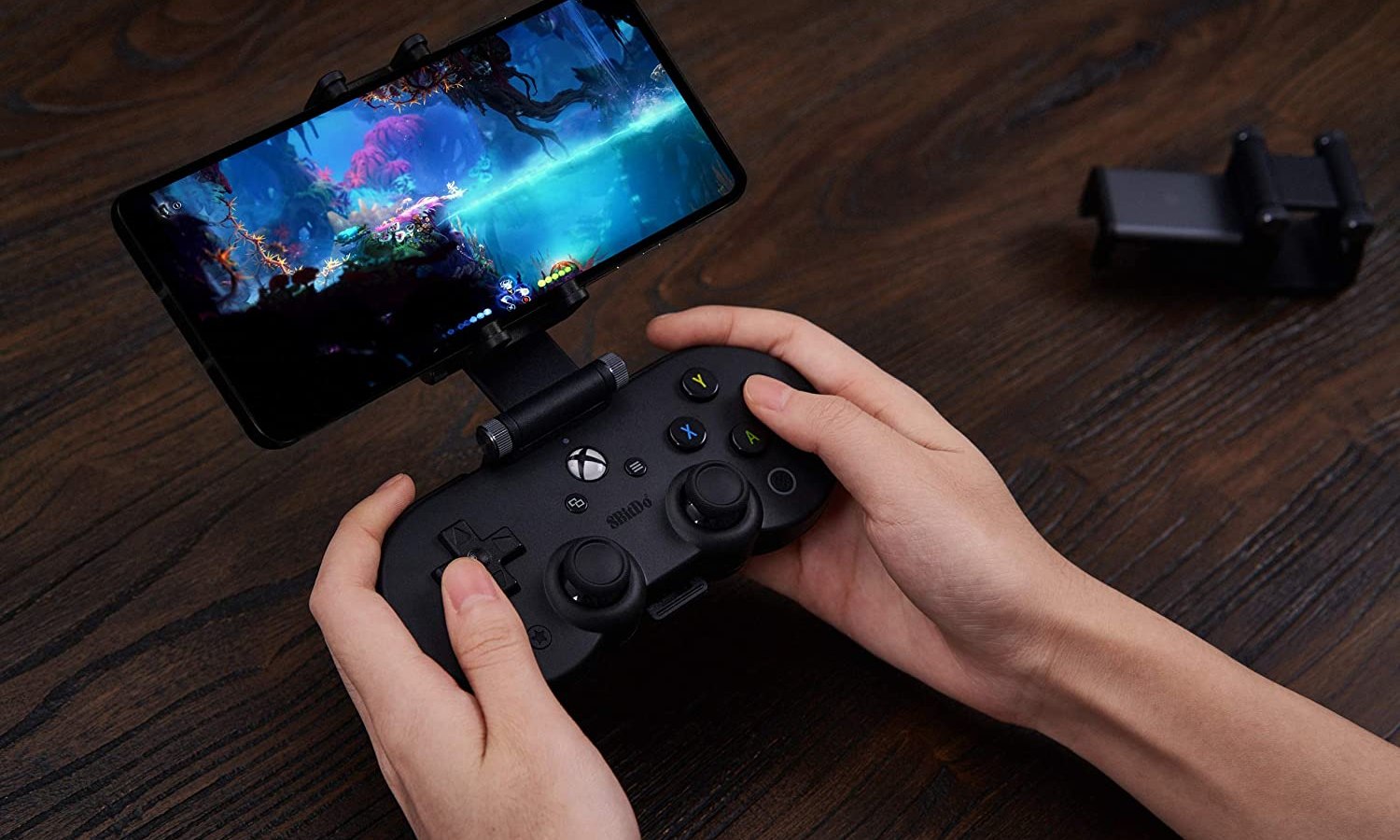
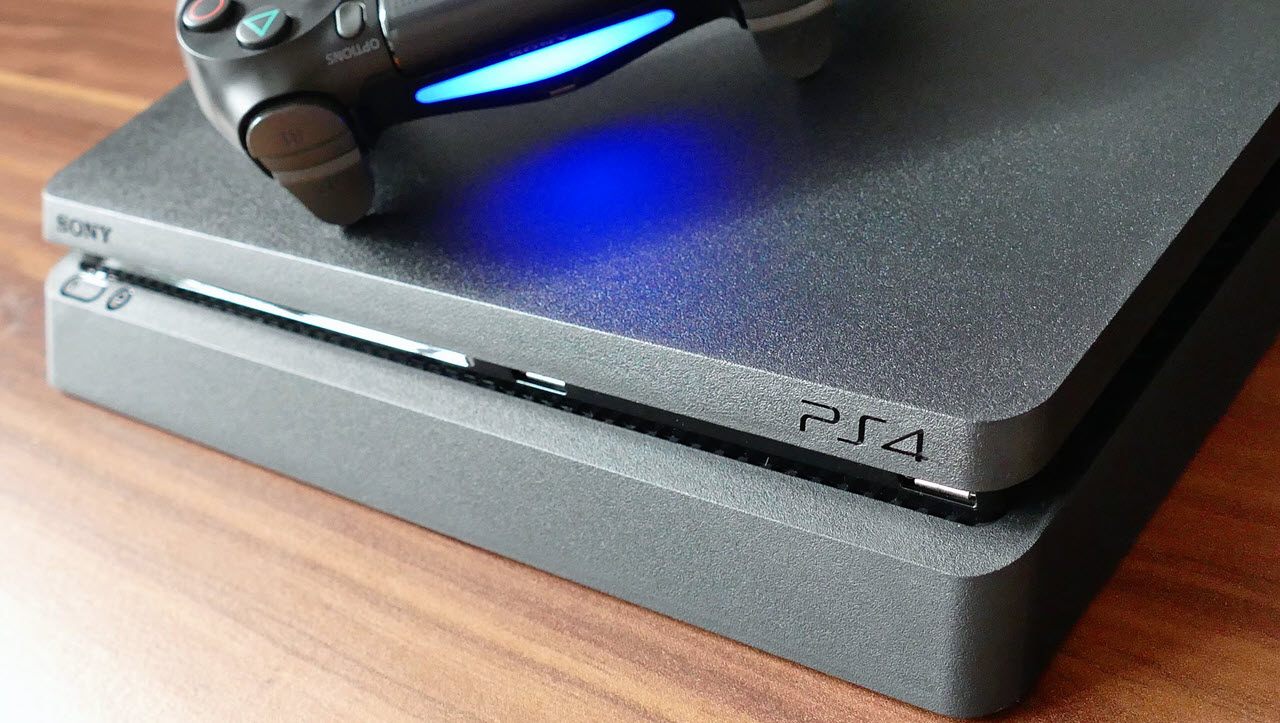
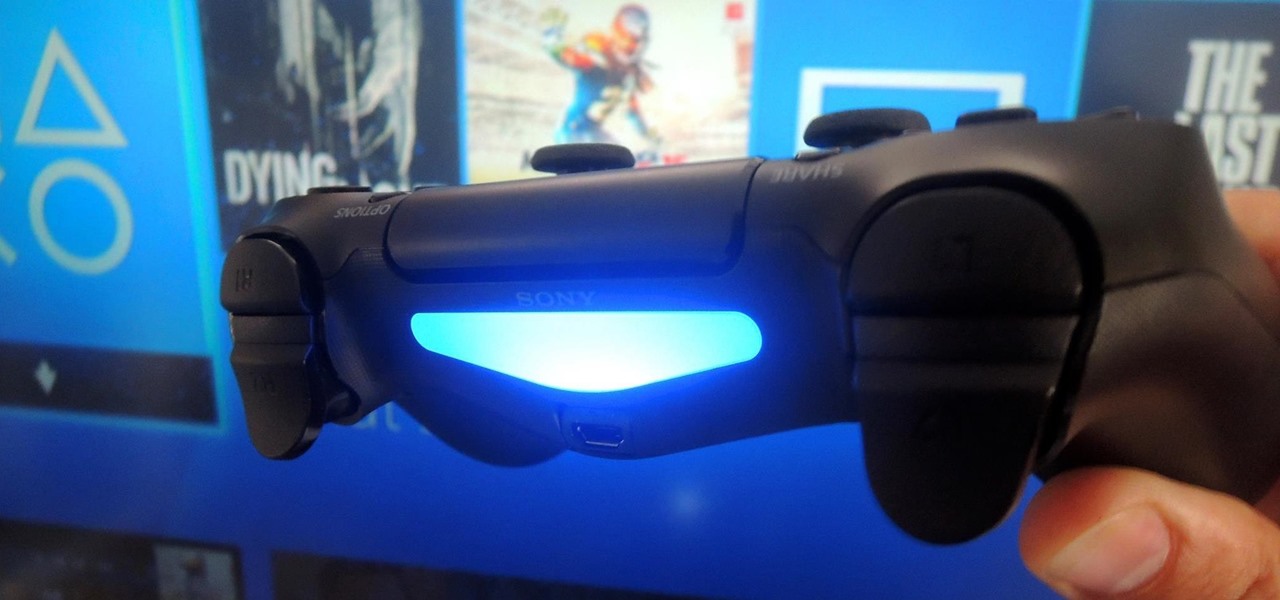
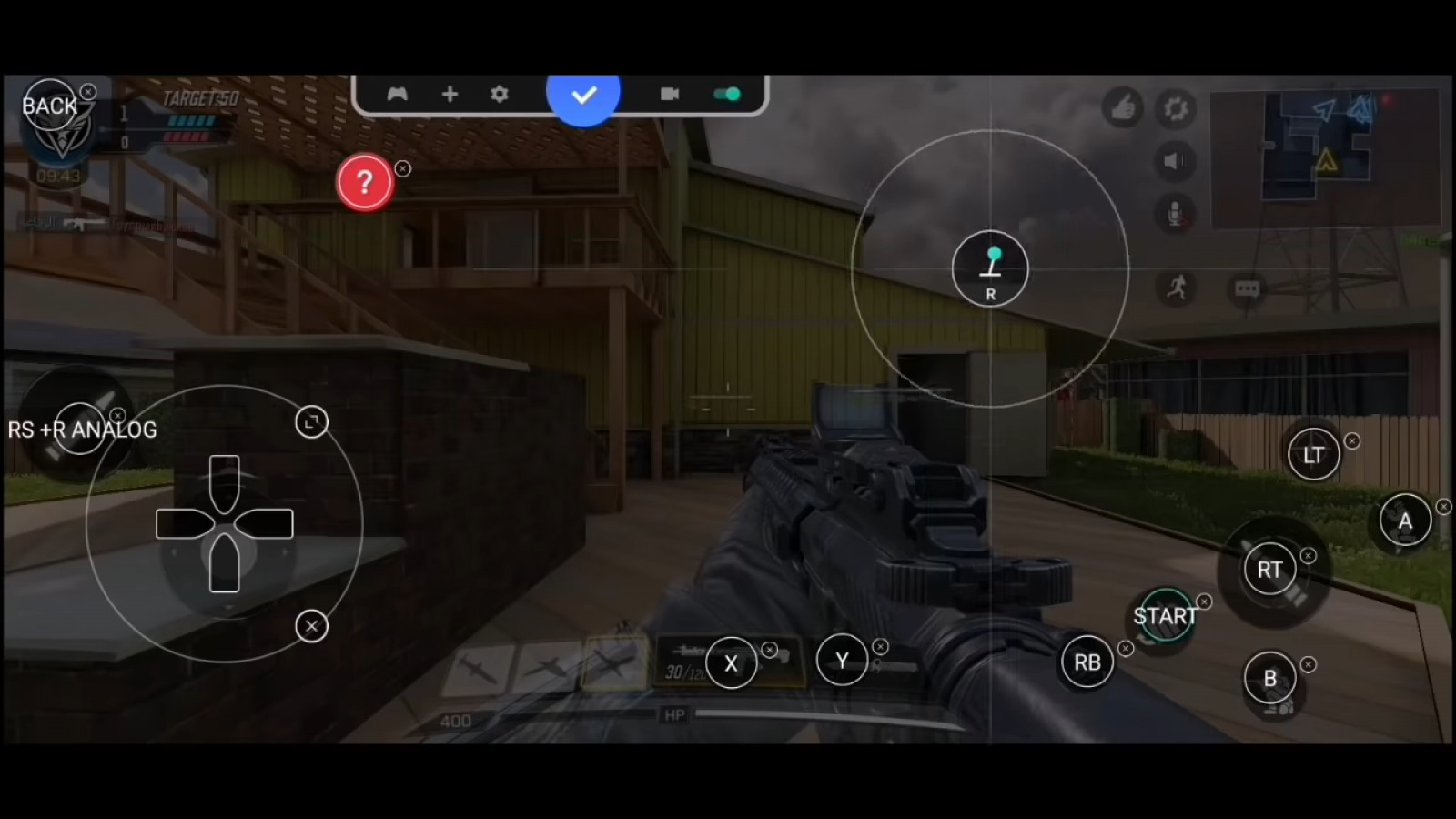
The PS4 Second Screen app is a companion tool that lets you use your phone for basic PS4 control, second-screen game information, and text entry. If you want to get PlayStation clips on phone or look at clips on PS4 app on phone, this app provides the connection needed to manage your console from your mobile device.
What is the PS4 second screen app?
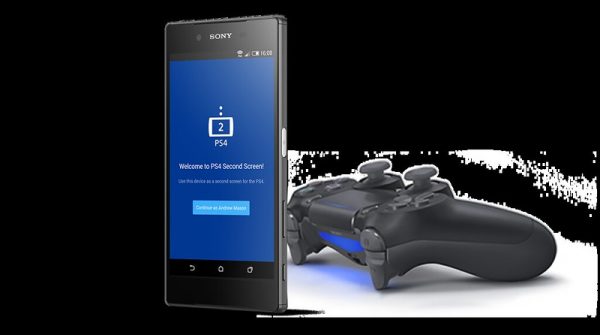
The PS4 Second Screen app is a PlayStation companion app that connects your PS4 and a mobile device. It was released as a standalone app in 2017, separate from the main PlayStation App. It allows you to perform basic control of the PS4, display information from second screen-compatible games on your phone, and enter text on your PS4 using your mobile device's keyboard. Sony's documentation describes this feature as Second Screen under PS4 Link on supported handheld devices, with the PS4 connected over the same network.
What you need to use the PS4 second screen app
Before you can use the app, you need the following:
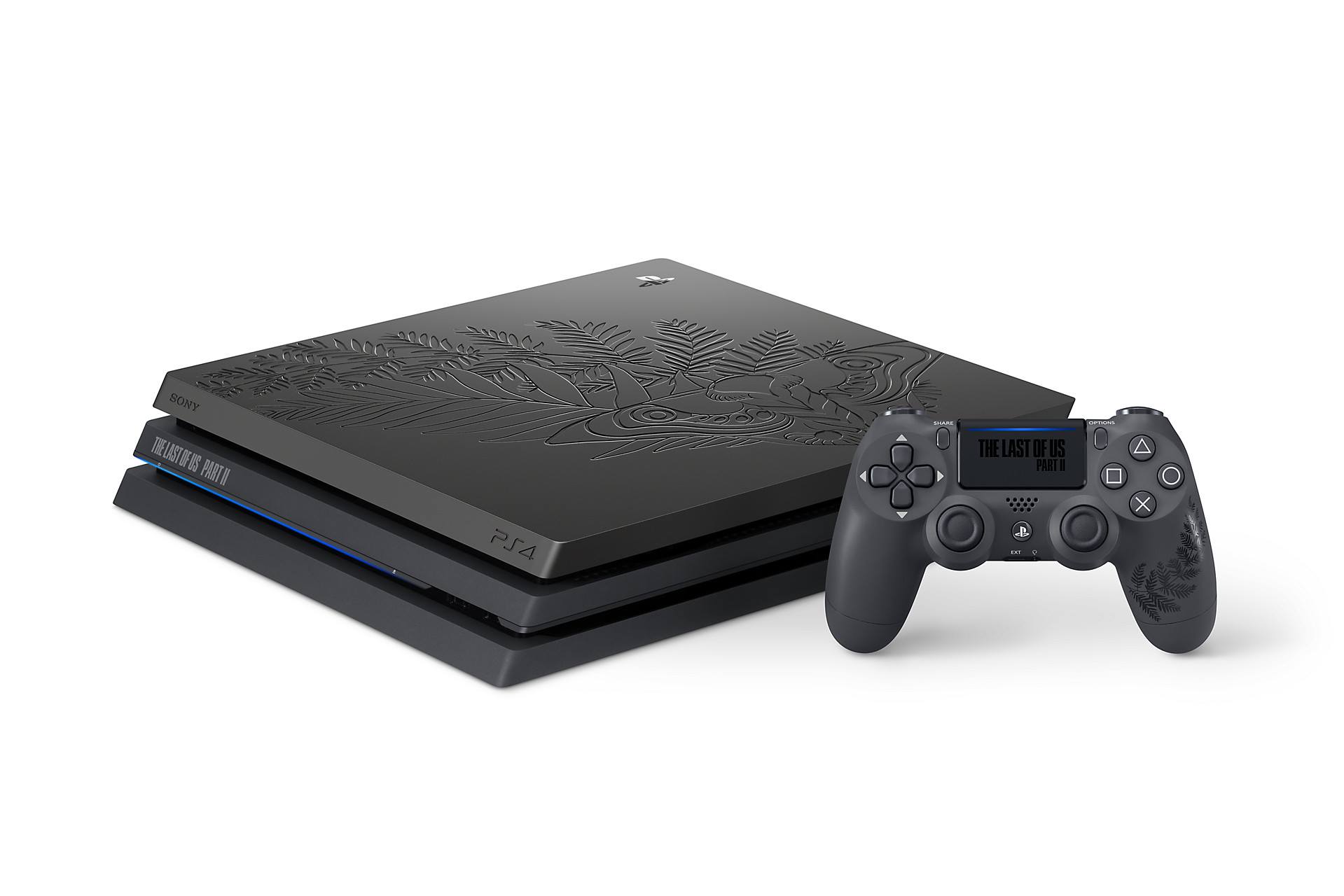
- A PS4 system.
- A mobile device with the app installed. On iPhone, the App Store lists iOS 12.1 or later. iPhone and iPod touch are supported in some regions.
- A Sony Entertainment Network account, which is required to use the app according to the App Store listing.
- Both the phone and PS4 must be connected to the same network before using the second-screen feature.
How to set up your PSN account on your PS4
To create a PlayStation Network account directly on your console:
- Select New User, then Create a User, or select User 1 on the PS4 log-in screen.
- Select Next.
- When you see "New to PlayStation Network? Create an Account," click Sign Up Now.
- Provide your details and preferences, then select Next on each screen.
- Create an Online ID (the name other PSN users will see) and enter your first and last name.
- Choose your Sharing, Friends, and Message settings.
- Read and accept the Terms of Service of PSN.
- Click on the verification link in your email.
If you are below 18 years old, creating an account ends at step 5. An adult can authorize PSN access by signing in to their account. Avoid entering false security information, as this breaches the PSN terms of service and may prevent account recovery.
How to connect your phone to your PS4
To pair your phone with your PS4 for second screen use:
- On your PS4, go to Settings > Remote Play Connection Settings > Add Device. A number appears on the PS4 screen.
- On your mobile device, open the app and select PS4 Link > Start > Second Screen.
- Enter the number shown on the PS4 and select Register.
You can register up to 16 devices to a single PS4 system. You can register up to 10 PS4 systems with your mobile device for second screen use. To delete a registered device, use the Options button and select Delete.
How to use the PS4 second screen app
Once connected, open PS4 Link > Start > Second Screen on your mobile device and select the PS4 system to connect to. The app offers three core documented functions:
- Navigate your PS4 menu: Use the on-screen controller to move through the PS4 interface from your phone.
- Enter text using your phone keyboard: Tap the keyboard icon (upper-left corner) whenever you need to type text on the PS4.
- Display second-screen content from compatible games: Tap the icon that looks like a mobile device with a "2" to view maps, radars, and other in-game information.
The app allows you to view comments during a game broadcast by tapping the speech bubble icon in the upper-left corner. You can return to the PS4 Home Screen by tapping the PS icon in the lower-left corner of the app. The app can be used to turn your PS4 on and off. The app allows you to access chat and messages.
Games that support second screen features
Support varies by title. Here are games that offered second-screen functionality:
- Assassin's Creed 4: Black Flag: The second screen acts as a real-time map showing your location, treasure maps, fleet information, and an in-game database. You can also send fleet excursions from the app.
- The Division: Use the second screen to control a drone that watches squad members from a bird's eye view, scans enemies, and buffs teammates or debuffs enemies.
- The Crew: Manage car modding and customization options, such as changing tires, body kits, paint jobs, and decals. Spend in-game XP to buy equipment and jump into races.
- Metal Gear Solid 5: Create user-generated missions within the game world using the second screen app.
- Battlefield 4: Manage load-outs and maps on the fly through the Battlelog mobile service.
- Warframe: Do inventory crafting, set up co-op games with friends, and access game info without pausing the console. The app warns you when timed missions go live.
PS4 second screen vs. Remote Play
The PS4 Second Screen app does not mirror the PS4's display. It is designed for games to take advantage of additional input or integration, such as maps or drone control. If you want full remote streaming of your PS4 screen to your phone, you should use the separate Remote Play app instead.
Frequently Asked Questions
Can I use the PS4 second screen app to turn my PS4 on and off?
The app's documented functions are limited to basic control, second-screen content display, and text entry.
Does the PS4 second screen app work on Android?
The official pages retrieved here did not document supported Android OS versions for the PS4 Second Screen app. The App Store listing specifies iOS 12.1 or later for iPhone and iPod touch in some regions.
How many devices can I register for second screen use?
To delete a device, use the Options button on the PS4 and select Delete.
Can I use the second screen app to chat or message friends?
The app's documented functions are basic control, second-screen game information, and text entry.
Why won't my phone connect to my PS4 for second screen?
Both devices must be on the same network. The app may experience issues in picking up your PS4. Go to Settings > Remote Play Connection Settings > Add Device on your PS4, then open PS4 Link > Start > Second Screen on your phone and enter the code that appears on the PS4 screen.