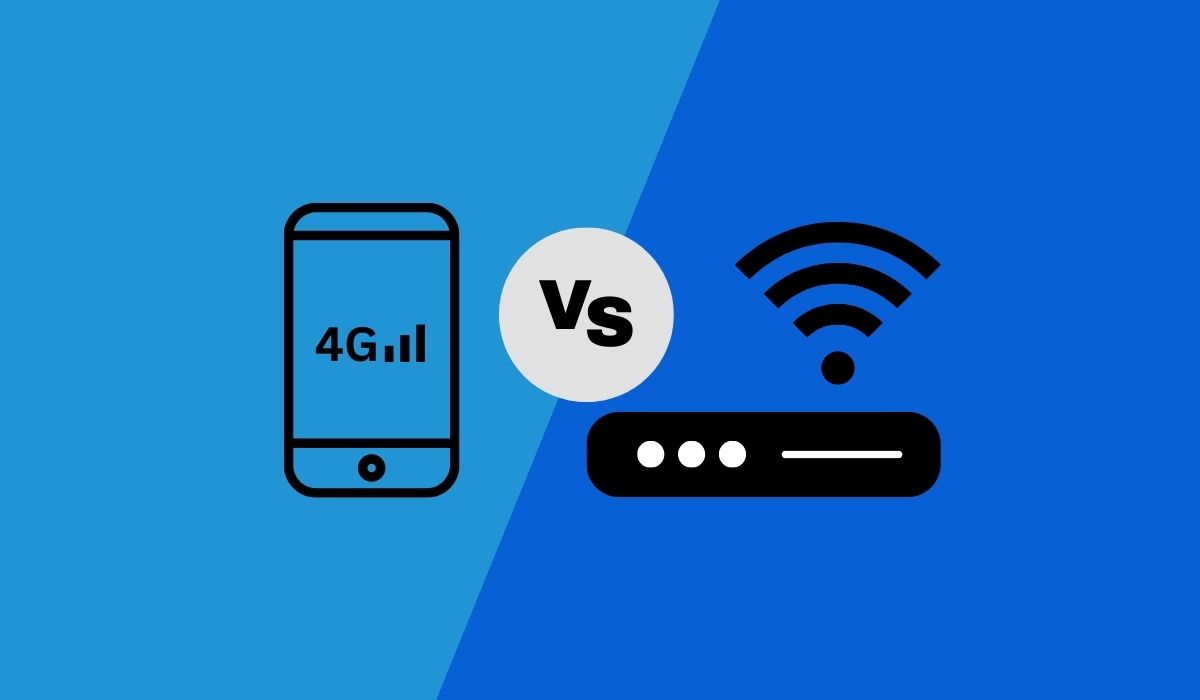
There is no universal winner in the 4g vs wifi speed debate; which is faster depends entirely on the specific cellular network, the Wi‑Fi network you are connected to, and your device conditions. Apple’s Wi‑Fi Assist feature proves this point: an iPhone will automatically switch from a poor Wi‑Fi connection to cellular data, showing that the phone only prefers 4G when the Wi‑Fi quality is weak.
4G vs wifi: which is actually faster?
Speed comparisons between 4G and Wi‑Fi are not straightforward because neither technology is inherently faster. Your actual speed depends on the cellular network you are on, the Wi‑Fi router and internet plan you are using, and factors like signal strength, network congestion, and device hardware. Maximum Wi‑Fi speed is around 1 Gbps and 4G is around 100 Mbps download / 50 Mbps upload. Bad network coverage, signal strength, or general overcrowding can slow down 4G, and distance from router, too many devices, or electronic interference can hinder Wi‑Fi. Apple documents that Wi‑Fi Assist switches an iPhone from a poor Wi‑Fi connection to cellular data automatically, which demonstrates that iPhone will prefer cellular only when Wi‑Fi quality is weak. This means that under good conditions, Wi‑Fi can be faster than 4G, but when Wi‑Fi is poor, 4G may outperform it.
When Wi‑Fi wins: streaming, gaming, and large downloads
Wi‑Fi is typically faster and more reliable for HD streaming, online gaming, and downloading large files. These activities benefit from the stable, high‑bandwidth connection a good Wi‑Fi network provides. On iPhone, Wi‑Fi Assist only works with apps running in the foreground and does not activate for background downloading of content, so large file downloads that happen in the background will not trigger a switch to cellular. This means that for heavy data tasks, a strong Wi‑Fi connection is usually the better choice.
When 4G wins: browsing and portability on the go
4G excels for mobile browsing and using apps like Safari, Apple Music, Mail, and Maps when Wi‑Fi is weak or unavailable. Apple lists Safari among the apps that can use Wi‑Fi Assist, meaning that when you are browsing on a poor Wi‑Fi connection, your iPhone can seamlessly switch to 4G for a faster experience. Wi‑Fi Assist only works with apps running in the foreground, so it will not activate for background tasks. This makes 4G ideal for quick, on‑the‑go internet use where portability matters more than raw speed.
How to switch between Wi‑Fi and cellular on iPhone
To control how your iPhone switches between Wi‑Fi and cellular, follow these steps:
- Open Settings.
- Tap Cellular or Mobile Data (depending on your region).
- Scroll down and tap the Wi‑Fi Assist slider to turn it on or off.
Wi‑Fi Assist is on by default on iOS 9 or later. It works with most apps such as Safari, Apple Music, Mail, and Maps, and only works when apps are running in the foreground. It does not activate for background downloading of content. Wi‑Fi Assist is available on most iOS devices, except iPhone 4s, iPad 2 Wi‑Fi+Cellular, iPad (3rd generation) Wi‑Fi+Cellular, and iPad mini (1st generation) Wi‑Fi+Cellular. If you need help managing cellular data settings, Wi‑Fi Assist is the key feature to understand.
How to share your 4G connection as a hotspot on Android
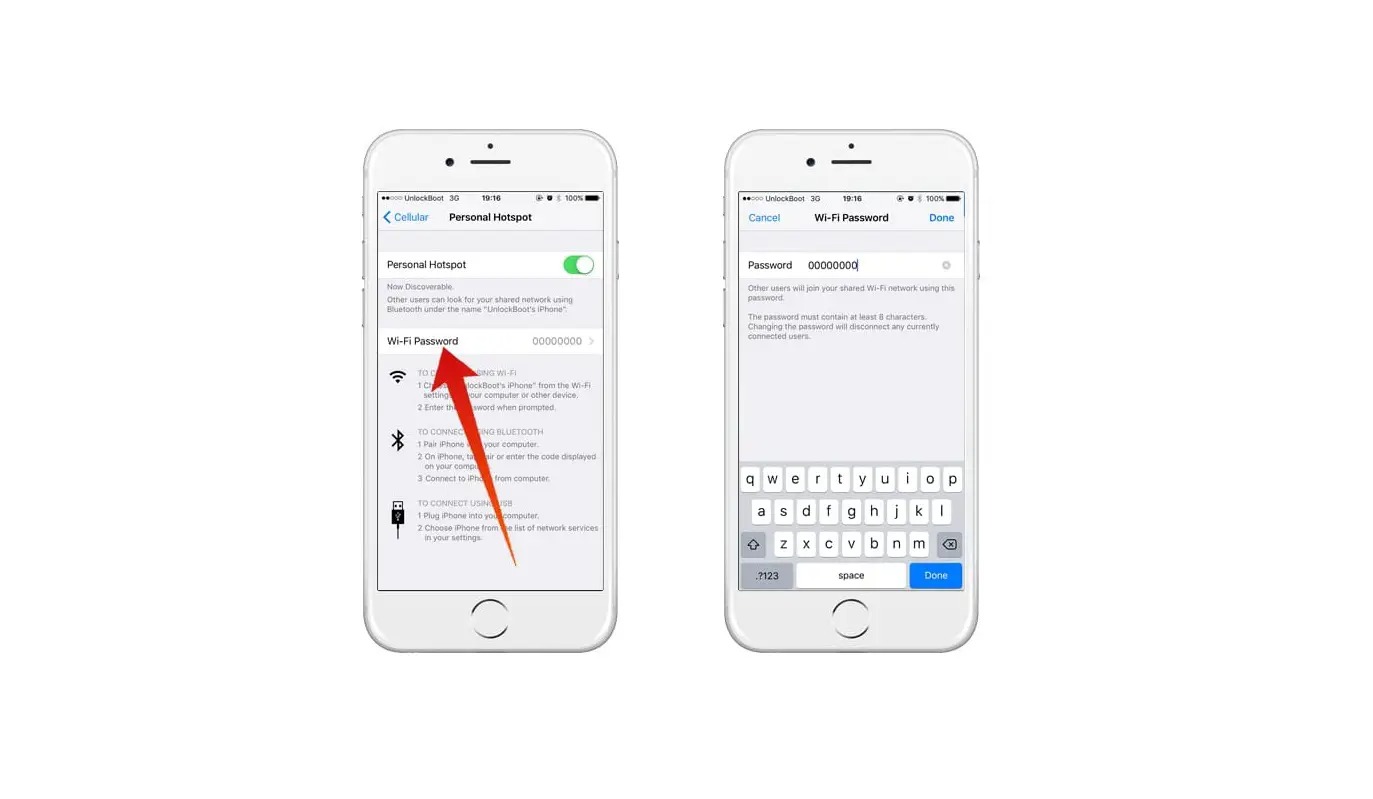
To share your 4G connection as a hotspot on Android, follow these steps:
- Swipe down from the top of the screen to open Quick Settings.
- Tap Hotspot. If Hotspot is missing, tap Edit in Quick Settings and drag Hotspot into your Quick Settings.
- To connect another device, open that device’s Wi‑Fi list, pick your phone’s hotspot name, enter the hotspot password, and tap Connect.
- To remove the password requirement, swipe down from the top of the screen, touch and hold Hotspot, then under “Security,” tap None.
For additional sharing options, you can go to Settings > Google > All services > Devices & sharing > Cross‑device services to find Instant hotspot and Automatically share Wi‑Fi on supported Android devices.
Mobile data vs Wi‑Fi networks: cost and data caps
Wi‑Fi is generally more cost‑effective for home use because it offers fast speeds and reliability without the data caps typical of mobile data plans. Mobile data provides broader coverage, allowing you to connect from nearly any location, but it can be expensive and may have data limits or speed throttling. Your choice depends on your specific needs: Wi‑Fi is better for stationary, high‑data activities, while mobile data is essential for staying connected on the go.
Frequently Asked Questions
Is Wi‑Fi better than 4G for streaming?
Wi‑Fi offers quicker and more dependable speeds for streaming.
Is 4G better than Wi‑Fi for mobile devices?
4G provides unmatched mobility without being tethered to one spot.
Can 4G replace home internet?
No. 4G is generally not a good replacement for home internet because it has limited data caps and higher costs compared to a typical home Wi‑Fi plan. It can serve as a backup, but not a primary connection.
How can I improve Wi‑Fi speeds?
Upgrading to a modern router, placing it in a central location, and reducing interference from other electronics can significantly improve Wi‑Fi speeds. Keeping your router’s firmware updated also helps.
Is 5G faster than Wi‑Fi?
5G offers higher speeds and lower latency than 4G, but it is still too early to make a universal comparison with Wi‑Fi. The performance depends on the specific 5G network and the Wi‑Fi standard you are using.
Does Wi‑Fi Assist use more data?
Yes, because Wi‑Fi Assist automatically uses cellular data when Wi‑Fi is poor, it can increase your mobile data usage. You can turn it off in Settings if you want to avoid unexpected data charges.
Related reading: What Is Dual Band? and What Does Lte Mean On My Phone.