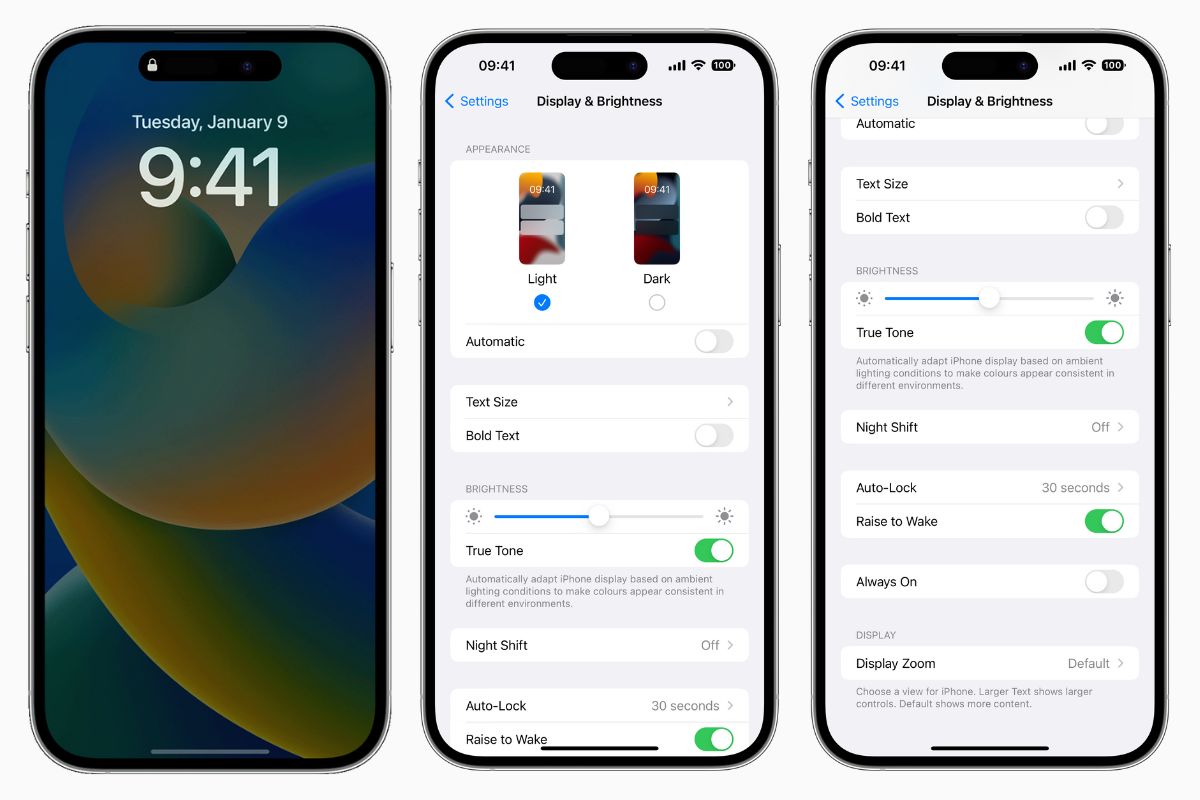
To turn off always-on display on your iPhone 14 Pro, open the Settings app, tap Display & Brightness, and toggle off Always On Display. This is the only official method Apple provides to disable the feature, and it’s useful if you want to save battery life, reduce distractions, or avoid the screen lighting up when you don’t need it, especially if you rely on privacy screens and screen locking methods to keep your phone’s contents hidden.
How to turn off always-on display on iPhone 14 Pro
The always-on display keeps your lock screen visible at a dimmed brightness so you can glance at the time, widgets, and notifications without touching your phone. While convenient, it uses power and can be distracting. The only official way to disable it is through the Settings app. The setting is named 'Always On Display' (not 'Always On') in the Settings menu. The feature is on by default.
Step-by-step: Disable always-on display in Settings
- Open the Settings app on your iPhone 14 Pro.
- Tap Display & Brightness.
- Turn off Always On Display.
Once you toggle this off, your screen will go fully dark when you lock your iPhone, just like a standard phone display. You can re-enable it at any time by following the same steps and turning the switch back on.
Other ways the always-on display turns off automatically
Even if you leave the always-on display enabled, Apple has built in several automatic behaviors that will turn the screen off or keep it dark without any action from you. These are documented on Apple’s support pages and give you passive control over when the feature is active.
The display goes completely dark automatically when your iPhone is face down, when it’s obstructed from view, or when it’s not near a paired Apple Watch. The display turns off automatically when the iPhone is not near a paired Apple Watch. It will also turn off when CarPlay starts. The display turns off automatically when CarPlay starts. The display turns off automatically while Continuity Camera is in use. The display turns off automatically when Low Power Mode is on. The display turns off automatically while Sleep Focus is on. The display turns off automatically at the user's usual bedtime. These scenarios mean you don’t have to manually disable the feature just to avoid it lighting up at certain times.
There is also no separate region restriction listed for this setting, and carriers do not offer their own way to manage it.
Frequently Asked Questions
Is there a separate “Always On” switch?
No. Apple’s current support pages name the setting Always On Display, and that’s the only switch you need to manage the feature. It appears under Display & Brightness on supported iPhone models.
Does the screen stay lit if I disable the setting?
No. Turning off Always On Display makes the screen behave normally by turning fully off when you lock your iPhone. You’ll still get notifications, but you’ll need to wake the screen to see them.
Do carriers provide a different method to turn it off?
No. Apple’s support documentation does not mention any carrier-specific controls for the always-on display. The Settings app is the only place to change this setting.