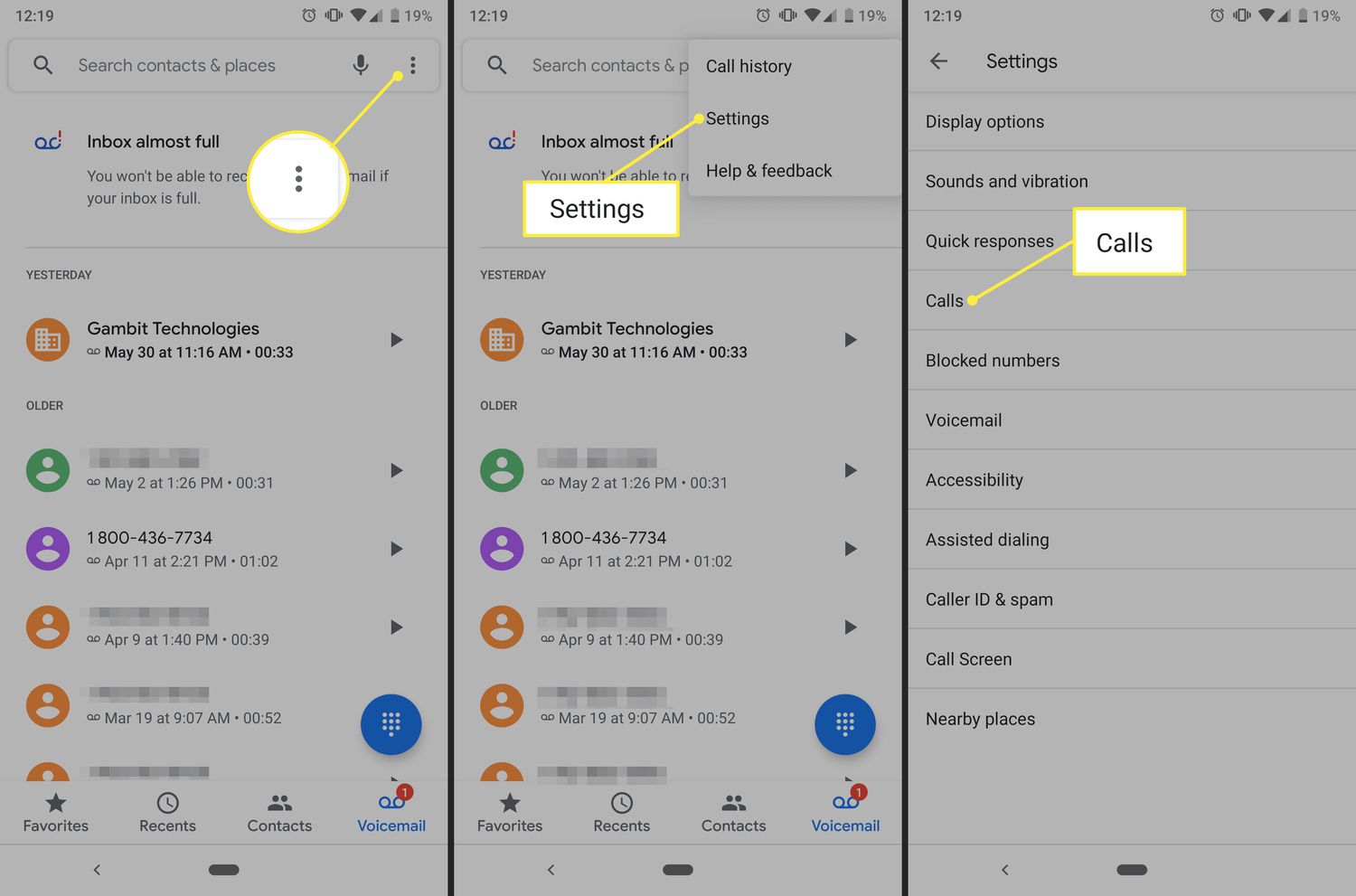
To call forward on Android, open the Phone app, tap the three-dot menu, go to Settings, then Supplementary services, and select Call forwarding. This lets you redirect incoming calls to another number so you never miss important calls when your phone is unavailable.
Enable call forwarding
On a Samsung Galaxy phone, the path to enable call forwarding is: open the Phone app, tap the three vertical dots (More options), select Settings, then Supplementary services, and tap Call forwarding. From there, choose one of the four forwarding conditions: Always forward, Forward when busy, Forward when unanswered, or Forward when unreachable. Enter the destination number and tap Enable. On other Android devices, the menu may be labeled Call settings or Calling accounts, but the general path follows the same pattern through the Phone app settings. AT&T documents additional carrier call-forwarding star codes, including All Call Forwarding *72 and *73 off, Busy Call Forwarding *90 and *91 off.
Set up the forwarding number
After selecting your forwarding condition, you will be prompted to enter the phone number where calls should be redirected. On Dual SIM models, you must choose a line before entering the forwarding number. Type the number directly, then tap Enable (or Save) to activate it. For AT&T users on a Galaxy device, after opening Phone app > Menu icon > Settings > Supplementary services > Call forwarding > Always forward, you can enter the number and tap Turn on. If a forwarding number is already active, AT&T says you can edit the phone number on the Always forward screen and select Update to change it.
Disable call forwarding
To turn off call forwarding, return to the same Call forwarding menu in your Phone app settings. On a Samsung Galaxy, go to Phone app > More options > Settings > Supplementary services > Call forwarding, then select the forwarding condition you previously enabled. AT&T users should open Call forwarding, select Always forward, then select Turn off. Turning off call forwarding does not notify the number that was receiving forwarded calls. Once disabled, incoming calls will ring your device normally again.
Troubleshooting call forwarding issues
If you cannot find the Call forwarding settings on your Android device, the feature may be unavailable or restricted by your carrier. If you do not see Call Forwarding, the feature is unavailable on that device and you should contact the carrier. You must be in range of the cellular network when you set up forwarding, or calls will not be redirected. Conditional forwarding (such as Forward when busy or Forward when unreachable) depends on carrier support and may need to be set up by the carrier directly. For CDMA networks, the carrier must provide the setup method, as the built-in Android settings typically require GSM network support. If you are trying to forward a cell phone number and the options are missing, contact your carrier to verify that call forwarding is enabled on your account.
Frequently Asked Questions
How do I check if call forwarding is currently enabled?
Open the Phone app, go to Settings, then Supplementary services, and tap Call forwarding. The screen will show which forwarding condition is active and the number calls are being sent to.
Can I forward calls to an international number?
Yes, but you must enter the full international number including the country code. Check with your carrier, as international call forwarding may incur additional charges.
Will call forwarding work if my phone is turned off or out of range?
Yes, if you set up Forward when unreachable, calls will redirect to the forwarding number even when your phone is off or has no signal, as long as your carrier supports that condition.
Does call forwarding affect text messages or data?
No, call forwarding only redirects incoming voice calls. Text messages and data are not affected.
Why don't I see the Supplementary services option in my Phone settings?
Some carriers or Android versions may place call forwarding under a different menu, such as Calling accounts or Call settings. If you still cannot find it, contact your carrier to confirm the feature is available on your plan.