On a cell phone, "data" primarily means cellular data, the internet traffic sent over a mobile network when you are not connected to Wi-Fi. It also refers to the personal information stored on your device, such as apps, photos, messages, and account data, which is a separate but equally important aspect of mobile phone basics.
How cellular data works on your phone
When you are away from Wi-Fi, your phone uses cellular data to connect to the internet by sending and receiving digital packets over a mobile network. Apple and Google both document that this data enables activities like browsing websites, streaming video, using social media, and sending messages. The phone's settings let you control which apps and services can use cellular data, giving you direct oversight of your connectivity and usage.
How to manage cellular data on an iPhone
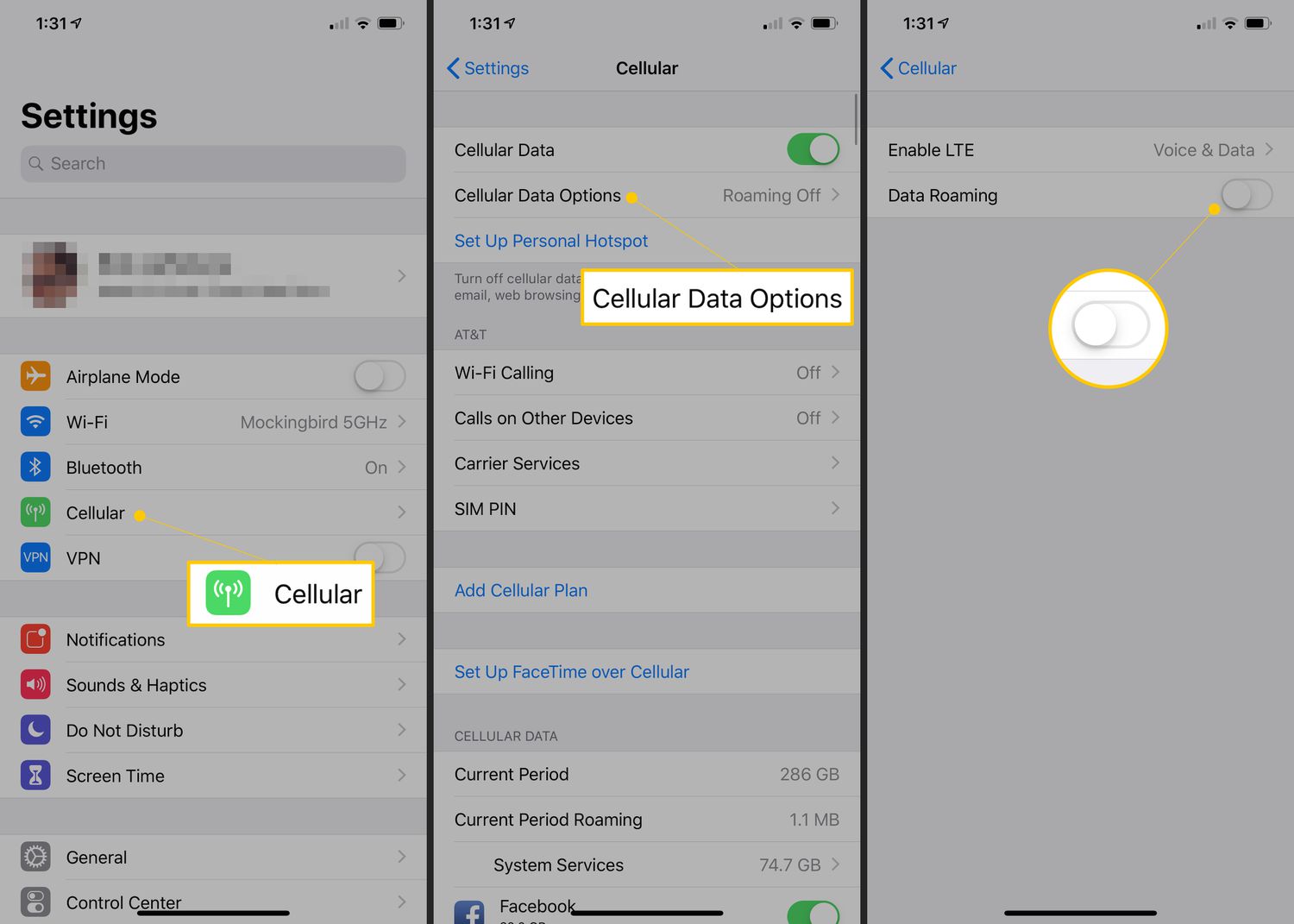
- Open Settings and tap Cellular (or Mobile Data in some regions).
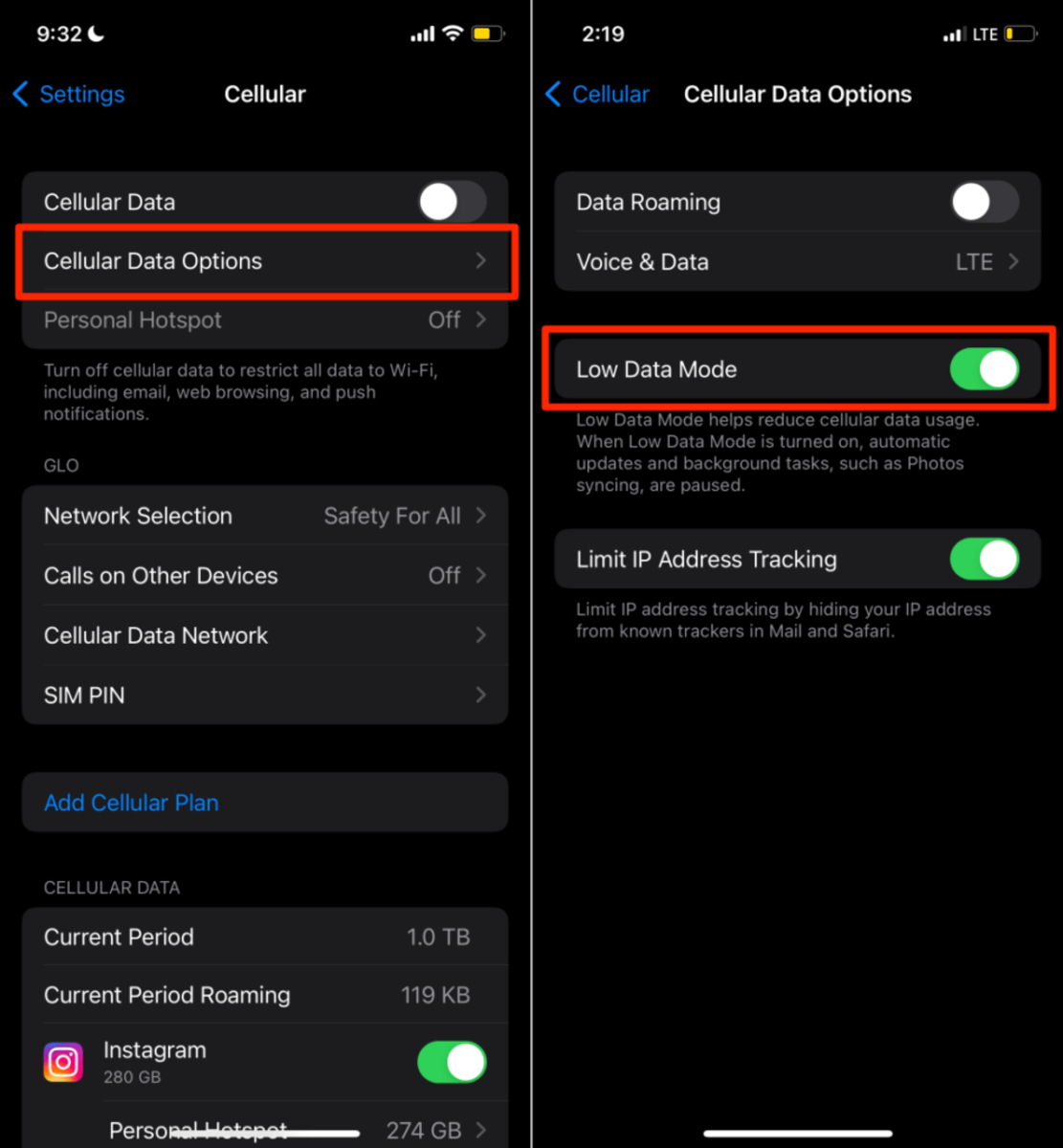
- Toggle Cellular Data on or off to enable or disable internet access over the mobile network.
- To manage per-app access, scroll down in the same menu and toggle individual apps or services on or off.
- For roaming and network options, tap Cellular Data Options within the Cellular settings.
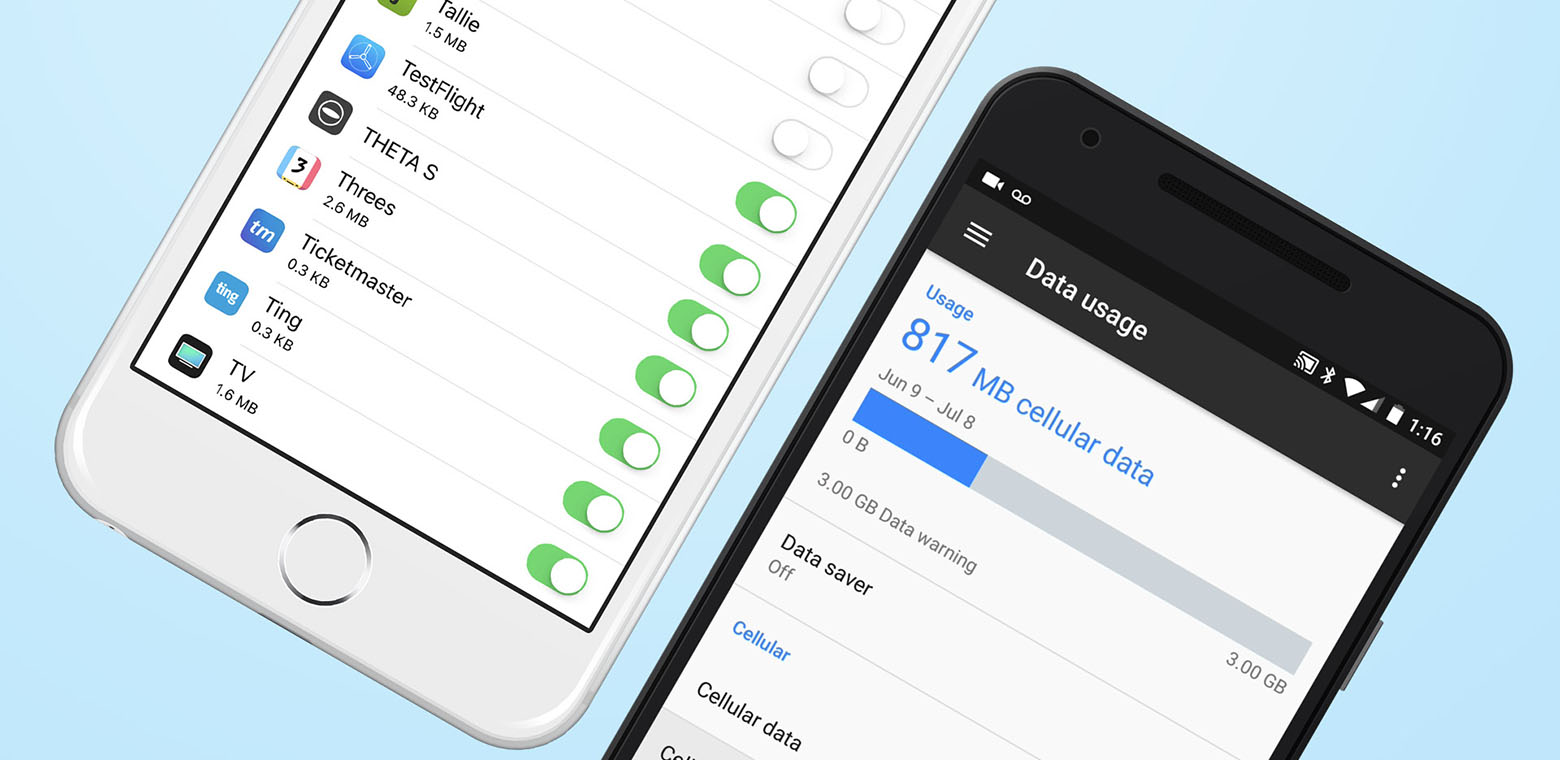
- To check usage, view the data listed under each app in Settings > Cellular.
If your iPhone uses multiple SIMs, go to Settings > Cellular > Cellular Data to choose which line uses data. If the device is enrolled in Mobile Device Management, Settings > Cellular > System Services > Corporate Accounts may show related data.
How to manage cellular data on Android and Samsung
On Pixel and most Android devices
- Open Settings and tap Network & internet.
- Tap SIMs to see total usage, then tap App data usage for graphs and per-app details.
- On other Android devices, go to Settings > Network & internet > Internet, tap the Settings icon next to the carrier name, then tap App data usage.
- To reduce usage, enable Data Saver under Settings > Network & internet > Data Saver. You can also set Unrestricted data for specific apps under the same menu.
- To set alerts or stop data automatically, use Data warning & limit under network settings, where you can set a warning threshold and a hard data limit.
Google Fi documents Turn mobile data on or off, Turn auto-sync on or off, Allow or restrict background data usage by app, and Turn data roaming on or off in the same mobile data usage help page.
On Samsung devices
- Swipe down to open the Quick panel and tap the Mobile data icon to turn it on or off.
- Or go to Settings > Connections > Data usage for full controls, including per-app data management and usage tracking.
How to check your data usage and avoid overages
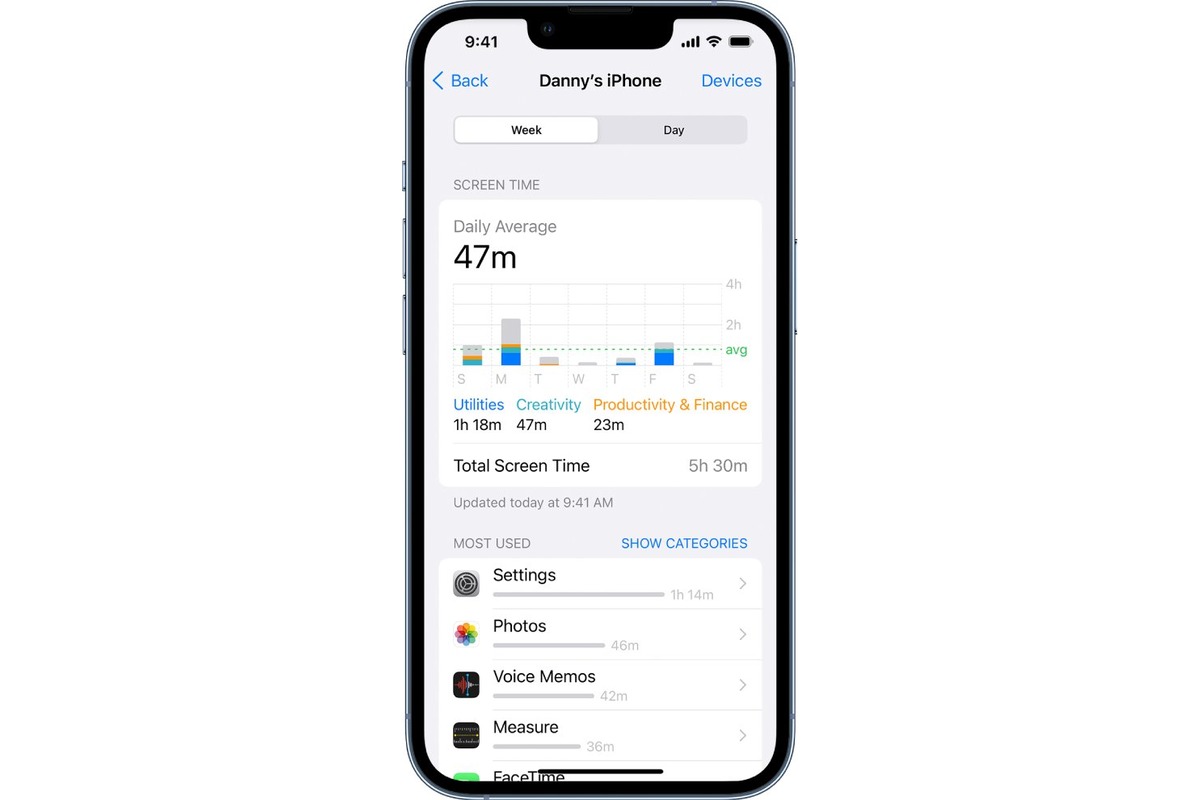
On an iPhone, go to Settings > Cellular to see total data used and a breakdown by app. On Android, check usage under Settings > Network & internet > SIMs (or App data usage on other devices). Both platforms let you set warnings, Android allows a hard limit that automatically turns off mobile data when reached. Monitoring these tools helps you stay within your plan and avoid extra charges.
Frequently Asked Questions
How is data measured on a cell phone?
Data usage is measured in bytes, typically in megabytes (MB) or gigabytes (GB). Each action, sending an email, streaming a video, or loading a webpage, consumes a specific amount of data, which is tracked by your phone and carrier.
How can I check my data usage on a cell phone?
Your phone's settings show current usage: on iPhone, go to Settings > Cellular; on Android, go to Settings > Network & internet > SIMs or App data usage. Most carriers also provide apps or account portals to monitor consumption.
What happens if I exceed my data limit on a cell phone?
If you exceed your plan's limit, your carrier may charge overage fees or slow down your data speed (throttling), making internet activities noticeably slower. Setting a data warning or limit in your phone's settings can prevent this automatically.
Related reading: How To Reset My Cellular Data.