To clear up system data on your iPhone or Android phone, you need to understand that this category, sometimes called "Other" on older devices, is a mix of caches, logs, temporary files, and system updates that the operating system manages automatically. Because you cannot delete it directly, the most effective methods involve forcing the system to purge these files through restarts, update removals, or, as a last resort, a full erase and restore.
What is system data and why does it fill up?
System data refers to the files your phone’s operating system uses to run smoothly: temporary files from apps, system logs, cached data, and downloaded iOS or Android updates. These files are managed automatically, but over time they accumulate and can take up several gigabytes of storage. This is normal, but when the category grows large enough to interfere with freeing up phone storage space, you need to take action.
How to check your system data usage on iPhone
- Open Settings and tap General.
- Tap iPhone Storage.
- Look at the colored bar at the top of the screen. The gray section labeled System Data shows how much space these files occupy.
This view gives you a clear picture of what is consuming your storage. The number will fluctuate as iOS manages its own caches and logs.
How to clear up system data on iPhone
Apple does not provide a direct way to delete System Data, but community-verified workarounds can reduce it significantly.
- Restart your iPhone. A simple restart often clears temporary caches and logs that iOS can safely discard.
- Delete any pending iOS update. Go to Settings > General > iPhone Storage. If you see an iOS update listed, tap it and choose Delete Update. The update file can be several gigabytes and is no longer needed once installed.
- Update via a computer. Connect your iPhone to a Mac or PC and update using Finder or iTunes. This method forces iOS to clean up the update files it normally keeps on the device.
- Erase and restore from backup. This is the nuclear option. Back up your iPhone to iCloud or a computer, then go to Settings > General > Transfer or Reset iPhone > Erase All Content and Settings. After the phone restarts, restore from your backup. This removes all accumulated system junk and rebuilds the System Data category from scratch.
How to reduce system data on Android
Android does not have a single "System Data" category, but similar temporary files and caches build up in system partitions. The steps vary by manufacturer, but the general approach is the same.
- Open Settings and tap Storage (or Storage & memory on some devices). Look for a section labeled System or Other.
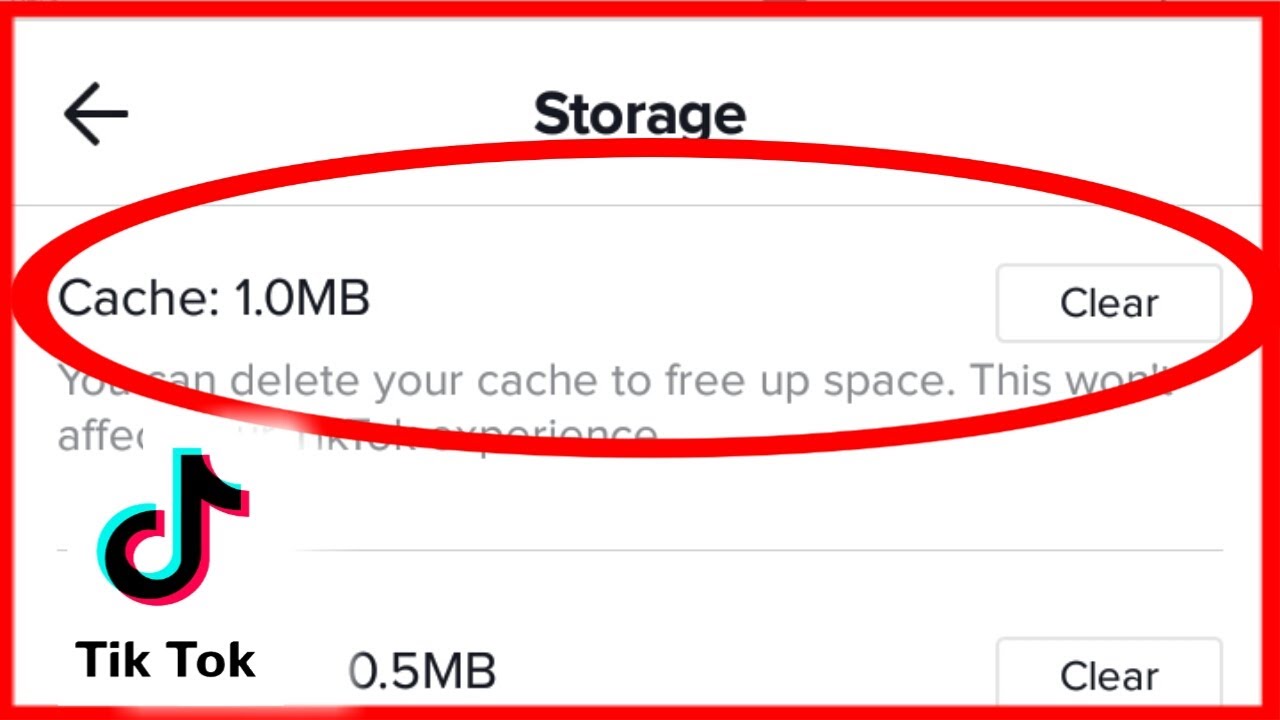
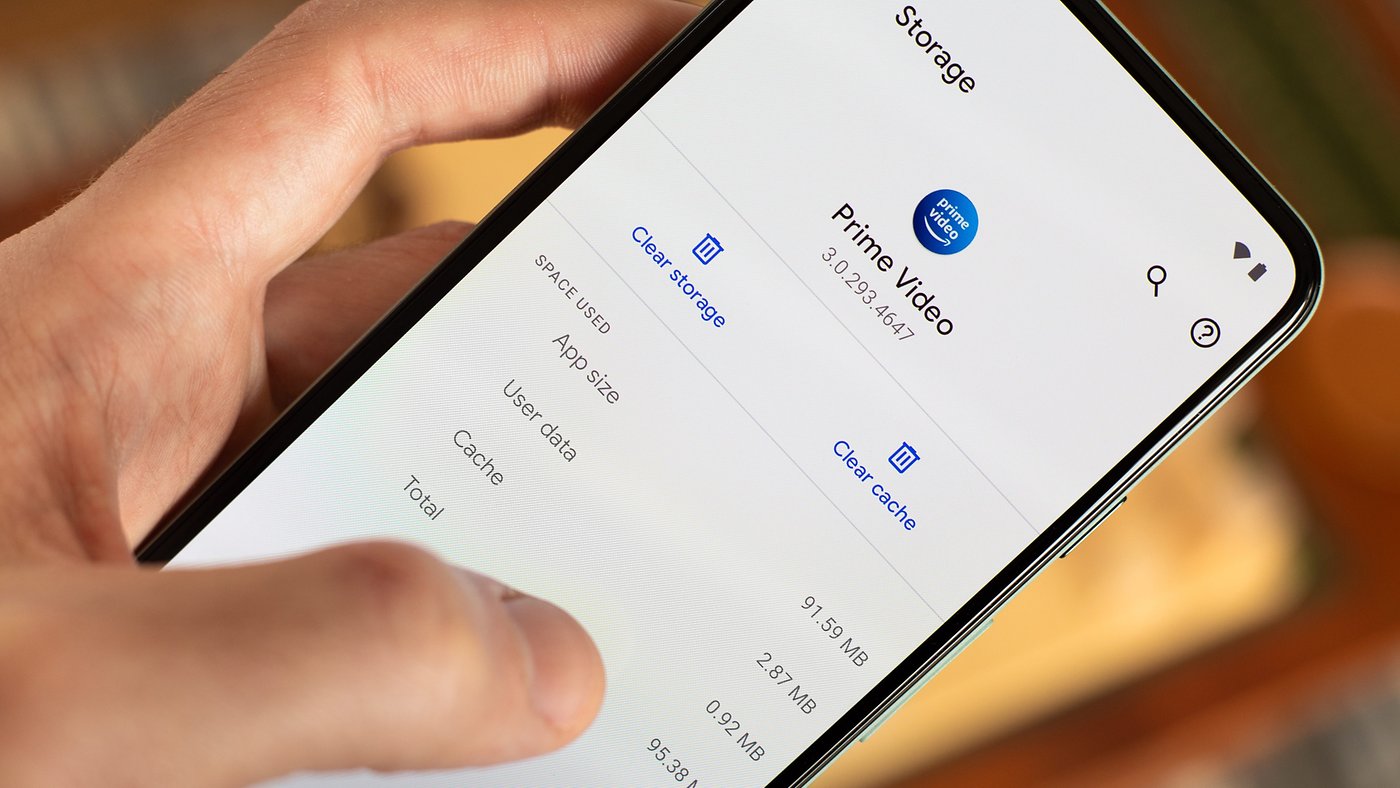
- Clear individual app caches. Go to Settings > Apps, select an app, tap Storage & cache, then tap Clear cache. Focus on apps you use heavily, like social media, browsers, and streaming services.
- Use Google Files’ "Free Up Space" feature. Open the Files by Google app, tap the Clean tab at the bottom, and review the suggestions. It will offer to delete temporary files, unused apps, and large old downloads.
- Use Disk Cleanup tool on Windows. Type 'Disk Cleanup' in the search bar, select the drive, and delete temporary files.
- Clear cache on macOS. Via Finder, click Go > Go to Folder, type ~/Library/Caches, and delete the contents of individual app folders.
- Clear system logs via Windows Event Viewer. Open eventvwr.msc, navigate to Windows Logs, right-click a log like Application or System, and choose Clear Log.
- Remove unnecessary software. On Windows, go to Control Panel > Programs and uninstall unused programs. On Mac, check the Applications folder and drag unwanted apps to Trash.
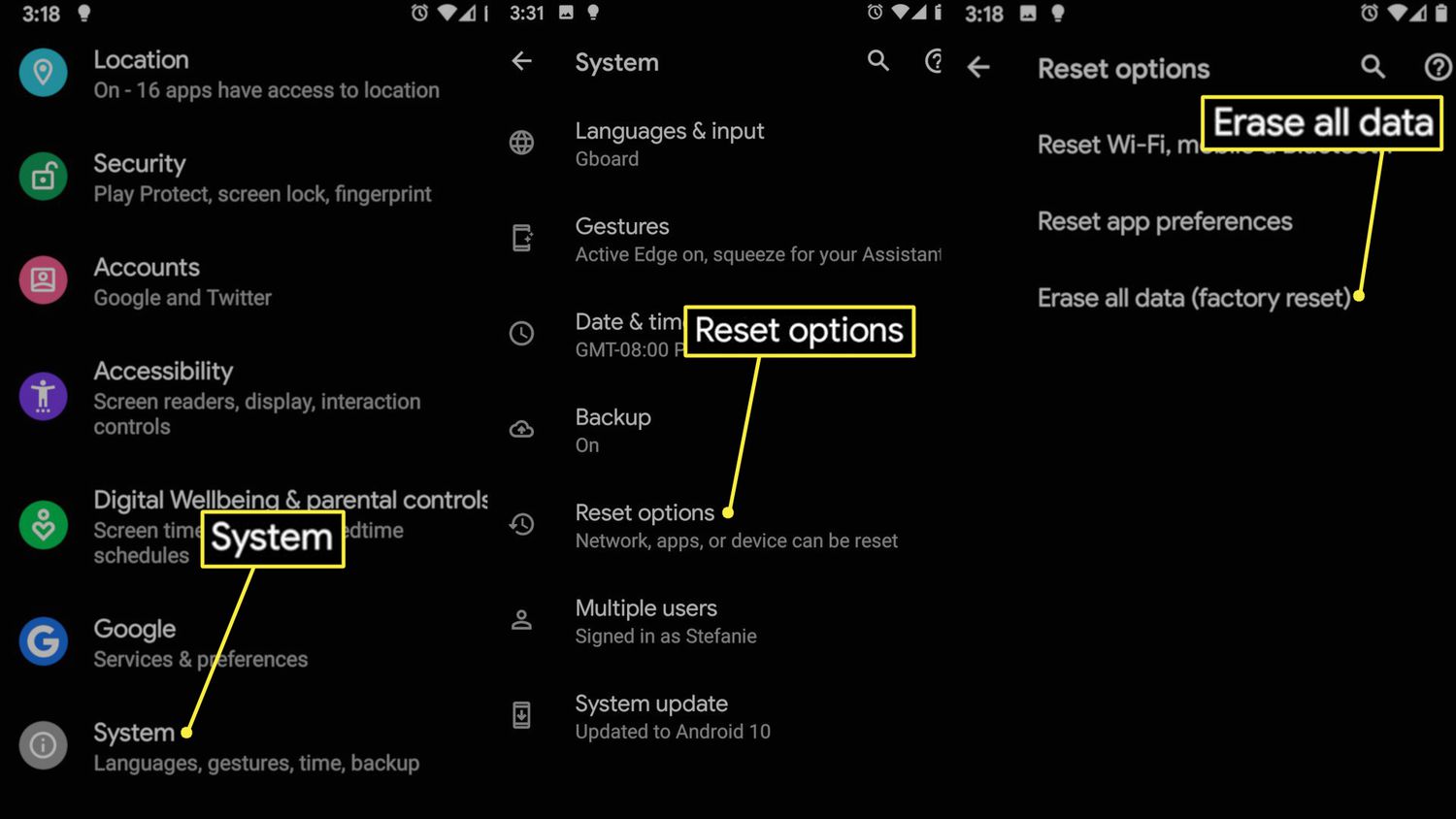
- Factory reset as a last resort. If system data is still too large, back up your data, then go to Settings > System > Reset options > Erase all data (factory reset). This wipes the phone completely and rebuilds the system partition cleanly.
Clear browser cache to free additional space
Browser caches are a major contributor to system data on both platforms. Clearing them is a quick win.
On iPhone (Safari)
- Open Settings and tap Safari.
- Tap Clear History and Website Data. Confirm the action. This removes cached pages, cookies, and browsing history.
On Android (Chrome)
- Open the Chrome app.
- Tap the three-dot menu and go to Settings > Privacy and security > Clear browsing data.
- Select Cached images and files and tap Clear data. You can also choose a time range to avoid clearing everything.
Note that clearing browser cache will log you out of websites and remove saved login credentials, so save any important information before proceeding.
Preventing system data from building up again
Once you have freed up space, a few habits can keep system data from growing out of control.
- Restart your phone regularly. A weekly restart clears temporary caches that apps and the system leave behind.
- Keep iOS and Android updated. Newer versions often include better cache management and automatic cleanup routines.
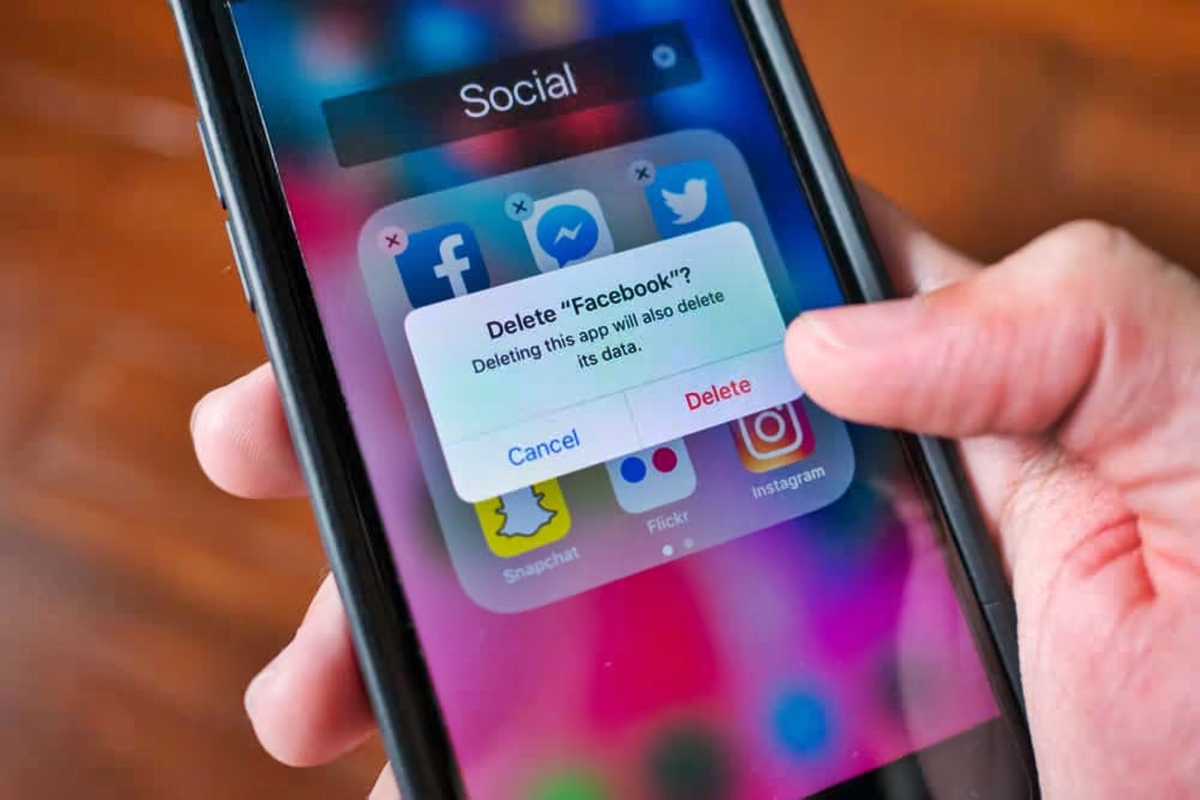
- Offload unused apps. On iPhone, go to Settings > General > iPhone Storage, tap an app, and choose Offload App. This removes the app but keeps its documents and data. On Android, you can delete an app on an Android phone by going to Settings > Apps, selecting the app, and tapping Uninstall.
- Stream instead of downloading media. Downloaded movies, music, and podcasts take up space that could otherwise be used by system files. Streaming keeps that data off your device.
Frequently Asked Questions
What is system data on a cell phone?
System data is the storage space used by the operating system for essential files like caches, logs, temporary files, and system updates. It keeps your phone running smoothly but can grow large over time.
Why should I clear up system data on my cell phone?
Clearing system data frees up storage space that can become occupied by unnecessary temporary files and caches, helping to improve performance and make room for your personal files and apps.
Will clearing system data delete my photos or messages?
No. The methods described above only affect temporary files, caches, and system logs. Your photos, messages, contacts, and other personal data remain untouched unless you perform a factory reset without a backup.
Why does system data come back after I clear it?
System data is not a fixed category; it grows and shrinks as iOS and Android manage caches, logs, and updates. After you clear it, the system will rebuild some of these files as you use your phone normally. This is expected and not a sign of a problem.
Can I use a third-party app to clear system data?
Third-party cleaning apps are not recommended for clearing system data on iPhone because iOS restricts access to system files. On Android, some cleaner apps like CCleaner, CleanMyMac, or Wise Disk Cleaner can help, but they often do not target the system partition effectively and may include ads or bloatware. The built-in methods described above are safer and more reliable.
How often should I clear system data?
There is no set schedule. Check your storage every few months. If System Data on iPhone exceeds 10-15 GB or if your Android phone feels sluggish, it is a good time to try the steps above.
Does a factory reset remove system data permanently?
A factory reset wipes the device completely, including all system data, and rebuilds the operating system from scratch. However, if you restore from a backup, some system junk may return. For the cleanest result, set up your phone as new after the reset.
For the wider topic, see freeing up phone storage space.
Related reading: How To Clear Data On Instagram.