This tag collects articles focused on keyboard shortcuts and related input methods for phones, laptops, and other devices. It is intended for readers who want to speed up common tasks, fix on-screen interference, or access hidden features using key presses rather than touch or mouse navigation. Whether you are troubleshooting an accidental zoom, toggling wireless settings, or navigating a game interface, these guides offer direct, step-by-step solutions.
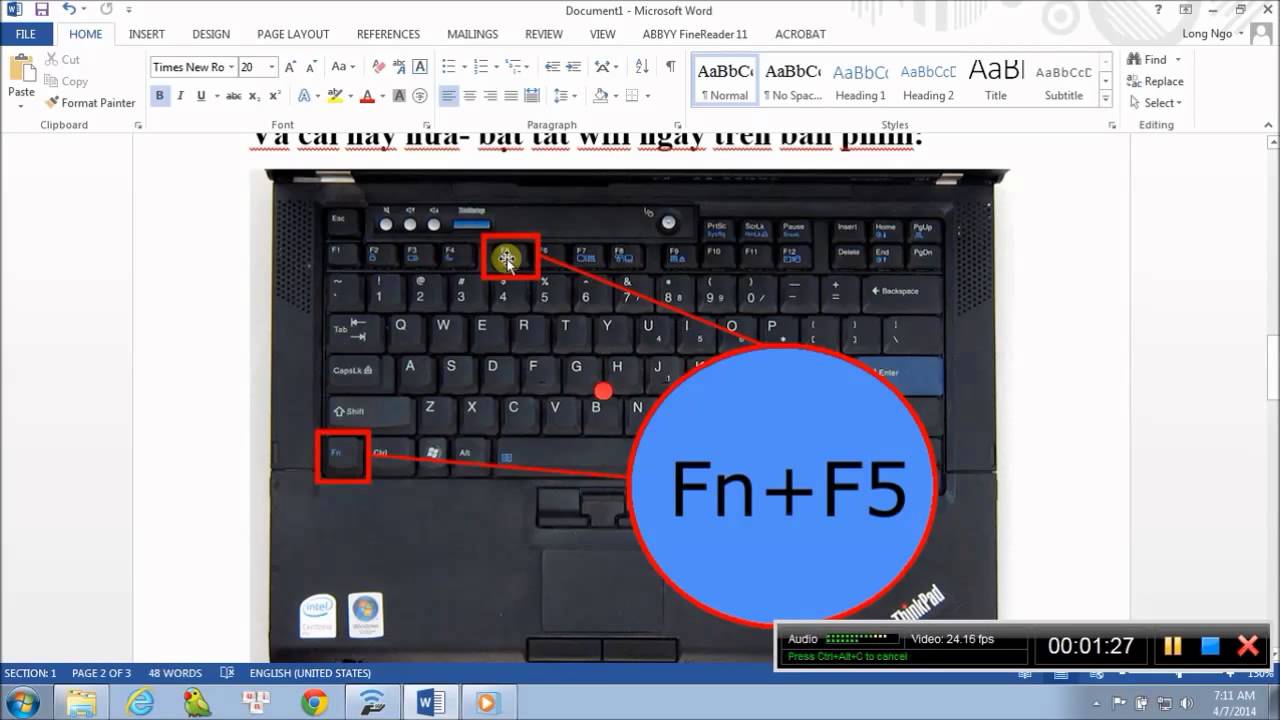
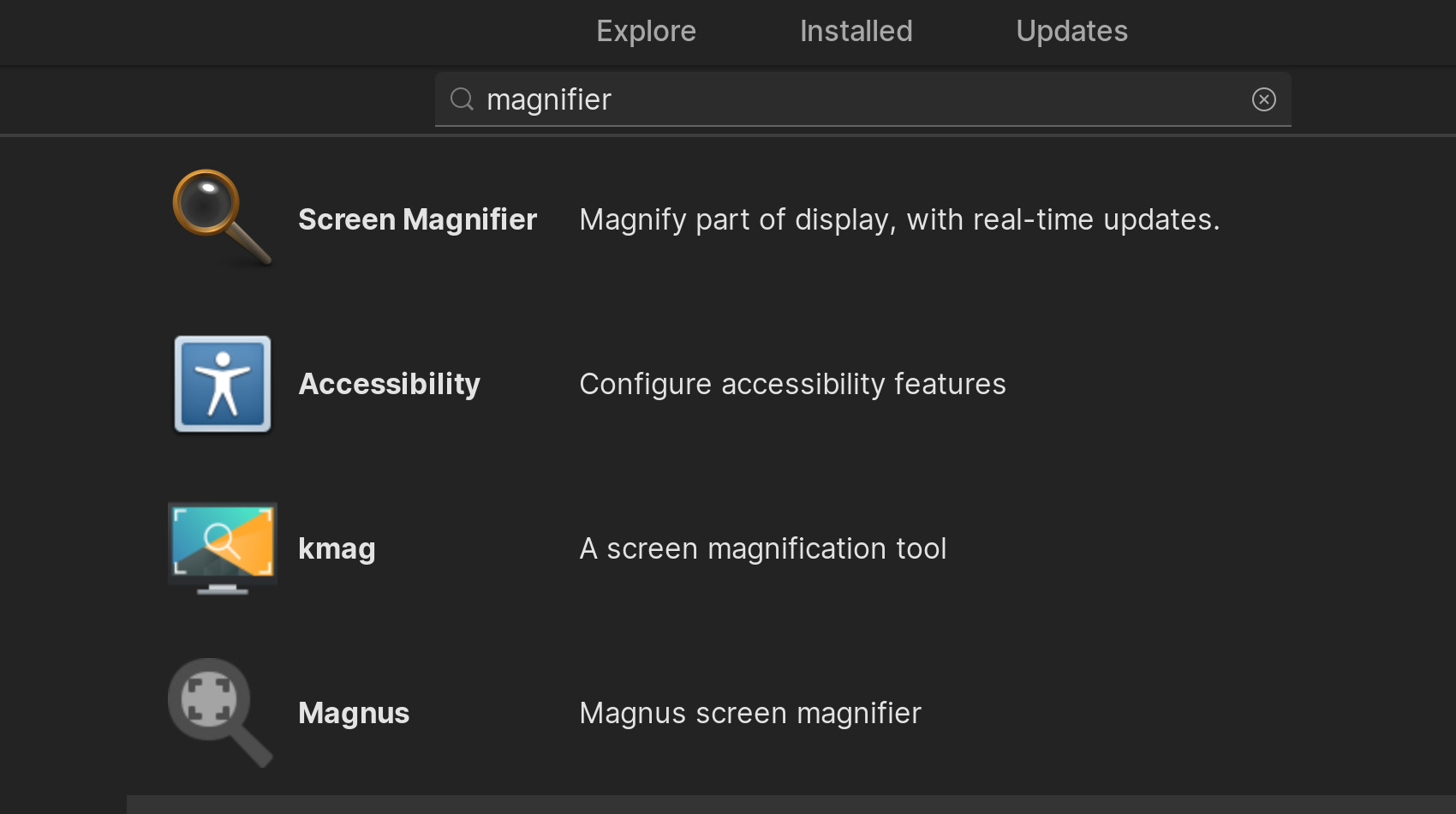
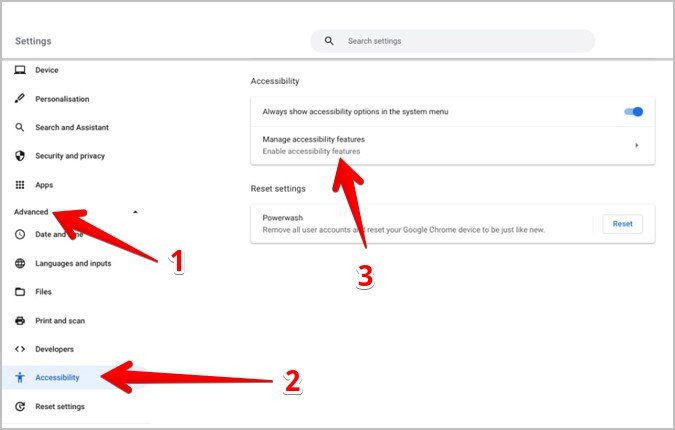
The articles address three main types of problems. First, several cover disabling or managing accessibility overlays that can obscure your screen, such as removing the magnifier on a Chromebook or turning off the touchscreen entirely. Second, others help you execute specific in-app or system commands, like opening a new tab in Safari quickly or entering fullscreen mode in VR Chat. Third, a few guides focus on enabling core hardware functions, such as turning on wireless capability on a Dell laptop or using the magnifier tool effectively.
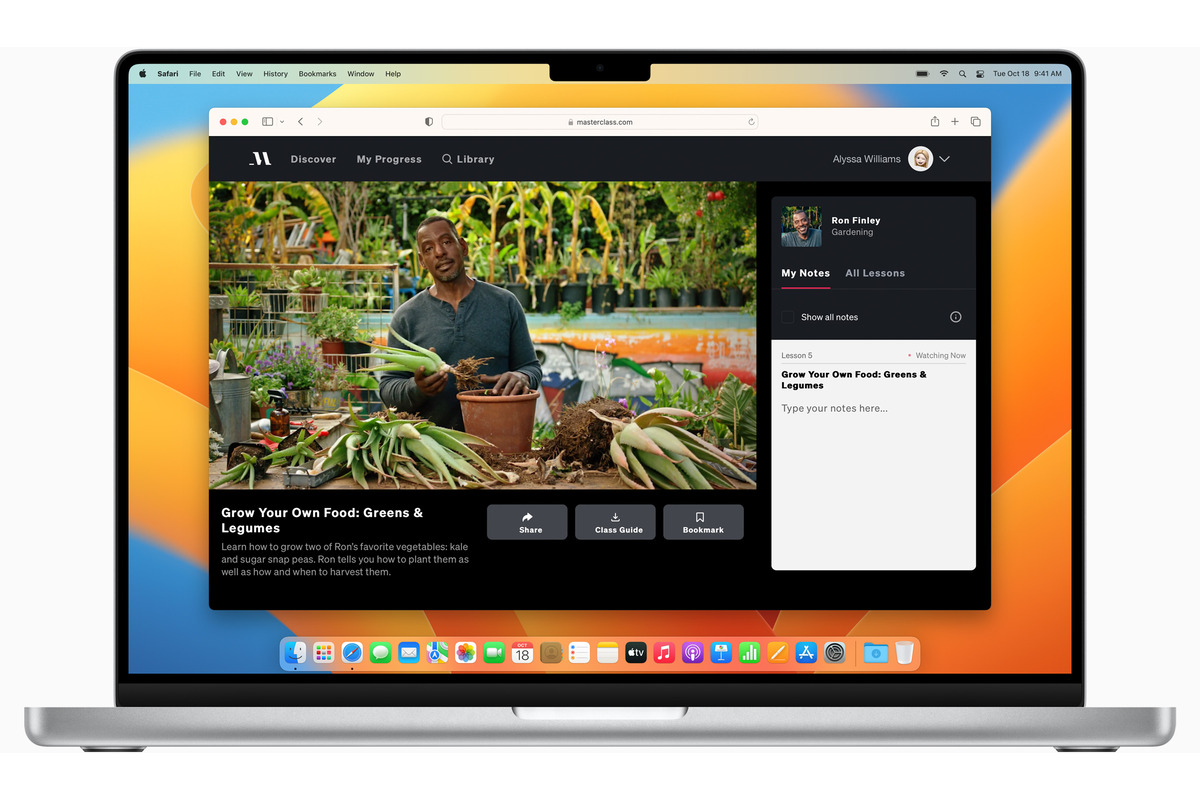
Specific topics include how to take off the magnifier on a Chromebook, how to open the phone in GTA 5 PC, and the quickest way to open a new tab in Safari. Each article explains the exact key combination or setting change needed, helping you regain control of your display or perform actions faster without relying on touch gestures alone.