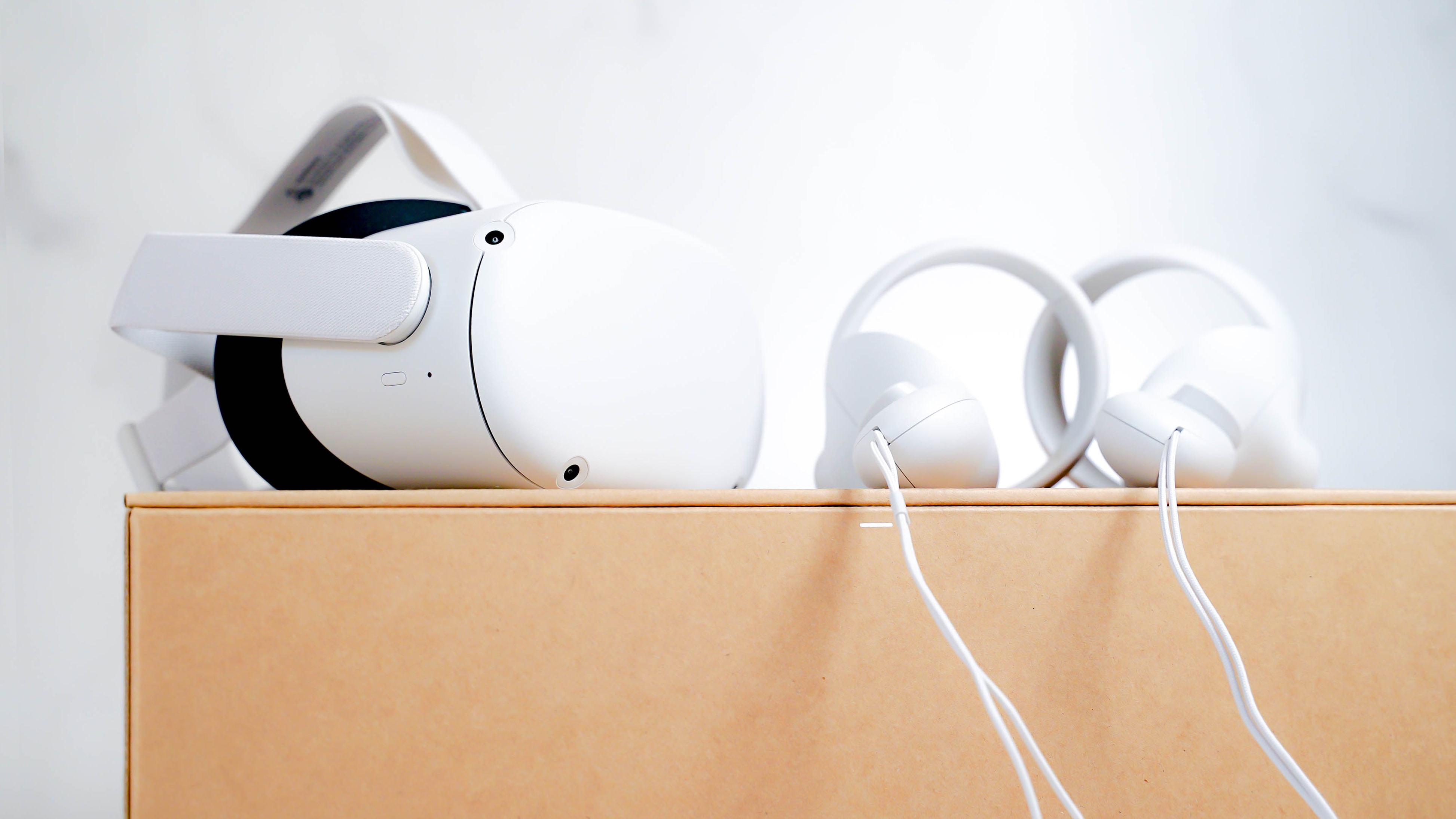
To fullscreen VR Chat instantly on desktop, press Alt+Enter on your keyboard. This keyboard shortcut toggles the VRChat application between windowed and fullscreen mode, removing window borders and distractions in one keystroke.
How to fullscreen VR Chat instantly with Alt+Enter
The fastest method to switch VRChat to fullscreen mode is by pressing Alt+Enter simultaneously. This works while the game window is active and focused. The same shortcut returns the game to windowed mode if you press it again. No menus, no settings, just a direct toggle that works in the desktop version of VRChat.
Enabling fullscreen VR Chat through the in-game settings menu
If the keyboard shortcut does not work or you prefer a manual approach, use the in-game settings menu:
- Open the Quick Menu by pressing the Esc key or the appropriate controller button.
- Navigate to the Settings tab (gear icon).
- Select Display Settings or Video Settings.
- Look for the Fullscreen or Fullscreen Mode toggle and enable it.
- Apply the change; VRChat may prompt you to restart for the setting to take effect.
Alternatively, from the Main Menu (accessible from the Quick Menu), go to Settings then Display to find the same fullscreen option. This method is useful if you want to confirm the setting is saved before restarting.
Using Steam launch options to force fullscreen VR Chat
To ensure VRChat always starts in fullscreen mode, add a launch parameter in Steam:
- Open your Steam library and right-click VRChat.
- Select Properties.
- In the Launch Options field, type:
-screen-fullscreen 1 - Close the window. The next time you launch VRChat, it will force fullscreen mode on startup.
You can also combine this with other parameters like -screen-width 1920 -screen-height 1080 to set a specific resolution if needed. This is especially helpful for users who use a VR setup and TV casting, as it ensures the desktop mirror window is fullscreen on the TV without manual adjustment each time.
Troubleshooting fullscreen mode issues in VR Chat
When Alt+Enter fails or fullscreen mode does not activate, try these specific fixes:
- Check window focus: Click on the VRChat window to make sure it is the active window before pressing Alt+Enter. If another window has focus, the shortcut will not work.
- Verify resolution settings: Open the in-game display settings and confirm the resolution matches your monitor's native resolution. A mismatched resolution can prevent fullscreen from engaging properly.
- Update GPU drivers: Outdated or corrupted graphics drivers can cause display mode issues. Download and install the latest drivers from your GPU manufacturer (NVIDIA, AMD, or Intel).
- Disable conflicting overlays: Overlays from Discord, GeForce Experience, or other applications can interfere with fullscreen toggling. Temporarily disable them and test again.
- Restart VRChat: After changing any display setting, close and relaunch the application to ensure the change applies.
- Check your VR headset connections: Ensure the headset is properly connected, tracking sensors are positioned correctly, and controllers are synced, as a loose connection can cause display issues.
- Clear your browser's cache and cookies: Accumulated data can potentially interfere with VR Chat's ability to run in fullscreen mode.
- Temporarily disable your antivirus software: Antivirus can mistakenly flag VR Chat and prevent fullscreen mode from functioning.
If none of these resolve the issue, verify your game files through Steam (right-click VRChat > Properties > Local Files > Verify Integrity of Game Files).
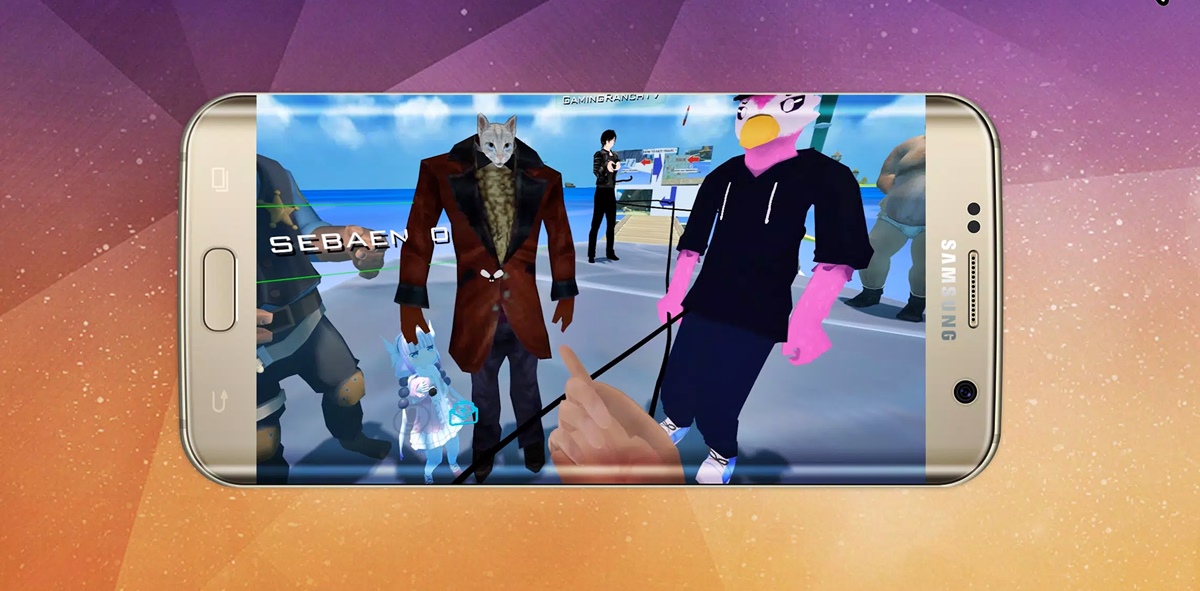
Is fullscreen VR Chat available on iPhone and Android?
Official VRChat documentation does not list a fullscreen feature for the mobile app on iPhone or Android. The only documented mobile display setting is Auto Rotate Speed, which you can change in Quick Menu > Settings > Mobile or Main Menu > Controls. It cannot be fully immersive on mobile, but minimizing other apps can help it occupy the entire screen. There are no confirmed steps, supported models, or app versions for enabling fullscreen mode on mobile devices. Desktop VRChat and mobile VRChat are separate applications with different feature sets; the fullscreen options described above apply only to the desktop version.
Frequently Asked Questions
Does fullscreen mode improve performance in VRChat?
Fullscreen mode can slightly improve performance by reducing the overhead of rendering the desktop compositor, but the difference is usually small. Most performance gains come from adjusting resolution and graphics quality settings.
Can I use windowed borderless mode instead of fullscreen?
VRChat does not have a native borderless windowed option in its settings. However, you can use third-party tools like Borderless Gaming or the launch parameter -popupwindow to achieve a borderless experience.
Why does VRChat minimize when I press Alt+Enter?
This usually happens when the VRChat window is not focused or when another application (like a game overlay) intercepts the shortcut. Click on the VRChat window to give it focus, then try Alt+Enter again.
Will fullscreen mode work while using a VR headset?
Yes, but fullscreen mode affects the desktop mirror window, not the view inside your VR headset. The headset display remains immersive regardless of the desktop window state.
How do I exit fullscreen mode if Alt+Enter stops working?
Open the in-game settings via the Quick Menu, navigate to Display Settings, and toggle the fullscreen option off. Then restart VRChat to return to windowed mode.
Related reading: How To Use The Magnifier and How Do I Get Magnifier Off My Screen.