Connecting wireless accessories, primarily headsets and audio devices, to gaming consoles and mobile phones. This content is designed for anyone who owns a PlayStation 5, an Android phone, or a PC and needs practical guidance on pairing, using, or troubleshooting their gear through USB receivers or adapters.
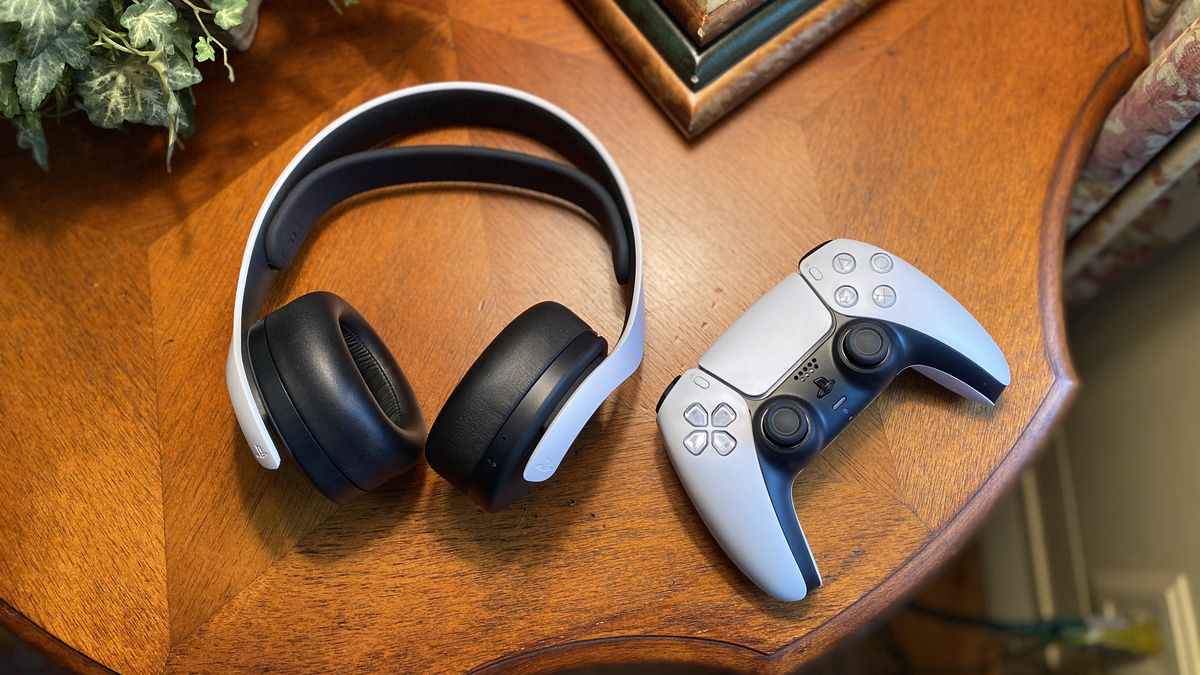
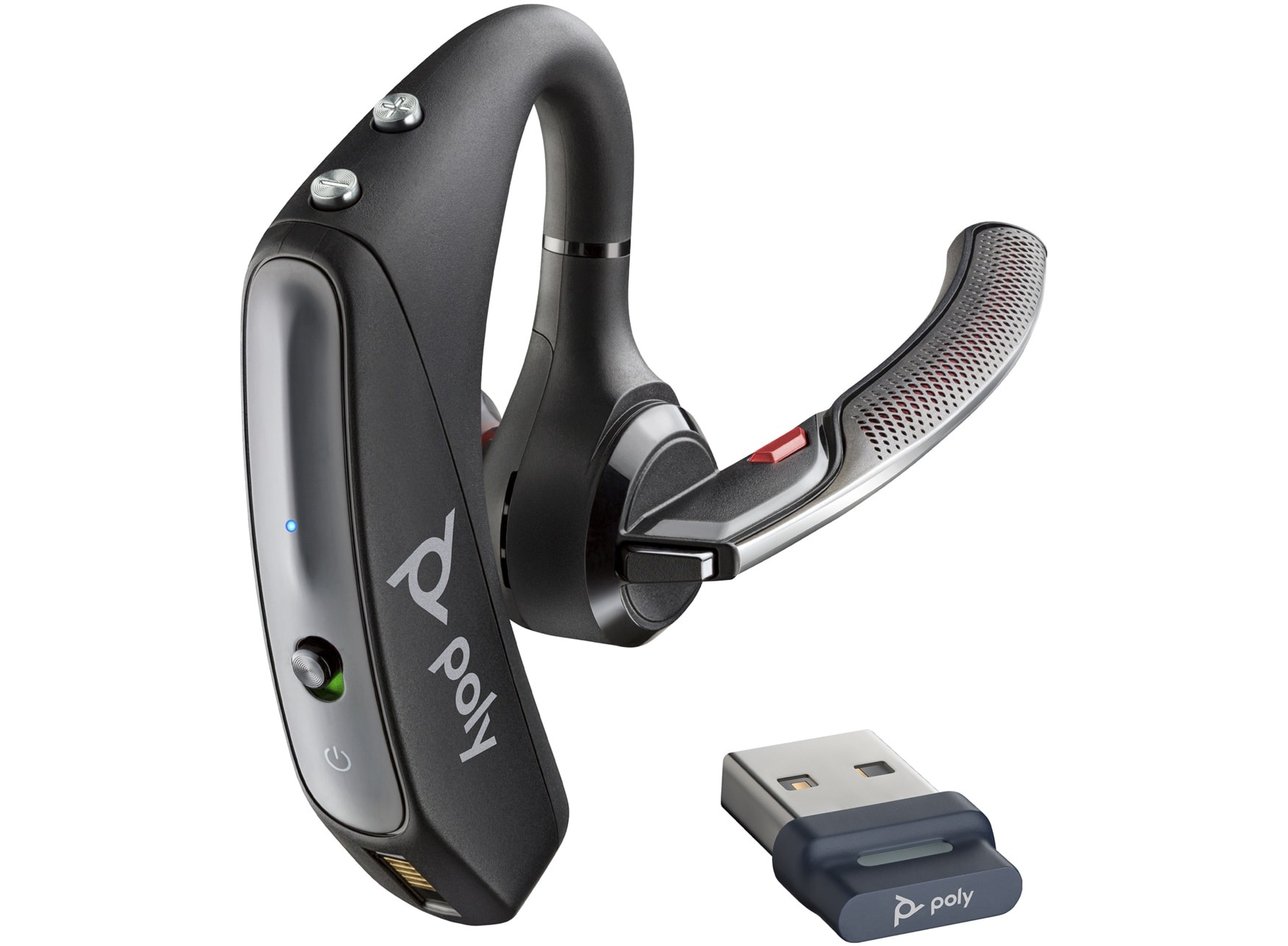
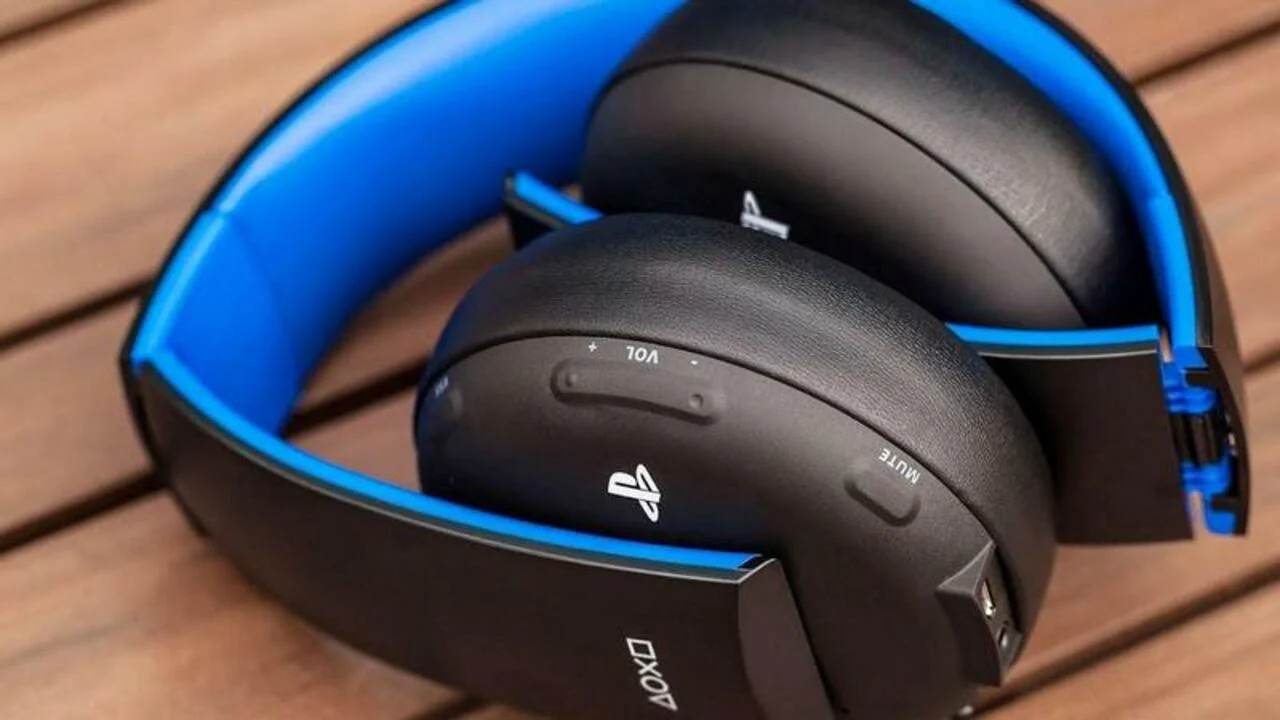
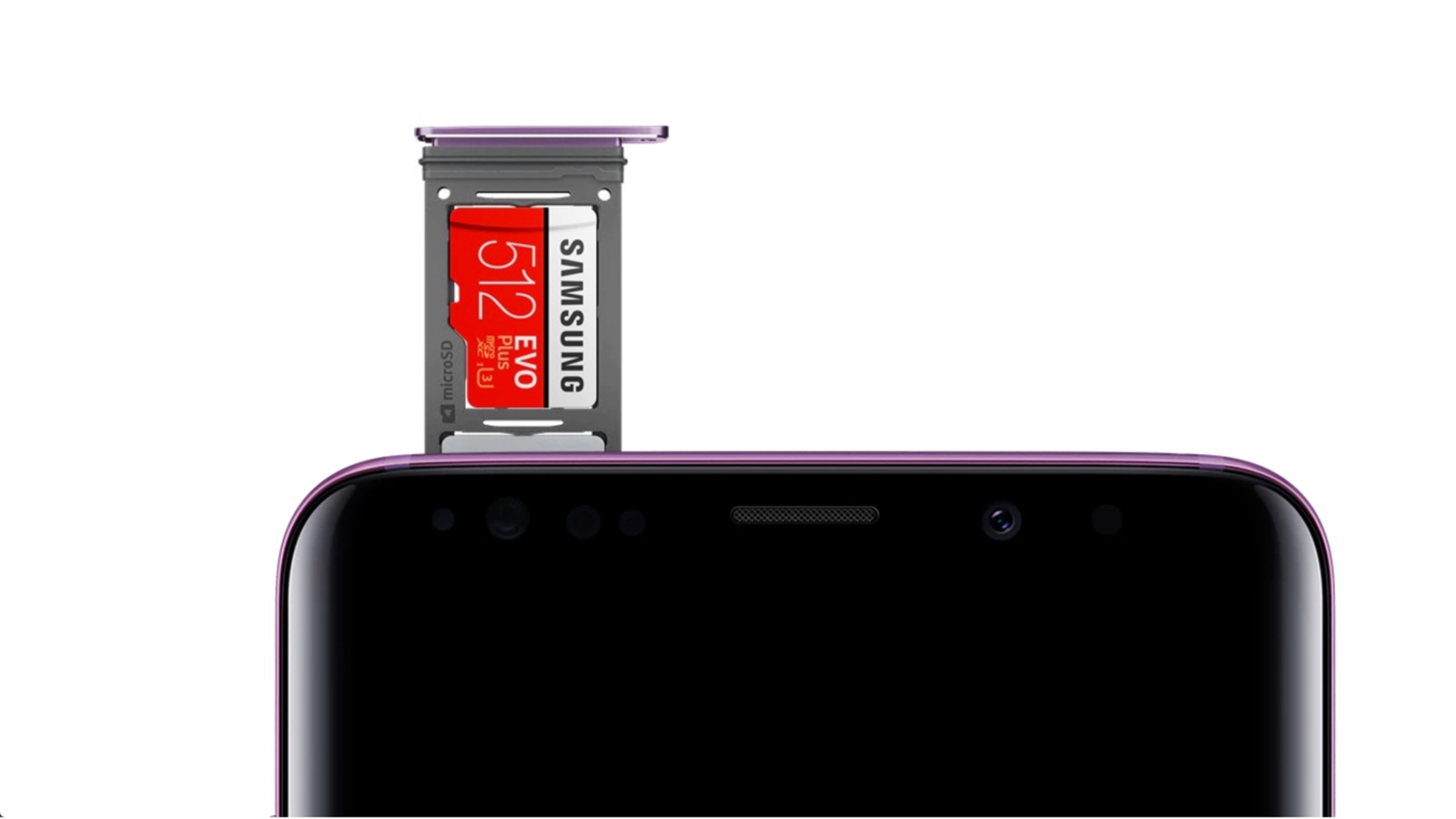
The articles address three main types of problems. First, several guides help you establish a wireless connection between a headset and a PS5, including specific models like the Pulse 3D headset and generic wireless PS4 headsets. Second, you will find solutions for using USB-based peripherals with other devices, such as how to use an SD card reader on an Android phone or how to pair a BT600 Bluetooth transmitter to a headset. Third, there is a troubleshooting piece that explains why a PS5 headset keeps cutting out, helping you resolve common audio dropouts.
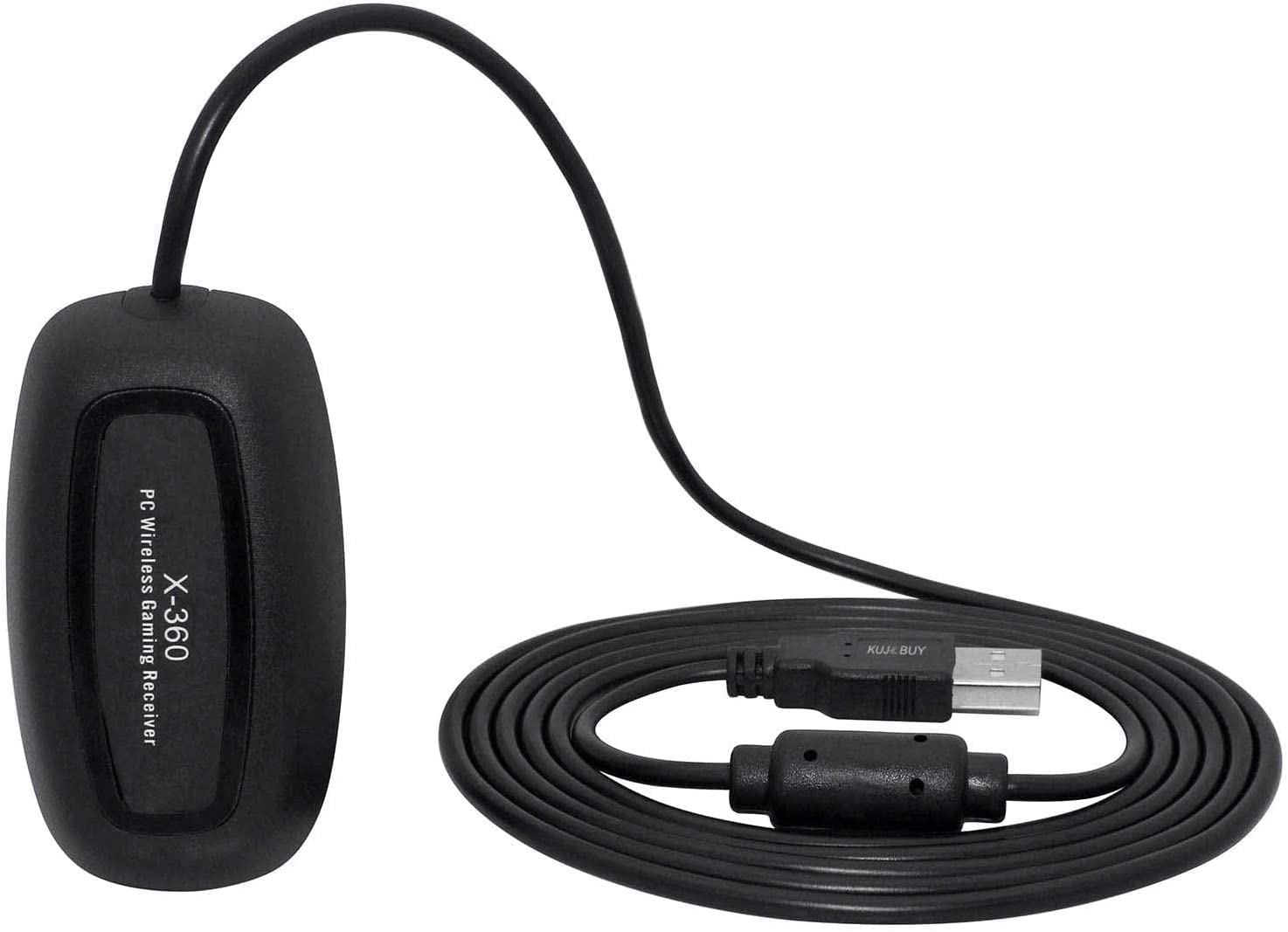
Whether you are trying to connect Bluetooth speakers to a PS5, use a PC wireless gaming receiver, or simply get your wireless headset working reliably, these articles walk you through the specific steps to make the connection happen and keep it stable. Each guide focuses on a single, clear task so you can solve your adapter-related issue without extra fluff.