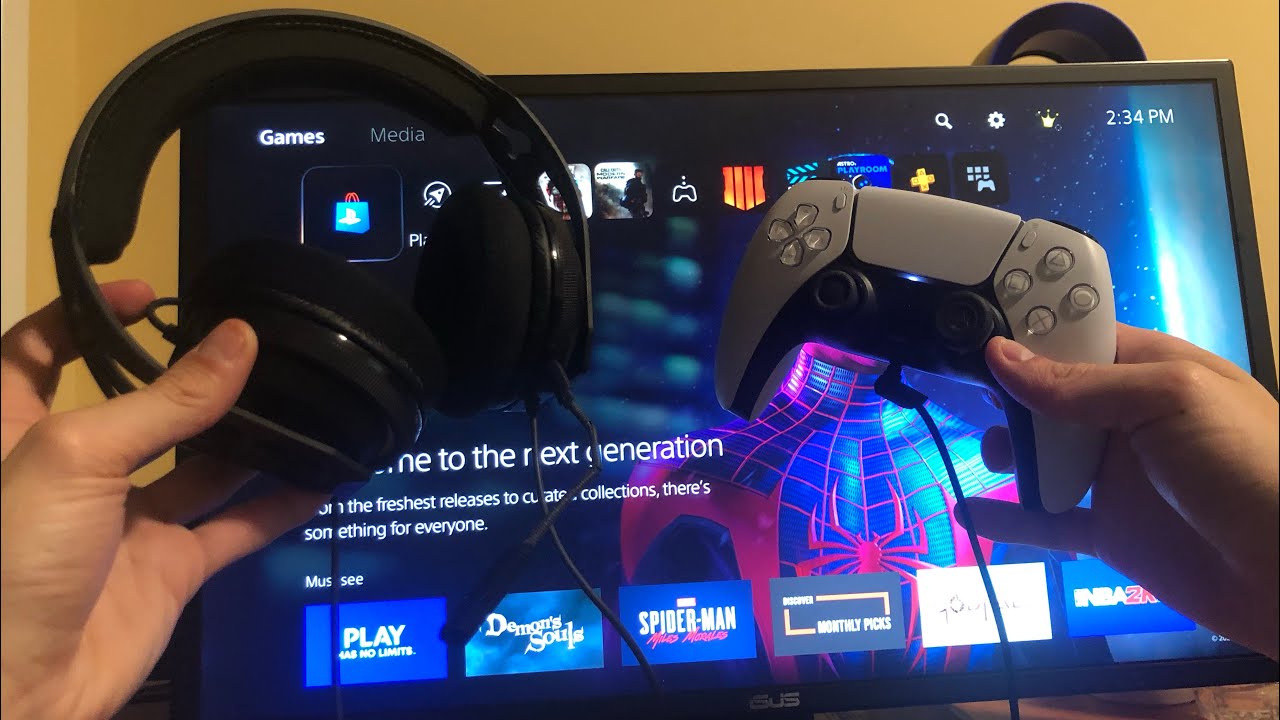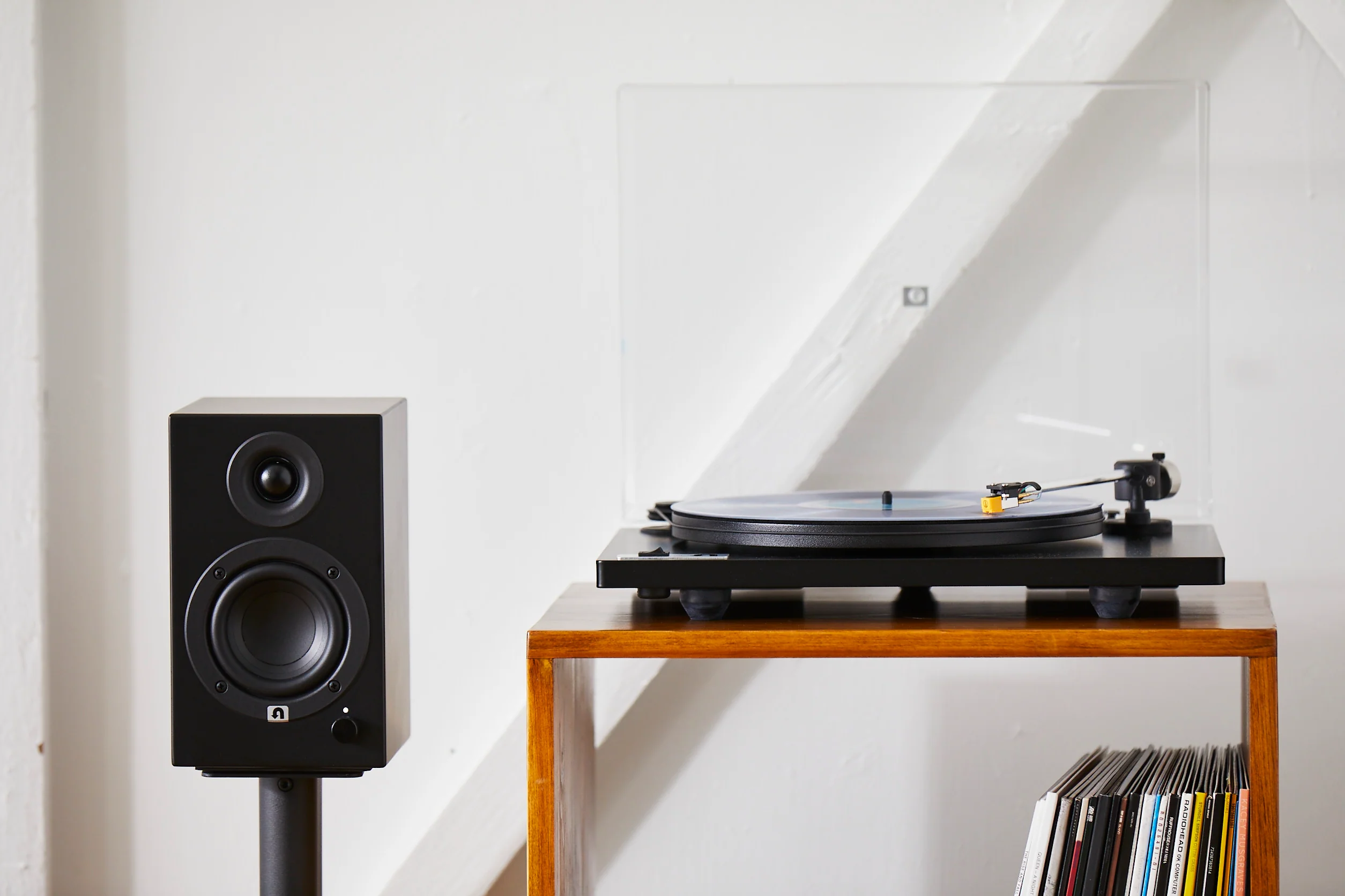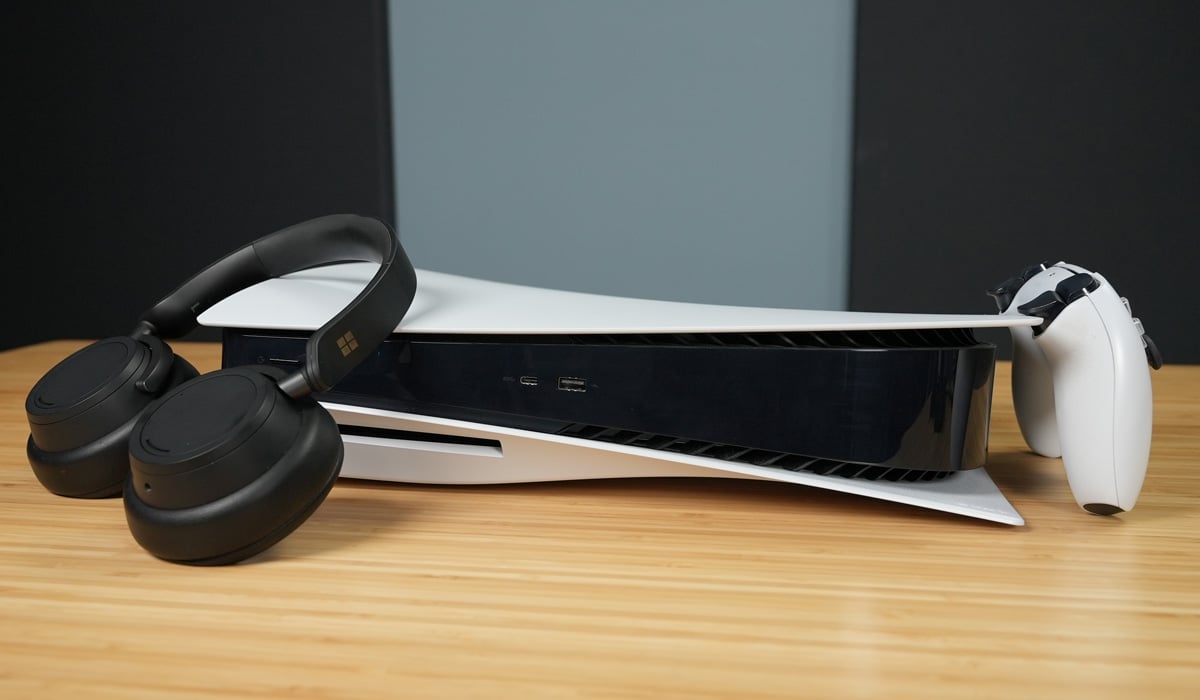
To connect Bluetooth speakers to PS5, you need a USB Bluetooth adapter because the console does not support wireless audio devices natively. Sony limits Bluetooth audio to reduce latency and interference, prioritizing controller connections, so a dedicated transmitter is the only reliable workaround.
Why you can't connect Bluetooth speakers to PS5 directly
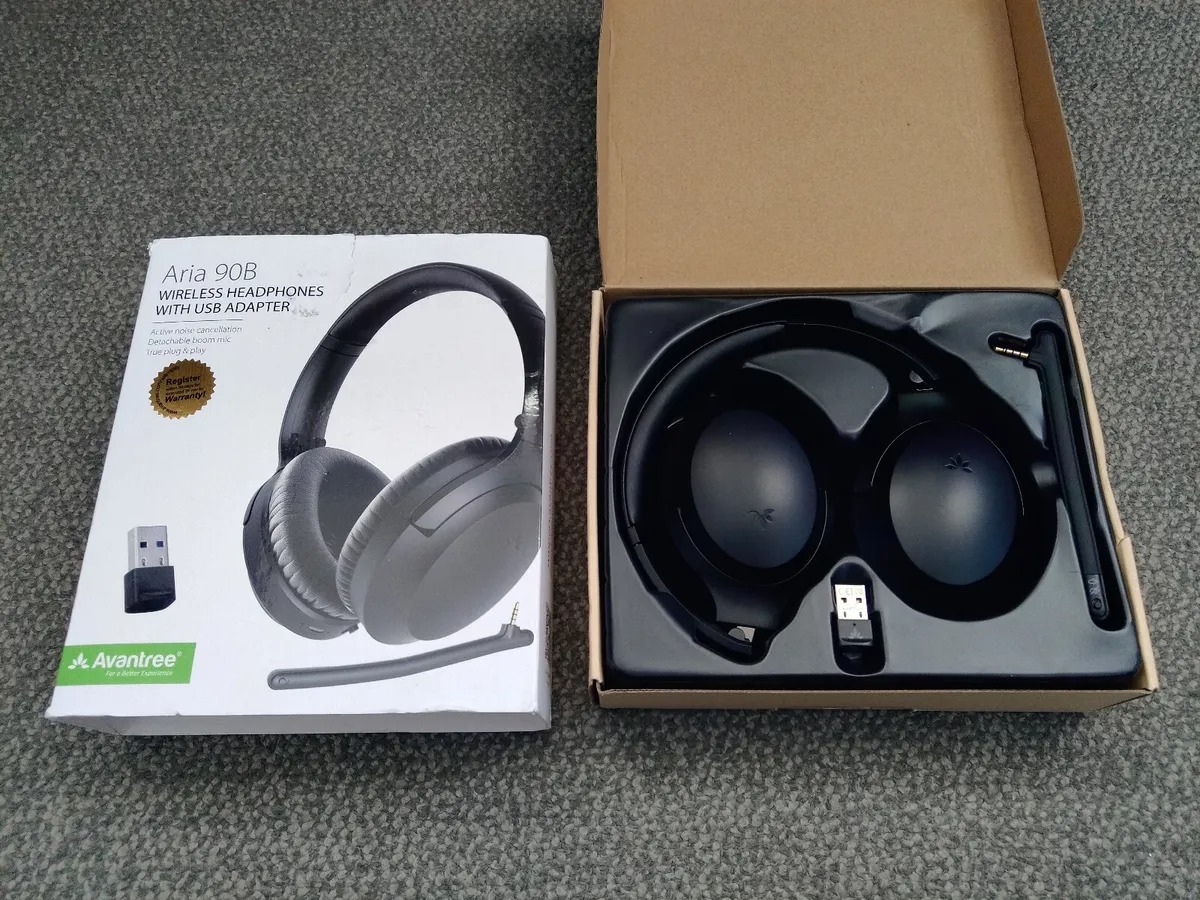
The PS5 primarily supports Bluetooth for controllers and select accessories, but restricts native support for most wireless audio devices due to latency and performance concerns. Sony prioritizes controller connectivity over audio devices to minimize interference, which means your Bluetooth speaker cannot pair directly with the console. The most common and reliable method to bypass this limitation is to use a Bluetooth USB adapter (transmitter) plugged into the console.
What you need: choosing a compatible Bluetooth adapter
You need a Bluetooth USB adapter that is compatible with the PS5, ideally with at least Bluetooth 5.0 support. The PS5 supports Bluetooth 5.1, but is backward compatible with older versions; using speakers with a higher Bluetooth version can enhance performance and connectivity. For gaming, look for an adapter that supports the aptX-LL (Low Latency) codec, which reduces audio delay to under 40ms and is critical for keeping sound in sync with gameplay. If you want voice chat, the adapter must support bidirectional audio profiles (A2DP + HSP/HFP); otherwise, the microphone on your Bluetooth headphones may not work, requiring you to use the DualSense controller's microphone instead. Ensure Bluetooth speakers support the Advanced Audio Distribution Profile (A2DP) and Audio/Video Remote Control Profile (AVRCP) for streaming audio and controlling playback.
How to connect your speakers using the adapter
- Plug the Bluetooth USB adapter into a USB port on your PS5.
- Put the adapter into pairing mode (refer to its manual for the specific button or sequence).
- Put your Bluetooth speaker into pairing mode. If unable to put speakers in pairing mode, try resetting them by powering off, disconnecting from power, and holding the power button for a few seconds.
- Wait for the adapter and speaker to pair automatically, or follow the adapter's instructions to confirm the connection.
- On your PS5, go to Settings > Sound > Audio Output and select the USB adapter as your output device if it is not already selected.
Troubleshooting audio lag and mic issues
Audio delay is the most common problem when connecting Bluetooth speakers to PS5. This occurs because standard Bluetooth codecs introduce noticeable latency. The aptX-LL codec solves this by keeping delay under 40ms, so ensure your adapter and speaker both support it. If your microphone does not work during voice chat, the adapter likely lacks HSP/HFP profile support. In that case, use the built-in microphone on your DualSense controller for chat while audio plays through the speakers. If speakers are already connected to another device like a smartphone, they may not be discoverable by the PS5; disconnect them from other devices first. Reset Bluetooth settings on the PS5 via Settings > Devices > Bluetooth and other devices > Reset Bluetooth settings to clear saved connections and start fresh. Keep the PS5 system software updated, as updates often include bug fixes and improvements for Bluetooth connectivity.
Frequently Asked Questions
Can I connect multiple Bluetooth speakers to my PS5 at the same time?
No, the PS5 does not support connecting multiple Bluetooth speakers simultaneously. You can only pair and use one Bluetooth audio device at a time.
Can I use my TV's built-in Bluetooth to connect speakers to the PS5?
If your TV has Bluetooth, you can connect Bluetooth speakers to the TV and then route the PS5's audio through the TV. However, this often introduces additional audio lag and may not support features like voice chat.
Are official Sony headsets different from using a Bluetooth adapter?
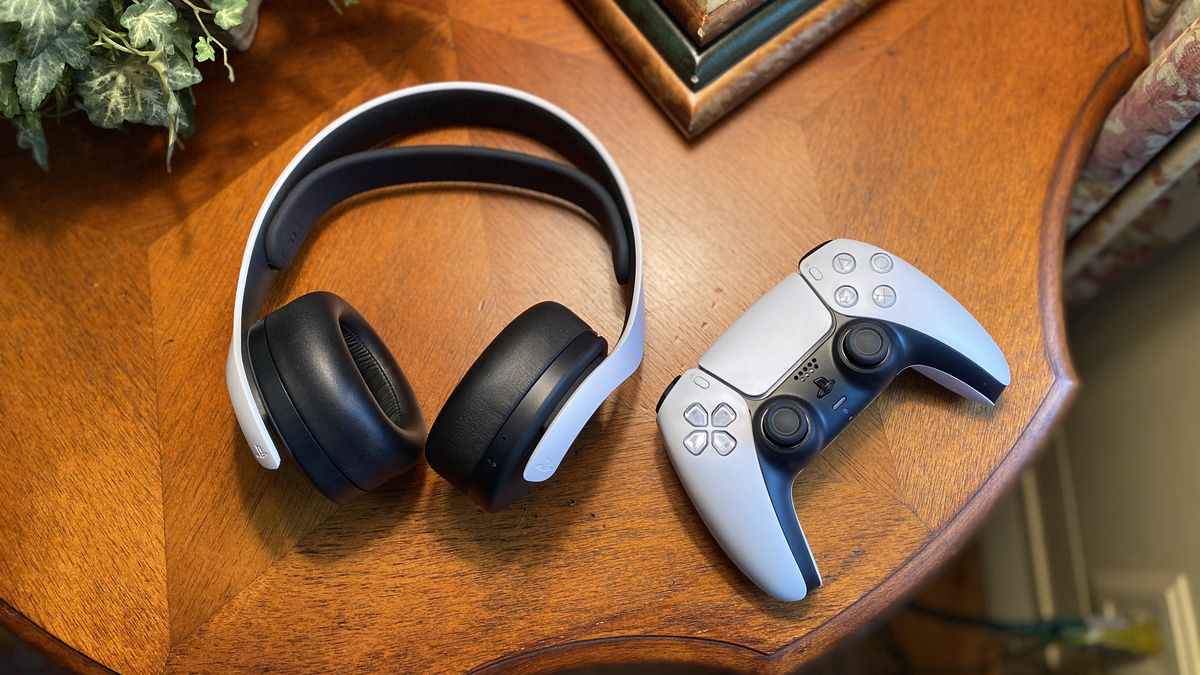
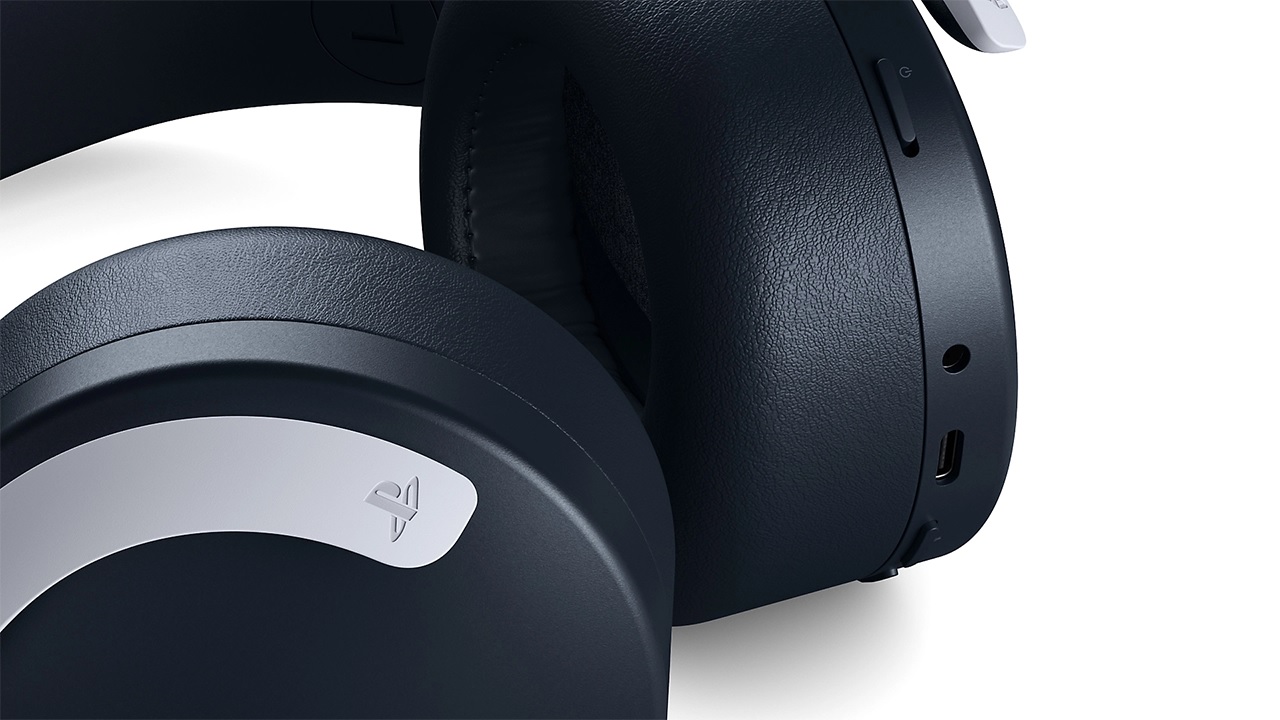
Yes. Official Sony wireless headsets for PS5 use a proprietary wireless connection (not standard Bluetooth) and connect via a USB dongle, offering low latency and full chat support without needing a separate adapter.
Why won't my Bluetooth speaker show up when I try to pair it directly with the PS5?
The PS5 does not natively support Bluetooth audio devices for game audio. Even if the speaker appears in the Bluetooth menu, the console will not output game sound to it. A USB Bluetooth adapter is required.
Can I use the same Bluetooth adapter for connecting gaming headsets to consoles and for my PS5?
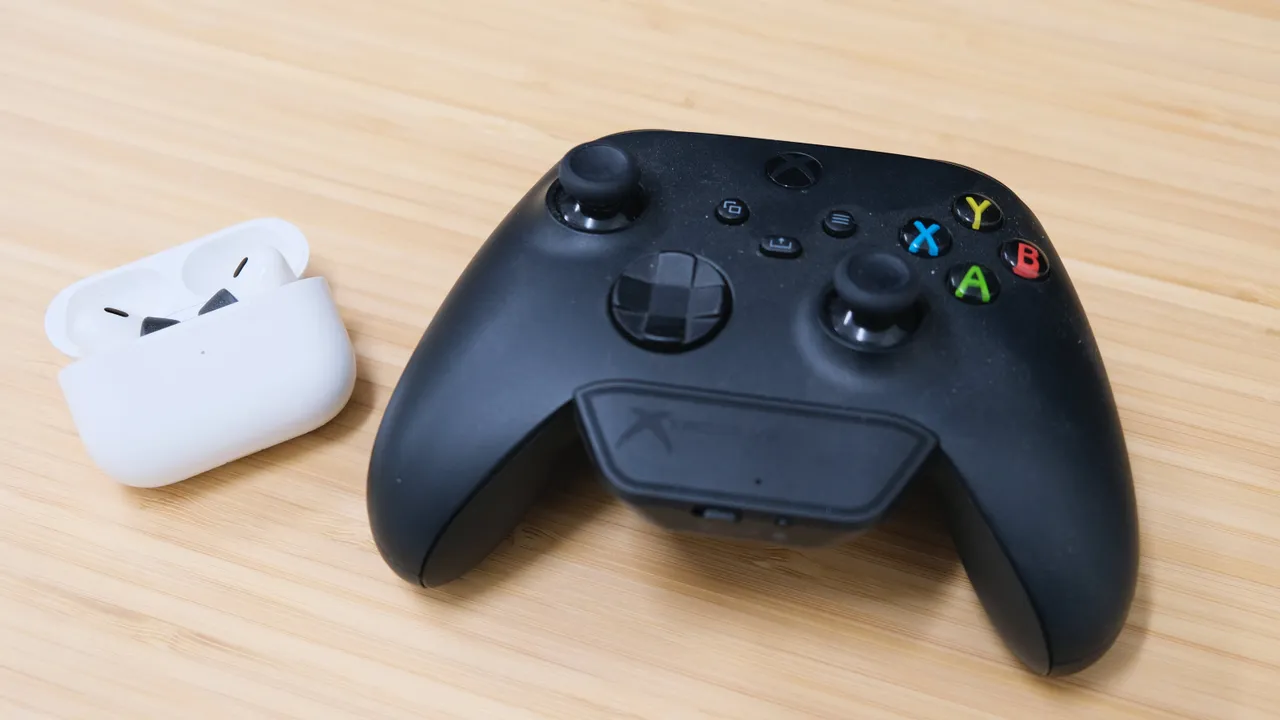
Some USB Bluetooth adapters work across multiple platforms, but you must check compatibility. For example, the method to connect Bluetooth speakers to Xbox one X differs because Xbox consoles require a specific adapter that supports Xbox's audio protocols.
Does the PS5's built-in Bluetooth support any headphones at all?
The PS5's built-in Bluetooth is reserved for controllers and a few certified accessories. It does not support standard Bluetooth headphones or speakers for game audio, which is why a USB adapter is necessary. If you want to know how to connect PS5 headset wirelessly, the official Sony headsets use a USB dongle rather than the console's internal Bluetooth.
Do I need any additional accessories to connect Bluetooth speakers to my PS5?
In most cases, no, but ensure PS5 is updated with latest system software for optimal compatibility.