If your mobile data is not working on Android, you’re likely seeing the signal bars but no data indicator like 2G, 3G, 4G, or H, and pages won’t load when Wi‑Fi is off.
How to tell if your mobile data is not working
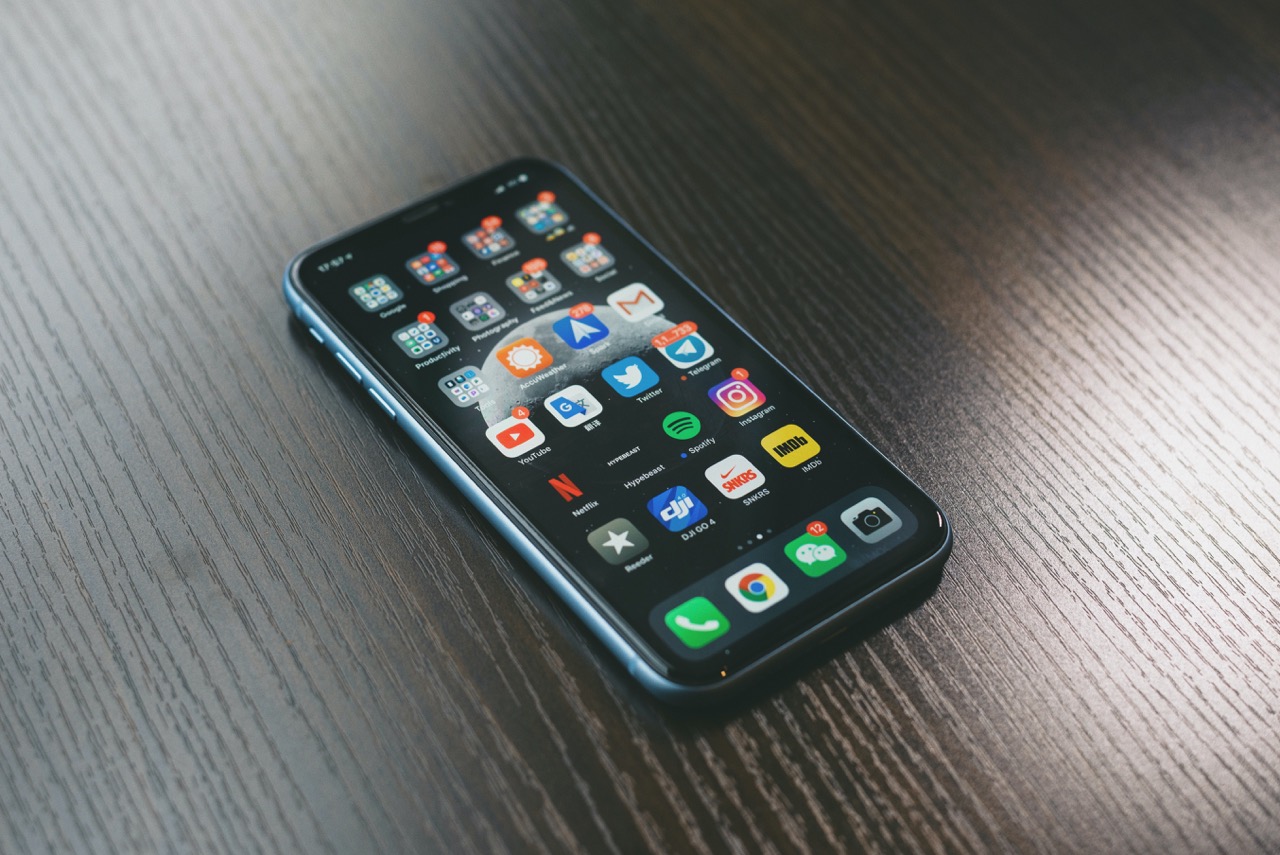
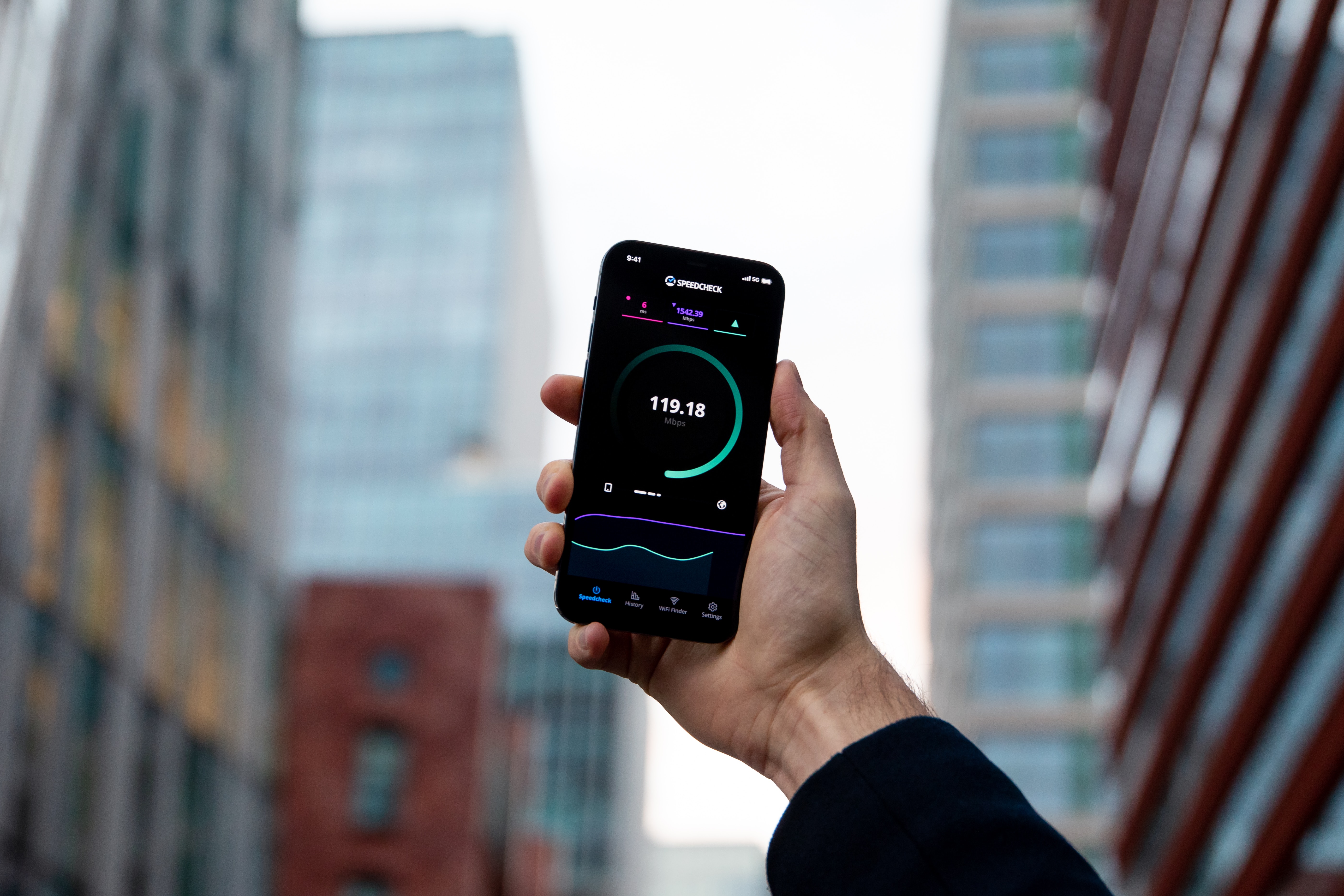
Google says a data indicator such as 2G, 3G, 4G, or H should appear next to the signal bars when mobile data is available. If Wi‑Fi is off and mobile data still does not load, the phone may be using Wi‑Fi only, have mobile data disabled, or be blocked by a carrier or device setting. To confirm, turn off Wi‑Fi and check for the indicator; if it’s missing or pages don’t load, mobile data is likely disabled or blocked. Conduct an internet speed test to confirm if mobile data is working.
10 fixes for mobile data not working on Android
-
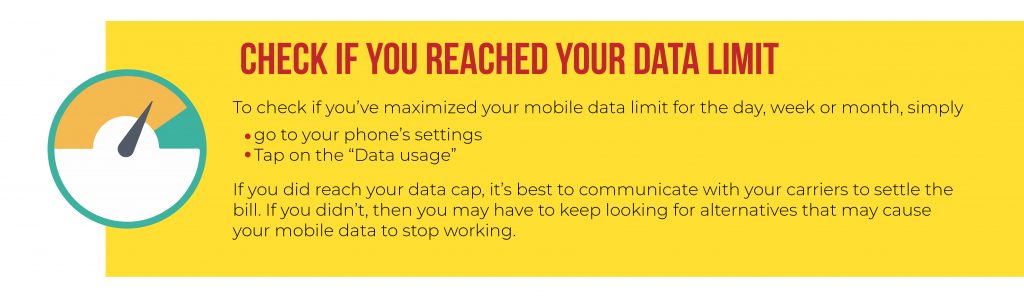
Check if you've reached your mobile data limit
On Android, open Settings > Network & internet > SIMs or Mobile Network. Some devices show Data warning & limit; if the Set data limit toggle is on and the limit has been reached, mobile data can be blocked. If you’ve hit your cap, contact your carrier to settle the bill or adjust your plan.
-
Restart your mobile phone
Google recommends a basic restart as a first step when internet does not work. Power the phone off and back on again, or press and hold the power button and choose Restart. This clears temporary network glitches. Turn off phone with Airplane Mode on, wait 30 seconds, then restart and turn Airplane Mode off.
-
Turn off airplane mode
Open Quick Settings and tap Airplane mode to turn it on, wait, then tap it again to turn it off. If airplane mode was enabled, disabling it allows your phone to reconnect to the mobile network.
-
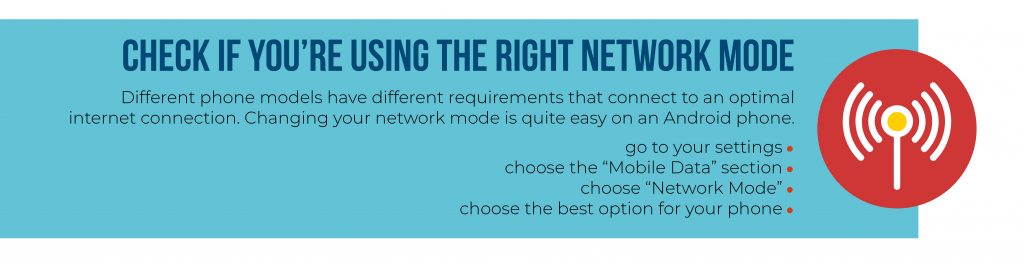
Verify you're using the right mobile network
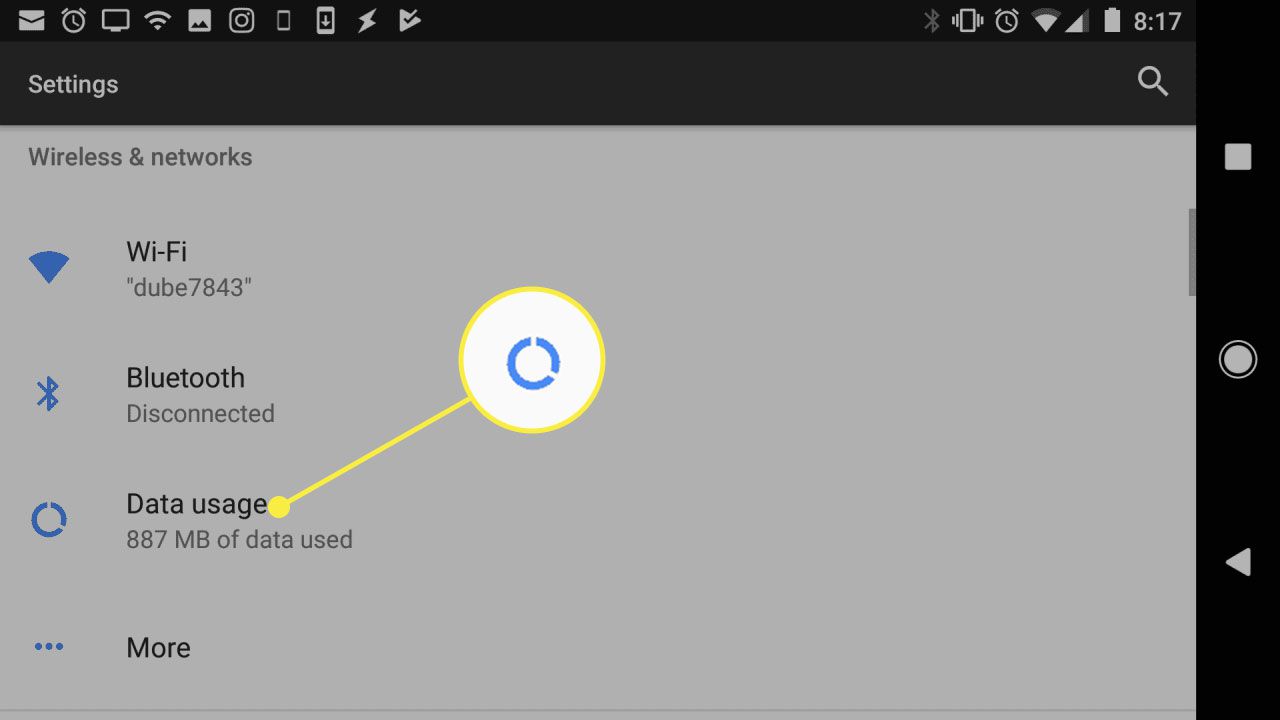
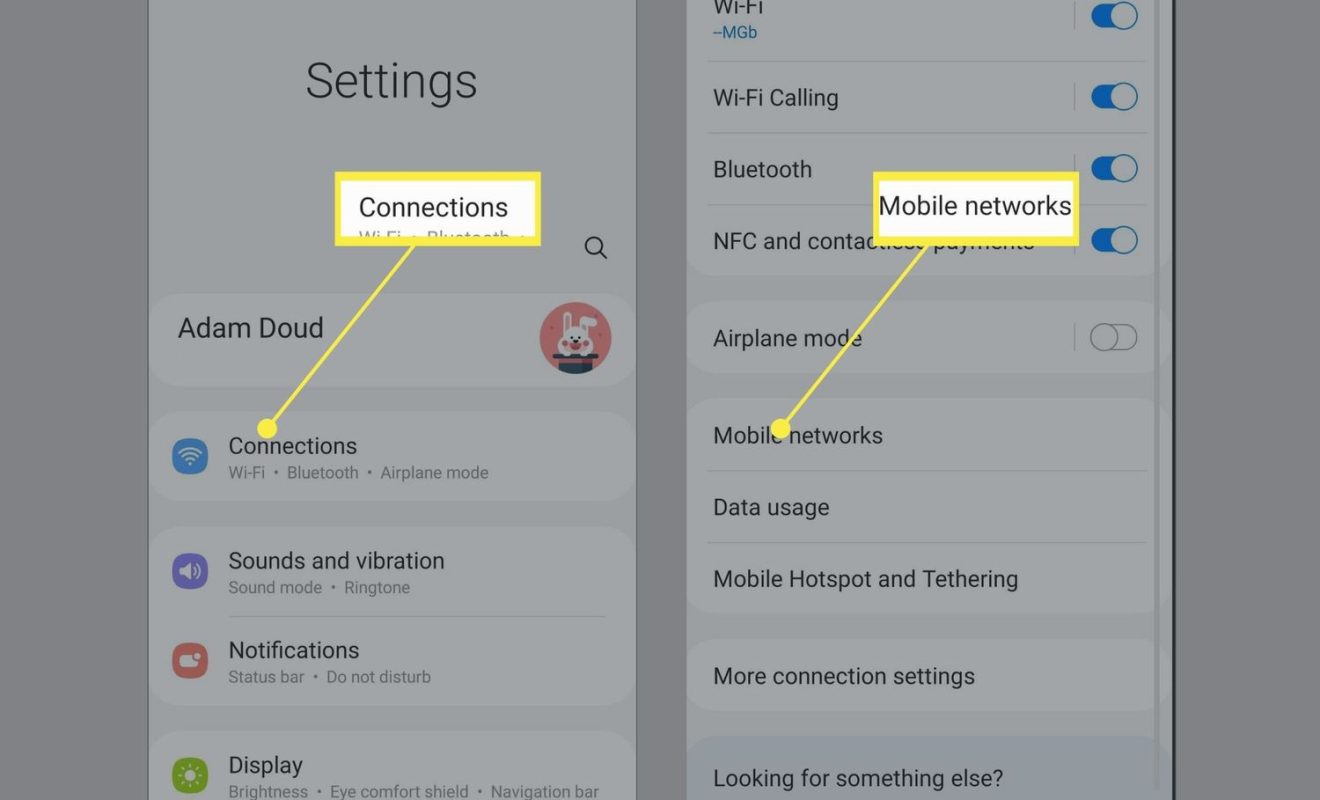
Open Settings > Network & internet > SIMs or Mobile network and confirm Mobile data is on. Check that a data indicator such as 2G, 3G, 4G, or H appears. On some devices you may need to go through Data usage before finding the mobile data controls. Set the preferred network type to auto (2G/3G/4G) for best compatibility.
-
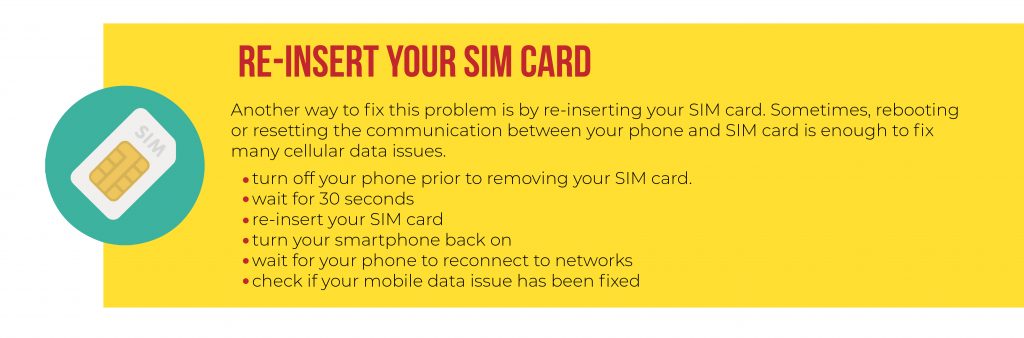
Re-insert your SIM card
Power off the phone, remove the SIM card, gently wipe the gold contacts with a soft dry cloth, and re-insert it. Power the phone back on. This resets the phone-SIM connection and can resolve many cellular data issues.
-
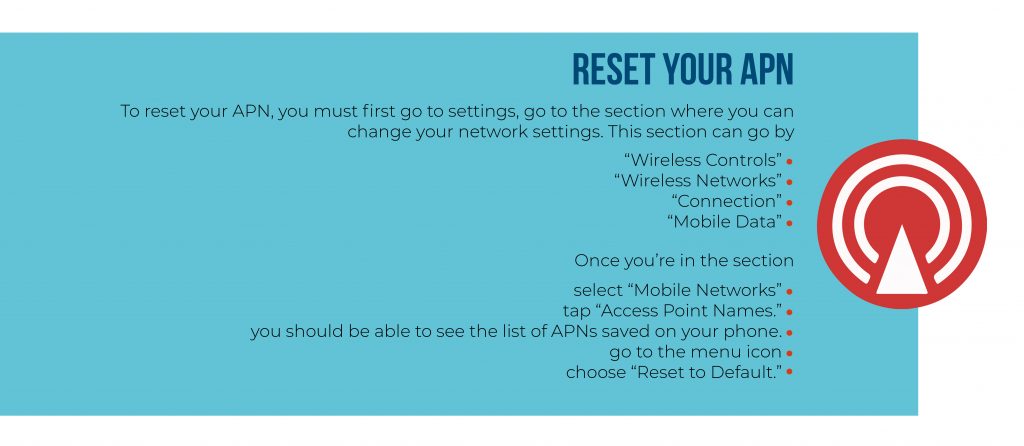
Reset your APN to default
Go to Settings > Network & internet > SIMs (or Mobile Network) > Access Point Names (APN), tap the three vertical dots in the top right, and select Reset to default. This restores your carrier’s default APN settings. Change APN protocol field to IPv4/IPv6 if the option exists.
-
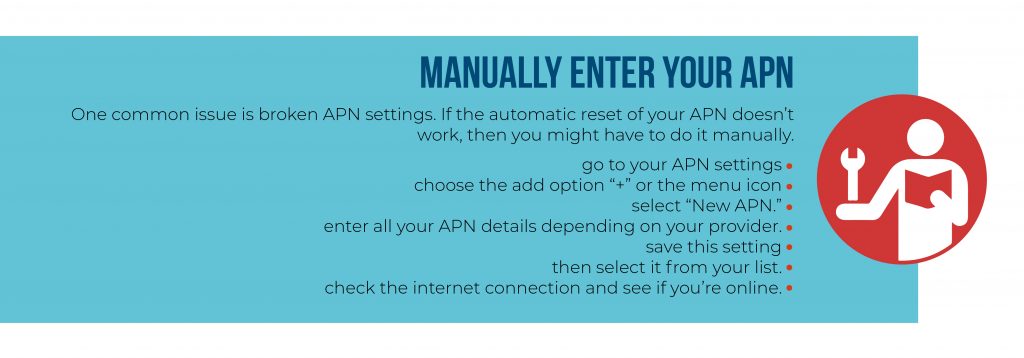
Manually enter your APN settings
If the reset fails, tap the + or New APN in the APN menu. Enter your carrier-provided APN details (available on your carrier’s support page), save the new APN, and select it from the list. This manually configures the connection if the automatic settings were corrupted.
-
Check for software updates
Go to Settings > System > System update and install any pending updates. Software updates often fix network bugs that can cause mobile data to stop working.
-
Factory reset as a last resort
Back up your data first. Then go to Settings > System > Reset options > Erase all data (factory reset), confirm, and wait for the process to complete. After the reset, set up your mobile data connection again. This should only be attempted if all other fixes have failed.
-
Seek hardware support
If none of the above fixes work, the issue may be hardware-related. Visit an authorized service center for diagnostics of the SIM tray, antenna, or other components.
Related resources for mobile data issues
For further help, explore managing cellular data settings and fixing issues through your device’s network settings. If you’re on a specific carrier like T‑Mobile, check their troubleshooting guides. Resetting your network settings can also resolve persistent connectivity problems.
Frequently Asked Questions
Why does my mobile data turn off by itself?
This can happen if your data saver or battery optimization settings automatically disable mobile data when the screen is off. Check Settings > Network & internet > Data saver and ensure it’s not restricting background data.
Can a damaged SIM card cause mobile data to stop working?
Yes, a physically damaged SIM card or a bent SIM tray can prevent the phone from connecting to the network. Try the SIM in another phone to isolate the issue, or request a replacement from your carrier.
Will a factory reset delete my photos and contacts?
A factory reset erases all data on the phone, including photos, contacts, and apps. Back up your files to Google Drive, a computer, or an external storage device before proceeding.
How do I know if my carrier is having an outage?
Check your carrier’s official status page or social media accounts. You can also ask nearby friends or family using the same carrier if they’re experiencing similar issues.
Why does mobile data work on some apps but not others?
This usually indicates a per-app data restriction. Go to Settings > Apps, select the app, and check Mobile data & Wi‑Fi to ensure background data is allowed for that app.
For the wider topic, see managing cellular data settings.
Related reading: How To Turn On Mobile Data On Android Tablet and How To Tell If Android Phone Is Unlocked.