To change APN settings, you need to edit the Access Point Name (APN) profile your phone uses to connect to your carrier's mobile data and MMS network. This is necessary when you switch carriers, use an unlocked phone on a different network, or when your mobile data or picture messages stop working.
What is an APN? (And when to change APN settings)
APN stands for Access Point Name. It is the carrier-specific network profile your device uses for mobile data, MMS, and hotspot services. Your phone reads these settings to establish a connection to the internet through your carrier's cellular network. You typically need to change APN settings in two key scenarios: after switching to a new carrier, especially if you are unlocking carrier phones from Verizon, AT&T and T-Mobile, or when your mobile data or MMS stops working correctly. If your phone cannot activate a cellular data network or you cannot send picture messages, incorrect APN settings are often the cause.
Before you change APN settings: get the right values
The most critical step is finding the exact APN details for your carrier. APN values are carrier-specific and sometimes depend on your device type or plan. Do not use random settings from online forums. Go directly to your carrier's official website or contact their support to get the correct parameters, including fields like APN, username, password, MMSC, and MMS proxy. Enter these values exactly as provided, including capitalization and punctuation, because a misplaced space can break the connection. APN type 'default,supl,hipri' is not the same as 'default, supl, hipri' because of whitespace, computers read these exactly as entered. Some carriers may require two APNs: one for standard data and a separate gateway for MMS and other data. For example, an AT&T smartphone APN uses Name: NXTGENPHONE, APN: NXTGENPHONE, MMSC: http://mmsc.mobile.att.net, MMS Proxy: proxy.mobile.att.net, MMS Port: 80, MCC: 310, MNC: 410, Authentication Type: none, APN Type: default,MMS,supl,hipri, APN Protocol: IPv4, Bearer: unspecified. An AT&T tablet APN uses Name: ATT Broadband, APN: Broadband, APN Type: default,MMS,supl,hipri,fota, APN Protocol: enabled. An AT&T smartwatch APN uses Name: Phone, APN: Phone, Authentication Type: none.
How to change APN settings on an iPhone
On iPhone and iPad, you can only view or edit APN settings if your carrier allows it. Apple documents that the menu may be hidden or unavailable on some SIMs or plans. Carriers can modify software on phones they sell to bar APN changes, and even unlocked phones can contain this type of software restriction.
- Insert your SIM card or use eSIM.
- Go to Settings > Cellular > Cellular Data Network. If your carrier uses an alternate layout, go to Settings > Mobile Data > Mobile Data Options > Mobile Data Network. If you cannot find Access Point Names on iPhone, try Cellular Network under Cellular Data Options, or Mobile Data > Mobile Data Options > Mobile Data Network.
- Tap the APN field(s) your carrier exposes and enter the carrier-provided values.
- Go back to save.
How to change APN settings on an Android phone
The APN menu location varies by manufacturer and Android version. Common paths include Settings > Connections > Mobile networks > Access Point Names, or Settings > Network & Internet > SIMs > Access Point Names on Pixel-style layouts.
- Open Settings and navigate to the Access Point Names screen.
- Tap + to add a new APN. Do not delete or edit existing APNs; instead, add a completely new APN setting.
- Enter the exact carrier values in the fields provided. Leave unspecified fields blank unless the carrier says otherwise.
- Tap the three-dot menu and choose Save, where that menu exists.
- Select the new APN by tapping its radio button.
Final steps after saving your new APN
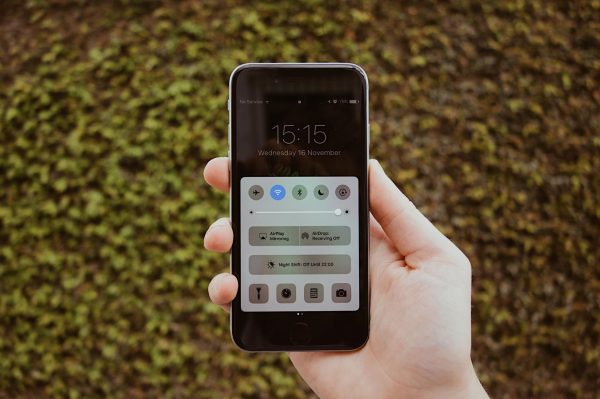
After saving, go back to the Access Point Names screen and tap the new APN to select it. Your phone may briefly disconnect from the network as it attempts to register with the new settings. This is normal. If your phone does not reconnect within a few minutes, restart the phone or toggle airplane mode on and off to force the modem to re-register. This is also one of the best fixes for cellular network not available for voice calls if the issue is related to incorrect APN configuration. Understanding what does an unlocked phone mean helps explain why these steps are necessary, as unlocked devices often require manual APN setup when moving between carriers.
Frequently Asked Questions
Will changing APN settings affect my calls?
APN settings primarily control mobile data and MMS. Voice calls usually work with default settings, but incorrect APN values can sometimes prevent VoLTE or Wi-Fi calling from functioning properly.
Can I reset APN settings to default?
Yes. On iPhone, removing and reinserting your SIM card or resetting network settings will restore carrier-default APN values.
Why is my APN menu missing on iPhone?
Apple restricts APN editing to carriers that permit it. If your carrier does not support manual APN changes, the Cellular Data Network menu will not appear. Contact your carrier to see if they can push the correct settings to your device.
Do I need to restart my phone after changing APN?
Not always, but it is recommended. Toggling airplane mode often works, but a full restart ensures the modem re-registers with the new APN profile cleanly.
What if I enter the wrong APN settings?
Your mobile data and MMS will stop working. Simply go back to the APN settings, edit the incorrect fields with the right values, save, and select the APN again. You can also delete the incorrect APN and create a new one.