To use Google Wallet on Android, you install the app, add a payment card, and tap your unlocked phone to a contactless reader. Google Wallet is the main digital wallet on Android, storing payment cards, passes, and other items in one app for quick, secure transactions.
What is Google Wallet on Android
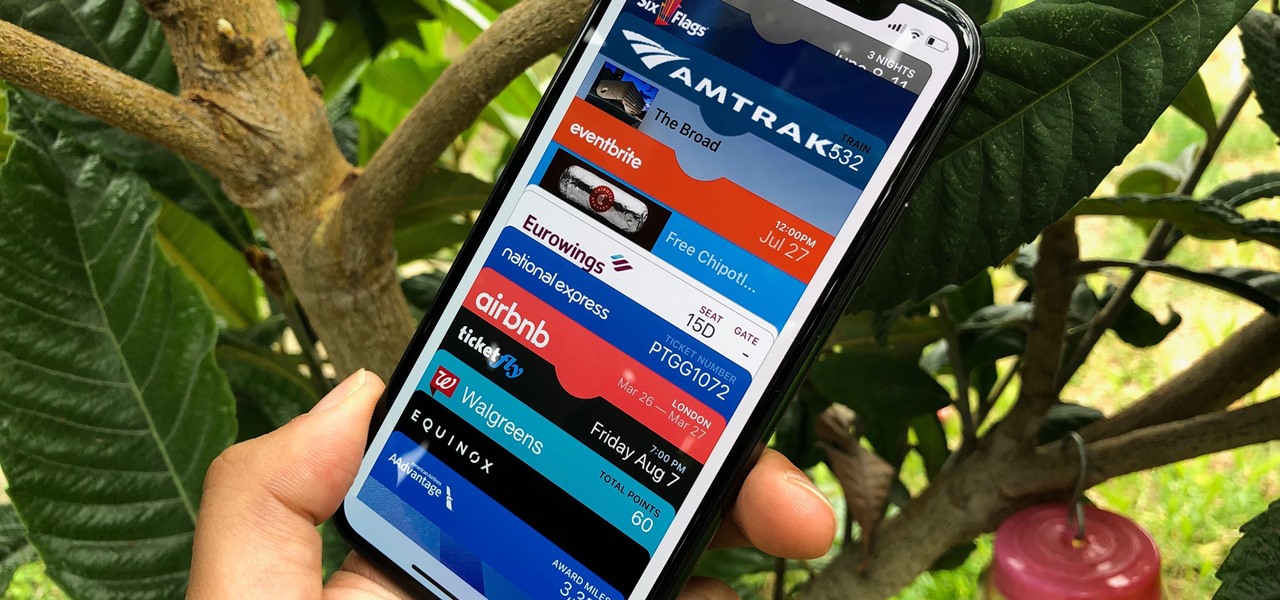
Google Wallet is the primary digital wallet app on Android devices. It stores payment cards, loyalty cards, boarding passes, event tickets, and other items in one secure location, replacing the need to carry physical cards and paper documents. Unlike a simple payment app, Google Wallet also supports passes and other items, making it a central hub for everyday essentials.
How to set up Google Wallet on Android
- Open the Google Wallet app on your Android phone, or download it from the Google Play Store if it is not already installed.
- Follow the on-screen setup instructions within the app to complete the initial configuration.
- To prepare for tap-to-pay, tap your Profile picture or Account at the top right, then tap Payment setup.
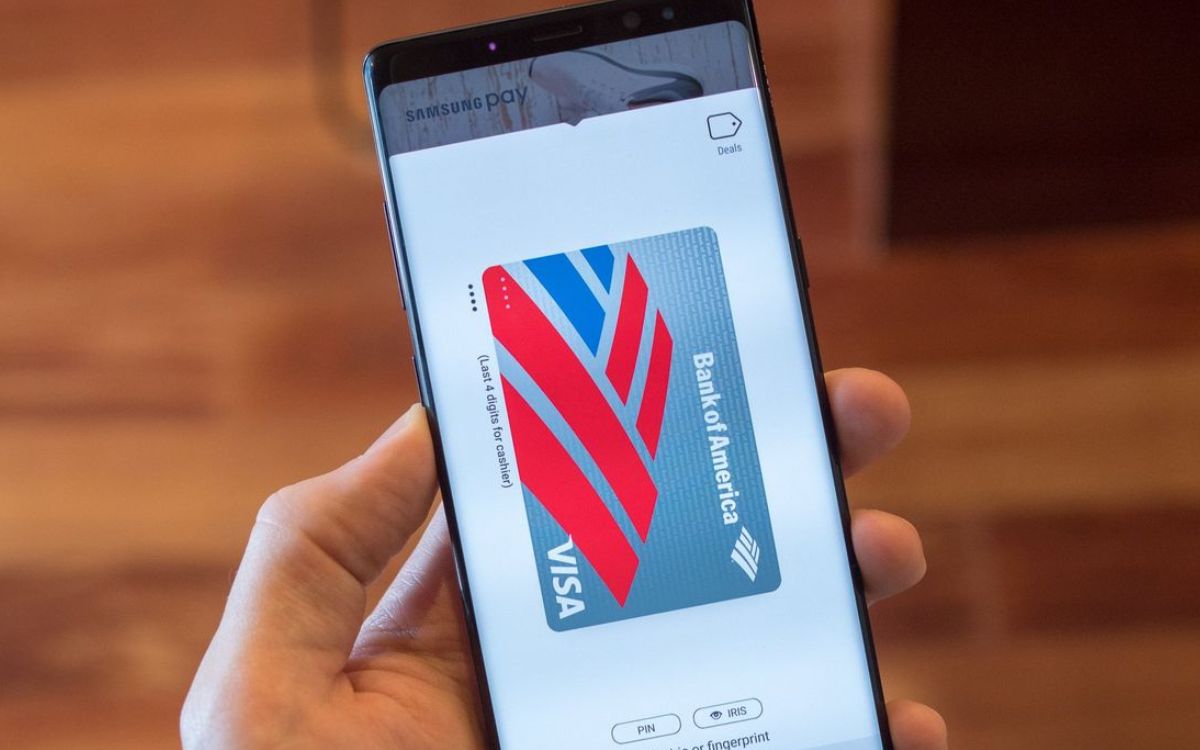
In Samsung Wallet, open the Samsung Wallet app, tap the Menu or All tab, then tap the item you want, such as Payment cards.
How to add a payment card to Google Wallet
- Open Google Wallet and tap Add to Wallet at the bottom of the screen.
- Select Payment card, then choose New credit or debit card.
- Add the card by using your phone’s camera to capture the card details, or tap Enter details manually to type the information.
- Tap Save and continue, read the issuer terms, then tap Accept to complete the addition.
In select countries, you can also use the Add with a tap feature by holding the physical card to the back of your device. Google's card-add flow says Add with a tap is only available in select countries.
In Samsung Wallet, tap Add in the upper right corner after choosing the item category, or follow the on-screen instructions.
How to pay with Google Wallet on Android
- Ensure NFC is turned on in your phone’s settings and that Google Pay is set as the default payment app.
- Unlock your Android phone.
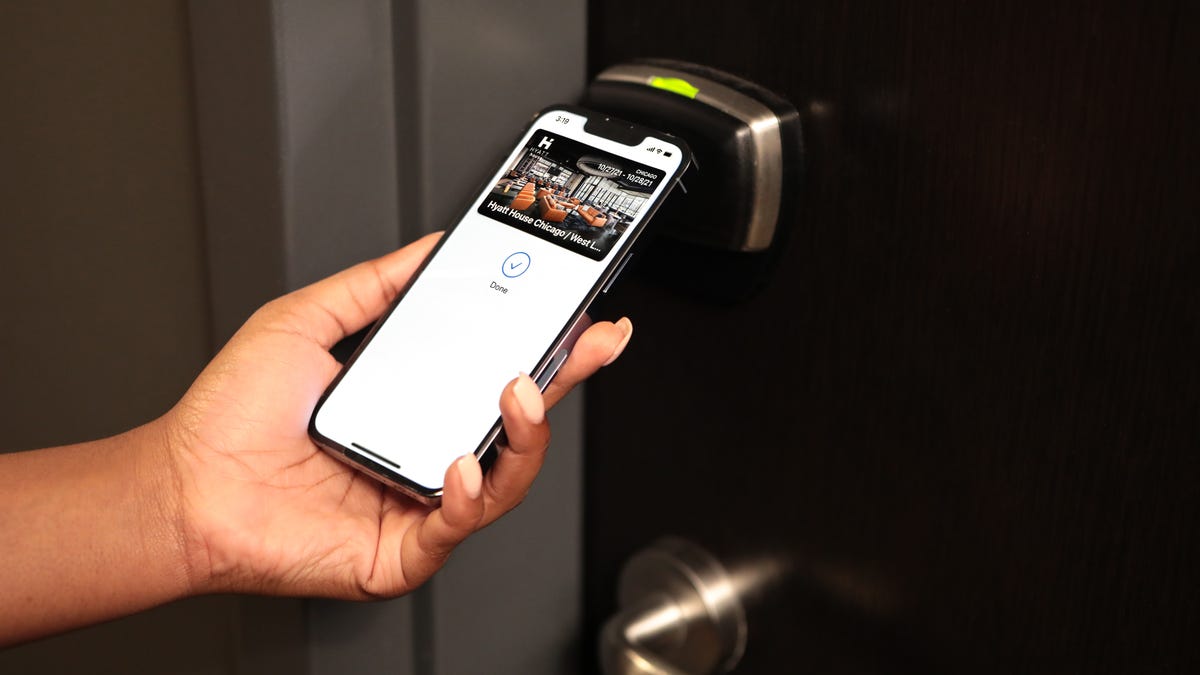
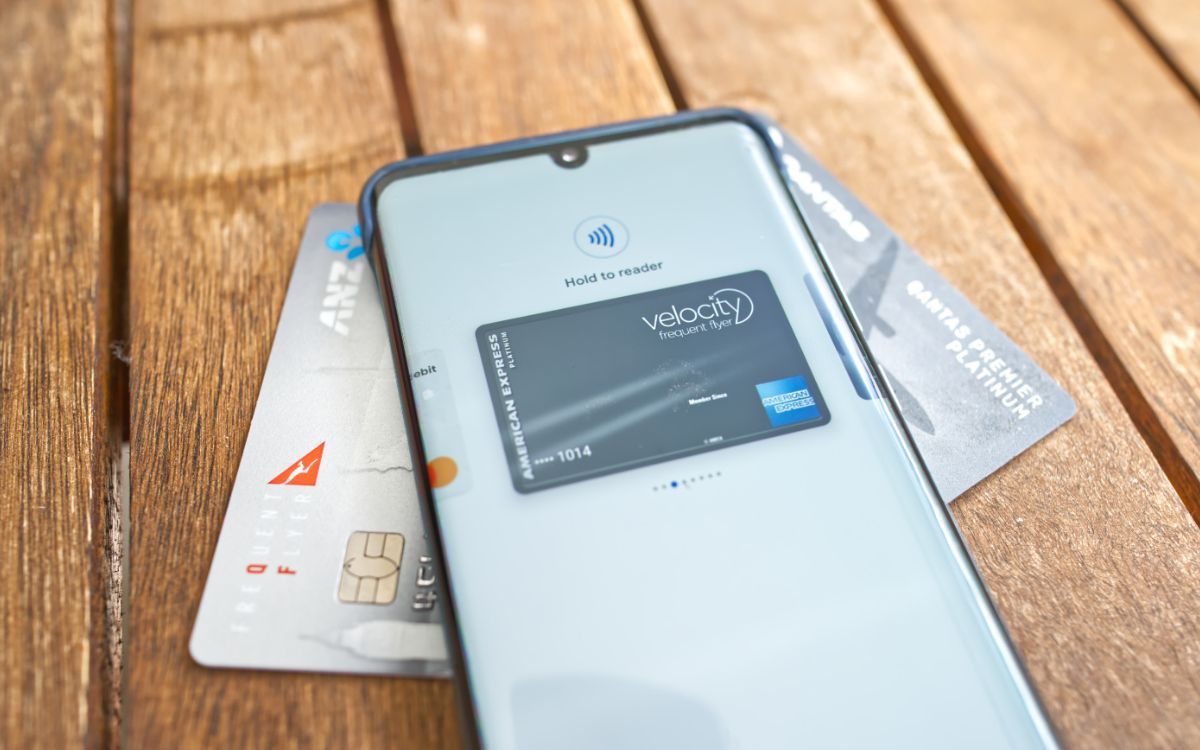
- Hold the back of your phone near the contactless payment reader at the store.
- Wait for the confirmation check mark to appear in Google Wallet, indicating the payment was successful.
For online purchases, look for the Buy with GPay button at checkout, or use autofill in Chrome to complete payments quickly.
Requirements for contactless payments
Google requires three verified conditions for contactless payments with Google Wallet: NFC must be turned on, your payment method must be from a supported country, and Google Pay must be set as the default payment app on your phone. Google Wallet contactless payments require a supported country. Your phone must also meet Google’s software standards for compatibility.
Frequently Asked Questions
Do I need NFC to pay with Android Wallet?
Yes. Google states that NFC must be turned on for contactless payments with Google Wallet.
Can I add a card manually?
Yes. In Google Wallet, choose Payment card > New credit or debit card, then tap Enter details manually if you prefer not to use the camera.
Is Samsung Wallet only for Samsung phones?
Samsung’s support documentation confirms that Samsung Wallet is designed for Galaxy phones.
Does Apple Wallet work on Android?
No. Apple’s support pages for Wallet apply only to iPhone; there is no documented version for Android devices.
Can I pay with Cash App on phone using Google Wallet?
Google Wallet does not directly support Cash App as a payment method. To pay with Cash App on phone, you would use the Cash App itself or its linked Cash Card, not Google Wallet.
What if my mobile data isn’t working?
Contactless tap-to-pay with Google Wallet does not require an active internet connection at the time of payment. If you are having connectivity issues, see 10 easy fixes for mobile data not working on Android for troubleshooting steps.
Where can I find the best & latest updates on mobile operating systems [Android, iOS, KaiOS]?
For ongoing news and changes to mobile platforms, follow official developer blogs and trusted tech publications that cover the best & latest updates on mobile operating systems [Android, iOS, KaiOS].