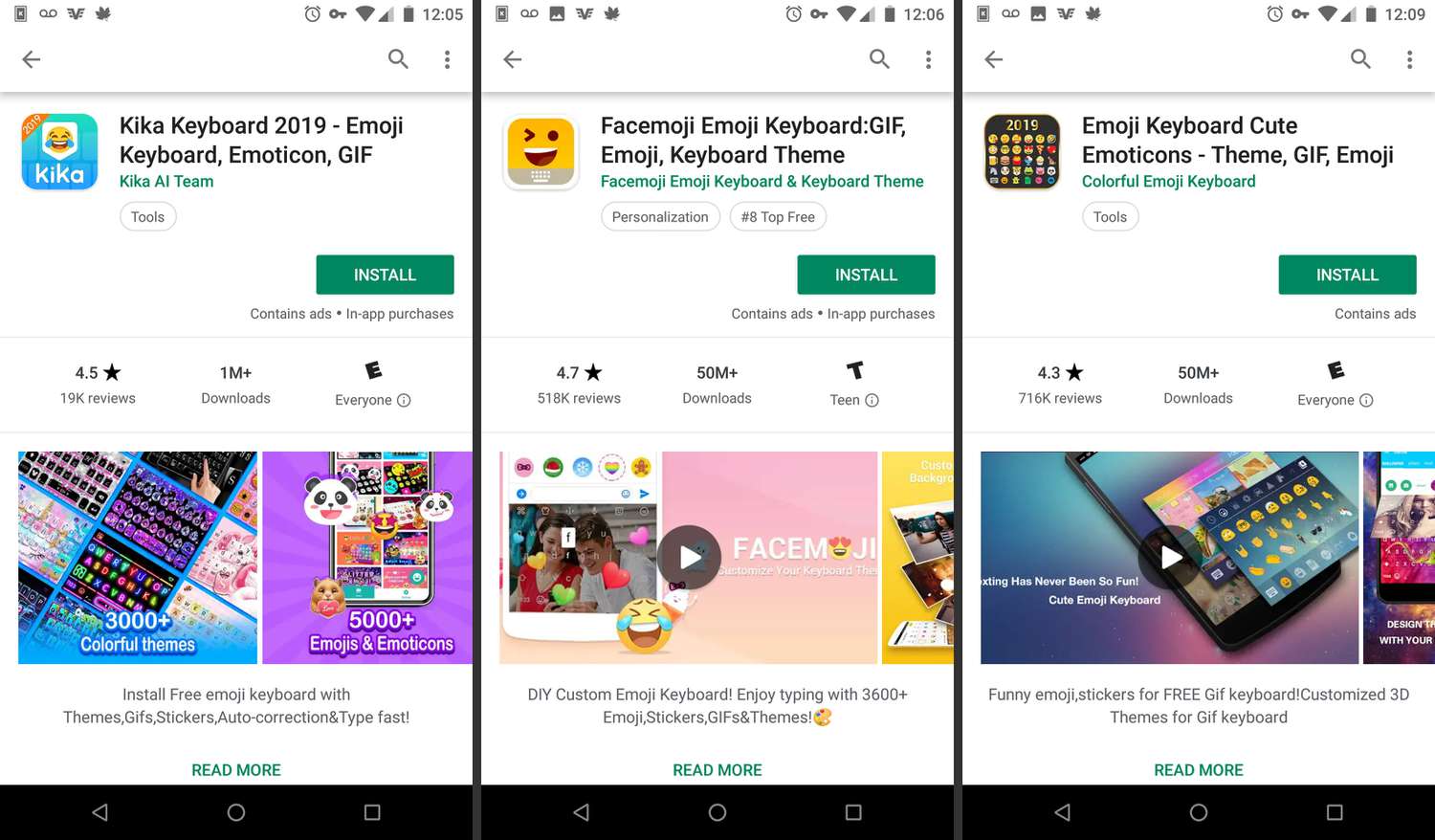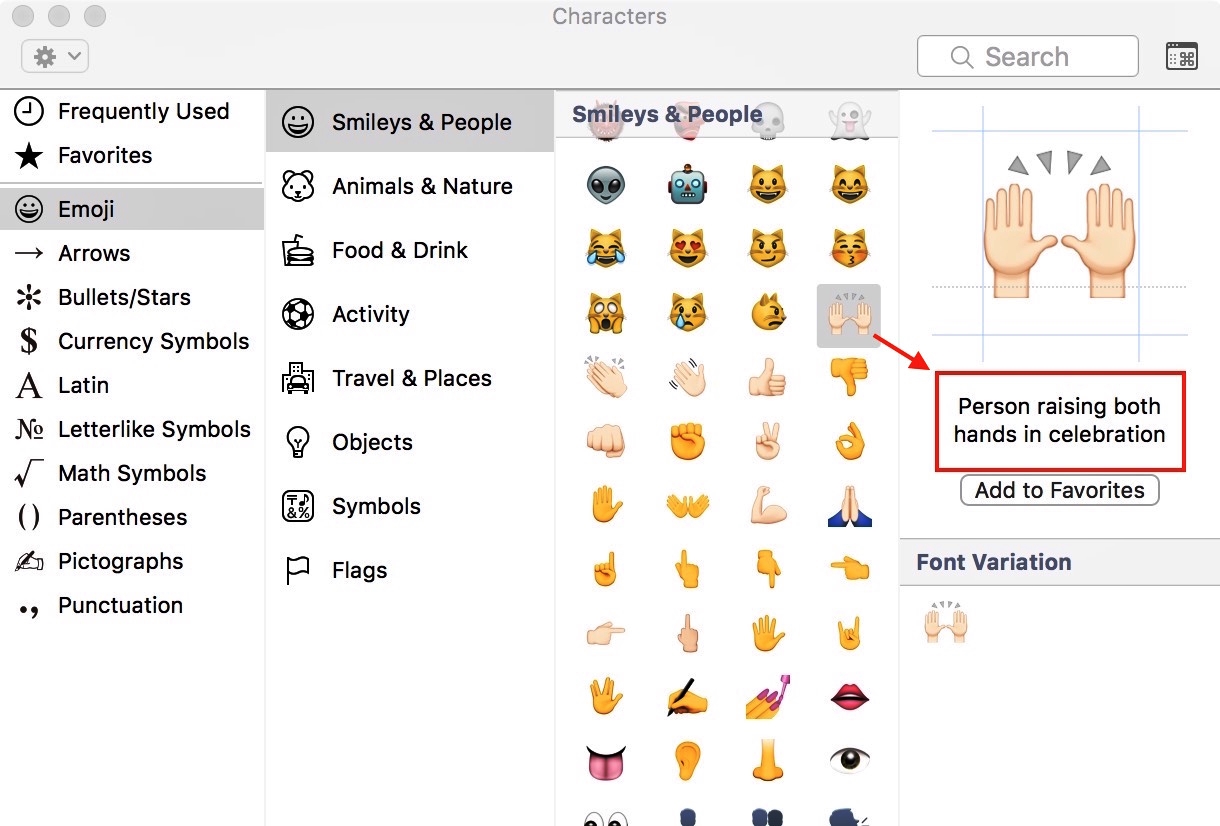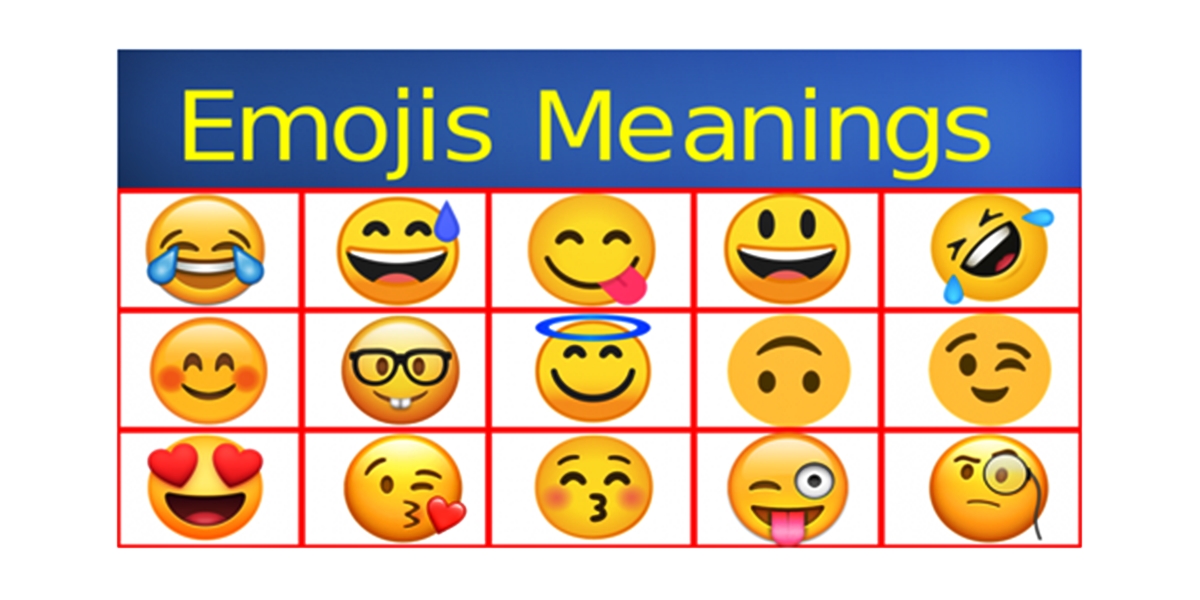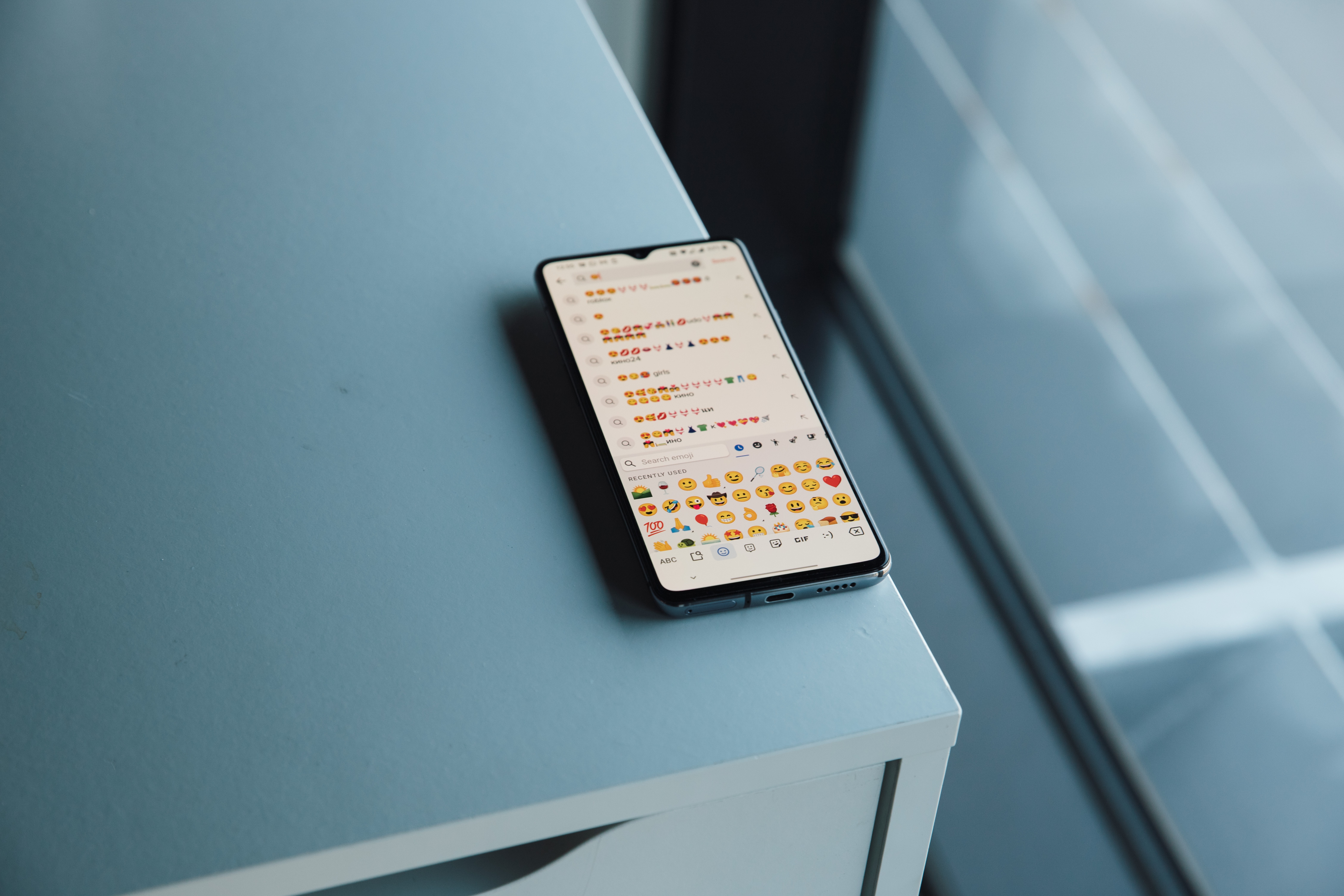
An emoji is a small, colorful pictograph used inline in text, officially defined by the Unicode Consortium as a "pictograph, typically presented in a colorful cartoon form and used inline in text." The word itself comes from Japanese, combining "e" (picture) and "moji" (character), which is exactly what emoji are: picture characters that bring visual meaning to your digital messages.
What is emoji? The official definition
Why we use emojis in digital messages
Emojis are popular for several practical reasons. First, they add visual appeal to plain text, making messages more engaging and enjoyable to read. Second, they convey emotional tone that words alone often miss, a laughing emoji shows humor, a sad face expresses sorrow, and a thumbs-up signals approval. Third, because the Unicode Consortium standardizes emoji, a smiling face you send from an iPhone will appear as the same smiling face on an Android phone, ensuring your intended meaning travels with the message. This standardization is what makes emoji a universal visual language that works across different devices, apps, and cultures.
How to find and use the emoji keyboard on iPhone
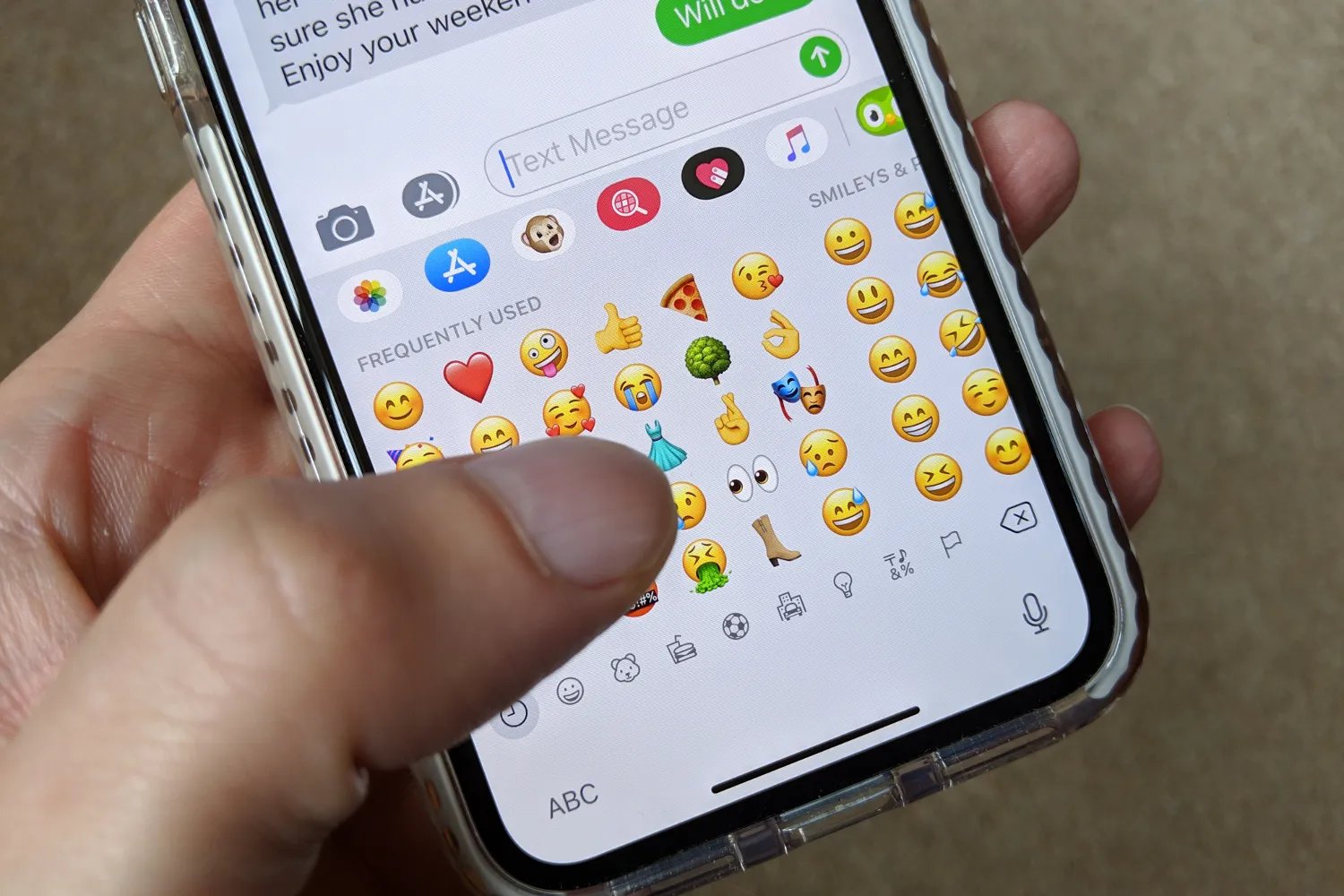
Using emoji on an iPhone is straightforward once you know where to look. The emoji keyboard is built into iOS and works on iPhone, iPad, and iPod touch. Apple’s Genmoji page is for iPhone and requires Apple Intelligence; the page does not list a broader device set in the snippet provided.
Open the emoji keyboard
- Open any app that uses the standard keyboard, such as Messages or Notes.
- Tap a text field to bring up the keyboard.
- Tap the keyboard switch key or the globe key at the bottom of the screen to switch to the emoji keyboard.
Browse, search, and insert emoji
- In the emoji keyboard, tap the gray category icons at the bottom to switch between themes like Smileys, Animals, Food, and Symbols.
- Swipe left or right to browse more emoji within a category.
- Tap any emoji to insert it into your text.
Change skin tones
- Touch and hold an emoji that supports skin tone variations, such as a hand gesture or person emoji.
- A pop-up will appear showing available skin tone options. Slide your finger to select one.
Use emoji replacement in Messages
- Type a message in the Messages app as you normally would.
- Wait for certain words to turn orange, this means an emoji replacement is available.
- Tap an orange word to replace it with a matching emoji.
Add the emoji keyboard if it is missing
- Open Settings.
- Go to General > Keyboard > Keyboards.
- Tap Add New Keyboard.
- Select Emoji from the list.
Once added, you can switch to the emoji keyboard from any text field using the globe key. This is also where you can manage other emojis and custom keyboards you may have installed.
Using emoji reactions on Android
Official Android help pages from Google focus on emoji reactions in Google Messages and Gmail, rather than a single system keyboard setup path. To react with an emoji in Google Messages, tap and hold a message, then choose an emoji reaction. If you want to turn iPhone reactions into text instead of emoji, open Google Messages, tap your profile photo, go to Message settings > Advanced, and turn off Show iPhone reactions as emoji. Note that this setting only applies to reactions to text messages, not images or other file types. In Gmail on Android, open a message and tap Add emoji reaction at the top of the message next to Reply, then select an emoji; tap More to show additional emoji. Android Developers documents emoji support for app developers, not end-user keyboard settings; it refers to AppCompat 1.4.0-alpha01 or higher and the `emoji2` / `emoji2-views` artifacts, but that is an app integration requirement, not a consumer setting.
Frequently Asked Questions
What is the difference between an emoji and an emoticon?
An emoticon is a text-based facial expression made from keyboard characters, like :-) for a smile or :-( for a frown. An emoji is a pre-made pictograph, like 😊 or 😢, that is a single standardized character rather than a combination of punctuation marks.
Can I use emoji on any device?
Yes, because the Unicode Consortium standardizes emoji, they work across all modern devices and operating systems. However, the exact visual design may vary slightly between platforms, an Apple emoji may look different from a Google or Samsung version, but the meaning remains the same.
How are new emoji added?
The Unicode Consortium reviews proposals for new emoji each year, considering factors like expected usage frequency, distinctiveness, and compatibility with existing emoji. Approved emoji are added to the Unicode Standard and then implemented by device manufacturers and software platforms.
Why do some emoji have multiple skin tones?
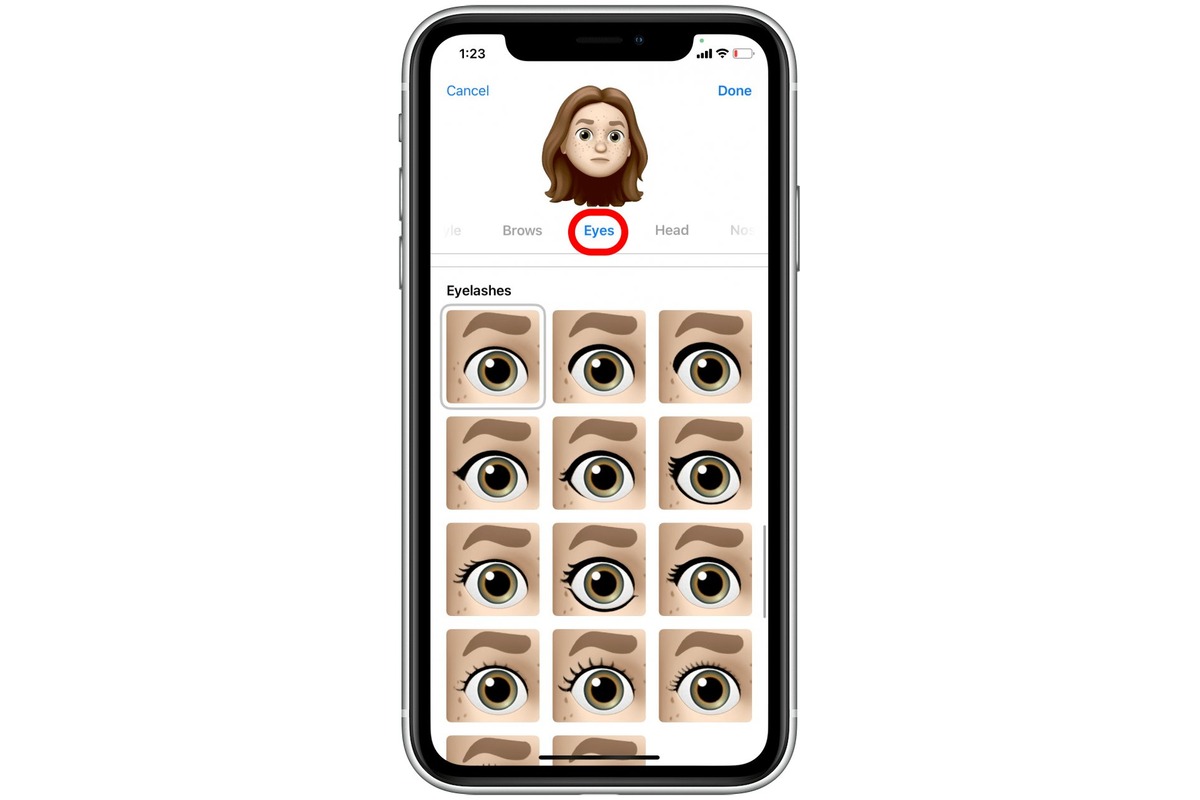
This allows users to choose a skin tone that better represents themselves or the person they are referring to in a message.
Related reading: How To Create Emoji In Android and How To Use The Diverse Emoji Keyboard On The IPhone & IPad.