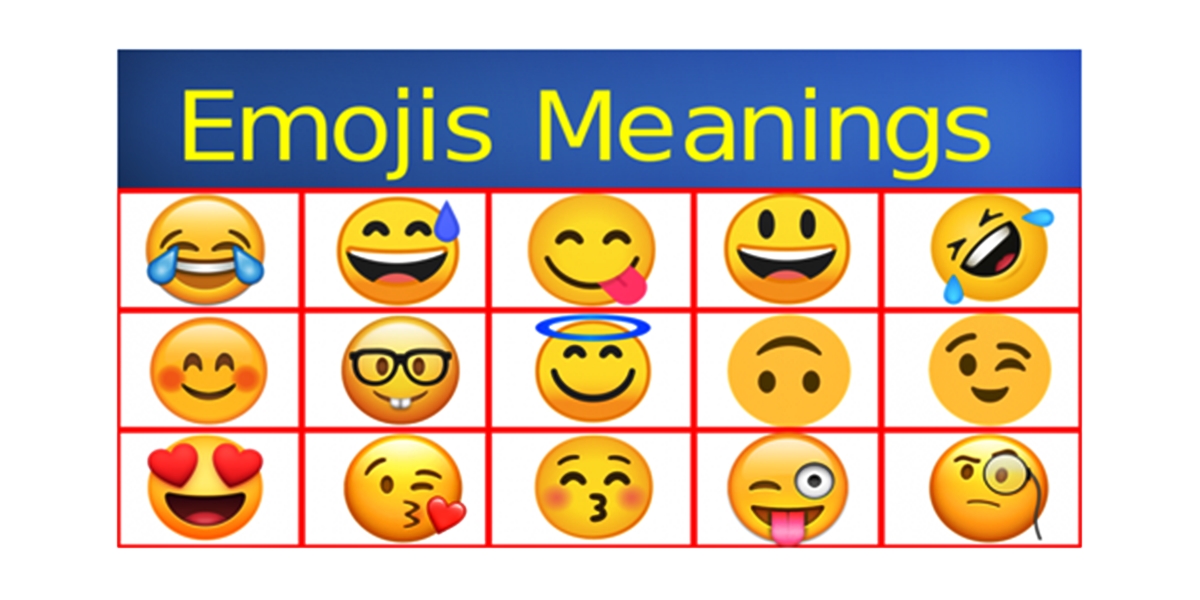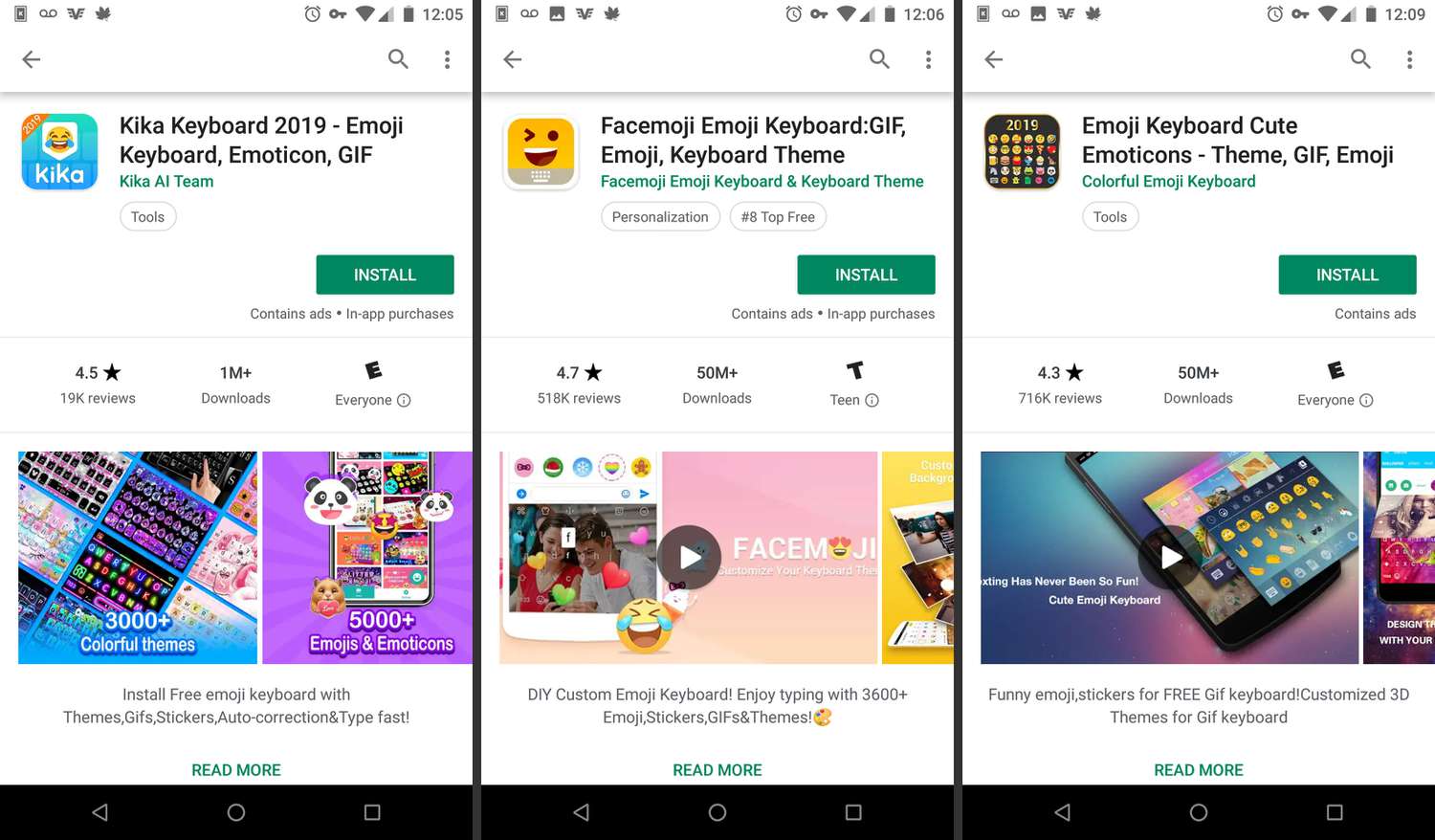
These tools let you type a description to find out what emojis are called, giving you the answer directly without leaving your current app.
How to find out what those emojis are called on iPhone
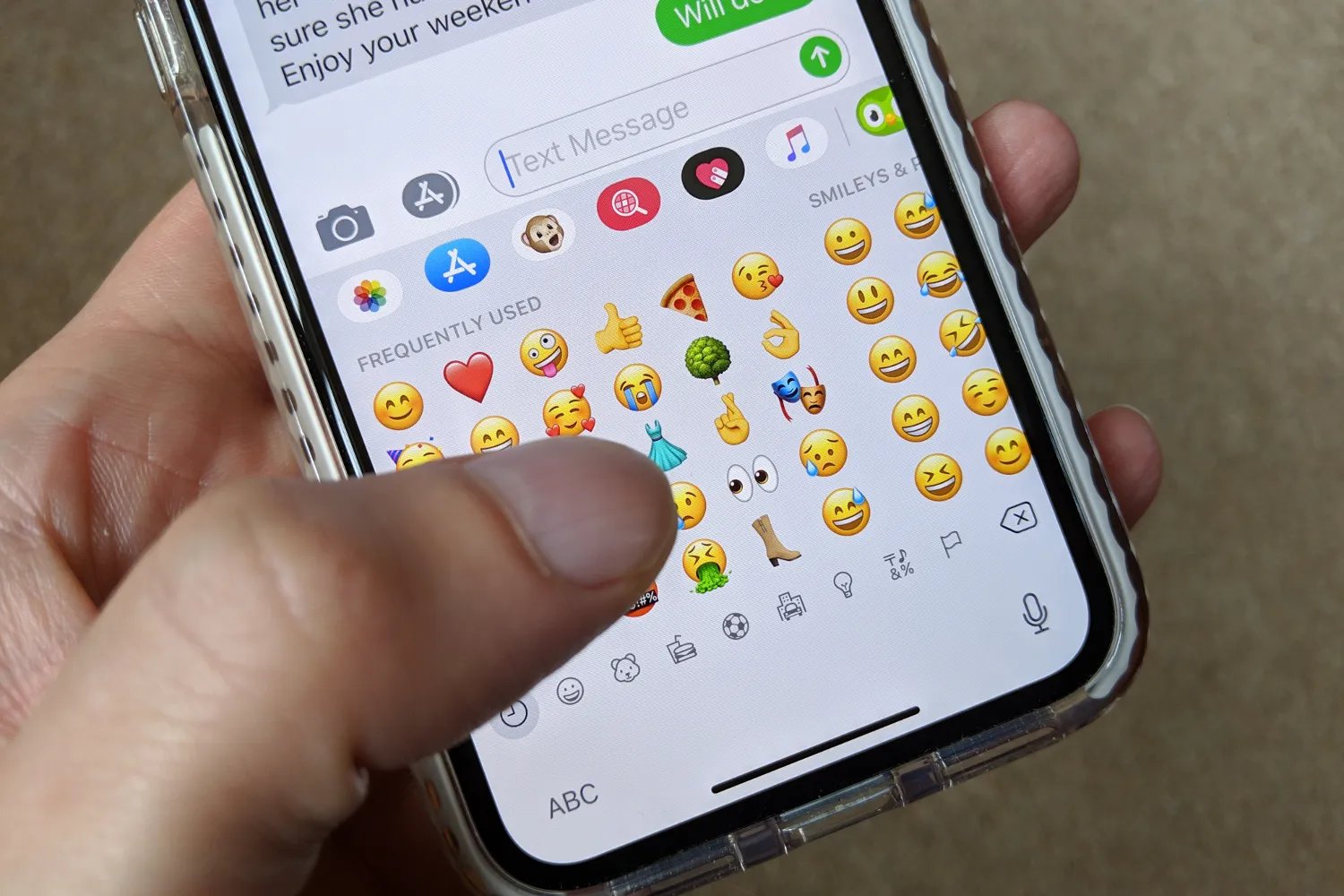
On an iPhone, the emoji keyboard includes a search field that shows you the name of any emoji you look up. Follow these steps:
- Open any app that uses the standard keyboard, such as Mail or Messages.
- Tap a text field to bring up the keyboard, then tap the emoji keyboard icon (the smiley face or globe icon).
- Tap the “Search Emoji” field at the top of the emoji keyboard.
- Type a description of the emoji you want to identify (for example, “smiling face” or “heart”). The keyboard will show matching emojis along with their names above each icon.
- Touch and hold an emoji to see skin tone variants where supported.
- Tap an emoji to insert it into your text.
Swipe left or right to browse emoji, or tap the gray category icons at the bottom of the keyboard.
If the emoji keyboard is missing, go to Settings > General > Keyboard > Keyboards > Add New Keyboard > Emoji to enable it. This method works with emojis and custom keyboards, so even if you use a third-party keyboard, the built-in Apple emoji search remains available.
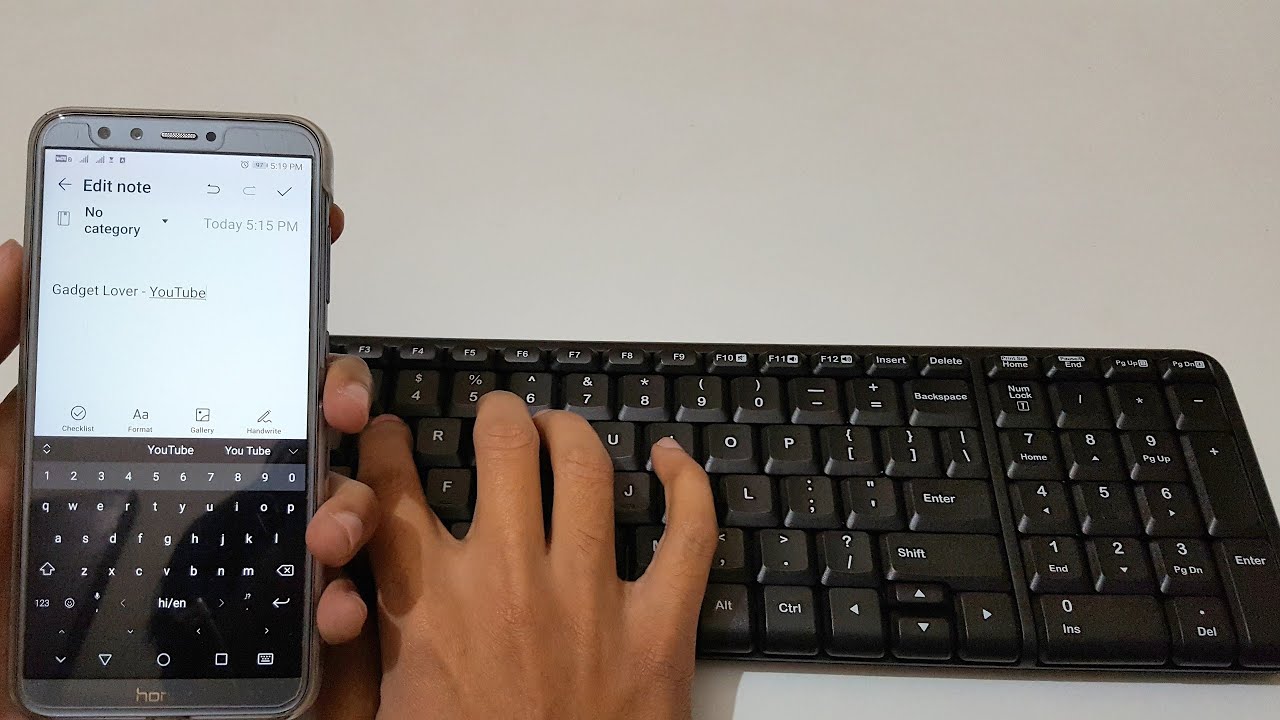
Windows provides an emoji panel with a dedicated search field to identify emoji names. Use these steps:
- Press the Windows logo key + period (.) to open the emoji panel.
- Press the Tab key until you reach the search field at the top of the panel.
- Type the name or description of the emoji (for example, “fire” or “rocket”) and press Enter. The panel will filter to show matching emojis.
- Use the Left or Right arrow keys to move among categories such as Emoji, GIF, Kaomoji, Symbols, or Clipboard history, then press Enter to select a category.
- Use the arrow keys to highlight an emoji and press Enter to insert it. The emoji name is displayed as you browse.
How to search for emoji names on Android
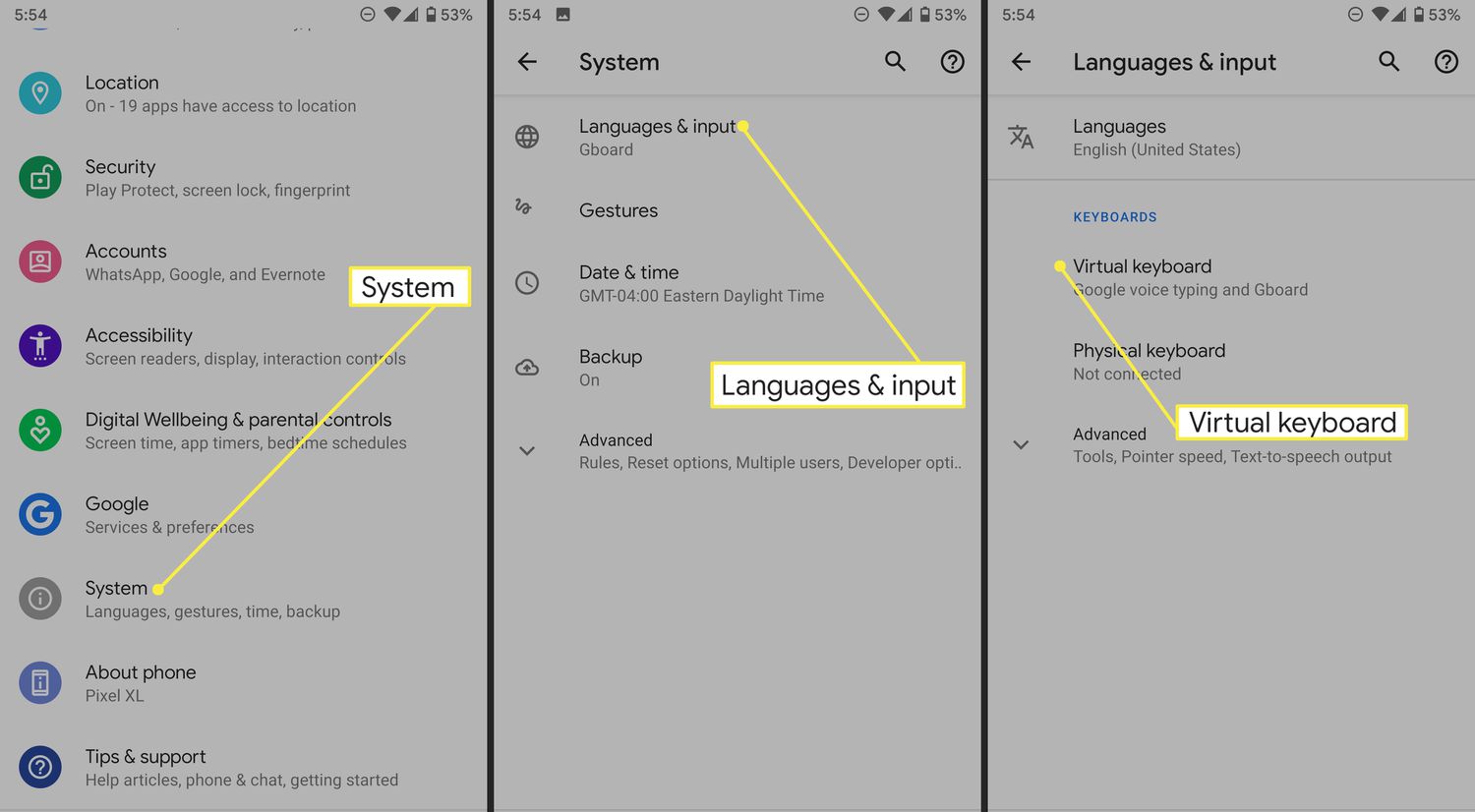
On Android, the Gboard keyboard includes an “Emoji Search” feature that lets you find emojis by name. For detailed steps, refer to a related guide on using Gboard’s emoji search. Note that this feature is specific to Gboard and may not be available on all Android keyboards.
What about finding emoji names on a Mac
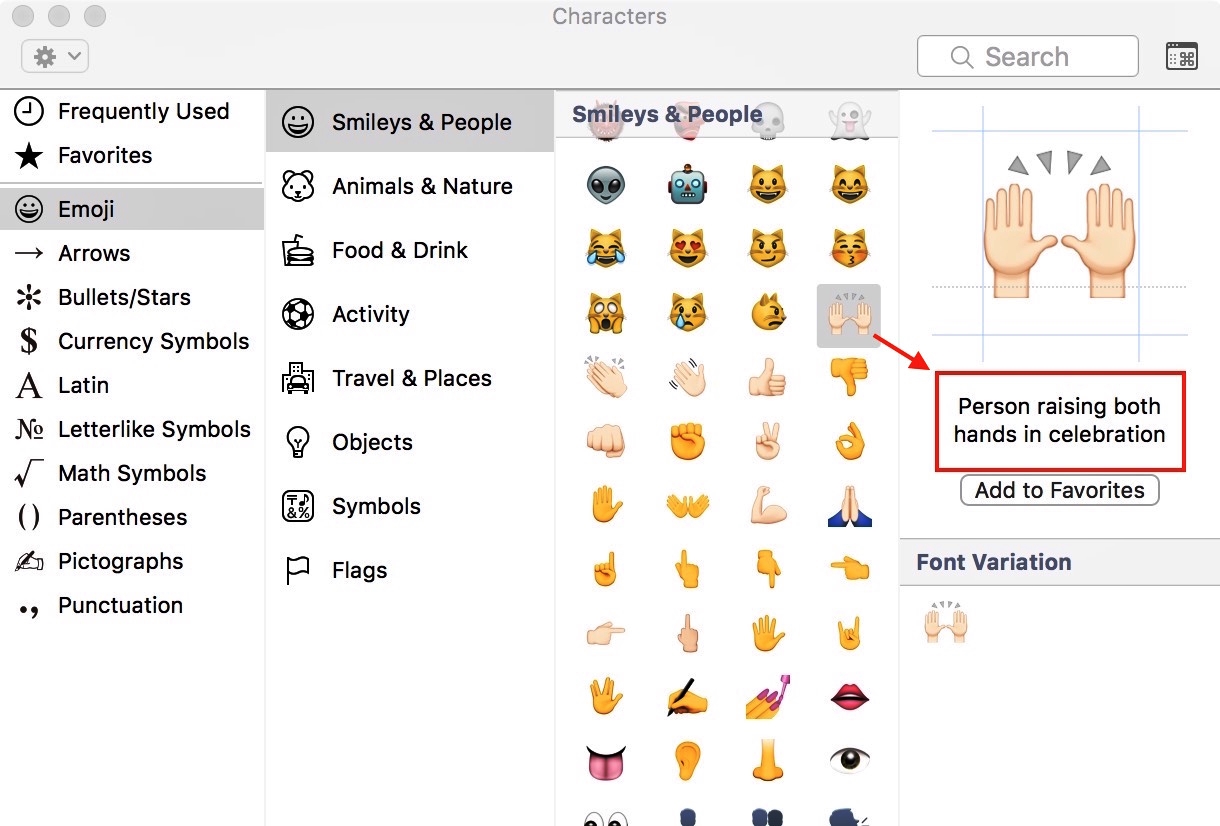
For now, Mac users can rely on online tools as a fallback.
Using online tools as a fallback
If the built-in search on your device doesn’t work or you’re on a platform without a native emoji-name lookup, use an online emoji dictionary like Emojipedia. These tools let you search by description or paste an emoji directly to see its official name, meaning, and platform variations. They work on any device with a web browser and are a reliable backup when your keyboard or panel lacks a search feature.
Frequently Asked Questions
Can I find the name of an emoji by pasting it into a search engine?
Yes, pasting the emoji into a search engine like Google often returns its official name and related information. This method works because search engines index emoji characters and their Unicode names.
Why do emoji names sometimes differ between platforms?
Each platform (Apple, Google, Microsoft, Samsung) designs its own version of an emoji, but the official Unicode name is the same across all platforms. The name you see in a search tool or keyboard is typically the Unicode name, though some platforms may display a slightly different label.
Is there a way to see emoji names without inserting them into text?
On iPhone, the search field shows emoji names as you type, and you can browse without tapping an emoji. On Windows, the emoji panel displays names as you navigate with arrow keys. Both methods let you view the name without inserting the emoji.
What if the emoji I want isn’t showing up in the search results?
Ensure your device’s software is up to date, as newer emojis require the latest operating system version. If the emoji still doesn’t appear, use an online emoji dictionary like Emojipedia to look it up by description or by copying the emoji from another source.
Do all Android keyboards have an emoji search feature?
No. The emoji search feature is documented only for Gboard, Google’s official keyboard. Other Android keyboards may or may not include this functionality, and official sources do not confirm its availability on non-Gboard keyboards.
Related reading: How To Add Custom Emojis To IPhone and How To Use The Diverse Emoji Keyboard On The IPhone & IPad.