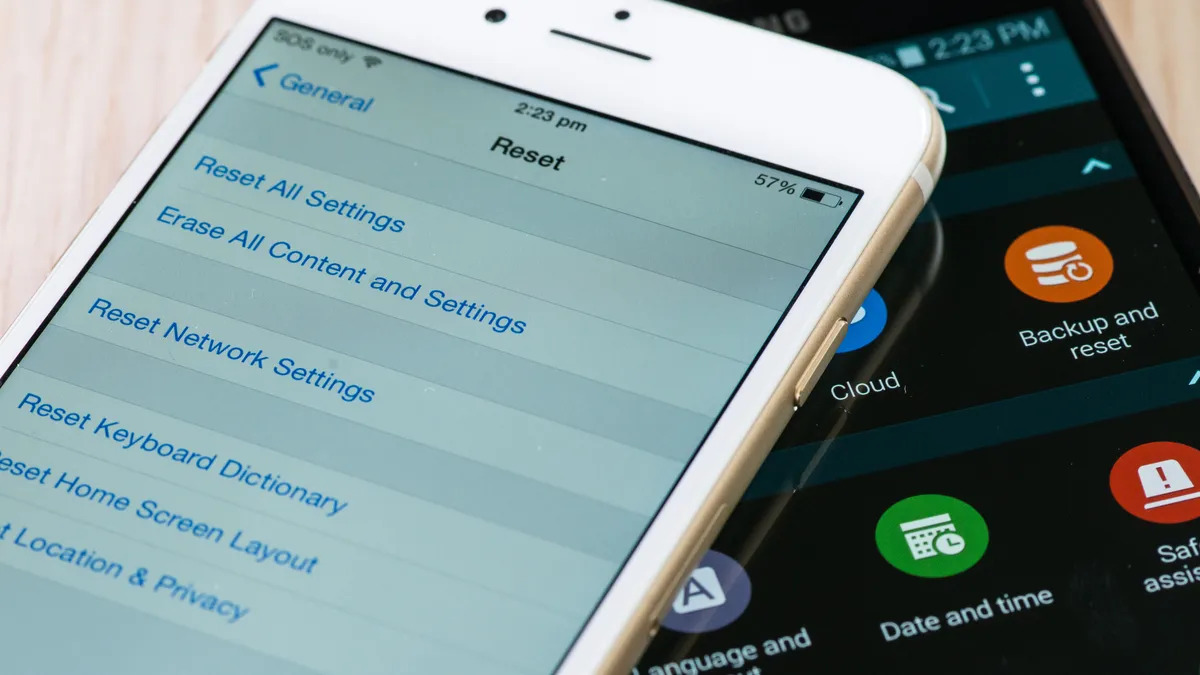
To wipe your Android phone properly, you must perform a factory reset, which restores the device to its original factory settings and deletes all personal data, installed apps, and accounts. Before you start, follow the crucial precautions below to ensure your privacy is protected and the device is ready for its next owner.
Before you wipe your Android phone: Crucial steps
Taking these essential precautions prevents data loss and avoids security issues like Factory Reset Protection (FRP).
- Back up your data. Save important files like photos, videos, contacts, and app data to cloud services or external storage, as a factory reset will erase everything.
- Remove all Google accounts. This disables Factory Reset Protection (FRP), a security feature introduced in Android 5.1 that requires the last Google account credentials after a reset. Failing to do this can lock you out of the device.
- Sign out of all accounts. Sign out of Google, email, social media, and banking accounts before wiping to prevent unauthorized access.
- Remove your SIM card and any external SD card. This protects personal information stored on the SIM and prevents accidental data loss from the SD card.
- Ensure sufficient battery charge. Charge your device to at least 50-70%, or keep it plugged in during the reset to prevent interruptions.
Method 1: Factory reset your Android phone via settings
This is the primary method for wiping a functional device. The exact path varies slightly by manufacturer. Wiping can resolve persistent software issues like crashes, freezes, or slow performance by eliminating software conflicts or corrupted files. It can also remove malware or viruses by eradicating malicious software, and frees up storage space by removing app caches, temporary files, and outdated downloads.
- Open the Settings app.
- Navigate to System > Reset options > Erase all data (factory reset).
- For Samsung devices, the path is typically Settings > General management > Reset > Factory data reset > Reset > Delete all.
- Enter your PIN or password if prompted, then confirm the action by selecting "Erase all data" or "Delete all."
Method 2: Factory reset an unresponsive phone with recovery mode
If your phone won't boot normally, use button combinations to enter Recovery Mode and perform a wipe.
- Turn off the device.
- Press and hold the specific button combination until the recovery menu appears. For Pixel devices, use Volume Down + Power. For some Samsung devices, use Volume Up + Power.
- Use the volume buttons to navigate to "Wipe data/factory reset."
- Press the power button to select, then confirm "Factory data reset."
- After the process completes, navigate to "Reboot system now" and press the power button.
Method 3: Remotely wipe your phone with Find My Device
Google's Find My Device service lets you erase a lost or stolen phone remotely. For this to work, the device must be powered on, signed into your Google Account, connected to the internet, and have location services enabled. Go to android.com/find, select the device, and choose "Erase device."
How to ensure your data is truly unrecoverable
A standard factory reset removes the path to your data rather than overwriting it, meaning a determined person with specialist tools may still recover remnants. For more thorough protection, use a reputable third-party data eraser app from the Google Play Store that overwrites the storage with random data, making recovery nearly impossible. This is especially important if you are selling or recycling the device and want to prevent any chance of data retrieval. You can also securely delete specific files like photos, videos, and documents using the built-in file manager or third-party apps without wiping the entire device. Specific third-party data eraser apps include CCleaner, iShredder, and Secure Eraser.
Final checklist after wiping your Android phone
After the reset, confirm your device is ready for a new owner. Encrypt your device and secure it with a strong password or biometric authentication. The phone should be at the initial setup screen, have no personal accounts logged in, and show no trace of your data. This confirms you have successfully completed the process, including factory resetting phones, and that your privacy is secure. For specific models, you may need to reset a Cricket Android phone or follow guidance on resetting a Samsung phone in2024. Note that methods claiming to erase data from lost phone using IMEI are not supported by standard Android features; use Find My Device instead.
Frequently Asked Questions
Will wiping my Android phone remove the operating system?
No. A factory reset deletes all user data, installed apps, and customized settings, but it retains the operating system and pre-installed apps. The device returns to its original factory state, as if it were brand new.
Is it possible to recover erased data after wiping my Android phone?
Generally, a properly performed factory reset makes recovery extremely difficult. However, because the reset often just removes the path to data rather than overwriting it, a very determined person with specialist tools may still recover remnants. Using a third-party data eraser app that overwrites storage provides stronger assurance.
Can I wipe my Android phone remotely if it's lost or stolen?
Use Google's Find My Device at android.com/find and select "Erase device."
What happens if I don't remove my Google account before resetting?
Factory Reset Protection (FRP) will activate, requiring you to enter the last Google account credentials after the reset. If you forget the password, you may be locked out of the device entirely. Always remove all Google accounts beforehand.
Does a factory reset delete data from my SD card?
No. A factory reset only affects the device's internal storage. To protect personal information on an SD card, you should remove it from the device before starting the reset.