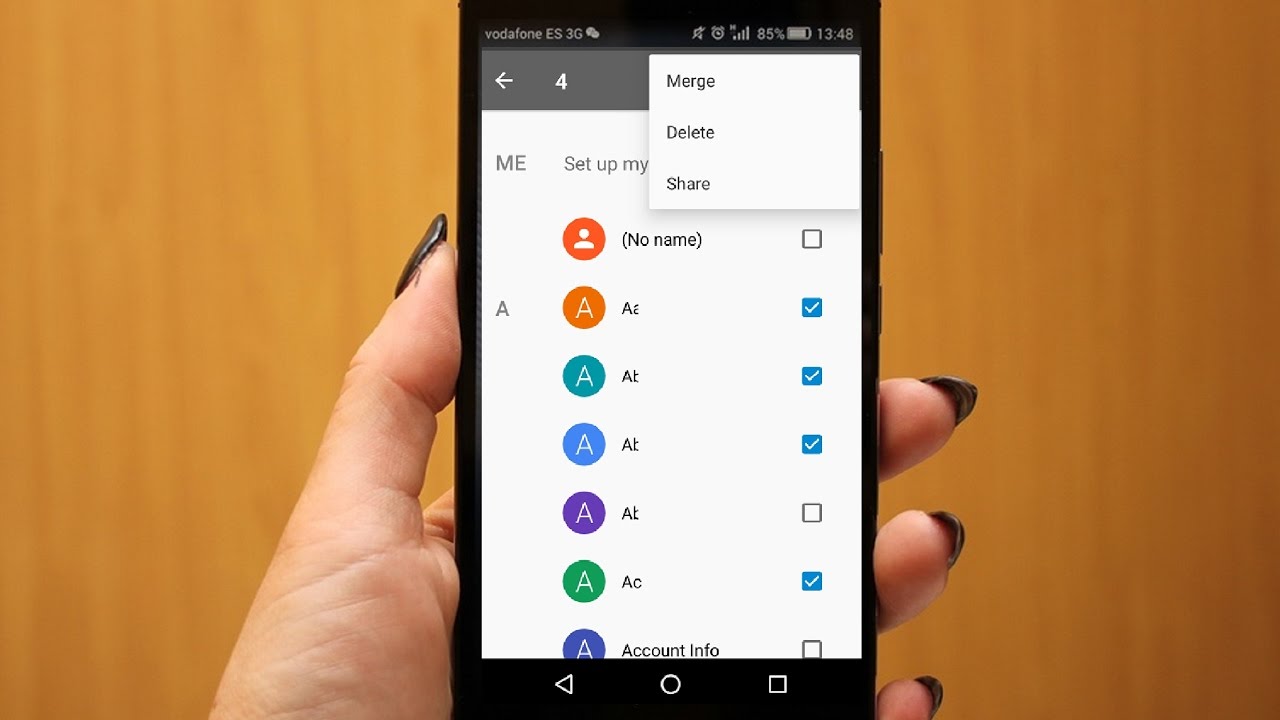
Deleting phone numbers on Android means deleting an entire contact entry, and the official way to do this is through the Google Contacts app. To delete phone numbers on Android quickly, open the Contacts app, select the contact you want to remove, tap Contact settings (the three-dot menu), then tap Delete, and confirm with Delete.
Delete phone numbers on Android from a single contact
- Open the Contacts app on your Android device.
- Tap the contact you want to delete.
- Tap Contact settings (the three-dot menu icon).
- Tap Delete.
- Tap Delete again to confirm.
Delete multiple contacts at once
- Open the Contacts app.
- Touch and hold one contact until it is selected.
- Tap additional contacts to select them.
- Tap the Delete icon (trash can).
- Tap Delete to confirm.
Delete all contacts
- Open the Contacts app.
- Touch and hold a single contact.
- Tap More, then tap Select all.
- Tap Delete.
- Tap Delete to confirm.
Recover or permanently delete contacts from Trash
When you delete a contact on Android, it is moved to Trash, where it stays for 30 days before being automatically and permanently deleted. During those 30 days, you can restore the contact or permanently delete it early. To do either, open the Contacts app, tap Trash (usually found in the menu), then tap a contact and choose Restore, or tap Delete forever. To permanently delete everything in the Trash at once, tap Empty Trash now.
What about the Phone app or call log?
The dialer and call log only let you remove call history entries, not the saved contact information itself. To remove a saved phone number, you must use the Contacts app as described above. For Google Voice, you can delete all calls in call history at once by opening the Voice app, tapping Menu > Settings, then next to Remove call history tapping Remove, checking I understand and agree, then tapping Remove.
Frequently Asked Questions
Can I delete one number from a contact with multiple numbers?
No. Google’s official documentation for deleting phone numbers on Android only shows steps to delete the entire contact entry. There is no supported method to remove a single number from a contact that has multiple numbers without deleting the whole contact.
Why can’t I delete some contacts?
Some contacts are system contacts tied to essential services, such as your carrier, emergency services, or device accounts. These contacts are protected from deletion to ensure your device functions properly. You cannot remove them through the standard Contacts app.
What happens if I delete a contact and then sync my Google account?
If you delete a contact from your Android device and it is synced with your Google account, the contact will also be deleted from your Google account and from all other devices synced to that account. Deleted contacts are moved to Trash for 30 days, giving you time to restore them if needed.
Can I delete contacts from a SIM card using the same steps?
No. The steps above apply only to contacts saved in your Google account or device storage. Contacts stored on a SIM card must be managed through the SIM card settings, which vary by device manufacturer and Android version. The Google Contacts app does not manage SIM card contacts.
How do I avoid accidentally deleting important contacts when batch-deleting?
Before performing a batch delete, review the selected contacts carefully. You can also use the Trash feature to recover any contacts deleted by mistake within 30 days. Consider backing up your contacts through your Google account settings before starting a large cleanup.
For the wider topic, see removing phone numbers from accounts.