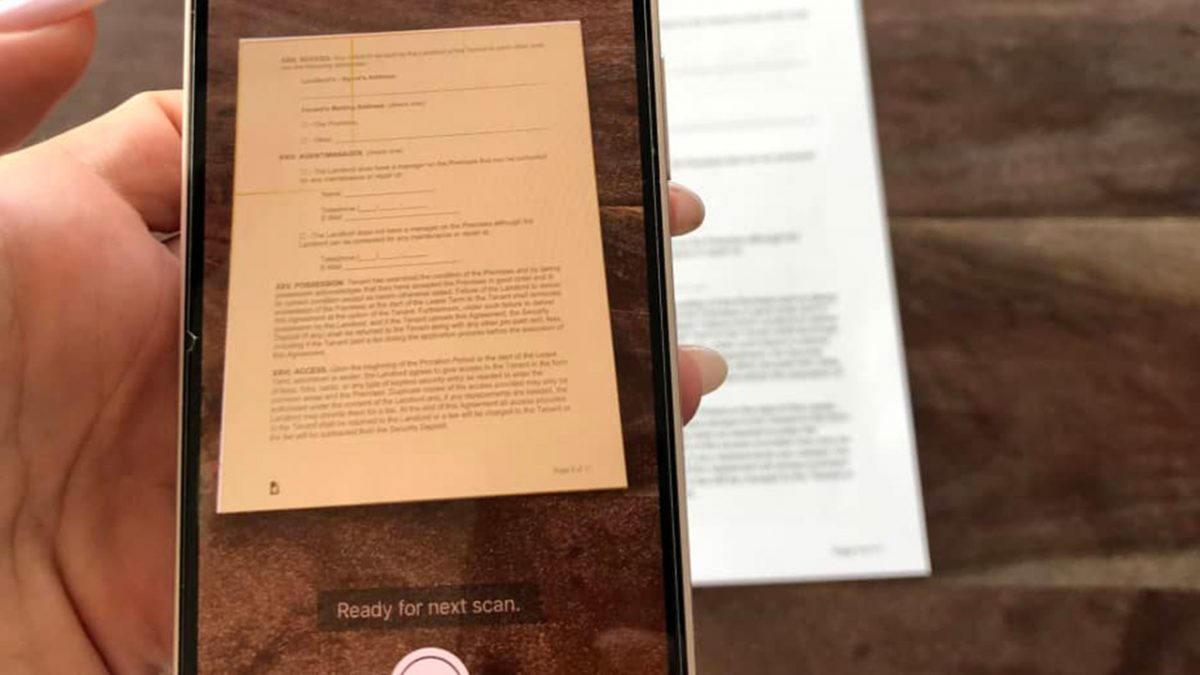
To scan on iPhone 12, use the built-in Notes app to capture documents for free, with no additional app required. Open Notes, create or open a note, tap the camera button, and select Scan Documents to start.
How to scan on iPhone 12 with the Notes app
- Open the Notes app on your iPhone 12.
- Create a new note or open an existing one.
- Tap the (+) icon above the keyboard to reveal options including Scan Documents.
- Place the document in view of the camera. You can also scan QR codes and physical photos.
- In Auto mode, the iPhone automatically captures the page when boundaries are detected. For a manual scan, tap the shutter button or press a Volume button.
- After capture, drag the corners to adjust the scan, then tap Keep Scan.
- To add more pages, tap the add page control and repeat the capture steps.
- When finished, tap Save to store the final document in the note.
On iOS 26, you can choose options such as flash or an image filter before scanning. The iPhone 12 supports this feature without any special setup, just use the Notes app directly.
Adjusting and saving your scan
After each page capture, the device automatically detects document edges and aligns the capture; you can manually adjust by dragging the blue dots. Tap Keep Scan to confirm the page. Before saving, you can apply filters, adjust the color scheme, or crop. To scan additional pages, use the add page control before tapping Save. Once you tap Save, the complete document is stored inside the note, ready for access or sharing.
Sharing scanned documents from your iPhone 12
To share a scanned document, open the note containing the scan in the Notes app. Use the share sheet to send it via Mail, Messages, or AirDrop to nearby Apple devices. You can also save the scan to Files or share it through other apps available on your iPhone 12. This method works for any document you scan, and you can also combine scans with photo editing and collage apps if you need to enhance or arrange images further.
Frequently Asked Questions
What types of documents can I scan with my iPhone 12?
You can scan receipts, contracts, handwritten notes, printed documents, and more.
Do I need another app to scan on iPhone 12?
No. Apple documents scanning directly in the Notes app, so no separate app is required. The feature is built into iOS and works on your iPhone 12 without any downloads.
Can I scan multiple pages into one document?
Yes. All pages are saved together in the same note as a single document.
Are there limits on how many pages I can scan?
You can scan as many pages as needed within a single session.
Is it possible to edit scanned documents on iPhone 12?
After scanning, you can crop and adjust colors using the Markup feature for basic edits like cropping and adjusting colors. Basic edits like rotating or applying filters are available, but the scan is saved as an image within the note.
Can I share scanned documents from my iPhone 12?
Yes, you can share via email, messaging apps, or save to iCloud or Google Drive.
What about third-party scanning apps?
If you prefer additional features, the App Store offers many scanning apps for iPhone 12 with additional features and customization. However, the built-in Notes method is free, requires no extra setup, and covers most document scanning needs.