






Photo editing apps and quick fixes on your phone
The best photo editing apps are often the ones already in your pocket, with most quick fixes waiting right inside the tool you use to browse your camera roll. Instead of hunting for a third-party tool to add arrows or blur a license plate, you can mark up a photo on iPhone right from the editing screen by tapping Edit and then the Markup icon to draw, drop a shape, add text, or place stickers, all inside the Photos app with no added branding. For Android users, the exact built-in markup workflow varies by manufacturer, but many gallery apps include annotation tools.
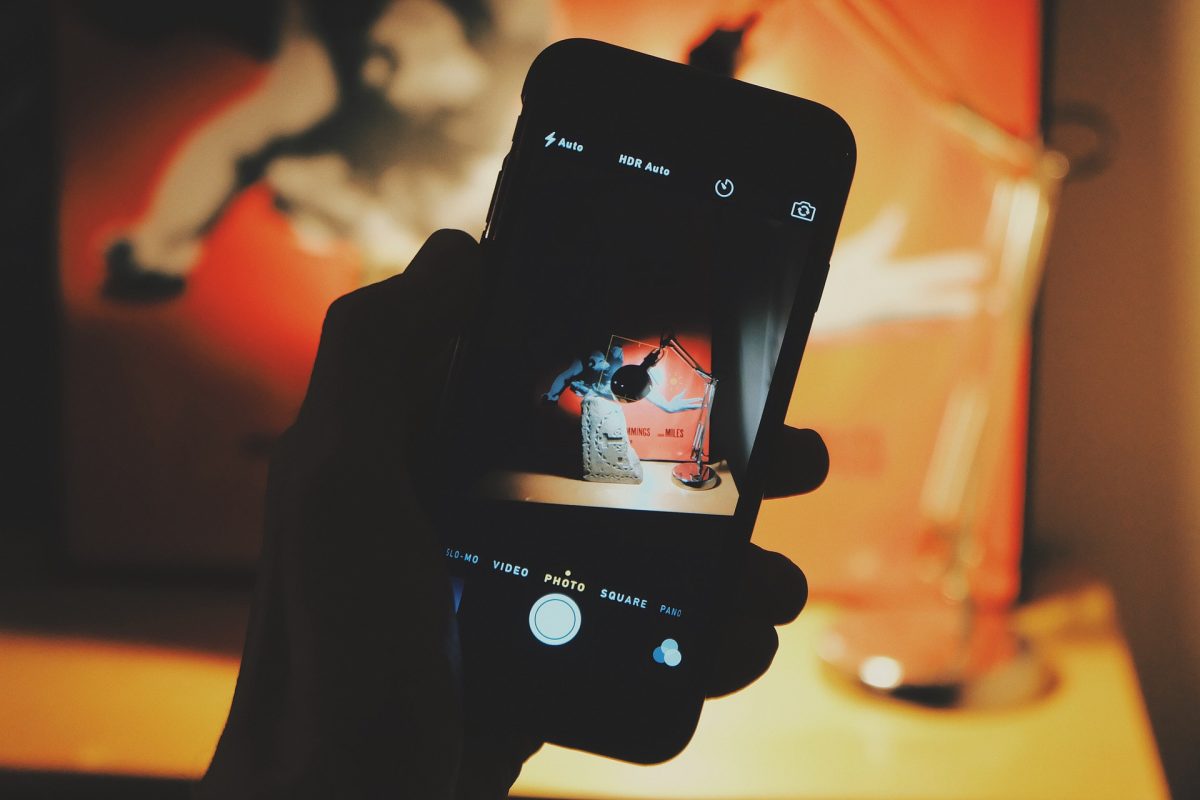
Scanning a receipt or a handwritten note is just as straightforward. When you need a clean, perspective-corrected copy, you can scan on iPhone 12 by opening the Notes app, creating a new note, and tapping Scan Documents. The viewfinder automatically captures the page or lets you tap the shutter for a manual grab, and you can adjust the flash or apply a grayscale filter to get a crisp PDF you can sign or share immediately. A separate timer function is not part of the editing suite. If you are trying to get yourself into a group shot, you can set timer on phone camera controls before you tap the shutter. The steps to set timer on photo iPhone 13 are a capture setting, not something you apply to an image after the fact.
Removing unwanted stuff from photos
Removing a photobomber or a distracting logo often feels like a job for specialized software, but your phone’s built-in editor handles many of these clean-up tasks while keeping your image on the device. If you want to erase people from pictures on iPhone, the process lives directly inside the Photos app on recent hardware. Just keep in mind the feature requires a compatible iPhone model running a recent version of iOS. When you brush over a person’s face with the Clean Up tool, Apple warns the result may appear pixelated rather than perfectly reconstructed. It works best on background figures rather than main subjects.
Not every edit is about removal. While you cannot natively add a person to a photo on iPhone using Apple’s tools, you can control what stays in focus. You can blur background in Lightroom mobile by opening the Edit panel and adjusting the Blur amount slider. The AI-powered Blur backgrounds Quick action separates your subject instantly. On Android, Google Photos builds similar magic into its editing tools, where features like Magic Eraser and Photo Unblur let you clean up and enhance your shots after they were taken. For stubborn watermarks and complex object removal that your built-in app cannot resolve, you might need to look at dedicated options. You can find the 11 best watermark remover apps for Android and iPhone photos when the built-in tools hit their limits.
Making collages, books, and print-ready layouts
When you want to combine multiple shots into a single design, the tool you need is often already on your phone. Google Photos lets you select multiple images and use the collage feature to generate a shared layout instantly, never pushing you toward a premium subscription. You can make a photo collage on iPhone [top 5 ways] directly from the overflow menu or the Create tab, and the Android experience mirrors those steps exactly. If you are assembling something more permanent, the same app can route you into a printed photo book through the Create menu on Android, though the checkout flow is separate from the collage editor. For a specific passport-style crop, you may need to look up how to make 2x2 picture in phone using custom aspect ratios. When you need a physical copy at a standard size, the exact steps to print 5x7 from iPhone rely on the standard share sheet handing the file off to a third-party provider. Before you download anything extra, it is worth browsing the 20 best FREE photo collage maker apps [EASY edits] to see if a specialized tool offers templates your stock gallery lacks. If you are designing a full album, you can also consult the 15 best photo book apps of all time [latest update] for services that handle everything from layout to binding, especially when you want hardcover quality that a basic collage feature cannot produce.
Creating stickers, GIFs, and animated images
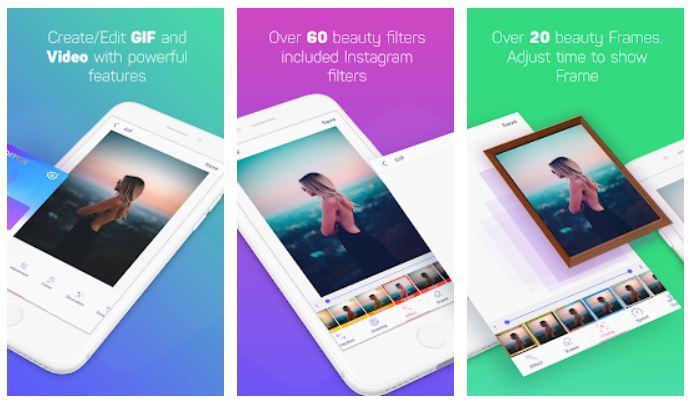
Moving beyond static collages, your phone can turn still images into expressive elements you reuse across messages and social posts. When you want to make a sticker from a picture on iPhone, open the photo full screen in the Photos app, touch and hold the subject until a glowing outline appears, then tap Add Sticker; it lands in your keyboard’s sticker drawer, ready to drag into any conversation. Applying effects can turn a Live Photo into an animated sticker that loops automatically.
To add stickers to photos on Android the path varies by manufacturer. For quick reactions, you can find & send GIFs from the message app on the iPhone by tapping the Apps button next to the text field, selecting #images, and typing a keyword. If you want to push further into motion, the 16 best apps that bring photos to life and make them move offer cinemagraph-style effects, motion overlays, and plotagraph tools that the stock gallery does not replicate. Figuring out how to make a video into a live photo on iOS or Android typically requires a third-party converter, since neither Apple nor Google currently document a built-in tool for transforming a saved video clip into a Live Photo that animates on your lock screen.
- 16 best apps that bring photos to life and make them move
- find & send GIFs from the message app on the iPhone
- make a video into a live photo on iOS or Android
- make a sticker from a picture on iPhone
- add stickers to photos on Android
Posting and profile tricks for social media
Before you upload, check how the platform actually handles the file you chose. If you want to post a live photo on Instagram from iPhone, the motion you see in your Photos library may not transfer on its own. The same attention to format matters when you combine shots in a single frame. You can add multiple photos to Instagram story using the available tools in the app, layering several images onto one slide, though the feature is only available on supported mobile devices. On Facebook, you can set a temporary profile picture on Facebook for a visual refresh that suits an event or a campaign, leaving no trail to clean up later. For a different kind of curation, you can create a pin on Pinterest mobile from your home feed, and the app prompts you to attach an image from your camera roll or snap one on the spot before you assign it to a board. On DeviantArt, the mobile presentation of your gallery starts with your bio block, and the way you edit your profile on deviant art mobile affects what followers see first when they land on your page from a shared post.
Designing logos, invites, and custom graphics
When you need to design something original rather than just touch up a photo, your phone can serve as a capable canvas. If you want to make a logo on iPhone without installing anything new, Keynote can be used for simple branded graphics, and you can make an invitation on iPhone by building a single-slide layout with text and imagery. Share the finished file directly from the toolbar’s Share button, or use the Collaborate option to send it to multiple people for simultaneous viewing and editing, provided everyone is signed into an Apple Account on an iPhone or iPad with a recent version of iOS or iPadOS and Keynote. For a wider template selection, Canva’s mobile app lets you construct presentations, logos, and social posts, and its workflow is outlined in an easy guide [mobile photo editing steps included] that walks through the core tools. Because Canva’s feature set extends well beyond what a built-in gallery offers, it also appears among the 15 best Lightroom alternatives for mobile photo editing when your project calls for graphic-design layers alongside photo adjustments. Similarly, if you want to make an invitation on iPhone with a polished layout and custom fonts, the same app-based approach saves you from needing a desktop. And when you need to make a logo on iPhone quickly for a side project or social media handle, these tools provide vector-like control without a steep learning curve.
- 15 best Lightroom alternatives for mobile photo editing
- make an invitation on iPhone
- make a logo on iPhone
Fun transformations and future-self effects
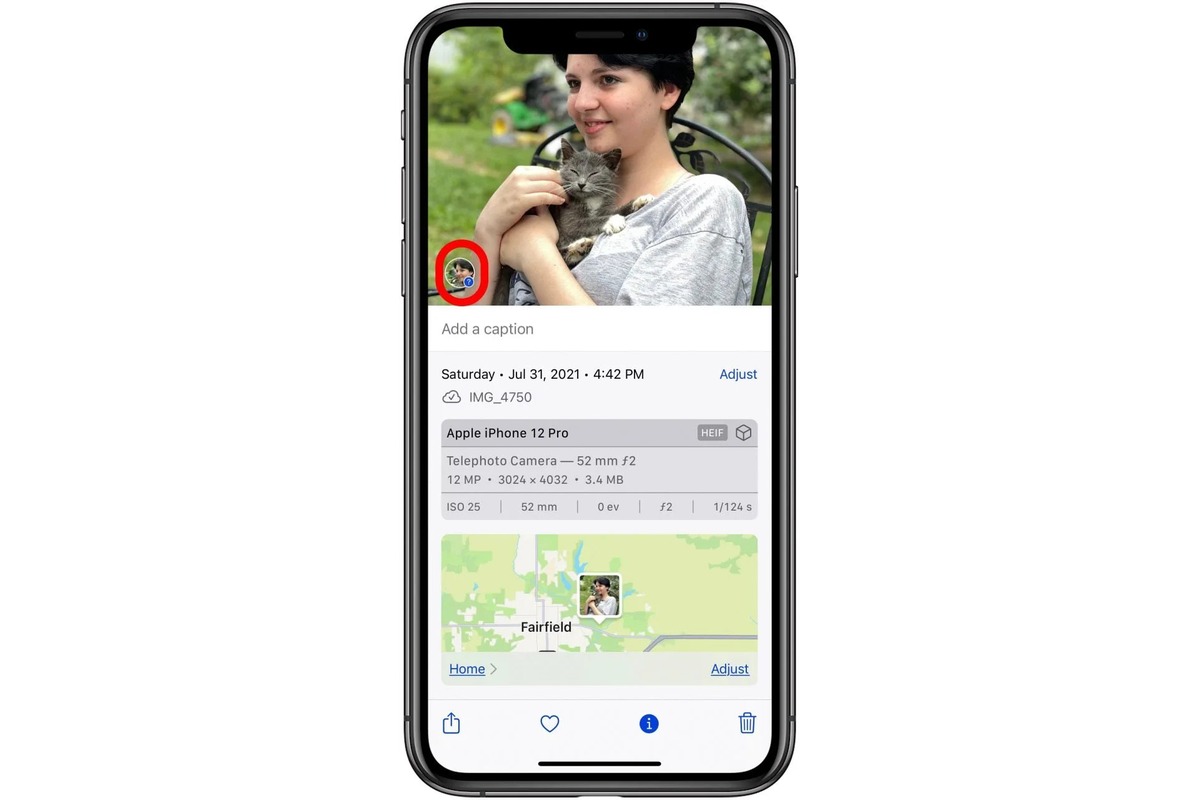
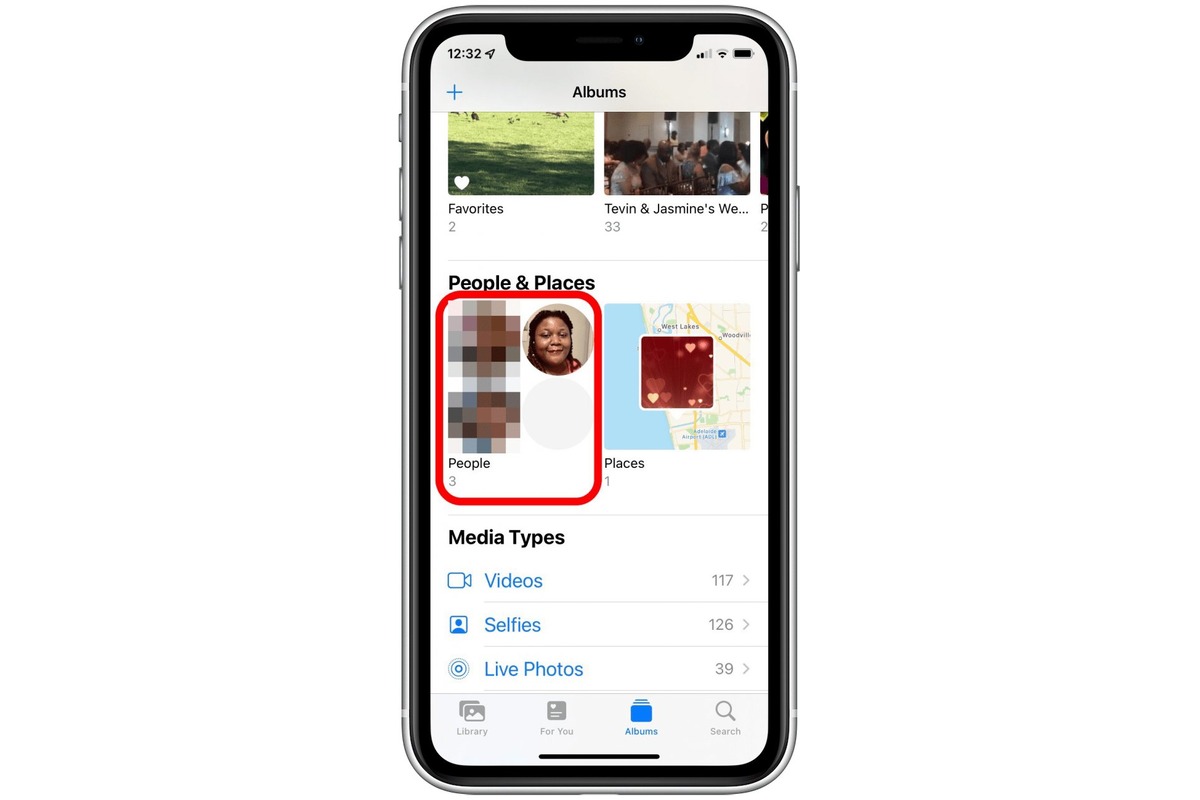
Novelty transformations that age your face or project a sketch onto a physical surface are a step beyond what your standard gallery handles and rarely require desktop software. If you are looking for the 11 best age progression apps to see your future self, know that neither Apple Photos nor Google Photos currently include a built-in aging filter, so you will be trying a dedicated third-party tool that applies its effect with a single tap. The same camera that captures your portrait can also work as a tracing tool when you project an image from your phone onto paper using an augmented-reality overlay that locks the digital template to your sketchbook, letting you tilt the phone and trace the projected lines while the image stays fixed on the page. Creators who want a DIY stand can make a paper phone cradle from a cardboard box to hold the device steady above a canvas. Before you try a forecasting filter, keep in mind that the same Photos app you already use gives you direct control over which faces appear in your library’s automated collections. While Apple omits a button to manually add featured photos on iPhone, you can fine-tune suggestions by adjusting which faces appear in your library's automated collections.
Tools and accessories for capturing shots
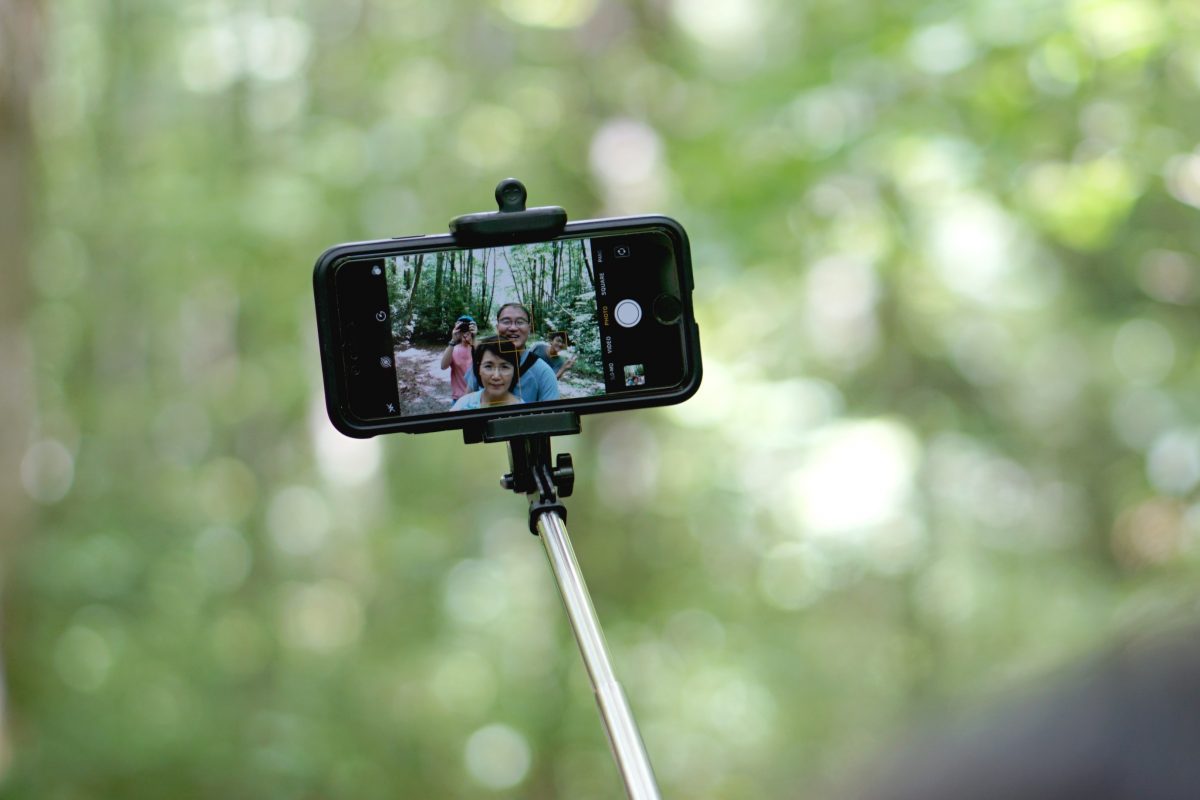
Before you tap the shutter, a little physical setup can solve the problems that software later struggles to fix. A tripod or a steady surface eliminates the micro-blur that even the best sharpening tools cannot fully rescue, and your arms will only hold still for so long. When you want to appear in the frame and skip the sprint into position, you can pair a selfie stick with a Bluetooth remote and trigger the capture from a distance, though the exact steps vary by accessory and your phone’s operating system. If your stick uses a magnetic mount, it can attach to the back of a compatible phone, letting you extend the pole and frame a wider shot with no stranger required. Your standard camera includes a short delay, but you might browse the top 15 countdown apps you need for better organizing a group photo where everyone needs a moment to settle. Some third-party options let you trigger a burst of frames after a custom interval, so you have several expressions to choose from, while a voice command or a wrist tap from a companion smartwatch can also fire the shutter, keeping your hands free and your composition intact.
Frequently Asked Questions
How many photos can I use in a Google Photos collage?
Google Photos lets you select up to 6 photos for a collage. You can start from the Create tab, the overflow menu on a selected photo, or by tapping Create Collage after selecting your images.
Where do stickers go after I make one from a photo on iPhone?
The sticker saves to your keyboard's sticker drawer, accessible in Messages and Markup tools. The feature works on iPhone XS, iPhone XR, and later running iOS 16 or newer, and Live Photos become animated stickers.
Can I blur the background of a photo I already took in Lightroom mobile?
Yes, open the Edit panel and adjust the Blur amount slider. Lightroom mobile also offers a Blur backgrounds Quick action that uses AI to detect your subject and apply the effect instantly.
How do I find and send a GIF in Messages on iPhone?
Open a conversation, tap the Apps button next to the text field, then tap #images. Enter a keyword, tap a suggestion or Search, then tap the GIF to add it and hit Send.


![20 Best FREE Photo Collage Maker Apps [EASY Edits]](/wp-content/uploads/2019/11/image8-3.jpg)
![How to Make a Photo Collage on iPhone [Top 5 Ways]](/wp-content/uploads/2022/12/PHOTO-COLLAGE-IPHONE_MAIN.jpg)
![What Is The Canva App: An Easy Guide [Mobile Photo Editing Steps Included]](/wp-content/uploads/2020/04/canva_logo.jpg)







