To update your Android phone, you can use the update notification, the Settings app, or your manufacturer's computer software. The standard method is to open Settings, go to System, and tap Software update to check for and install the latest version.
How to update your Android phone
Keeping your phone updated improves security, fixes bugs, and provides new features. Google documents three ways to install an Android update: through a notification, through the Settings app, or using manufacturer software on a computer. The exact labels and paths vary by device model and carrier, but the core steps are consistent across most Android phones. Apple says updating iPhone software can help if you experience an issue.
Update using the notification
When an update is available, your phone may show a notification. Open the notification and tap the update action to begin the process. If you cleared the notification or were offline when it arrived, you can check for the update manually in Settings.
Check for and install updates in Settings
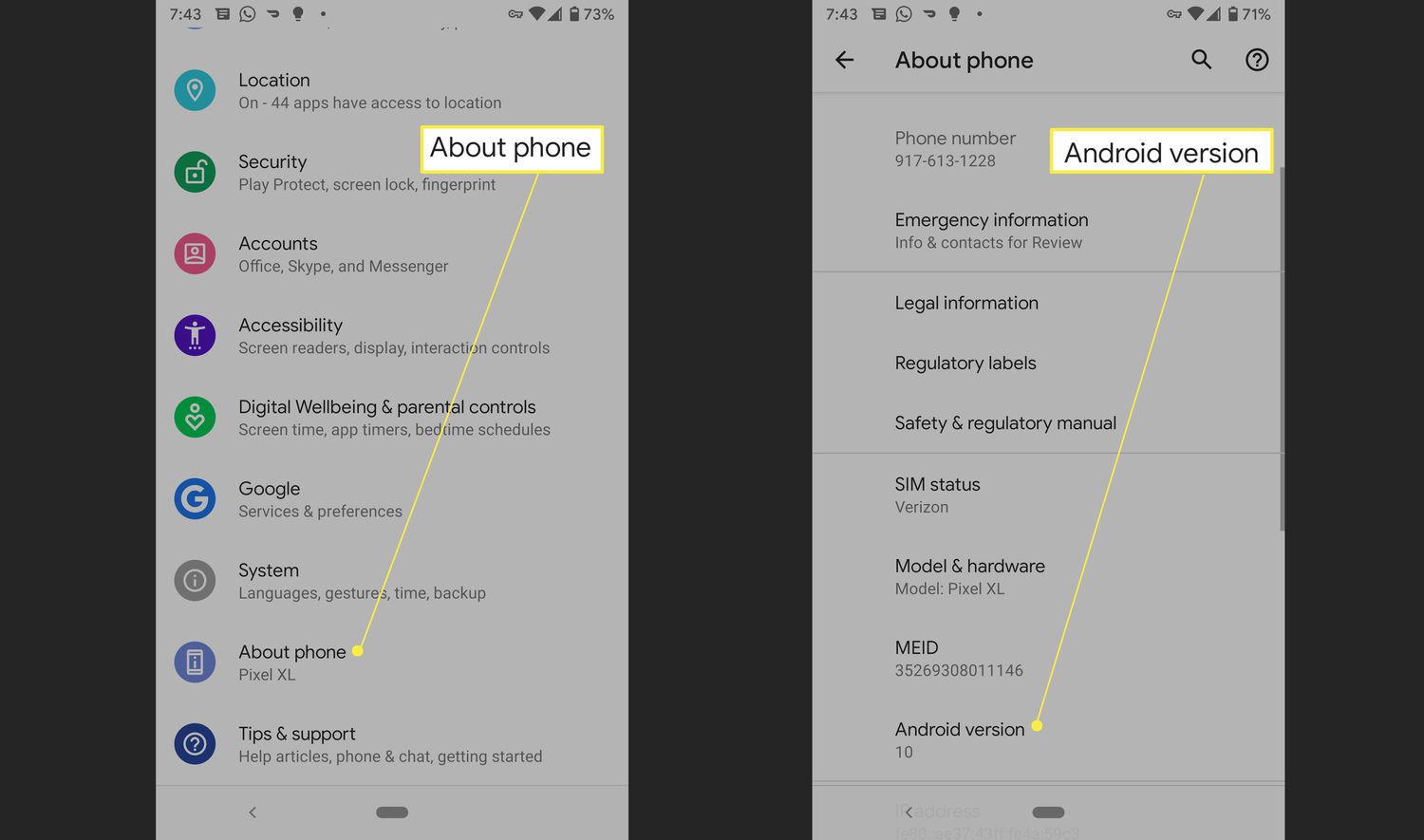
This is the primary method for updating your Android phone. Open the Settings app, then navigate to System and select Software update. The device will check for available updates and show the update status. If an update is available, follow the on-screen instructions to download and install it. On some devices, the path may appear as System > Software updates. To view your current Android version, security update level, Google Play system update, and build number, go to Settings > About phone or About tablet > Android version. Apple's compatibility list includes iPhone 11 and later, plus iPhone SE (2nd generation and later). On iPhone, open Settings > General > Software Update > Automatic Updates for update settings.
Update using your manufacturer's computer software
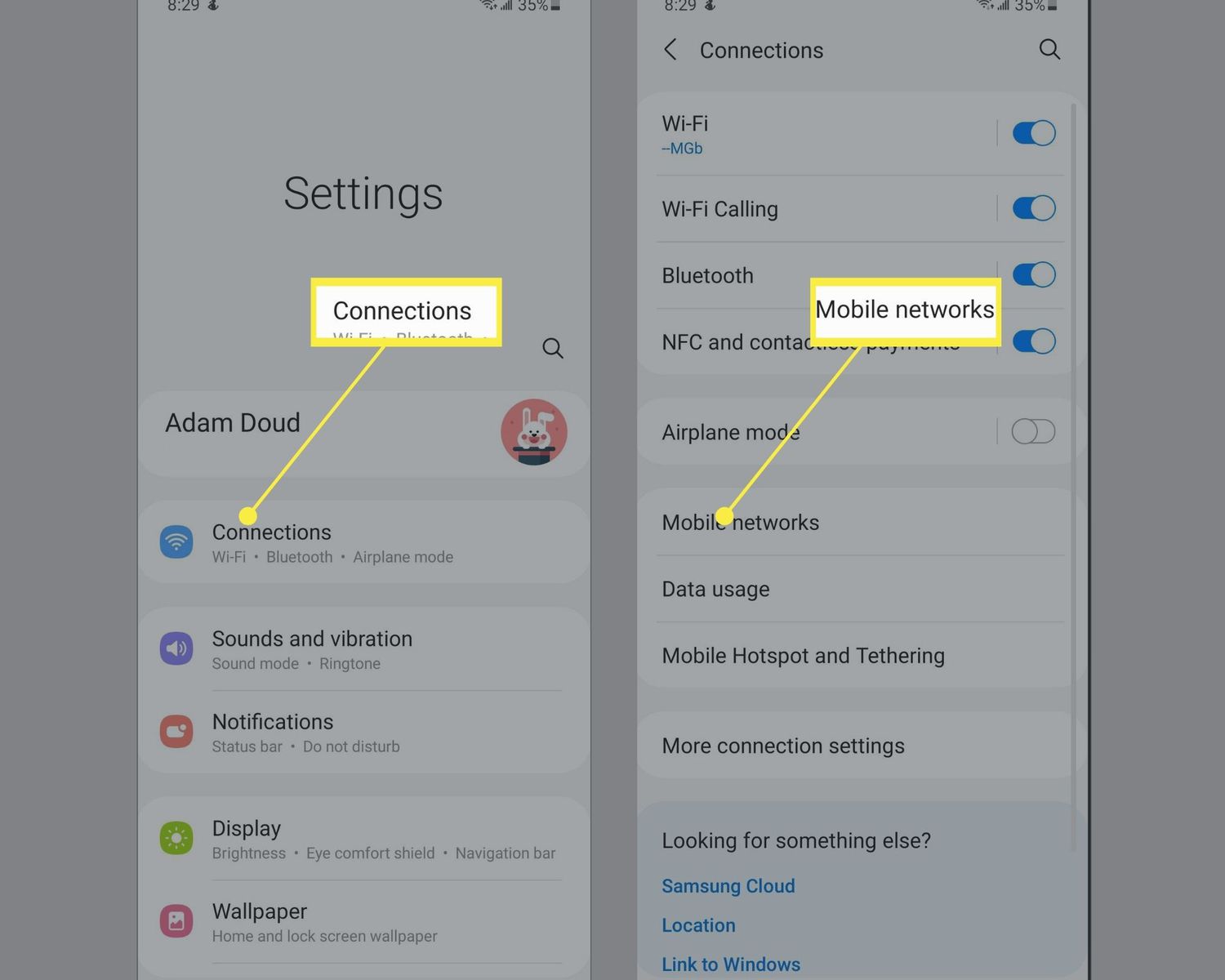
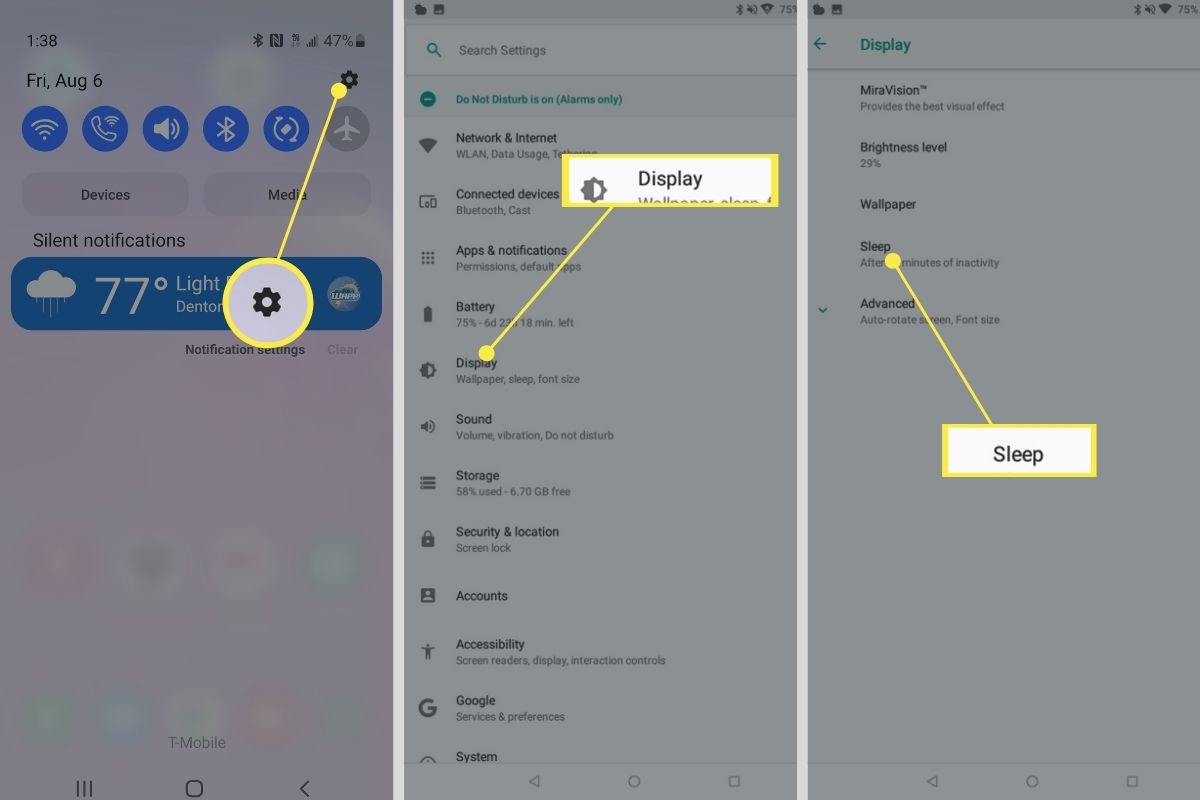
Samsung provides Smart Switch as the documented example for updating Galaxy phones and tablets from a computer. Connect your Galaxy device to a computer with Smart Switch installed using the included USB cable. Open Smart Switch and let it detect the device. If an update is available, select Update. On the device itself, the menu path varies by model and carrier. Swipe down with two fingers from the top right, tap Settings, then tap Software update or System updates. The update button names also vary and may appear as Download and install, Check for system updates, Check for software updates, or Download now. On a Mac with macOS 10.15 or later, connect the iPhone, select it in Finder, click General, then Check for Update and Update if available. On a Mac with macOS 10.14 or earlier or on Windows, open iTunes, click the iPhone button near the top left, then Summary, Check for Update, and Update.
Troubleshooting common update problems
If you encounter issues during an update, try these solutions:
- Insufficient storage: Free up space by deleting unnecessary files or apps before starting the update.
- Slow or interrupted download: Connect to a stable Wi-Fi network. If the download fails, restart your device and try again.
- Battery drain during update: Plug your phone into a charger before initiating the update to prevent interruptions.
- Update not appearing: Not all devices receive updates at the same time. Check periodically, as the update may not have been released for your specific model or carrier yet.
- Error messages: Note the exact error text and search for a solution specific to that message. Many issues can be resolved by restarting the device or retrying the update.
Frequently Asked Questions
Will updating my Android phone erase my data?
Updating your phone generally does not erase your data. However, it is a good practice to back up important files before updating, as rare cases of data loss have been reported.
How often should I update my Android phone?
Check for updates at least once a month to ensure you have the latest security patches and improvements. The frequency of releases depends on your device manufacturer and carrier.
What should I do if an update isn't available for my device?
If no update appears, your device may not yet be eligible for that update, or the release may not have reached your region or carrier yet. Check again later. If your phone is older, it may have reached the end of its software support cycle.
For the wider topic, see updating iOS and operating systems.