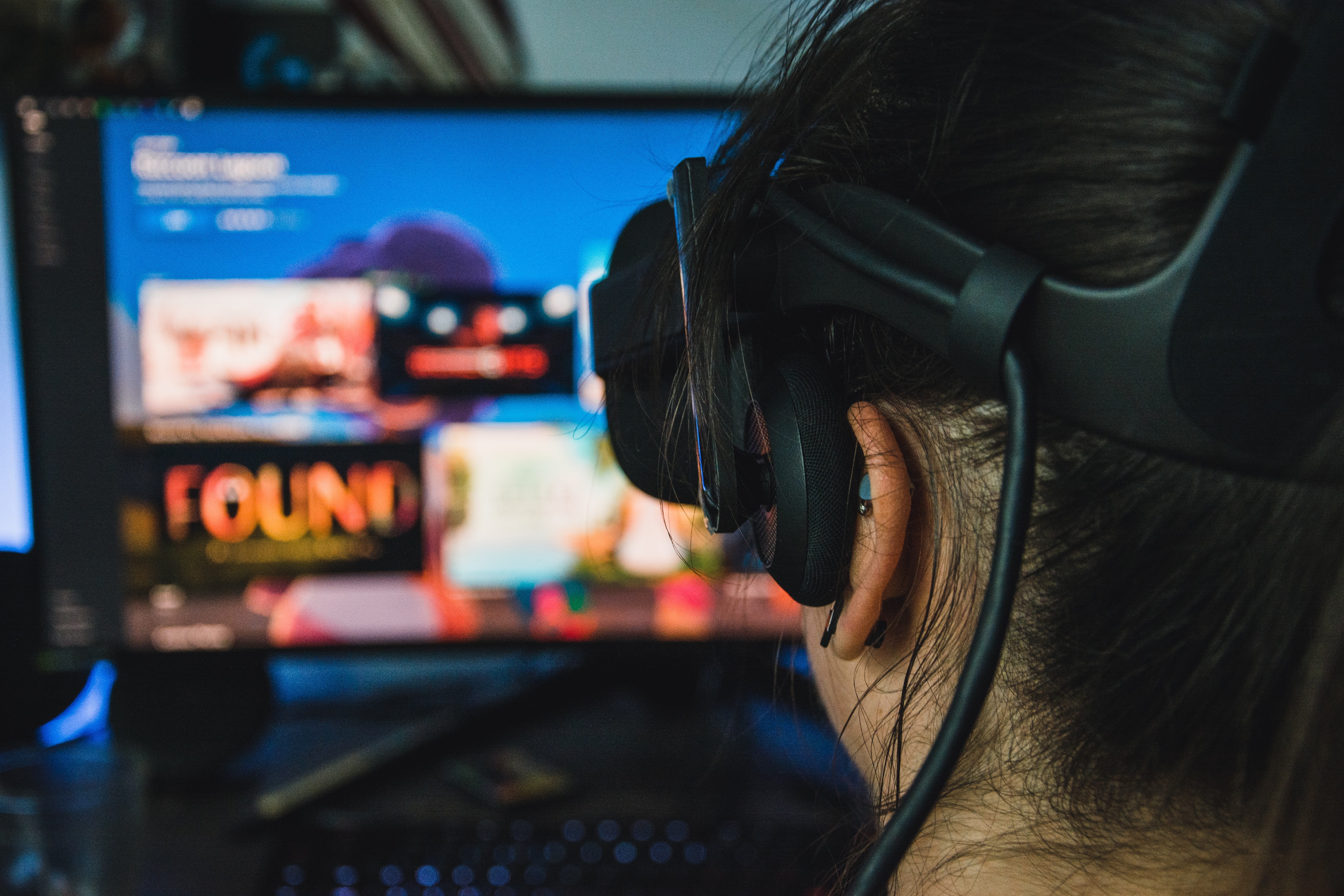
To watch YouTube in VR, the primary method is using the official YouTube VR app on a standalone headset like Meta Quest 2, Meta Quest Pro, Meta Quest 3, PICO 4, or Apple Vision Pro. This app lets you view any YouTube video in a fully immersive virtual environment or on a floating 2D panel, giving you the most seamless and feature-rich experience available.
How to watch YouTube in VR with the official app
The YouTube VR app is the best way to watch YouTube in VR because it is built specifically for virtual reality headsets, offering smooth playback and full access to YouTube's library. It is available for both Android and iOS devices, not just standalone headsets, and is currently supported on Meta Quest 2, Meta Quest Pro, Meta Quest 3, PICO 4, and Apple Vision Pro. On Meta Quest devices, you can watch content in a fully immersive environment or in a 2D panel mode, which is ideal for multitasking or using features like VR setup and TV casting.
How to sign in on Meta Quest devices
Signing into your YouTube account on a Meta Quest headset unlocks your subscriptions, playlists, and recommendations. The process uses an activation code for security.
- Open the YouTube VR app and switch to panel mode (the 2D floating panel view).
- Select "Account Settings" from the home screen.
- Click "Sign In" to display an activation code.
- Copy the code displayed on the screen.
- On a phone or computer, open a web browser and go to the sign-in flow provided by the app.
- Paste the activation code and complete the sign-in.
- Re-open the YouTube VR app on your headset to see your account active.
Supported video formats and quality
The YouTube VR app supports all YouTube-hosted videos, including standard 2D videos, immersive 360-degree videos, 180-degree videos (both 2D and stereoscopic 3D), and 3D videos. For resolution, YouTube VR on Meta Quest supports up to 4K resolution for purchased movies and 8K resolution on Meta Quest 3 headsets for other content, including 360° and 180° videos. The app also features spatial audio, where the sound's depth and distance change based on your head orientation, making the experience feel more realistic.
How to watch YouTube VR with a mobile viewer
If you do not own a standalone headset, you can watch YouTube in VR using a mobile VR viewer like Google Cardboard. For mobile VR viewers like Google Cardboard, use the latest YouTube app on an Android phone (Android 7.0 or higher is required for the YouTube VR APK).
- Open the YouTube app on your phone.
- To watch 360° videos with a mobile VR viewer, open the YouTube app, select a VR video (look for the 360° icon or 'VR' label), tap the Cardboard icon, and then place your phone in the viewer.
How to watch YouTube VR in a browser
Some VR headsets, like the HTC Vive XR Elite, allow watching YouTube 360° videos through their built-in web browser (e.g., Vive Browser) without needing a dedicated app.
- Open the headset's built-in web browser.
- Navigate to YouTube.com.
- Select a 360° video from the search results.
- To watch 360° videos via a VR headset's browser, navigate to YouTube.com, select a 360° video, then select the full-screen icon and the VR mode button below the video to switch to 360° view.
Frequently Asked Questions
Do I need a special headset to watch YouTube in VR?
Yes, you need a VR headset. The easiest experience is with a standalone headset like Meta Quest 2, Quest 3, or PICO 4, but you can also use a mobile viewer like Google Cardboard with a compatible Android phone or a browser on headsets like the HTC Vive XR Elite.
Is the YouTube VR app free?
Yes, the YouTube VR app is free to download and use on supported headsets. You only pay for any content you choose to rent or purchase, such as movies.
How do I control playback in the YouTube VR app?
On Meta Quest headsets, you use the built-in touch controllers to play, pause, rewind, and navigate videos. You can also look around by moving your head, and spatial audio adjusts to your orientation.
Can I watch any YouTube video in VR?
Yes, the YouTube VR app plays all YouTube videos, including standard 2D videos. However, for the most immersive experience, look for videos labeled as 360°, 180°, or VR content.
What is spatial audio in YouTube VR?
This makes audio feel like it is coming from specific directions in the virtual environment, increasing immersion.