The safest phones for kids are not defined by hardware durability or camera specs but by robust, documented parental controls that let you manage screen time, filter content, and block apps. For parents searching for the safest phones for kids, the Apple iPhone SE and Google Pixel 4a stand out because their manufacturers publish clear, step-by-step setup paths for these controls, while popular alternatives like the Samsung Galaxy A51 and Nokia 5.3 lack guaranteed, documented parental-control features.
What makes the safest phones for kids
Instead, the safest phones are those with strong, easy-to-set-up parental controls that let you manage screen time, filter web content, block apps, and approve purchases. The two most reliable options are the Apple iPhone SE, which uses Apple's Family Sharing and Screen Time, and the Google Pixel 4a, which uses Google's Family Link. Both manufacturers provide official, documented setup paths. Phones like the Samsung Galaxy A51 and Nokia 5.3 may offer other appealing features, but they lack the same level of documented, guaranteed parental-control support, making them less safe recommendations.
Apple iPhone SE: setting up Screen Time with Family Sharing
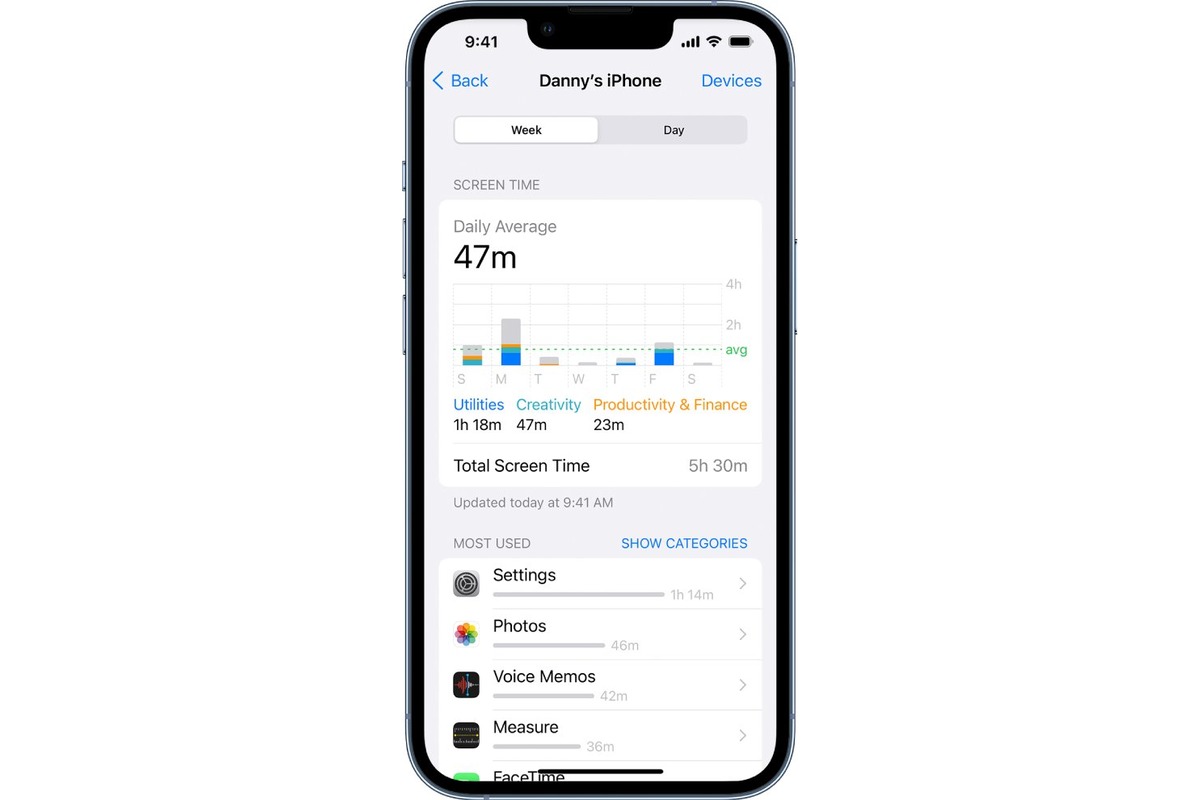
Apple's documented parental controls for the iPhone SE use Family Sharing and Screen Time. The child must have their own Apple Account added to your Family Sharing group. As the family organizer or another parent/guardian, you manage the child's Screen Time from your own iPhone or iPad.
To set up controls on the parent's device:
- Open the Settings app.
- Tap Family.
- Tap the child's name.
- Tap Screen Time.
- Tap Continue.
Apple also documents an alternative path: Settings > Screen Time > under Family tap the child's name. Once set up, you can enable App & Website Activity, set Lock Screen Time Settings with a 4-digit passcode, and manage app blocking and requests through Family > child's name > Blocked. You can control web content, app ratings, and media content ratings. To use the updated Screen Time experience, every device in your Family Sharing group must be on iOS 27, iPadOS 27, macOS 27, watchOS 27, or visionOS 27. No special limitation exists for the iPhone SE beyond it being an eligible device for Screen Time.
Google Pixel 4a: managing the device with Family Link
Google's documented parental controls for the Pixel 4a use Family Link. Supervised Android devices are managed through the Family Link app on your own phone. Note that iPhones, iPads, and computers other than Chromebooks cannot be supervised with Family Link.
To set up parental controls on the child's Pixel 4a:
- Open the Settings app.
- Tap Parental controls.
- Tap Get Google Family Link.
- Tap Get started.
- Enter the parental-controls PIN.
- Select an account to supervise or create a new account.
Google says to switch from on-device controls to Family Link, open Settings, tap Parental controls, tap Get Google Family Link, then Get started, enter the parental-controls PIN, and select an account to supervise or create a new account. After setup, open the Family Link app on your own device. Select the child at the top left, then tap Controls > Google Play to filter or restrict app access. Google documents screen-time tools including daily screen time limits, screen time schedules for school or downtime, and the ability to remotely lock the child's Android device. Some work and school accounts might not work with app timers. No Pixel 4a-specific limits or control paths are documented beyond these standard Android settings.
Phones to avoid for kids and why
Samsung Galaxy A51: Samsung says parental controls for child accounts can only be managed on and applied to Galaxy devices with One UI 5.1 or higher. The Galaxy A51 may run a lower version, and no official Samsung support page provides a detailed menu path or specific steps for this model. Without documented, guaranteed controls, it is not a safe recommendation.
Nokia 5.3: No official Nokia support page documents parental controls, menu paths, supported versions, or device limits for the Nokia 5.3. This lack of documentation makes it an unsafe choice for parents who need reliable, easy-to-set-up controls.
Frequently Asked Questions
What are the key safety features I should look for in a kids' phone?
Look for documented parental controls that allow you to set daily screen time limits, filter web content by age rating, block specific apps, and approve app downloads. The safest phones also let you lock settings with a passcode and manage requests from your own device.
How do I teach my child responsible phone usage?
Start by setting clear rules about screen time and appropriate content using the parental controls on the phone. Discuss why these limits exist, and involve your child in setting reasonable schedules. Regularly review their activity together to build trust and awareness.
How can I ensure ongoing safety after the initial setup?
Periodically check the parental control settings on your own device to adjust limits as your child grows. Enable activity reports if available, and keep the phone's operating system updated to receive the latest security patches and parental-control features.
For the wider topic, see iPhone models and camera specs.
Related reading: How To Block Youtube On Your Phone and Why Should Cellphone Be Allowed In School.