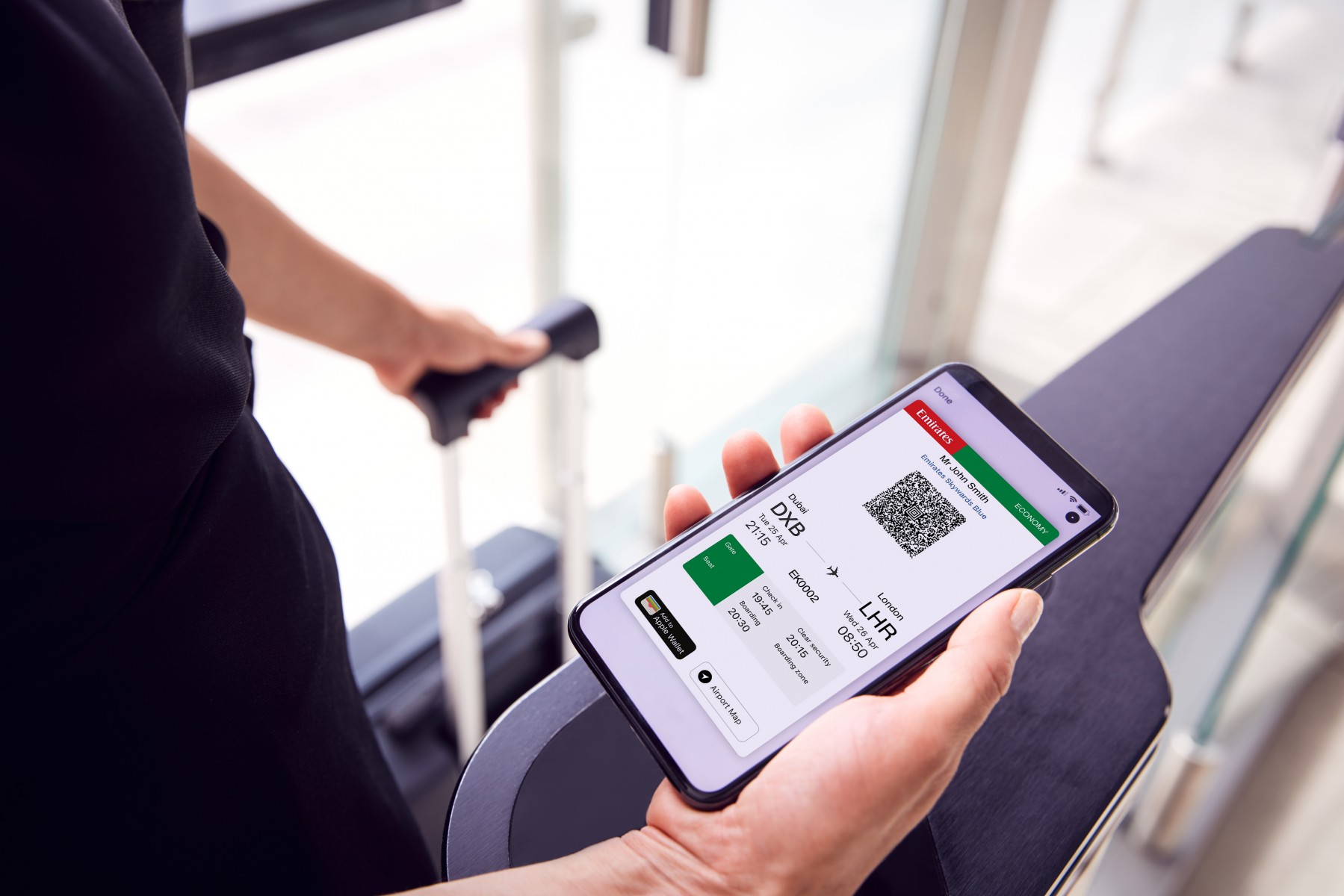
To use a mobile boarding pass, save the digital version of your paper pass to your phone's wallet and scan the barcode at airport security and the gate. Below are the platform-specific steps for iPhone and Android.
How to add a boarding pass to Apple Wallet
- Open the app, email, notification, or other communication that contains the boarding pass.
- Tap Add to Apple Wallet.
- Follow the instructions on the screen.
- If necessary, tap Add in the upper right corner.
- To present the pass, open Wallet on iPhone, authenticate if prompted, double-click the side button on Face ID models or the Home button on Touch ID models, tap the boarding pass, then scan it or present it to the attendant.
You can use the pass on an iPhone or Apple Watch with the latest version of iOS or watchOS, with Face ID or Touch ID turned on.
How to save a boarding pass to Google Wallet
- Open the boarding pass from an email, app, or website.
- Center the QR code or barcode on the screen.
- Take a screenshot using Power + Volume down.
- In the “Screenshot saved” notification, tap Add to Google Wallet.
- In the browser window that opens, tap Save and then View boarding pass to store it in the app.
Once saved, you do not need an internet connection to get your boarding passes.
How to use your pass at the airport
American Airlines says the boarding pass should be saved to the device for easy access at security and boarding. Scan the barcode at airport security checkpoints and at the gate during boarding for American flights. Make sure the entire barcode is visible on the screen when showing it at security. On iPhone, you can scan or tap the pass on the contactless reader, or present it to the attendant. On Google Wallet, hold the back of your phone close to the reader for a few seconds; a blue check mark appears when accepted.
Troubleshooting common mobile boarding pass problems
If 'Add to Apple Wallet' is missing: Contact the merchant or airline to confirm they support passes in Wallet.
If tap-to-use fails on Google Wallet: Open the app, tap View more passes, then open the ticket and show the barcode or QR code to the attendant. If there is more than one ticket, show each barcode.
If you are worried about connectivity: Google Wallet passes work offline, so you can access them without an internet connection.
Frequently Asked Questions
Can I use a mobile boarding pass for international flights?
Yes, mobile boarding passes can typically be used for both domestic and international flights, provided the departure airport and airline support the digital service.
What if my phone battery dies before boarding?
Carry a portable power bank or charger to keep your device operational. As a backup, you can print a physical copy of the boarding pass at an airport kiosk or seek assistance from airline staff.
Are mobile boarding passes secure?
Mobile boarding passes include security features to protect your travel information. Keep your device secure with a lock screen or biometric authentication, and avoid sharing your pass with others.
Do I need an internet connection to show my boarding pass at the airport?
No. Once saved to Google Wallet or Apple Wallet, the boarding pass is stored on your device and works offline, so you do not need an internet connection to display or scan it.
What devices support mobile boarding passes?
Google provides Android steps but does not list a minimum Android version. Most major airlines support mobile boarding passes through their apps or websites.
Can I use a mobile boarding pass if I am traveling with a mobile game cheat codes?
No. Mobile game cheat codes are unrelated to boarding passes and cannot be used to access flights or airport checkpoints. Stick to the official airline app or wallet pass for travel.