To make a wireless bridge between two routers, you enable Bridge mode in the Google Home app, which lets a Nest Wifi or Google Wifi router share a single Wi‑Fi network with a second Wi‑Fi device. This wireless bridge between two routers is designed to extend coverage without running Ethernet cables, but it works only with a single Wi‑Fi device, it is not a mesh system that supports multiple access points.
What you need for a wireless bridge
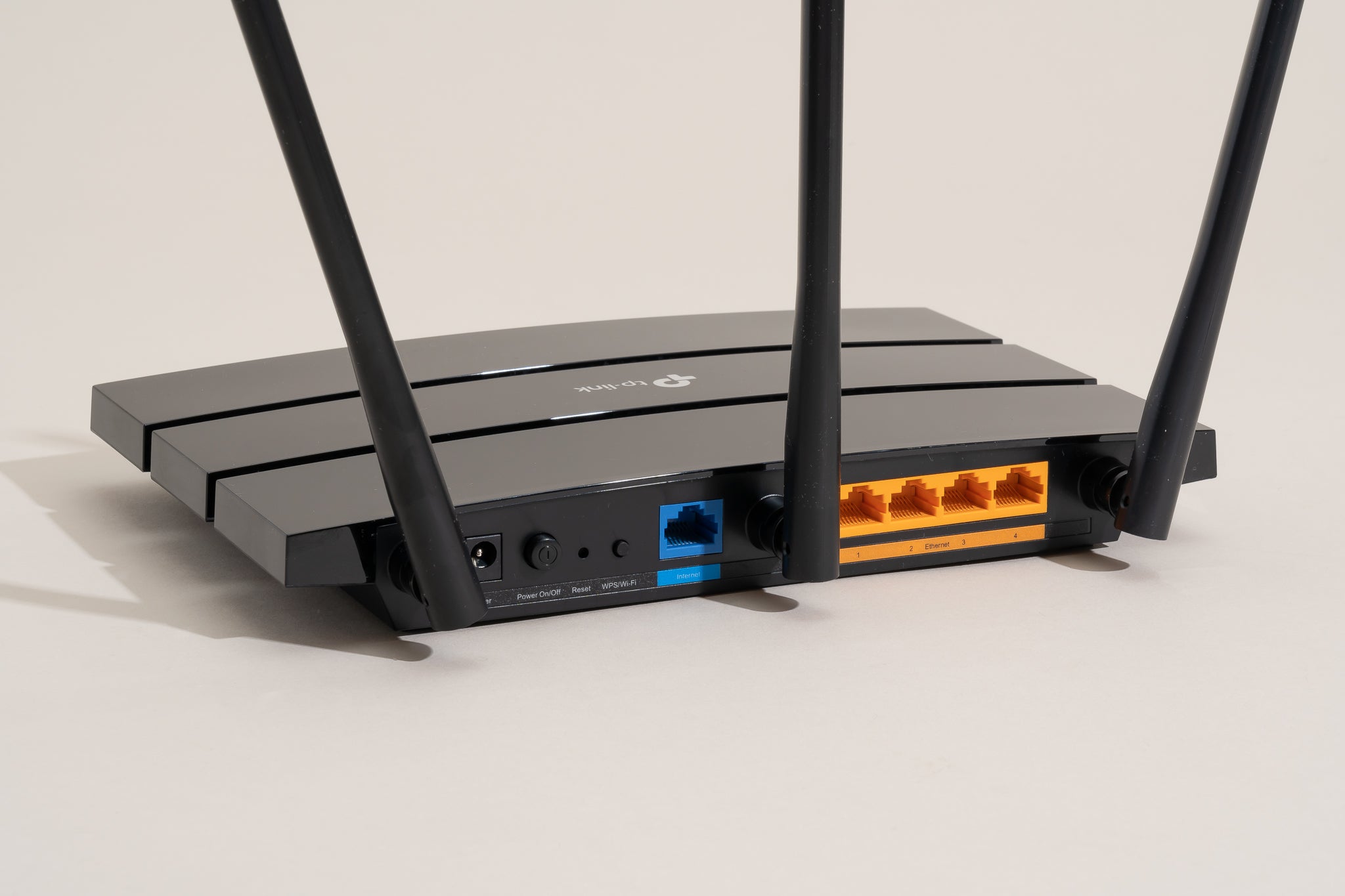
Bridge mode is a documented feature in the Google Home app for Nest Wifi and Google Wifi hardware. To use it, you need a router or primary Wifi point that supports Bridge mode, the Google Home app on Android or iPhone/iPad, and a single additional Wi‑Fi device to connect. The setup does not work with third‑party router brands in this configuration, and if you want a mesh network with multiple devices, the router or primary Wifi point cannot be in Bridge mode. Choose routers that support the same wireless standard (802.11n, 802.11ac, or 802.11ax). Ensure both routers operate on the same frequency band (2.4 GHz or 5 GHz). Consider routers with detachable antennas for flexible positioning. Check number of Ethernet ports on each router for connecting additional wired devices.
Set up Bridge mode on Android
Reset both routers to factory settings before starting. Update firmware on both routers to the latest version. Connect one router to computer via Ethernet cable to access settings.
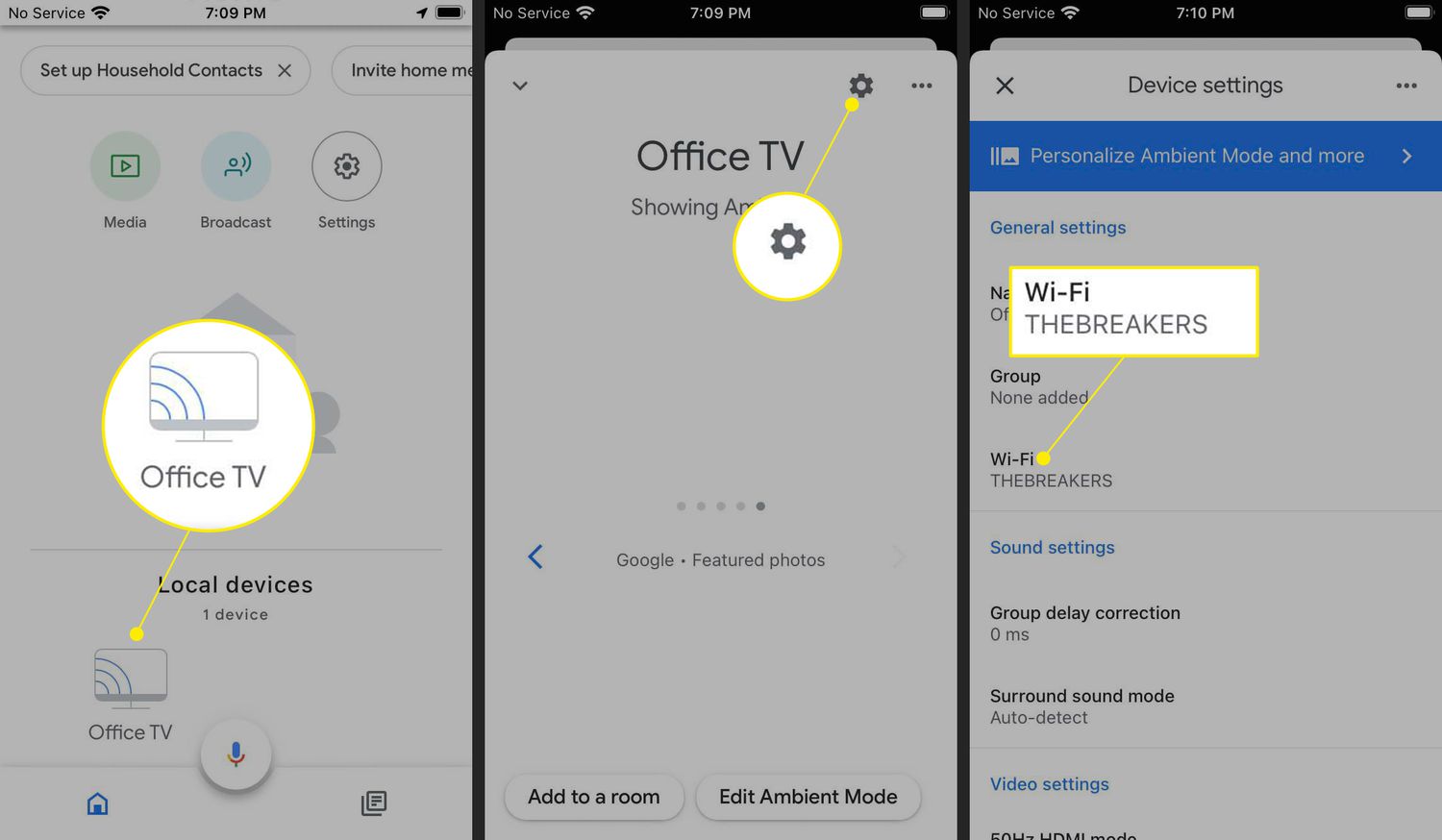
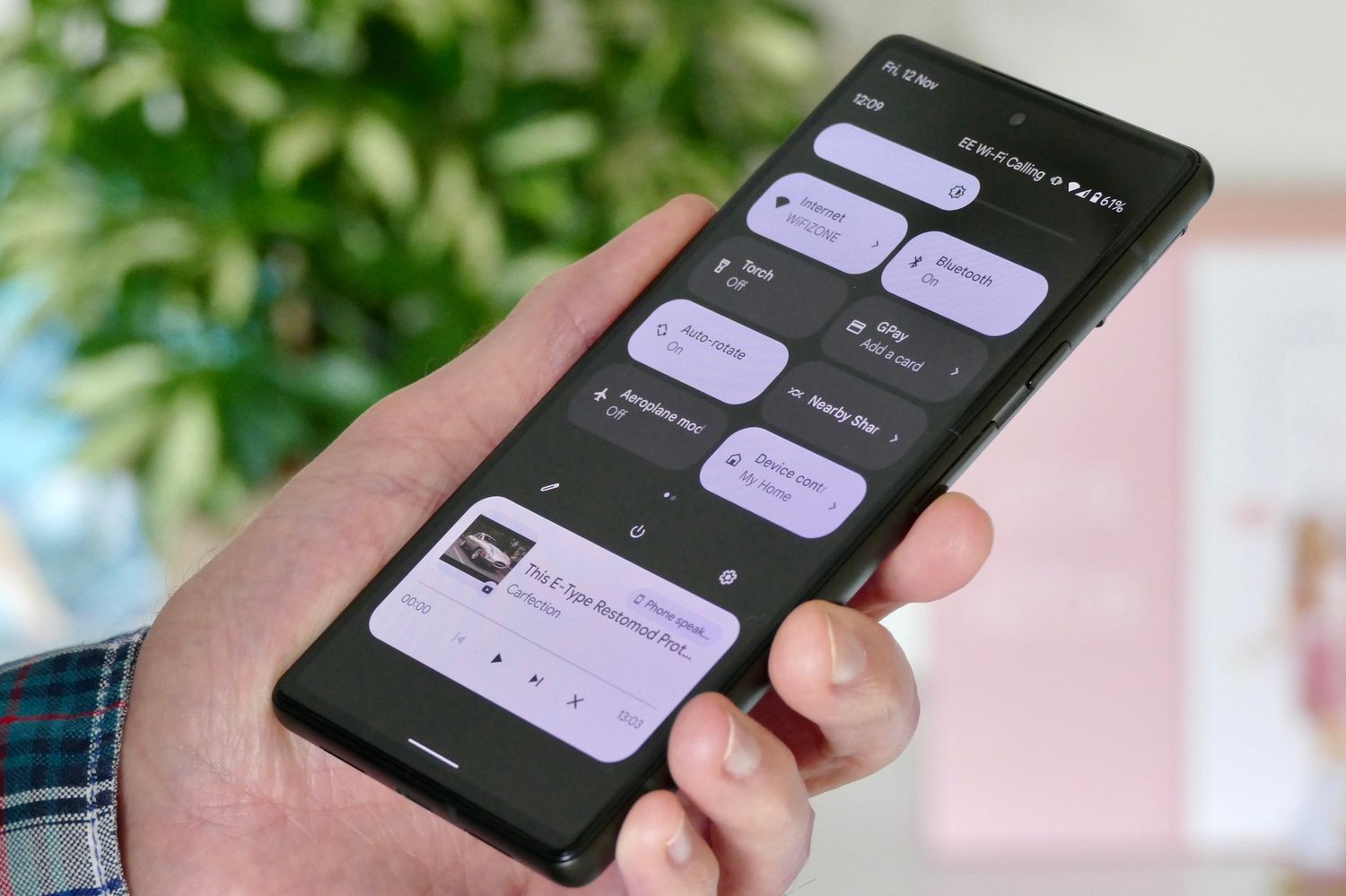
- Open the Google Home app.
- Tap Favorites > Wi‑Fi > Settings > Advanced networking.
- Tap Network mode > your Wifi router or point > Bridge mode.
- Tap Save.
After saving, the router or point will restart with Bridge mode active. This allows you to connect a second router or device wirelessly to share the same network name and password, which is useful when you want to connect wireless extender hardware without running a cable. Disable DHCP on the secondary router. Assign a static IP to the secondary router within the primary router's subnet but outside its DHCP range. Connect routers via Ethernet cable using LAN ports to create physical connection. Set both routers to use the same SSID and password for seamless roaming.
Set up Bridge mode on iPhone and iPad
- Open the Google Home app.
- Tap Save.
The process is identical to Android. Once saved, the device operates in Bridge mode, making it possible to connect a wireless access point to extend coverage to areas your primary router cannot reach. This is a straightforward way to improve network reach when setting up wireless connections across a home or small office.
Frequently Asked Questions
Can Bridge mode be used with multiple devices?
No. Google states that Bridge mode works only with a single Wi‑Fi device. If you try to add a second device, the router or primary Wifi point must not be in Bridge mode.
Can a mesh network use Bridge mode?
No. If you are creating a mesh network with multiple Wifi points, the router or primary Wifi point cannot be in Bridge mode. Bridge mode is intended for a single‑device extension, not for a multi‑node mesh.
What menu path is documented for Bridge mode?
The documented path in the Google Home app is Favorites > Wi‑Fi > Settings > Advanced networking > Network mode > your Wifi router or point > Bridge mode > Save. This path is the same on Android and iPhone/iPad.
Which products support Bridge mode?
The support documentation names Nest Wifi and Google Wifi as the products tied to this Bridge mode guidance. A longer model‑by‑model list is not provided in the retrieved text.
Can I create a wireless bridge between any two routers?
Not all routers support bridging; check your router's manual or specifications.