Guides and explainers for anyone using a phone to manage or enhance another device, from game consoles to wearable tech. These articles are written for everyday owners who want to connect their smartphone with a second screen, set up a new smartwatch, or simply get better sound from their wireless earbuds.
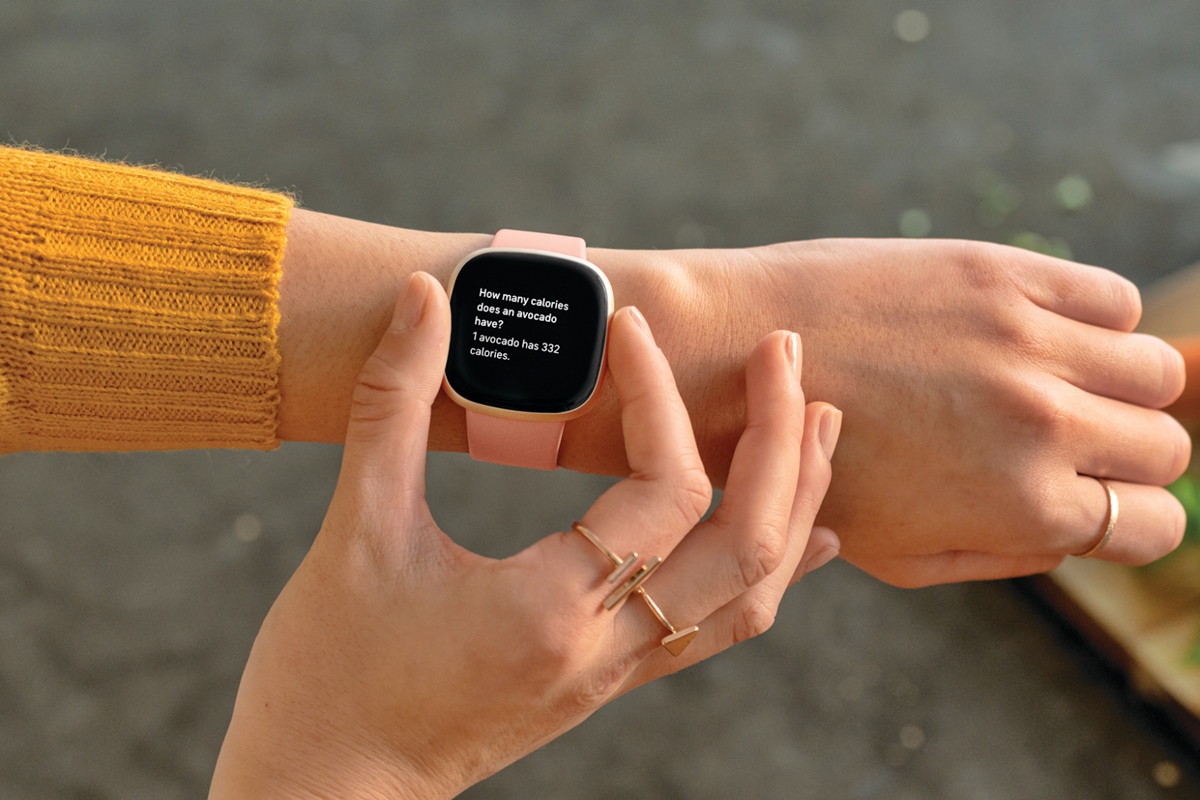
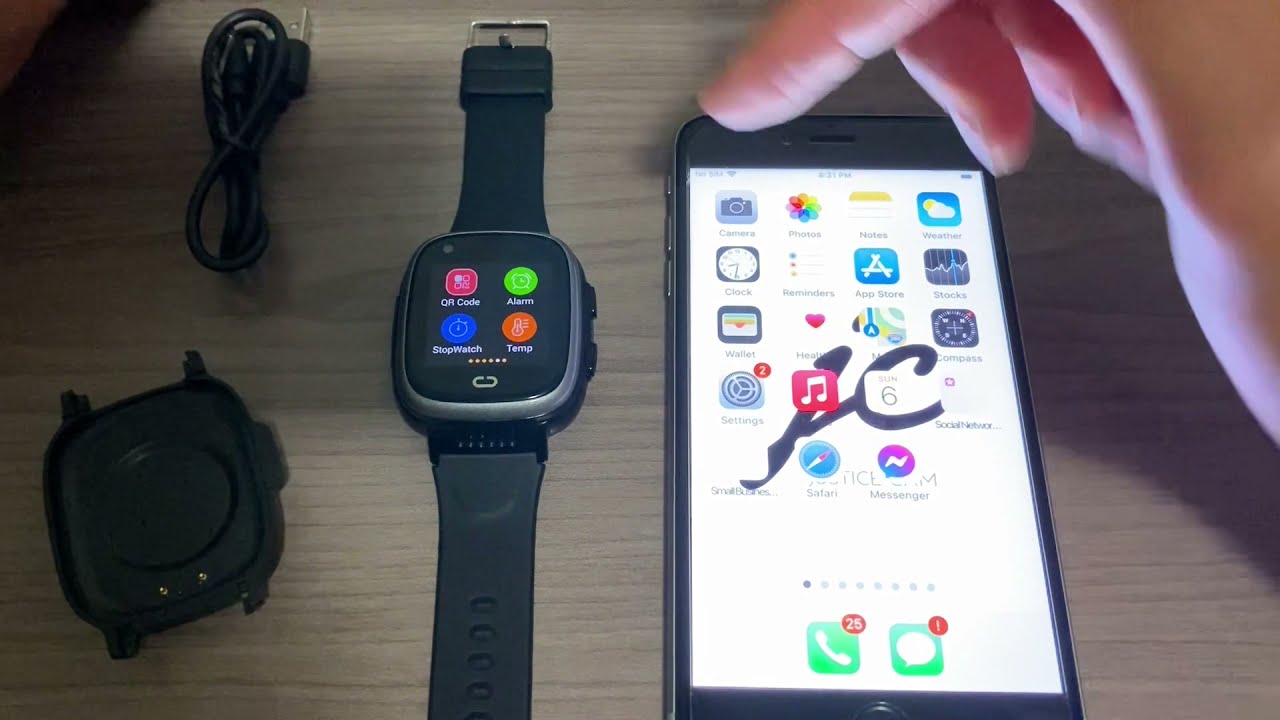
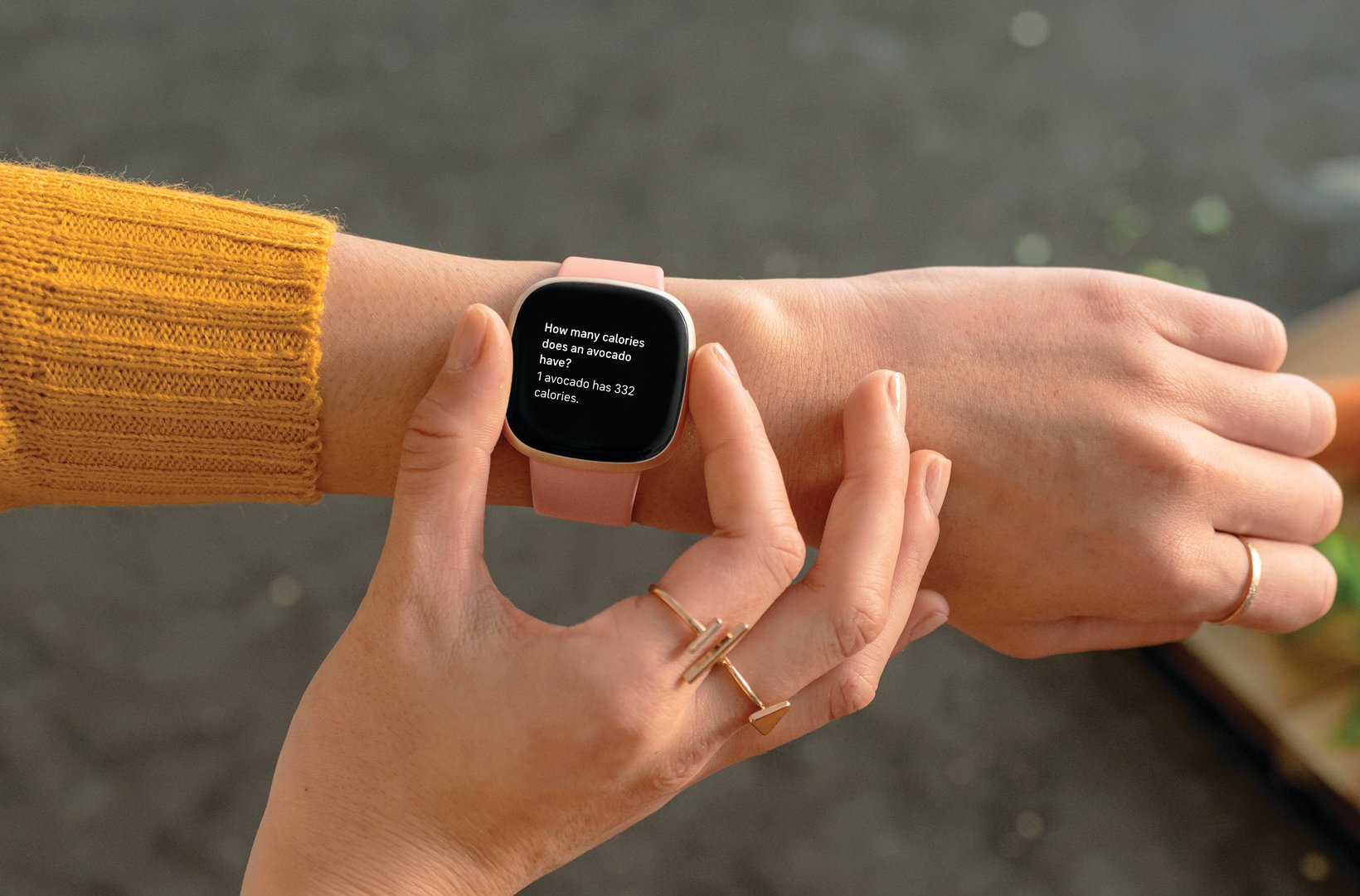
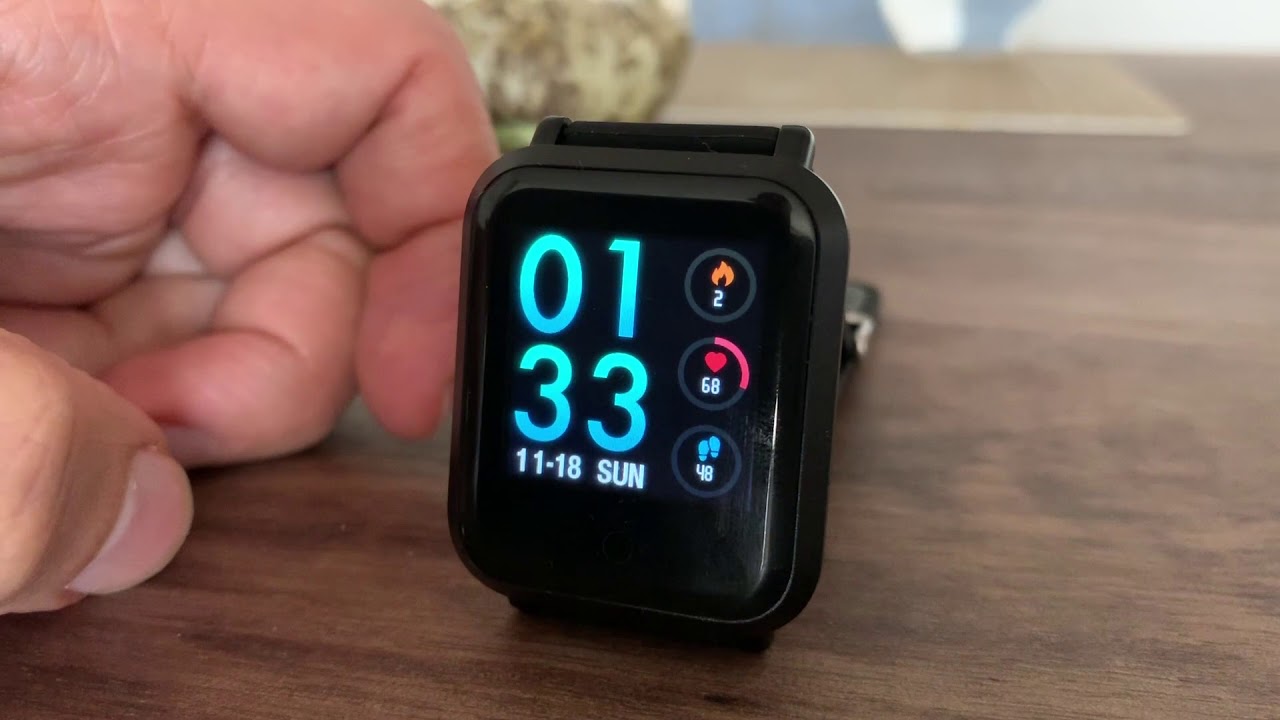
The problems these articles solve fall into two main themes: connecting and controlling external devices, and setting up wearable technology. For the first theme, the PS4 Second Screen guide shows how to use your phone as a companion display for your console, while the smartwatch and smart bracelet articles explain how these wearables pair with your phone and what they actually do. For the second theme, several articles focus on the practical setup tasks that often frustrate new owners, you can learn how to set the time on a Spade and Co smartwatch or a Justice smartwatch, and how to identify your specific smartwatch model when you are unsure of the brand. There is also a straightforward guide to turning up the volume on wireless earbuds, which helps when touch controls or phone settings are not immediately obvious.
Overall, these articles help the reader take immediate action: connect a console to a phone, adjust audio on earbuds, or get a wearable device up and running with the correct time and settings. They are practical, step-by-step solutions for common phone-adjacent problems.