Practical, step-by-step guides for anyone managing Microsoft’s email and calendar app on their Android phone. Whether you are a busy professional, a student, or someone simply trying to keep their digital life organized, these articles are written for you. They focus squarely on the mobile experience, helping you handle common account and security tasks without needing a desktop computer.
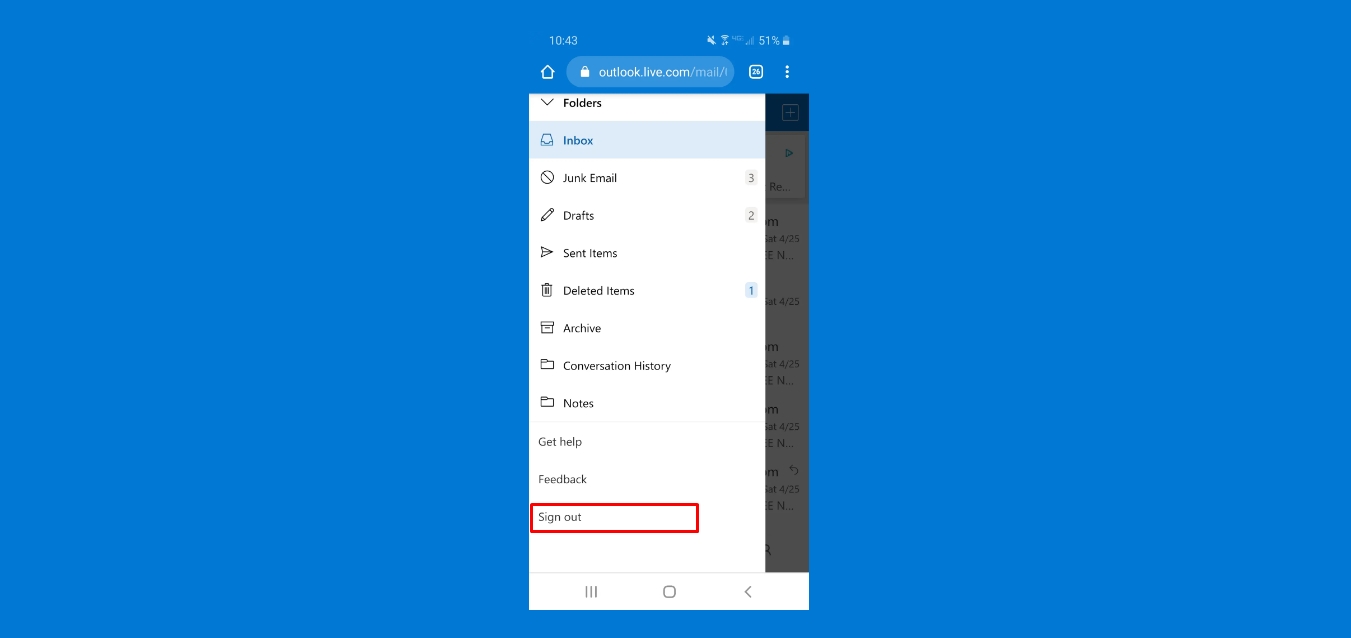
The articles here fall into two clear groups. One set helps you control your account access and security settings. For example, you can learn how to change your email password on Android, how to view a password you have saved in the Outlook mobile app, and how to change your phone number in Outlook 365 or update your verification phone number. The other group focuses on day-to-day app management and communication. These guides show you how to change your profile picture on Outlook Mobile, how to send a high priority email, how to set an out of office reply, and how to sign out of the app completely. You will also find instructions for deleting Outlook data files to free up space or start fresh.
In short, these articles are built to solve real, specific problems you face while using Outlook on your phone. They help you do things like secure your account, manage your contact information, control your app presence, and clean up stored data. Each guide is a direct answer to a common question, with no fluff or extra promises.