Start here: power button

All topics →

The "power button" tag on CellularNews collects straightforward guides for anyone who needs to manage the basic on/off functions of their phones, earbuds, and related devices. This page is for everyday users troubleshooting a frozen screen, learning how to start a new phone, or simply trying to turn off a device properly. The articles here solve real, common problems that can be grouped into a few clear themes.

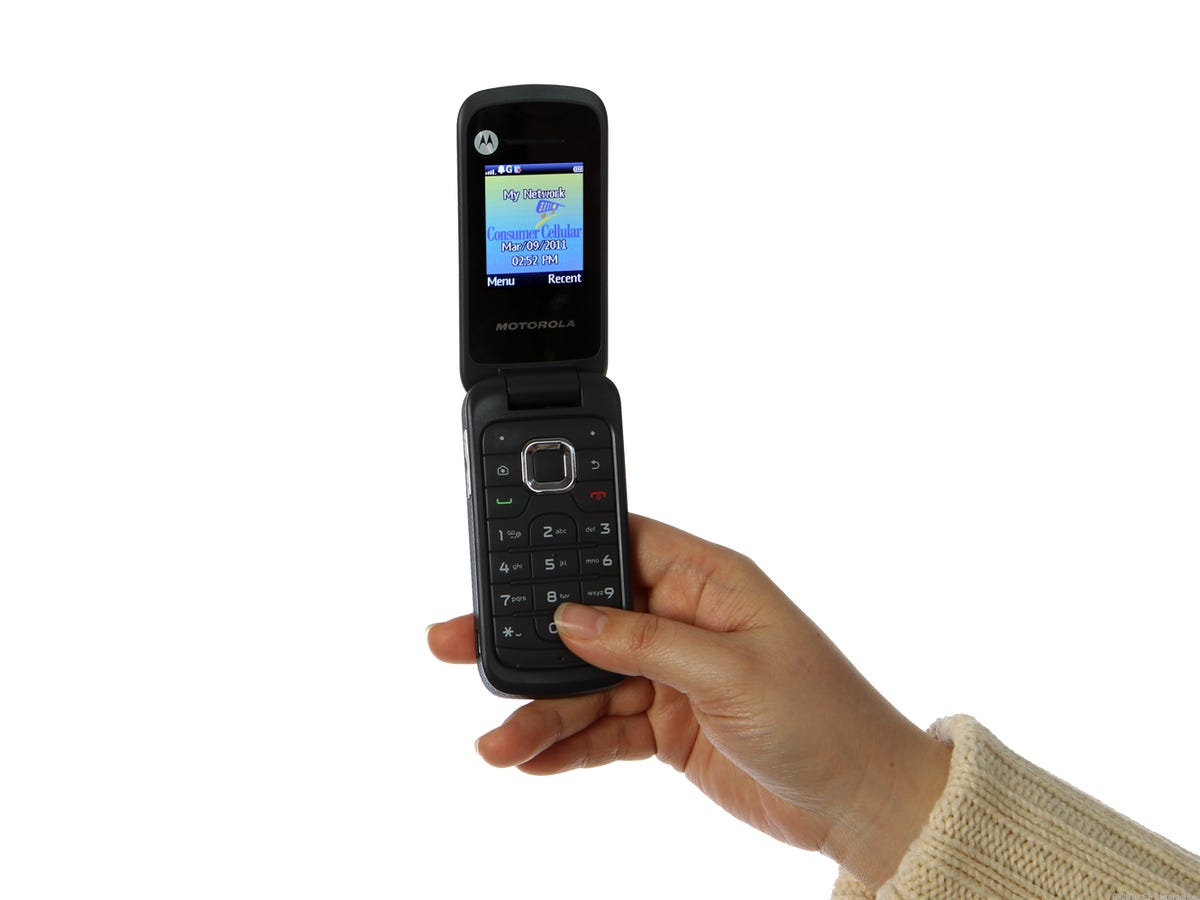
One major theme is simply getting a device started or shut down. You will find specific instructions for turning on a wide range of flip phones, from the Jitterbug and AT&T models to the Alcatel, Kyocera, and TCL versions. The tag also covers how to power on modern smartphones like the Galaxy and LG phones, as well as wireless audio gear such as Beats Flex earbuds and Beats wireless headphones. When things go wrong, another theme is recovery: articles explain how to unfreeze an Android phone or a Motorola phone, how to reboot an Android device, and how to disable an emergency call on Android. Finally, a few practical extras show you how to take a screenshot on a Motorola phone or a Kindle Fire, and even how to turn off a Promethean board with your phone.
Powering Your Phone On and Off

Before you start: is it frozen or just off Learning how to power on phone correctly starts with figuring out what you are actually dealing with, because a black screen...

How To Turn Off Google Phone

To turn off your Google phone, press and hold the power button until the power menu appears, then tap "Power off." This is the primary method for physically powering down...

How To Turn Off Motorola Moto G Pure

To turn off your Motorola Moto G Pure, press and hold the Power button, then tap Power off on the screen. This guide covers the documented methods for powering your...

What Is The Button On The Side Of The IPhone 13

The button on the side of the iPhone 13 is the Side button, and it is your device's primary physical control for power, Siri, Apple Pay, and emergency features. Understanding...

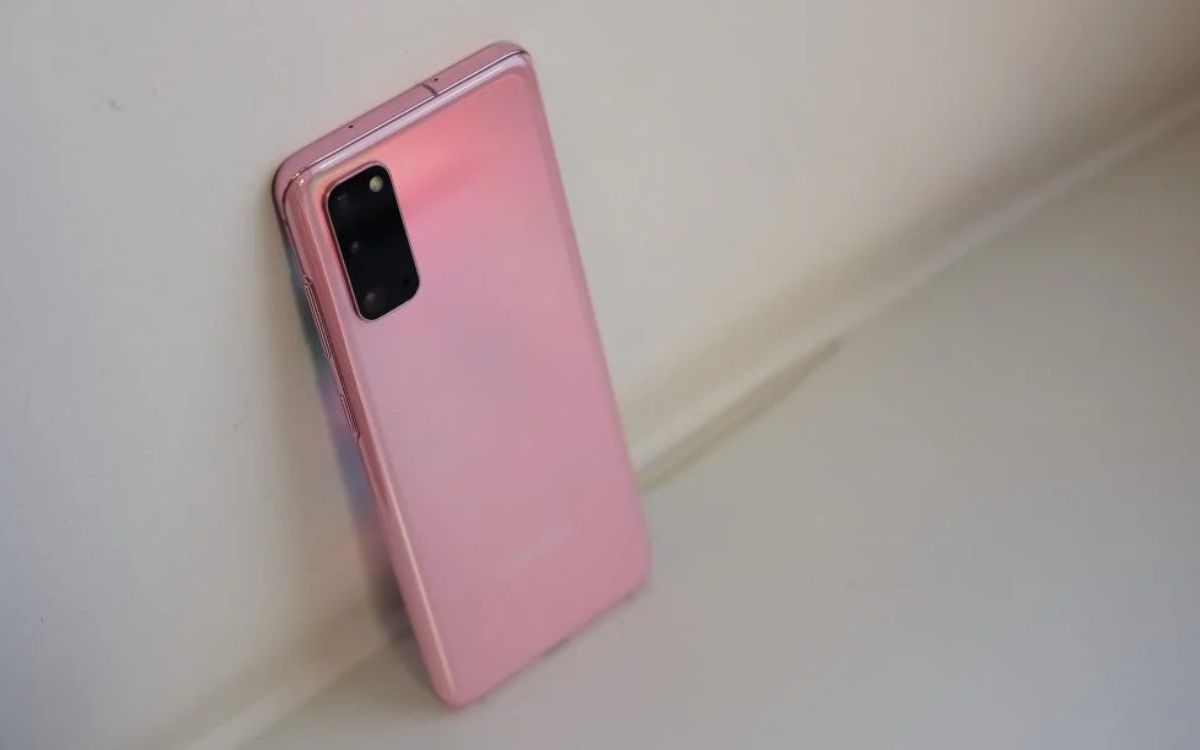
How To Lock Screen On Samsung S20

To lock screen on Samsung S20 immediately, press the Side key (power button) once. This turns off the display and, if you have set a PIN, pattern, password, or biometric...

How To Open Samsung S20 Phone

To open your Samsung S20 phone, press and hold the Side button until the Samsung logo appears. What 'opening' your Samsung S20 really means When you search for "how to...