Connecting devices, managing network settings, and troubleshooting wireless issues, specifically for smartphone users and those integrating phones with other gadgets like TVs, game consoles, and smart home devices. Whether you are a casual user trying to stream content or a gamer looking to cast your phone screen, these guides are designed to help you get things working without unnecessary complexity.
The articles here solve practical problems grouped into two main themes. The first is connectivity and casting, where you can learn how to connect your phone to a TV, cast an iPhone or Android device to a screen, and stream mobile games or VR content. The second theme is network and device troubleshooting, covering topics like resetting network settings, fixing YouTube videos that won’t play, understanding why Roblox is not working, and dealing with Apple CarPlay failures. You will also find explanations for specific issues such as what “No Location Found” means on an iPhone and whether Ring cameras work without Wi-Fi.
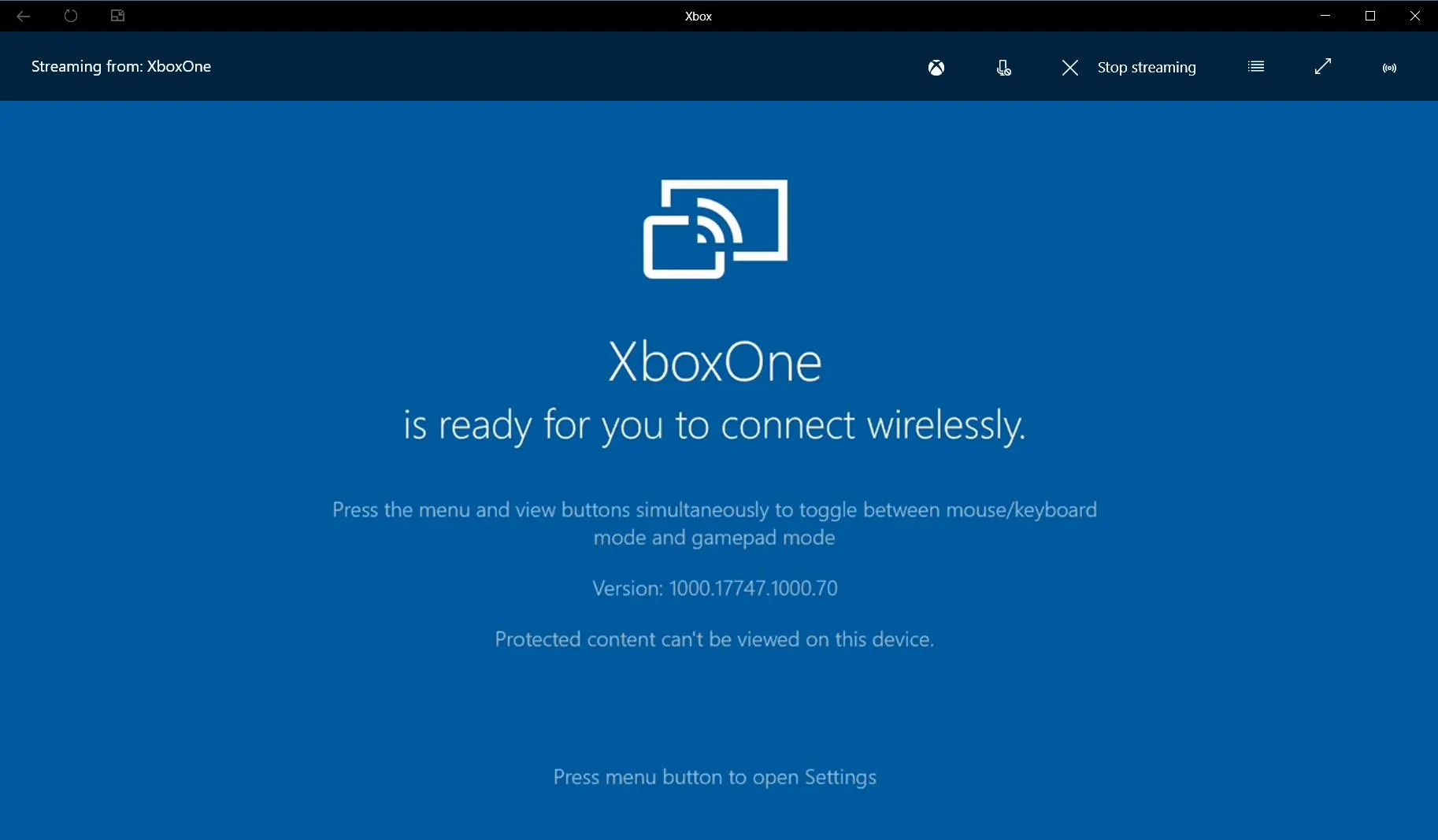
Beyond solving problems, these articles help you perform specific tasks. You can learn how to use a mobile hotspot without data, change your IP address, transfer files from Android to Android, or set up a Ring light. For gamers, there are guides on using the Steam Link app, connecting a VR headset to a PC, and using your phone as a Just Dance controller. The collection also covers practical comparisons like 4G versus Wi-Fi speed and how to use a cellphone without a service provider, giving you clear steps for everyday mobile and wireless needs.