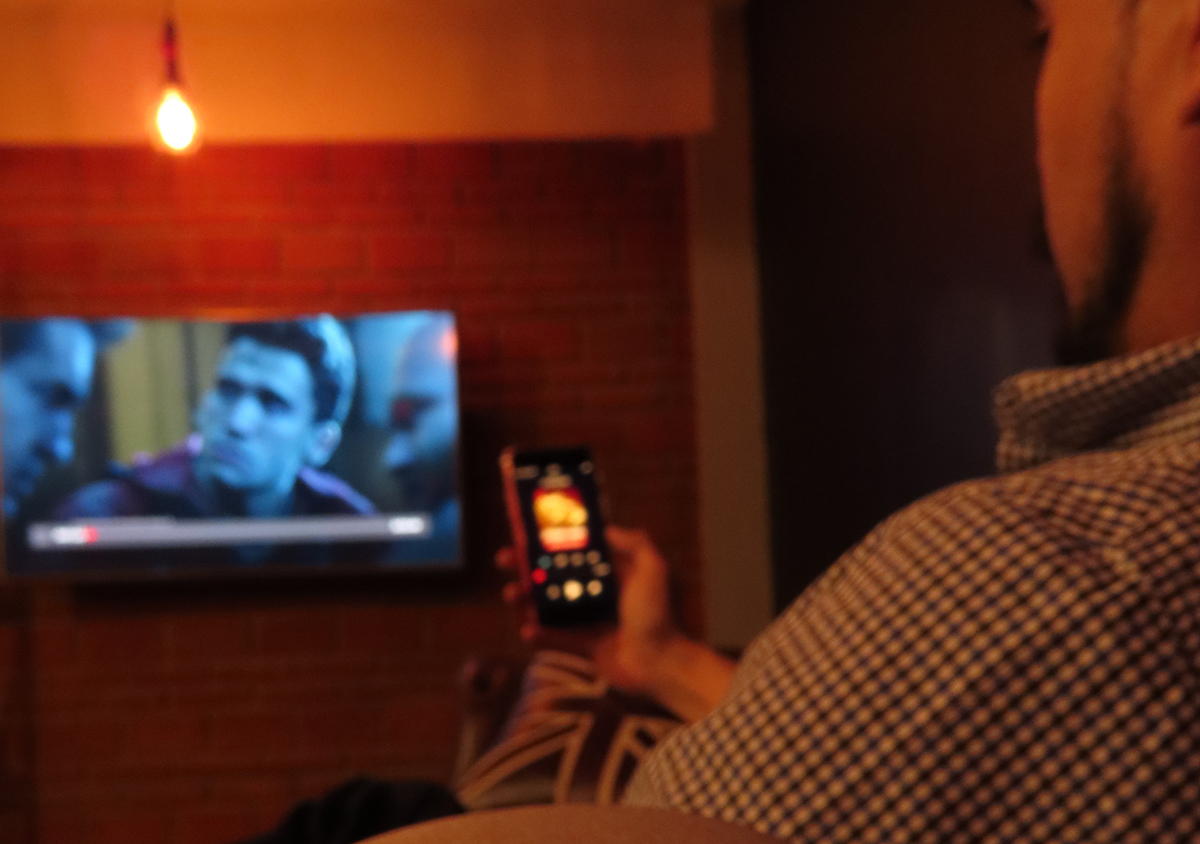
To connect your phone to a TV, the quickest methods are wireless: use AirPlay for iPhone or Chromecast for Android. For a universal, cable-free fallback that works with any phone, use an HDMI cable with the proper adapter. This expert guide walks you through each reliable method, step by step, so you can start watching on the big screen in minutes.
Before you start: check your Wi-Fi and updates
For all wireless casting and mirroring methods, your phone and TV must be connected to the same Wi-Fi network. Additionally, ensure both your phone and TV are updated to the latest software.
Connect your iPhone to a TV with AirPlay
AirPlay is Apple's built-in wireless streaming feature. It works with Apple TV or any AirPlay 2-compatible smart TV (common on Samsung, LG, Vizio, and Sony models from recent years).
Screen mirroring (display your entire iPhone screen)
- Connect your iPhone and your Apple TV or AirPlay-compatible TV to the same Wi-Fi network.
- Open Control Center on your iPhone. On models with Face ID, swipe down from the upper-right corner. On models with a Home button, swipe up from the bottom edge.
- Tap the Screen Mirroring button (icon looks like two overlapping rectangles).
- Select your Apple TV or AirPlay-compatible TV from the list.
- If a passcode appears on your TV screen, enter it on your iPhone.
- To stop mirroring, open Control Center, tap Screen Mirroring, and select Stop Mirroring.
Streaming video or audio from an app
- Open the app (e.g., Netflix, YouTube, Photos) and play the video or audio you want to watch.
- Tap the AirPlay button (icon looks like a TV with a triangle at the bottom) within the app.
- Select your Apple TV or AirPlay-compatible TV from the device list.
- To stop streaming, tap the AirPlay icon again and choose your iPhone, or select Turn off AirPlay.
You can connect an iPhone to an Android TV stick by plugging it into the TV, installing the Kodi media server app, and tapping the AirPlay button, though this method is slow and unreliable. Third-party apps like Fast Cast can mirror an iPhone, iPad, or Mac screen to an Android TV.
Connect your Android phone to a TV with Chromecast
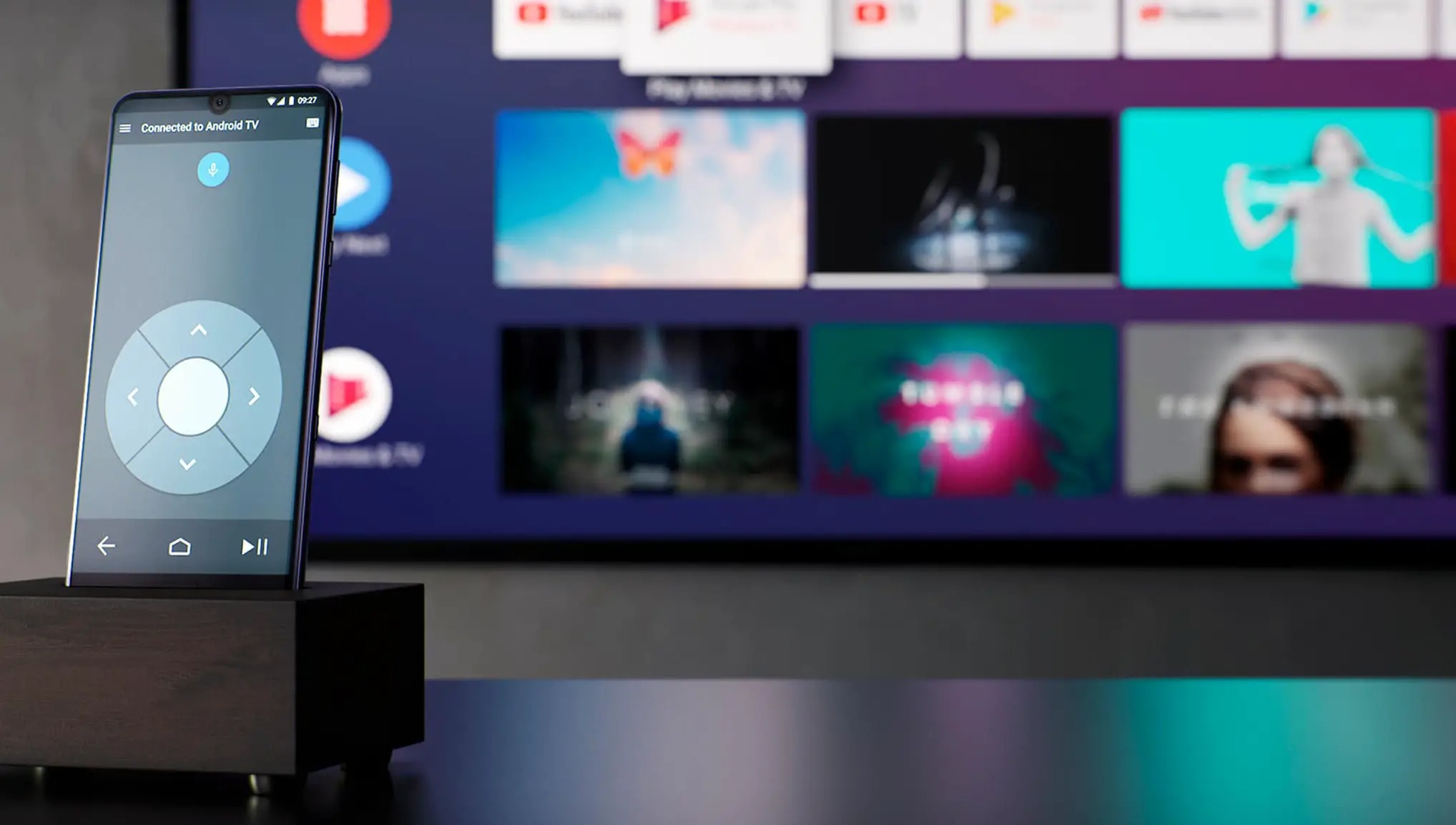
Chromecast is Google's casting standard, built into most modern smart TVs (Google TV, Android TV) or available via a Chromecast dongle. It works with both Android and iPhone, but this section covers Android.
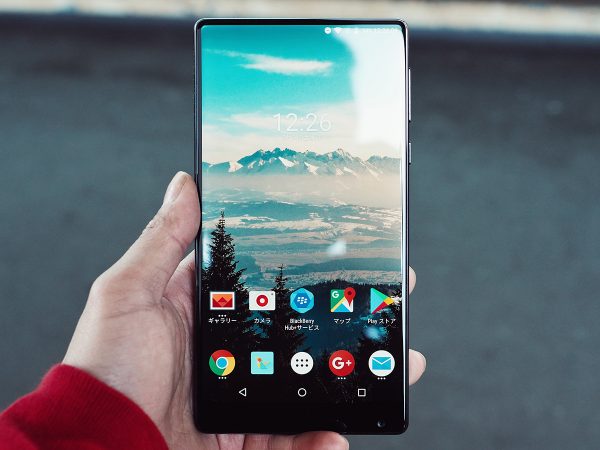
Screen mirroring (display your entire Android screen)
- Connect your Android phone and your TV/Chromecast to the same Wi-Fi network.
- Swipe down from the top of your screen to open Quick Settings (you may need to swipe down twice on some phones, like Pixel).
- Tap the Cast or Screen Cast icon (looks like a rectangle with a Wi-Fi symbol in the corner).
- Select your Chromecast or Google Cast-enabled TV from the list.
- To stop, tap the Cast icon again and select Disconnect.
Note: Pixel phones do not support Miracast; they require Chromecast or Google Cast built-in. This method is the standard for all Android phones. For Amazon Firestick mirroring from Android, your phone must support Miracast, and you must enable the 'Mirror' function on the Firestick beforehand.
Streaming content from an app
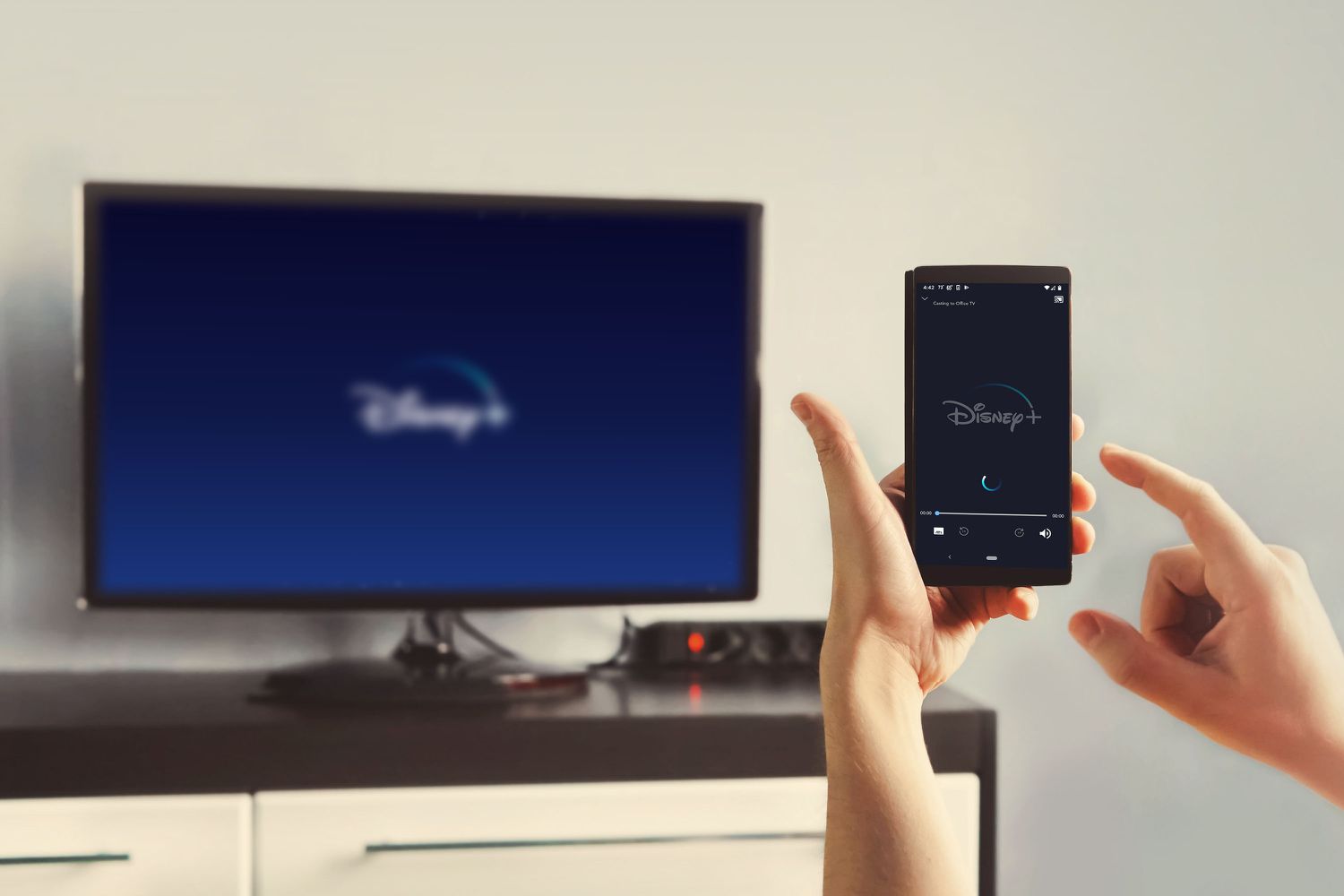
- Open a cast-compatible app (e.g., YouTube, Netflix, Spotify).
- Tap the Cast icon (a rectangle with a Wi-Fi symbol) in the app.
- Choose your Chromecast or Google Cast-enabled TV from the list.
- You can cast a single app or your entire screen, depending on the app's options.
Connect any phone to a TV with an HDMI cable
For a wired, universally compatible connection, HDMI is the most reliable. Since phones don't have HDMI ports, you'll need an adapter.
For iPhone (Lightning or USB-C)
- Get an Apple Lightning Digital AV Adapter (for iPhone 14 and earlier) or a USB-C Digital AV Multiport Adapter (for iPhone 15 and later). The Apple Lightning Digital AV Adapter has an extra port for charging your phone while connected to the TV.
- Plug the adapter into your iPhone's charging port.
- Connect one end of an HDMI cable to the adapter's HDMI port.
- Connect the other end to an available HDMI input on your TV.
- Switch your TV's input/source to the correct HDMI port. Your iPhone screen will appear.
For Android (USB-C with DisplayPort Alt Mode)
- Check that your Android phone's USB-C port supports DisplayPort Alt Mode (most newer flagships do).
- Use a USB-C to HDMI cable or a USB-C to HDMI adapter with a separate HDMI cable.
- Plug the USB-C end into your phone and the HDMI end into your TV.
- Switch your TV to the correct HDMI input. Your phone's screen will be mirrored.
For Android, you can connect via USB cable to the TV's USB port to transfer and play photo albums or videos; on an LG TV, select 'Transfer Photos and Videos (PTP)' on the phone, then press Home on the TV remote and select 'Photos & Videos'.
Alternative: screen mirroring with Samsung Smart View
Samsung Galaxy users can use the built-in Smart View feature to connect to compatible Samsung TVs wirelessly. DLNA is a generic streaming standard on many internet-enabled TVs that lets you stream unprotected files from your phone, laptop, or tablet to your TV or gaming console without converting files. LocalCasts and AllCast are Android apps for streaming to DLNA devices; AllCast can also stream to PlayStation 4 and from Dropbox.
- Ensure your Samsung phone and TV are on the same Wi-Fi network.
- Swipe down from the top of your phone's screen to open Quick Settings.
- Tap Smart View (icon looks like a rectangle with a Wi-Fi symbol).
- Select your Samsung TV from the list.
- If prompted, tap Start now on the pop-up message.
- To adjust the aspect ratio if the image is small: Go to Smart View > tap More Options (three vertical dots) > Settings > Phone aspect ratio > select Full screen on connected device. Samsung Smart View has a 'Remember settings' option to automatically switch to full screen on the connected device when mirroring starts.
What to do if your phone won't connect to the TV
Most connection issues stem from simple oversights. First, confirm both devices are on the same Wi-Fi network, even a guest network can cause problems. Second, restart both your phone and your TV; this clears temporary glitches. Third, check for software updates on both devices, as outdated software can break compatibility. If you're still stuck, try forgetting the TV/Chromecast in your phone's Wi-Fi settings and reconnecting, or check if your TV requires you to enable screen mirroring in its input/source menu (options may be called Miracast, Wireless Display, or Screen Sharing).
For the wider topic, see casting your phone to a TV.
Frequently Asked Questions
How do I set up a new Chromecast for the first time?
Plug the Chromecast into your TV's HDMI port and connect it to power, then use the Google Home app on your phone to connect it to your Wi-Fi network. The app will guide you through the remaining setup steps.
Where is the AirPlay setting to stop my iPhone from automatically connecting?
Go to Settings > General > AirPlay & Continuity, then tap "Automatically AirPlay" and choose "Never," "Ask," or "Automatic." This controls whether your iPhone connects to nearby AirPlay devices without prompting.
Can I mirror my Google Pixel phone to a TV that lacks Chromecast?
No, Pixel phones do not support Miracast and require a Chromecast or Google Cast-enabled TV for screen mirroring. You must use a Chromecast dongle or a TV with Google Cast built-in.
Related reading: How To Connect Phone To Sharp TV and How To Stream Crunchyroll From A Phone To TV.