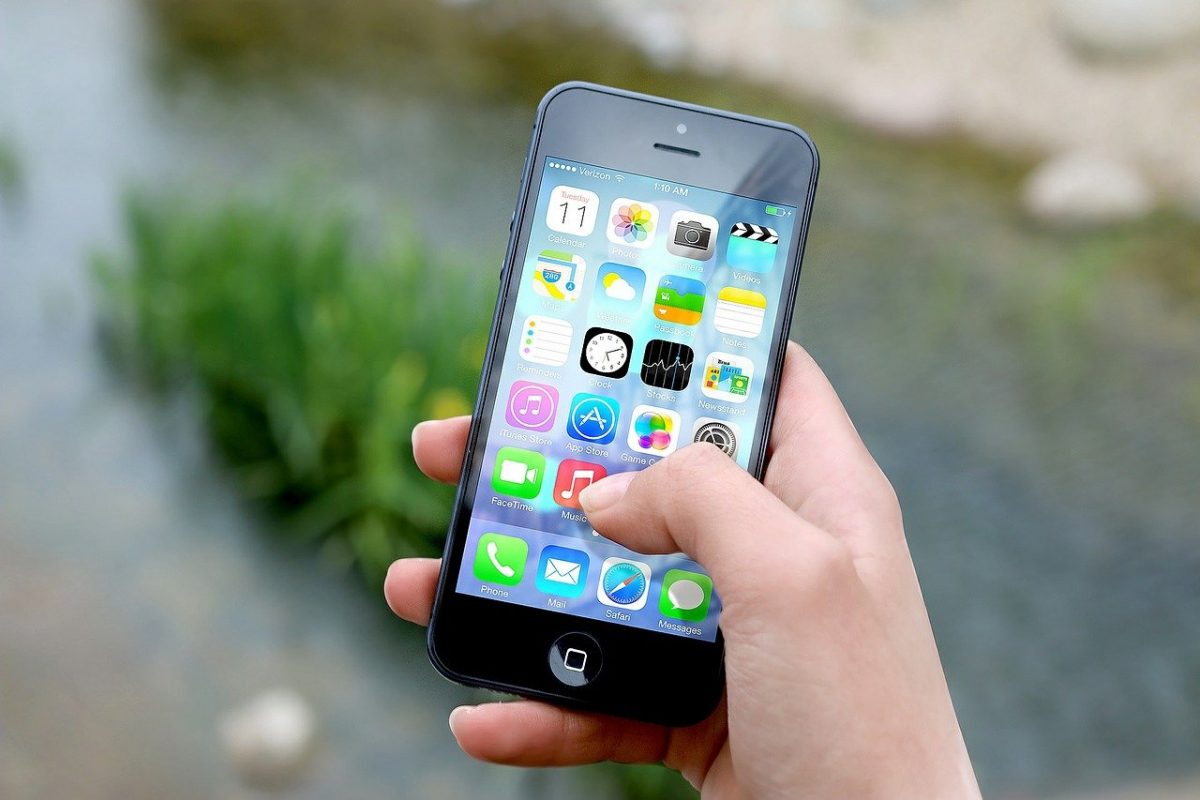
The simplest way to transfer apps to a new iPhone is to use Quick Start during the initial setup of your new device. This official Apple method wirelessly transfers all your apps, data, and settings from your old iPhone to your new one without needing a computer or iCloud.
How to transfer apps to a new iPhone with Quick Start
Quick Start is the easiest wireless method to transfer all apps, data, and settings from an old iPhone to a new one during the initial setup process. Both iPhones must be running iOS 11 or later, and for a full wireless transfer of all data, both devices need iOS 12.4 or later.
To use Quick Start:
- Place your old iPhone near your new iPhone. Ensure both devices are connected to Wi-Fi and plugged into power.
- Turn on your new iPhone. A "Set Up New iPhone" screen should appear on your old device.
- Follow the on-screen instructions to scan the animation on your new iPhone with your old iPhone's camera.
- Enter your old iPhone's passcode on the new device when prompted.
- Follow the remaining setup steps to transfer your apps, photos, contacts, settings, and Wi-Fi passwords wirelessly.
If your new iPhone has already been set up, you must erase all its content and settings before you can use Quick Start. Go to Settings > General > Transfer or Reset iPhone > Erase All Content and Settings. After the device restarts, you can begin the Quick Start process from the beginning.
How to restore apps from an iCloud backup
Transferring apps and data by restoring a new or erased iPhone from a recent iCloud backup is another straightforward method. This transfers apps, messages, settings, and home screen layout. The restore process is "all or nothing"; you cannot selectively restore only certain apps or data.
To restore from an iCloud backup:
- Turn on your new iPhone (or one that has been erased) and proceed through the setup screens until you reach the "Transfer Your Apps & Data" screen.
- Select "From iCloud Backup."
- Sign in with your Apple ID and password.
- Choose the most relevant backup from the list, based on date and size.
- Wait for the restore to complete. Keep your device connected to Wi-Fi and power during this process. You must verify the action by entering a verification code sent to your other Apple devices.
If you have already set up your new iPhone without restoring a backup, you must erase all content and settings first. After the device restarts, you can follow the steps above to restore from an iCloud backup.
How to transfer apps using a computer backup
Using Finder or iTunes on a computer to restore a full backup to a new iPhone is a reliable method when wireless options are not available. Before restoring from a computer backup, you must turn off "Find My" on the old device. Go to Settings > your name > Find My > Find My iPhone and toggle it off.
To restore from a computer backup:
- Connect your new iPhone to the computer that holds the backup.
- Open Finder (on macOS Catalina or later) or iTunes (on macOS Mojave or earlier, or Windows).
- Select your device when it appears in the sidebar or device list. You must tap 'Trust This Computer' on the iPhone and enter a verification code sent to another device.
- Click "Restore Backup" under the Backups section.
- If the computer backup is encrypted, enter the password when prompted.
- Wait for the restore to complete. Do not disconnect your device during this process.
This method also requires that your new iPhone has not been previously set up, or that you erase it first using the steps described in the iCloud backup section.
How to re-download apps from the App Store
Manually downloading previously purchased apps from the App Store's purchase history is a method for getting apps without restoring a full backup. This is useful if you want to install specific apps without transferring all your data and settings.
- Open the App Store on your new iPhone.
- Tap your profile icon in the upper-right corner.
- Select "Purchased" (or "My Purchases").
- Tap the "Not on This iPhone" tab to see apps you have downloaded with your Apple ID but not yet installed on this device.
- Tap the download icon next to each app you want to install.
Note that this method only downloads the apps themselves, not the app data or settings from your old device. In iOS 14 and later, you can also transfer individual apps via AirDrop: touch and hold the app, tap Share > AirDrop, and choose your new iPhone.
Using third-party software to transfer apps
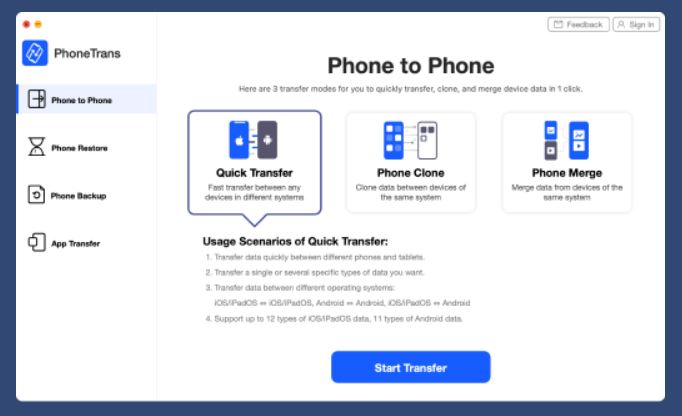
A brief mention of tools like PhoneTrans as an alternative for selective data transfer, noting the general risks and limitations of the all-or-nothing official methods. Third-party software can sometimes allow you to transfer specific apps without restoring a full backup. PhoneTrans has a specific 'App Transfer' panel and 'Start Transfer' button for selective app migration. However, these tools are not officially supported by Apple and may pose security risks. For most users, the official methods described above are safer and more reliable for transferring apps and data. If you need help with broader phone data and storage management, official Apple tools like iCloud and Finder provide the most secure options.
Frequently Asked Questions
Will Quick Start transfer my app passwords and login information?
Quick Start transfers app data and settings, which may include saved login information for some apps if they were backed up as part of your settings. However, sensitive credentials like banking app logins may require you to sign in again for security reasons.
Can I use Quick Start if my old iPhone is running iOS 10?
No. Quick Start requires both iPhones to be running iOS 11 or later. If your old device is on iOS 10, you must use an iCloud or computer backup instead.
How do I know which iCloud backup to choose?
When restoring from iCloud, you will see a list of backups with dates and file sizes. Choose the most recent backup that contains all the apps and data you want to transfer. The backup size gives an indication of how much data it contains.
What happens to the apps on my old iPhone after I transfer them?
Transferring apps to a new iPhone does not remove them from your old device. Your apps remain on the old iPhone unless you manually delete them. You can continue using your old device, sell it, or trade it in after performing a factory reset.
Do I need to turn off Find My iPhone before restoring from a computer backup?
Yes. Before restoring from a computer backup using Finder or iTunes, you must turn off Find My iPhone on the old device. This is required for the restore to work.