To open Moto G, you first need to determine whether you mean physically opening the phone to access the SIM or memory card slots, or unlocking the screen to use the device. For most searches, the goal is inserting a SIM card or expanding storage, and the method depends entirely on whether you have a newer model with a side tray or an older model with a removable back cover.
What does 'open Moto G' mean?
The phrase "open Moto G" can refer to two very different tasks. The most common meaning is physically opening the phone to insert or replace a SIM card or memory card. For newer models, this involves ejecting a side tray; for older models, it means removing the back cover. The second meaning is unlocking the screen, pressing the Power button and swiping up or entering a PIN, pattern, or password. If you have forgotten your screen unlock code, you must perform an external factory reset, which will erase all data on the phone. After a factory reset, you will need your Gmail address and password to set up the phone again.
How to open Moto G: newer models with a SIM tray
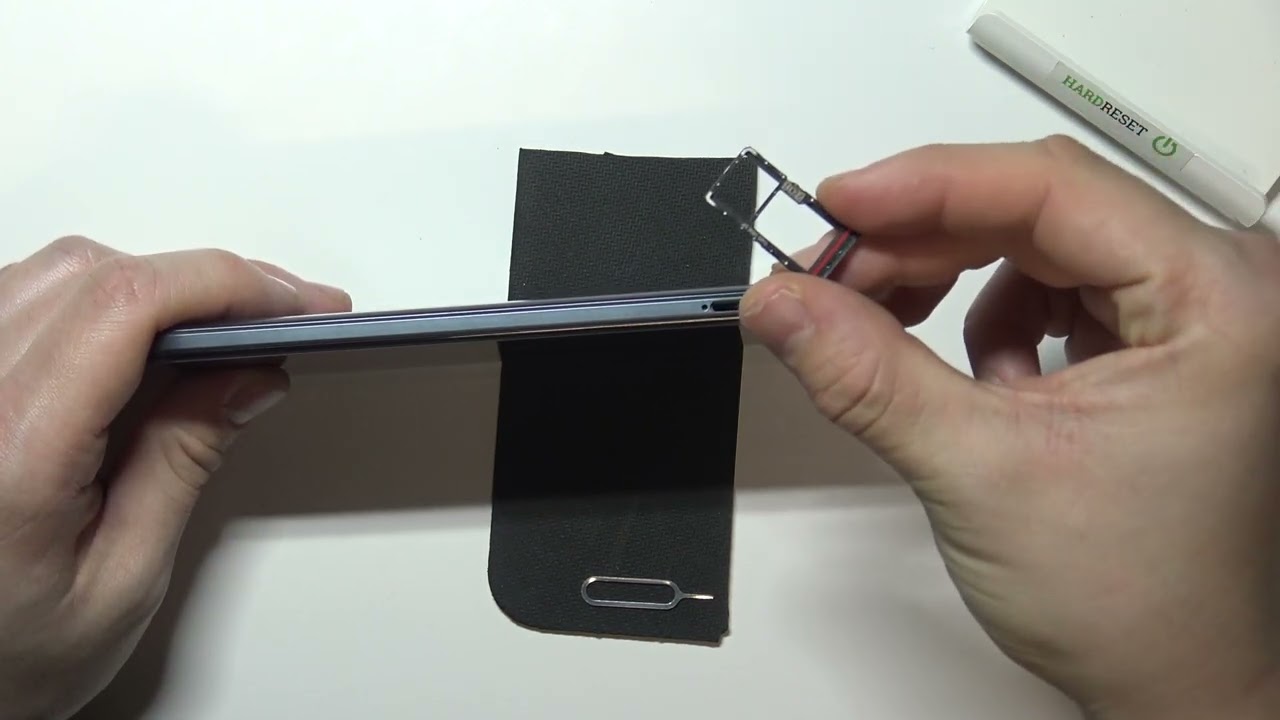
Newer Moto G models, including the Moto G 2025, Moto G Power, and Moto G 5G, use a SIM and microSD card tray located on the side of the device. The SIM card and/or microSD card are inserted into a tray located on the side of the device. Follow these steps:
- Power off your Moto G completely to avoid damage to the SIM card or device.
- Locate the small hole on the side of the phone near the tray.
- Insert the provided SIM ejector tool (or a small paperclip) gently into the hole until the tray pops out.
- Pull the tray out carefully. Do not force it or bend it.
- Place the SIM card into the tray with the gold contacts facing down, matching the tray's shape.
- Slide the tray back into the phone until it clicks securely into place.
Always ensure the phone is powered off before inserting or removing the tray. Never use excessive force, as the tray and internal components are delicate.
How to open Moto G: older models with a removable back
For the original Moto G and Moto G 2nd Gen, the SIM card slot and sometimes the microSD slot are located under a removable back cover. Many newer Moto G phones (e.g., Moto G5 Plus, Moto G6, Moto G7, and Moto G8 series) have non-removable backs that are glued in place. To open these older models:
- Power off the phone completely.
- Place the phone face down on a soft surface to prevent scratches.
- Insert a fingernail into the charging port specifically to begin prying off the back cover.
- Press on the Motorola symbol with your thumb while prying the cover off with your fingernail.
- Lift the back cover away from the phone. The back cover can be removed without any tools, and using them may damage the cover or internal parts.
Do not attempt to pry off a back cover that is not designed to be removed.
Inserting the SIM card correctly
Whether you have a tray-based or back-cover model, the SIM card must be oriented correctly. Place the SIM card with the gold contacts facing down. For tray models, align the notch or corner of the card with the designated area on the tray. For older models, slide the SIM into the slot beneath the back cover, ensuring the contacts face the phone's internal connectors. If you need to take SIM card out of Android, simply reverse the process: power off, eject the tray or remove the back cover, and gently lift the SIM card out.
Inserting and removing a memory card
To expand storage on your Moto G, insert a microSD card into the appropriate slot. For newer models with a side tray, the microSD card shares the tray with the SIM card, place it in the dedicated slot with the contacts facing down. For older models with a removable back, locate the microSD slot (often separate from the SIM slot) and gently push the card in until it clicks. To remove a memory card, power off the phone, eject the tray or remove the back cover, and push the card slightly inward to release it. Your phone may prompt you to format the card before use; follow on-screen instructions to complete formatting.
Powering on your Moto G after setup
Once the SIM card and memory card are properly inserted and the back cover or tray is securely in place, press and hold the Power button (located on the right edge of the device) until the Motorola logo appears. The phone will boot up and display the lock screen. If no screen security is set, swipe up the Lock icon to unlock. If security is enabled, enter your PIN, pattern, or password. Some models allow unlocking with a registered fingerprint by touching the Power button, and certain Moto G 5G models support face unlock by positioning your face within the front-facing camera's area. Follow any initial setup prompts to connect to Wi-Fi or cellular data and sign in to your Google account.
What to avoid when opening your Moto G
Several critical mistakes can damage your phone or SIM card. Never force a non-removable back cover, if the cover does not pry off easily with your fingernail, it is likely glued and not intended for user removal. Never insert or remove a SIM card while the phone is powered on, as this can cause damage to the SIM card or the device. Avoid using metal tools, knives, or screwdrivers to pry open any part of the phone; these can scratch the casing or puncture internal components. If you encounter resistance or are unsure about any step, seek professional repair help to avoid costly damage.
Frequently Asked Questions
Can I replace the battery in Moto G?
No, the battery in Moto G models is not user-replaceable. The device comes with a built-in battery designed to last. If you experience battery issues, contact a certified technician or the manufacturer for assistance.
How do I take a screenshot on Moto G?
Press and hold the Power button and the Volume Down button simultaneously until you see a capture animation or hear a shutter sound. The screenshot saves in the Screenshots folder in the Gallery or Photos app.
Is Moto G waterproof?
Some Moto G models, such as the Moto G7 Power and Moto G8 Power, have an IPx2 water-repellent coating that withstands light rain or splashes. They are not fully waterproof or submersible, avoid immersing the device in water.
How do I perform a factory reset on Moto G?
Go to Settings > System > Reset > Factory data reset. Back up important data first, as this erases all user data and restores the phone to original factory settings.
For the wider topic, see take SIM card out of Android.