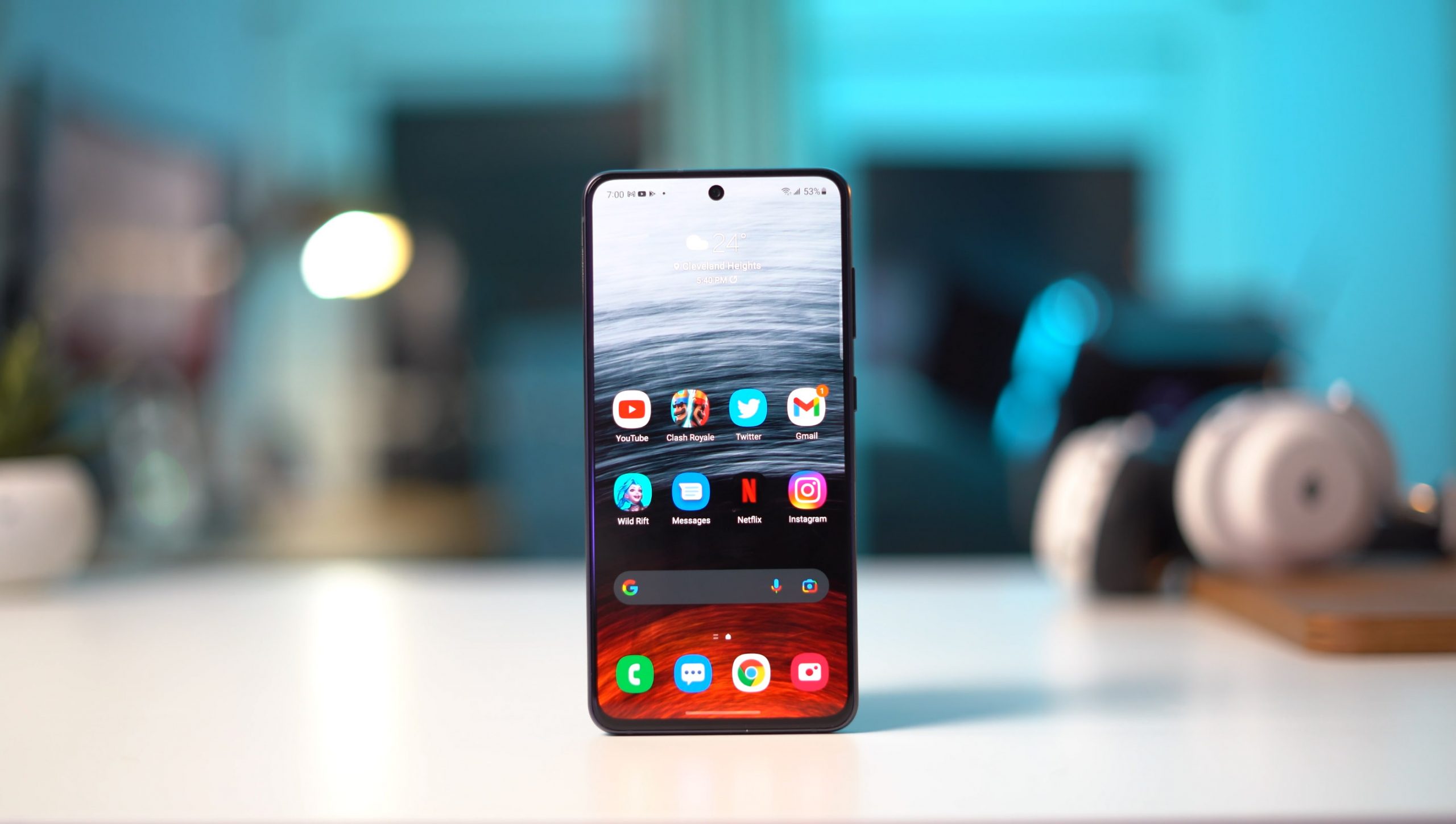
To factory reset your Galaxy S21, open Settings, tap General management, then Reset, and finally Factory data reset. This process wipes all data from the phone, restoring it to its original out-of-box state, and is the standard method for fixing persistent software glitches or preparing the device for resale.
Before you factory reset your Galaxy S21
Ensure device is sufficiently charged before initiating factory reset to avoid interruptions. Back up your data first to avoid losing photos, contacts, and app data. Samsung offers two primary backup methods:
- Samsung Cloud: Go to Settings > Accounts and backup > Backup and restore and follow the prompts to back up to your Samsung account. Backup via Samsung Cloud uses path Settings > Accounts and backup > Backup and restore.
- Google Drive: Use the built-in Android backup option under Settings > Google > Backup to save app data, call history, and settings.
For a remote backup via Find My Mobile, your phone must be connected to Wi‑Fi or a mobile network, signed into a Samsung account, and have Find My Mobile enabled in settings. This feature lets you back up data from another device if your S21 is lost or inaccessible.
How to factory reset your Galaxy S21 from settings
Follow this exact menu path when your phone is working normally:
- Open Settings.
- Tap General management.
- Tap Reset.
- Tap Factory data reset.
- Review the information displayed about what will be erased.
- Tap Reset.
- Tap Delete all to confirm.
Your Galaxy S21 will restart and begin the wipe process. Once complete, it boots to the initial setup screen.
Factory reset an unresponsive Galaxy S21 with buttons
If your phone is frozen, stuck on a boot loop, or otherwise unresponsive, use the recovery-mode button method:
- Power off the device completely. If it won't turn off normally, press and hold the Side and Volume Down keys together for about 10 seconds.
- Press and hold Volume Up + Side until the Android Recovery screen appears.
- Use the Volume Up and Volume Down keys to highlight Wipe data/factory reset (or Delete all user data).
- Press the Power button to select it.
- Highlight Factory data reset and press Power again.
- Select Reboot system now to restart the phone.
This method works for all Galaxy S21 variants, including the S21 5G, S21+ 5G, S21 Ultra 5G, and S21 FE, as documented by Samsung and AT&T support pages.
Remote reset using SmartThings Find
You can trigger a factory reset remotely if your Galaxy S21 is linked to your Samsung account and currently online. Go to the SmartThings Find website on a computer or another device, sign in with the same Samsung account, select your S21, and choose the remote reset option. This is useful if the phone is lost or you cannot physically access it.
Restore your data after the reset
During the initial setup after the reset, you will be prompted to restore from a backup. Sign in to the same Samsung account you used for backup, and select the restore option to recover your backed-up content, including contacts, photos, and app data. If you used Google Drive, sign in to your Google account during setup to restore that backup as well.
Frequently Asked Questions
Does factory reset erase everything?
Yes. A factory data reset permanently deletes all user data, including apps, settings, photos, contacts, and personal files. The phone returns to the exact state it was in when first unboxed. Factory reset cannot be undone; once completed, all data is permanently erased.
Can I reset a locked Galaxy S21?
Yes. If the screen is locked but the phone is otherwise responsive, you can still reset from Settings if you know the PIN, pattern, or password. If you are completely locked out and cannot access Settings, use the recovery-mode button method described above to wipe the device without needing to unlock it.
Do I need to turn off Find My Mobile before resetting?
No. Samsung’s current support documentation for the Galaxy S21 does not include a step to disable Find My Mobile before performing a factory reset. The feature must be enabled for remote backup and SmartThings Find functions, but it does not need to be turned off to reset the phone locally. To turn off Find My Mobile, navigate to Settings > Biometrics and security > Find My Mobile, enter Samsung account credentials, then toggle off Remote controls.
Will a factory reset fix software issues?
It can resolve many persistent software problems, such as frequent app crashes, system freezes, boot loops, and performance slowdowns. However, it will not fix hardware issues like a cracked screen or failing battery. Troubleshoot minor issues before resorting to a factory reset.
What is the difference between factory resetting phones and factory reset a Samsung Galaxy a tablet?
The core process is identical: both devices use the same Settings path (Settings > General management > Reset > Factory data reset) and the same recovery-mode button combination. The only difference is the button names on tablets may vary slightly, but the Volume Up + Power (or Side) method applies to both.